Download and access Learning Zone
There're prerequisites to download and access Learning Zone.
Licensing and account requirements
Microsoft Learning Zone is available to organizations with a Microsoft 365 Education license, specifically A1, A3, or A5. Educators must sign in with an account that belongs to an education tenant to create and manage lessons within the app.
There isn't an additional cost for the Learning Zone application itself when used within eligible education licenses. This design allows institutions to adopt the tool without separate procurement, while still maintaining administrative control over availability and usage.
Device requirements
To generate lessons in Microsoft Learning Zone, educators must use a Copilot+ PC. These Windows 11 devices include a dedicated neural processing unit (NPU) that powers the on-device AI used for lesson generation and refinement.
All other Learning Zone capabilities, including managing, assigning and sharing lessons, accessing insights, and using the partner content gallery, are available on any Windows device.
Learners can play created lessons through the web on a wide range of devices, allowing institutions to benefit from advanced AI-assisted creation without requiring new hardware for participation.
Regional and language availability
Lesson generation is available in both English and Spanish, while gallery ready-to-learn lessons and the interface is available in over 50 languages.
Download and get started
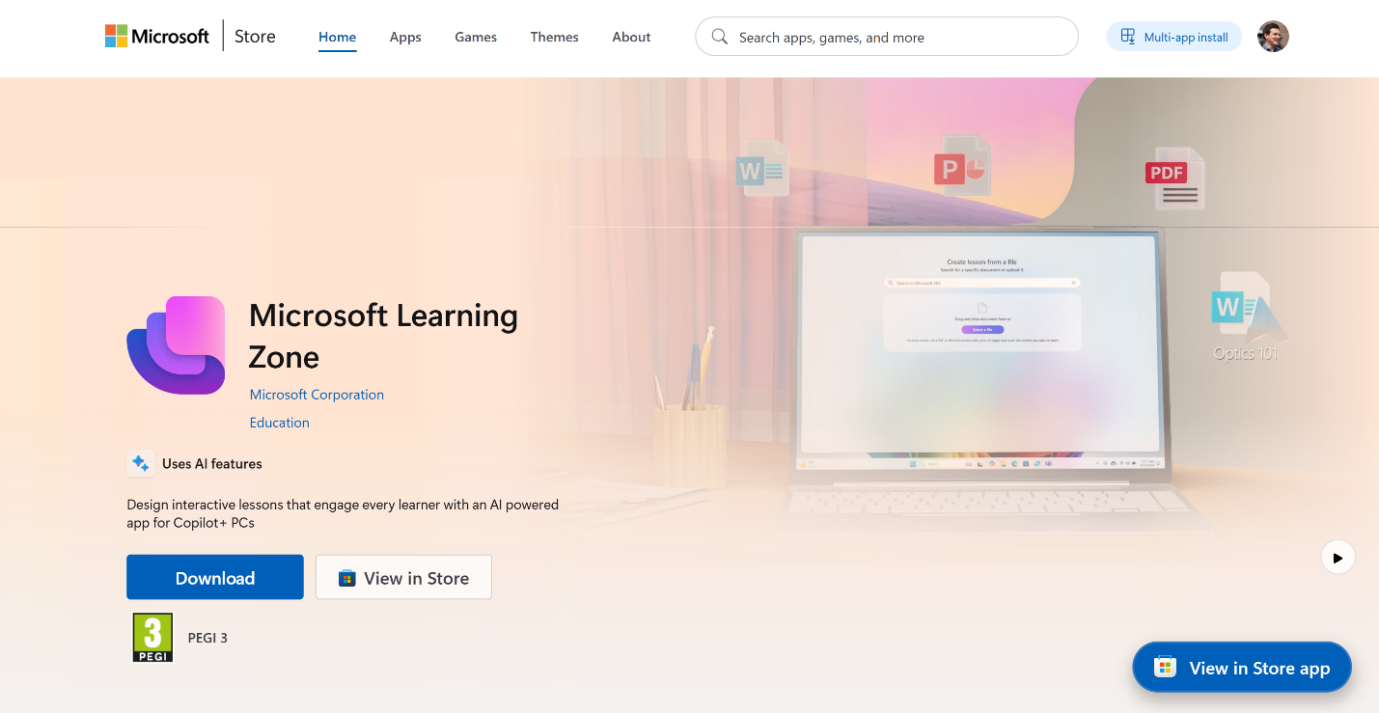
Microsoft Learning Zone is distributed through the Microsoft Store. Educators should install the app directly on a Windows 11 device using the Microsoft Store account associated with their organization.
To download:
Search for Microsoft Learning Zone in the Microsoft Store or open https://aka.ms/getLZ.
Select the app published by Microsoft Corporation.
Choose Install (or Update, if already present).
The application installs locally and updates are managed automatically through the Microsoft Store, ensuring users remain on a supported version without manual intervention.
Get started
When you open Microsoft Learning Zone for the first time, sign in using your existing Microsoft Education account. Typically, this is the same credentials used for Microsoft 365 or Microsoft Teams. Learning Zone uses Microsoft's standard sign-in process, so there isn't a separate username or password to remember.
Once signed in, Learning Zone automatically recognizes your organization and device type and applies the appropriate permissions. This ensures your access, content creation, and sharing options are aligned with your institution's policies from the outset. You remain signed in between sessions, making it easy to return to the app without repeated authentication.
What you see after you sign in
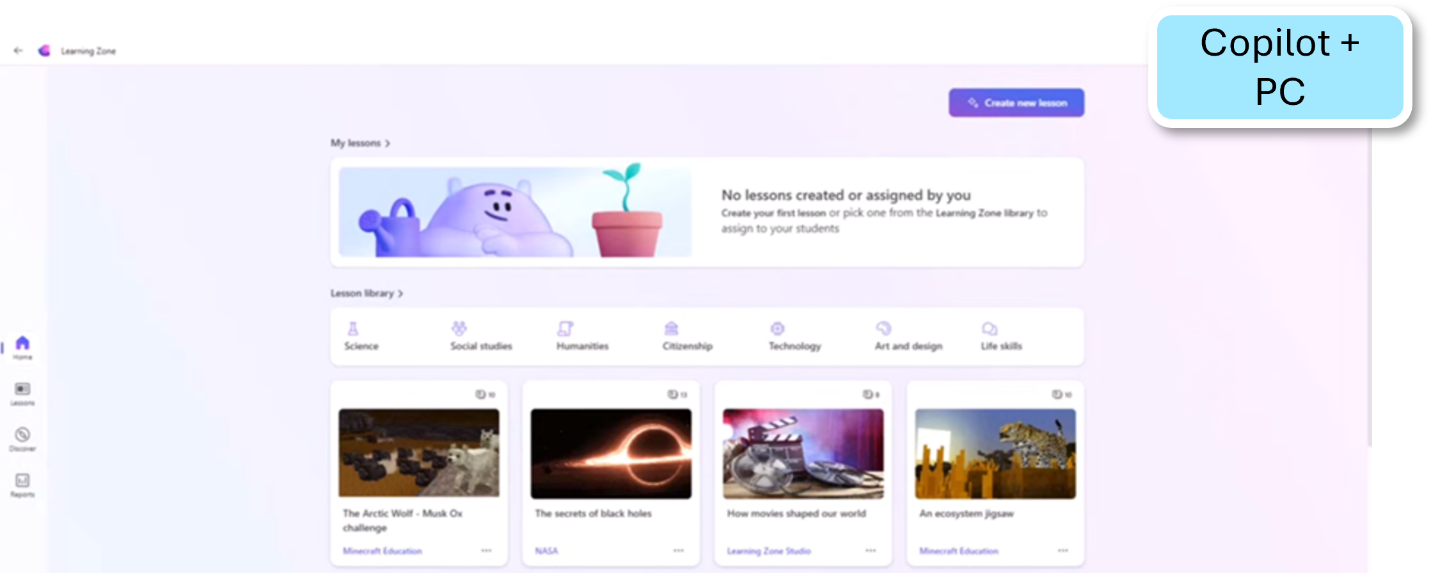
After you sign in, you are guided through a short and straightforward onboarding experience before accessing to the home page. On Copilot+ PCs, a Create button in the lobby generates a new lesson.
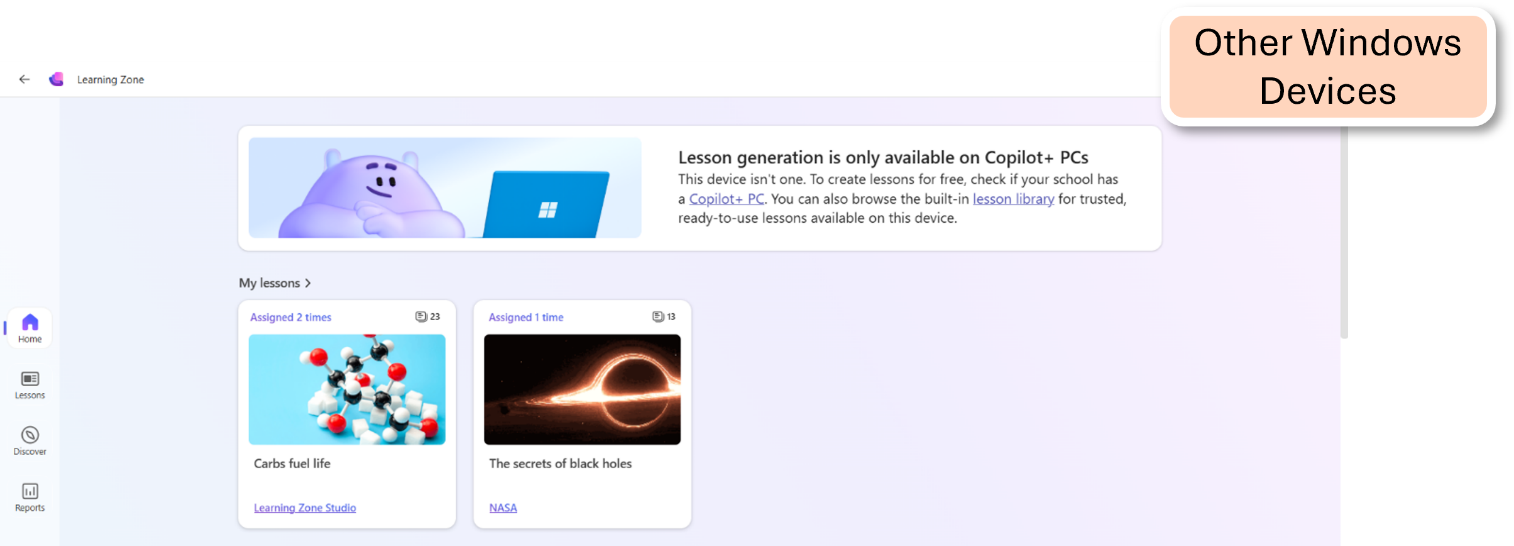
On other Windows devices, you explore gallery lessons and lessons shared with you through the left sidebar.
Note
Learners typically access Learning Zone lessons through a shared link in a web browser or through Microsoft Teams assignments (or another supported LMS), so they don't need to download the Windows application. However, if they do use the application, they're able to access the gallery of lessons to work independently.
Privacy and security from first access
From the moment you sign in, Learning Zone operates within Microsoft's established education security and privacy framework. Authentication, access control, and data handling follow the same standards used across Microsoft 365 Education services, supporting secure and responsible use from first access onward.
Integrations
Microsoft Learning Zone is designed to integrate with the tools and platforms you already use in your teaching, including Microsoft Teams, and complements your primary collaboration space by handling the interactive lesson experience, while class discussions, assignments, feedback, and follow-up activities remain within your existing teaching and learning workflows.