Design and implement a clustering strategy
Optimizing how data is physically organized on disk directly affects query performance and storage efficiency. When you design a clustering strategy for your Delta Lake tables, you determine how the query engine locates and retrieves relevant data. The right approach can dramatically reduce the amount of data scanned during queries, lowering both response times and compute costs.
Azure Databricks provides several complementary techniques for data organization. Understanding when to apply liquid clustering, Z-ordering, or deletion vectors helps you make decisions that balance performance, maintenance effort, and compatibility with your existing tables.
Understand data skipping fundamentals
Before examining specific clustering techniques, it's important to understand the underlying mechanism they all leverage: data skipping. Delta Lake automatically collects statistics for each data file, including minimum and maximum values, null counts, and record counts for each column. When you execute a query with filter conditions, the query engine checks these statistics first and skips files that can't possibly contain matching records.
For example, if you query sales data for January 2026, and a particular file's statistics show it contains only records from March 2026, the engine skips that file entirely without reading its contents. This optimization happens automatically, but its effectiveness depends on how well your data is organized.
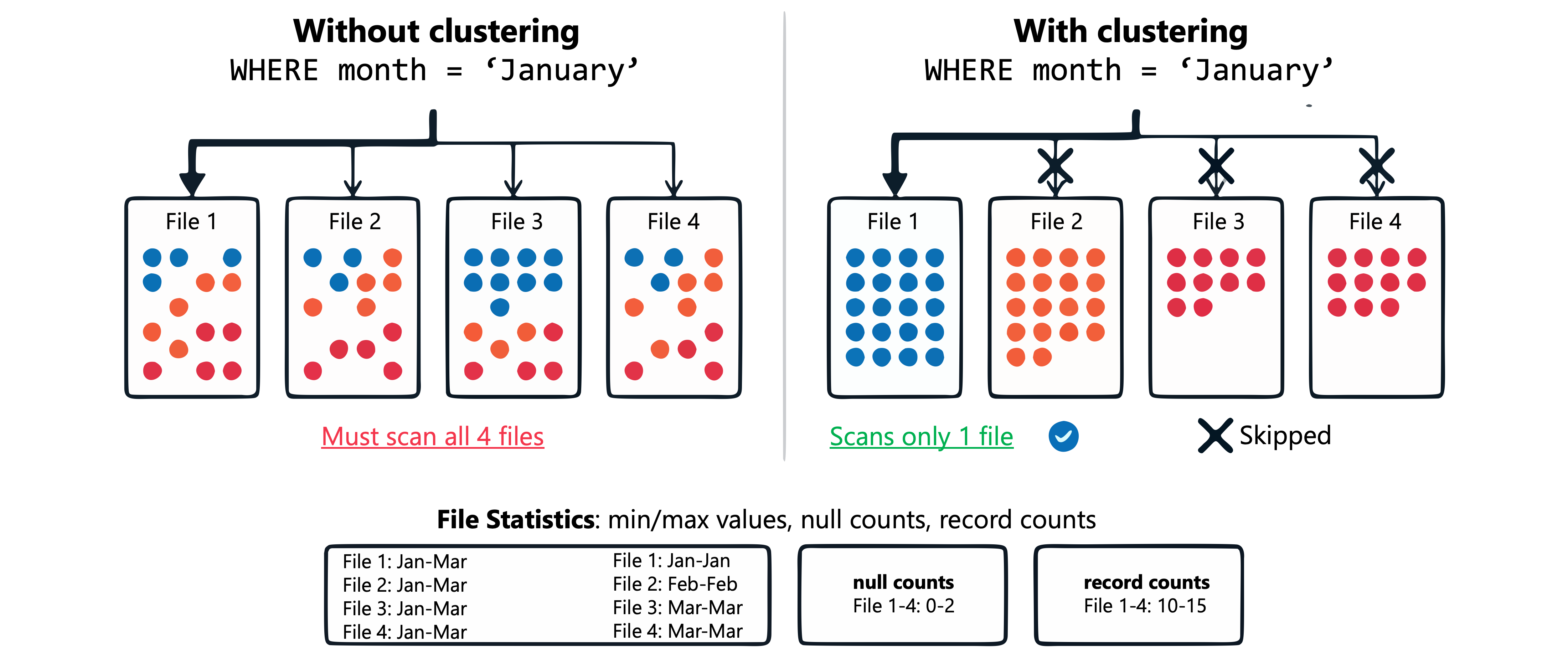
Data skipping becomes powerful when related records are stored together in the same files. If records for each month are scattered randomly across all files, the engine can't skip any files because each file contains records from every month. Clustering techniques exist to solve exactly this problem.
Implement liquid clustering for new tables
Liquid clustering is the recommended approach for organizing data in new Delta Lake tables, and is also available in Public Preview for managed Apache Iceberg tables in Unity Catalog (Databricks Runtime 16.4 LTS and above). Unlike traditional partitioning, liquid clustering allows you to change your clustering strategy without rewriting existing data. This flexibility is valuable when query patterns evolve or when you're uncertain which columns will be filtered most frequently.
Note
For managed Iceberg tables in Unity Catalog, specifying a PARTITION BY clause is interpreted as liquid clustering keys — not traditional Hive-style partitions. There is no separate Iceberg-specific partition behavior; all layout optimization goes through liquid clustering.
To enable liquid clustering, use the CLUSTER BY clause when creating a table:
CREATE TABLE sales.transactions (
    transaction_id STRING,
    customer_id STRING,
    product_category STRING,
    region STRING,
    transaction_date DATE,
    amount DECIMAL(12,2)
)
CLUSTER BY (region, transaction_date);
You can specify up to four clustering keys. Choose columns that appear frequently in your query filters. The order of clustering keys matters less than selecting the right columns, as liquid clustering optimizes for all specified keys simultaneously.
After creating a clustered table, run the OPTIMIZE command to apply clustering to your data:
OPTIMIZE sales.transactions;
Liquid clustering is incremental. Each OPTIMIZE run clusters only the data that needs reorganization, making regular maintenance efficient. Databricks recommends scheduling OPTIMIZE jobs every one or two hours for tables with frequent inserts or updates.
Tip
For Unity Catalog managed tables, enable predictive optimization to automate OPTIMIZE operations. Azure Databricks analyzes your workload patterns and runs maintenance operations automatically.
Change clustering keys when needed
One significant advantage of liquid clustering over partitioning is the ability to modify your clustering strategy. If your query patterns change, update the clustering keys with an ALTER TABLE statement:
ALTER TABLE sales.transactions
CLUSTER BY (customer_id, transaction_date);
Subsequent OPTIMIZE operations use the new clustering approach. Previously written data isn't automatically rewritten. To apply new clustering to all existing data, run:
OPTIMIZE sales.transactions FULL;
Enable automatic clustering key selection
Azure Databricks can intelligently select clustering keys based on your actual query patterns. Automatic liquid clustering analyzes workload history and chooses columns that provide the greatest data skipping benefit:
CREATE TABLE sales.orders CLUSTER BY AUTO;
You can enable automatic clustering on existing tables:
ALTER TABLE sales.transactions CLUSTER BY AUTO;
Automatic liquid clustering requires predictive optimization to be enabled. Azure Databricks periodically evaluates whether different clustering keys would improve performance and adjusts the strategy accordingly.
Migrate from Z-ordering to liquid clustering
Z-ordering is a legacy technique that organizes data to colocate related information in the same files. While liquid clustering is recommended for new tables, you'll encounter existing tables that use Z-ordering and need to understand both approaches.
Z-ordering uses the OPTIMIZE command with a ZORDER BY clause:
OPTIMIZE sales.legacy_transactions
ZORDER BY (region, transaction_date);
Z-ordering differs from liquid clustering in several important ways:
| Aspect | Liquid Clustering | Z-Ordering |
|---|---|---|
| Key flexibility | Change keys without data rewrite | Changing keys requires full rewrite |
| Write performance | Clustering on write for eligible operations | Applied only during OPTIMIZE |
| Concurrent writes | Row-level concurrency supported | Transaction-level concurrency |
| Compatibility | Requires Databricks Runtime 13.3 LTS or above | Supported in all runtimes |
When you inherit a Z-ordered table, you have two options. Continue using Z-ordering for consistency, or migrate to liquid clustering for improved flexibility. To migrate, first enable liquid clustering on the existing unpartitioned table:
ALTER TABLE sales.legacy_transactions
CLUSTER BY (region, transaction_date);
Then run a full optimization to reorganize all existing data:
OPTIMIZE sales.legacy_transactions FULL;
Important
Liquid clustering is not compatible with partitioning. For partitioned tables, evaluate whether the benefits of liquid clustering justify migrating to an unpartitioned table structure.
Manage deletion vectors for efficient updates
Deletion vectors address a different aspect of data organization: how Delta Lake handles modified or deleted records. By default, when you update or delete a single row in a Parquet file, Delta Lake must rewrite the entire file. For tables with frequent modifications, this creates significant overhead.
With deletion vectors enabled, Delta Lake marks modified rows as deleted in a separate metadata file rather than rewriting the Parquet file immediately. Subsequent reads apply these deletions on the fly, combining the original file with the deletion vector to return accurate results.
Deletion vectors are enabled by default for new tables created with Databricks Runtime 14.1 or above. You can enable them explicitly on existing tables:
ALTER TABLE sales.transactions
SET TBLPROPERTIES ('delta.enableDeletionVectors' = true);
Deletion vectors are applied physically when the data files are rewritten during:
- An
OPTIMIZEcommand - Auto-compaction triggers
- A
REORG TABLE ... APPLY (PURGE)operation
For compliance scenarios where you need to ensure deleted data is physically removed, run a REORG operation followed by VACUUM:
REORG TABLE sales.transactions APPLY (PURGE);
VACUUM sales.transactions;
Deletion vectors also enable row-level concurrency, allowing multiple concurrent transactions to modify different rows in the same table without conflicts. This capability is particularly valuable for tables with high update volumes.