Use Azure Static Web Apps with a data API
Static web apps are a concept in web site design that has become popular. They consist of content sent directly to a user's browser that doesn't require any code to be executed on the server. Static web apps consist of HTML and CSS. They also often include JavaScript code, which executes on the client-side, not the server. Web developers often find that static web apps:
- Can be developed quickly with frameworks like Bootstrap, Jekyll, and AngularJS.
- Are simple to scale because no state changes on the server.
- Encourage separation between user interface code and back-end functionality.
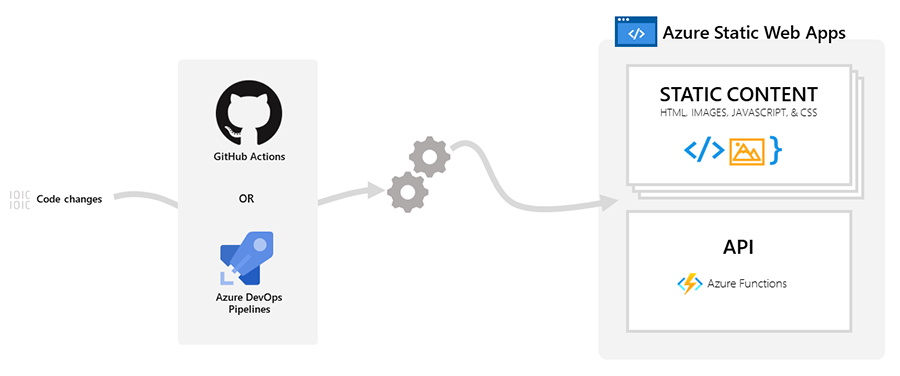
Azure Static Web Apps is a service in Azure designed to make it simpler to code and deploy static web apps to Azure for production. Azure Static Web Apps supports continuous deployment by monitoring a code repository in GitHub or Azure DevOps. When you make a change to the web site code, and push your change to the repository, Azure Static Web Apps spots the change and automatically builds and deploys the new site to Azure. Immediately, your change becomes available to users.
Note
The Database Connections feature that previously let Azure Static Web Apps host Data API builder (DAB) directly was retired on November 30, 2025. The current pattern is to host DAB as a standalone service in Azure Container Apps or Azure App Service (see the next unit), and have your Static Web App front end call that endpoint over HTTPS. For details, see Database Connections retirement.
Create a static web app
Start by navigating to the Azure portal and selecting Create a resource. In the search bar, enter Static Web App. When the Static Web App card appears, select it and then select Create.
Next, choose your Subscription and either select an existing Resource Group or create a new one. In the Name textbox, enter a descriptive name for your app. You need to select the Plan type. For personal projects, you can use the Free plan, while for production apps, the Standard plan is recommended.
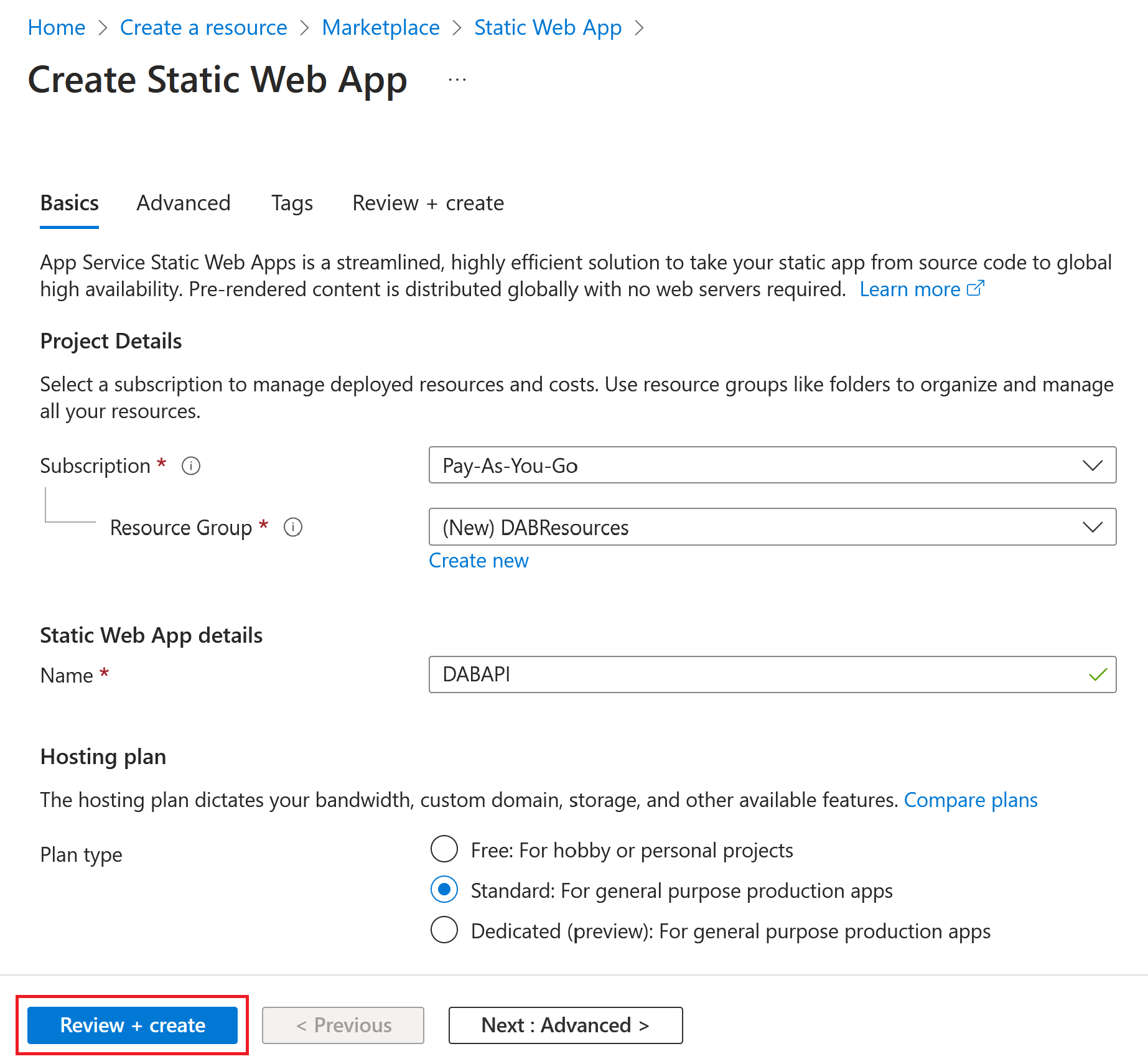
Under Deployment details, specify the type of repository that contains your app. You need to sign into GitHub or select the repository and branch in Azure DevOps. Finally, review your settings by selecting Review + create, and then select Create to complete the process.
Deploy the data API separately
Because DAB is no longer hosted inside Azure Static Web Apps, deploy it as its own service. The two supported options are:
- Azure Container Apps — recommended for most workloads. Uses the official
mcr.microsoft.com/azure-databases/data-api-buildercontainer image and integrates with managed identity, Key Vault, and revisions. - Azure App Service — useful if you already run other web workloads on App Service and want to standardize on it.
The next unit walks through the Azure Container Apps deployment step by step. When the deployment finishes, note the public FQDN of your DAB endpoint — for example, https://<container-app-name>.<region>.azurecontainerapps.io. You reference this URL from the Static Web App.
Configure the front end to call the DAB endpoint
Once your DAB service is deployed, you can call its REST or GraphQL endpoints from JavaScript running in the Static Web App.
Enable CORS on DAB. In the DAB configuration file, add the Static Web App origin to
runtime.host.cors.originsso the browser allows the front end to call the API."runtime": { "host": { "cors": { "origins": [ "https://<your-static-web-app>.azurestaticapps.net" ], "allow-credentials": false } } }Reference the DAB endpoint from your front-end code. Store the base URL in a config file or build-time variable, then call the REST or GraphQL endpoint with
fetch. For example, to read theAddressentity:const DAB_ENDPOINT = "https://<container-app-name>.<region>.azurecontainerapps.io"; const response = await fetch(`${DAB_ENDPOINT}/api/Address`); const data = await response.json();
Note
To avoid exposing your DAB endpoint to anonymous callers on the public internet, restrict inbound traffic to the Static Web App's outbound IPs, or protect the endpoint with Microsoft Entra ID authentication and validate the caller's token in DAB.
Validate access to the API
To validate that the two services work together, browse the Static Web App URL from the Azure portal Essentials section. Confirm that the page loads and that the browser network log shows successful requests to the DAB endpoint (HTTP 200 responses containing your entity JSON).
You can also test the DAB endpoint directly by opening https://<container-app-name>.<region>.azurecontainerapps.io/api/Address in a browser or with curl — you should receive a JSON response listing rows from the Address table.