Implement keyboard accessibility
To implement keyboard accessibility effectively, follow these recommendations:
Ensure the specs are thorough
Before starting development, it's crucial to inspect the design specifications thoroughly. Ask questions such as:
- Can I invoke the button with Space as well?
- What if I press Ctrl + F6?
- Where does focus go after I dismiss the flyout?
- What does the keyboard focus visual indicator look like?
This proactive approach of analyzing how each interactive element should work helps identify potential accessibility issues early, making it easier to implement solutions during development.
Create a good technical design
Developing a well-componentized technical design is essential for facilitating accessibility. A component-based approach allows for reusable and consistent implementation of accessible features across the entire application. This modular design ensures that accessibility considerations are integrated into each component, making it easier to maintain and update.
Use semantic controls
Wherever possible, use semantic HTML controls, such as <button>, <a>, and <input>, because they're inherently accessible. Semantic HTML elements come with built-in keyboard functionality. Assistive technologies automatically recognize them, reducing the need for custom accessibility implementations for your product.
When building custom controls, set the tabindex to 0 or 1 to ensure proper focus management. Avoid using positive tabindex values, as they can create an unpredictable focus order. Custom controls should be designed to be keyboard-operable and should include appropriate Accessible Rich Internet Applications (ARIA) roles and attributes to provide additional context to assistive technologies. ARIA should only be used when using semantic HTML, and the default accessibility experience using those semantics isn't good enough to provide an equitable experience to the user.
<button>End Session</button>

<a href="https://support.microsoft.com/en-us/office/6f7772b2-2f33-4bd2-8ca7-dae3b2b3ef25">Learn more</a>

<label for="shouldUseSubtitlesInput">Always Use Subtitles</label>
<input type="checkbox" id="shouldUseSubtitlesInput" checked>
Use device-independent event handlers
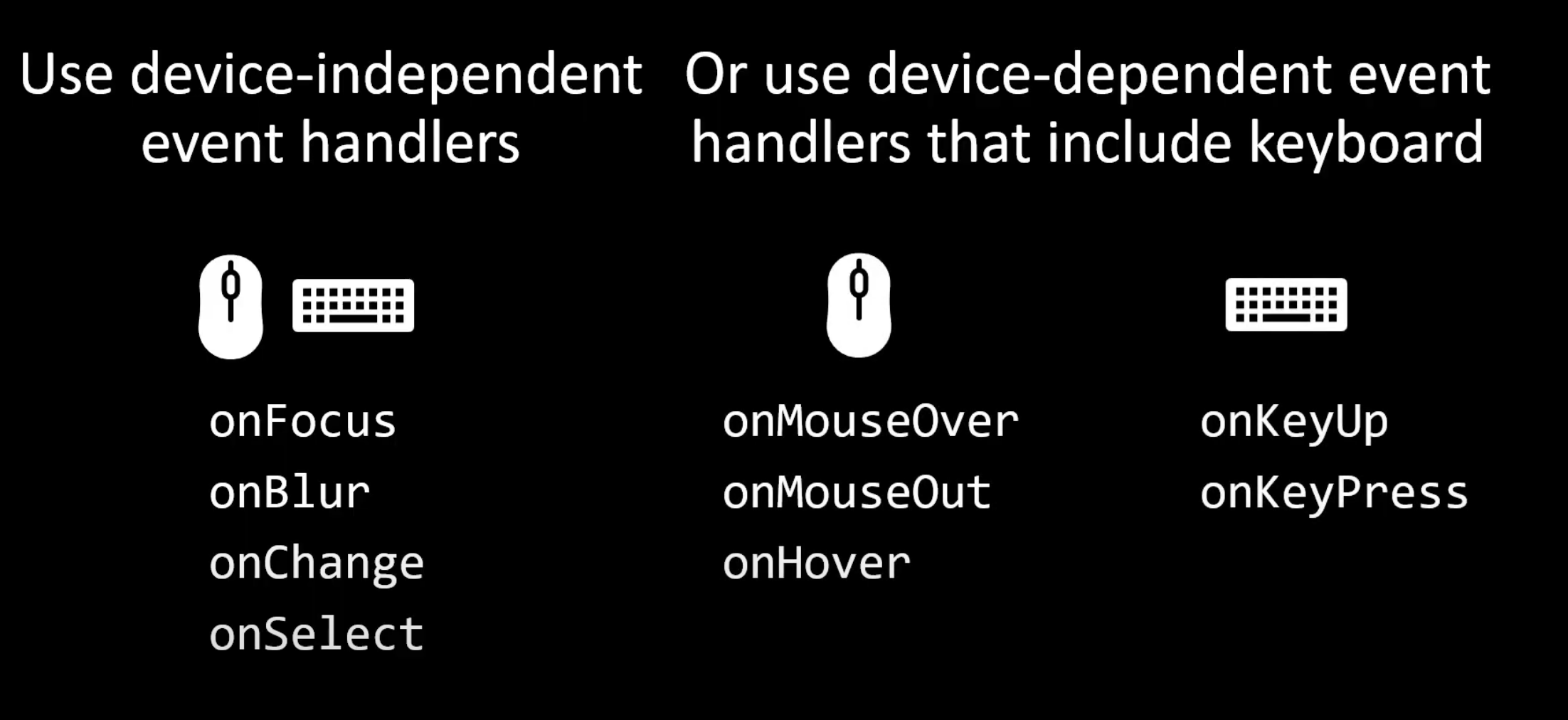
Use device-independent event handlers like onFocus, onBlur, onChange, and onSelect to make your application more accessible across different devices. These event handlers work across different input devices, including keyboards, mice, and touchscreens, providing a consistent user experience. If you must use device-dependent event handlers, include both mouse and keyboard event handlers such as onMouseOver, onMouseOut, onHover, onKeyUp, and onKeyPress to cater to all users. Use the .focus() method to set the keyboard focus programmatically when needed, and always include a visual indicator for keyboard focus to help users navigate your application more easily.
Set keyboard focus
Use the .focus() method to set the keyboard focus when needed and include a visual indicator for the focused element. Visible focus indicators are essential for keyboard accessibility, as they help users identify which element is currently active and ready for interaction. Keyboard-navigating users rely on visual cues to understand where the focus is and what actions they can take next. Without clear focus indicators, users may become disoriented and struggle to interact with the content effectively. Clear visual cues like outlines or highlights help users navigate and interact with content more easily. A common approach is to add a visible outline or border to an element when it gains focus. For instance, in web apps, you can use the :focus pseudo-class in CSS to apply a noticeable outline to buttons, links, and form fields. This ensures that when an element receives focus, it's visually distinct from other elements on the page. Avoid auto-style since it doesn't render the same across browsers. Finally, ensure the keyboard focus doesn't shift unexpectedly. For instance, if the focus is on the first pane tab and you press the down arrow, it shouldn't jump to the help pane and disrupt navigation.
Use semantic elements
It's also important to use semantic HTML elements and ARIA roles and attributes when needed to enhance keyboard accessibility. These elements not only define the content but also provide important information about the role and purpose of different parts of a web page. Using semantic HTML is crucial for creating accessible and user-friendly digital content. Semantic HTML elements, such as <button>, <a>, and <form>, are inherently keyboard accessible and provide meaningful information to assistive technologies. For example, a <button> element can be activated using the Enter or Spacebar keys, and an <a> (anchor) element can be navigated to and activated using the Tab and Enter keys. These elements are designed to be operable via keyboard without requiring additional scripting or customization. In addition to their keyboard accessibility, semantic HTML elements provide meaningful information to assistive technologies like screen readers. For instance, a screen reader can announce that a <button> is a button and that a <form> is a form, helping users understand the structure and functionality of the content.
ARIA roles and attributes are essential tools for enhancing the accessibility of custom components and dynamic web content. They provide additional context and information to assistive technologies, ensuring that users with disabilities can understand and interact with complex web elements effectively. Use ARIA roles sparingly and only when the built-in accessibility of semantic HTML elements is insufficient. ARIA roles define the purpose and behavior of an element. For example, assigning the role of button to a custom interactive element informs assistive technologies that the element functions as a button, even if it isn't a native HTML <button>. This allows screen readers to announce the element as a button, helping users understand its functionality. Common ARIA roles include button, dialog, menu, tab, and alert, among others. Using these roles ensures that custom components are accessible and provide meaningful information to users. ARIA attributes, such as aria-label and aria-labelledby, provide additional information about interactive elements.
- The aria-label attribute defines a string that labels an element, which is especially useful for elements without visible text labels. For example, a search icon button can be labeled with aria-label="Search" to inform screen readers of its purpose.
- The aria-labelledby attribute is used to reference another element that contains the label text. This is useful for associating a label with a form control, such as linking a text input field to its corresponding label element.
- Other important ARIA attributes include aria-expanded, which indicates whether a collapsible element is expanded or collapsed, and aria-hidden, which hides elements from assistive technologies. By using ARIA roles and attributes, developers can enhance the accessibility of custom components, ensuring that all users can navigate and interact with web content effectively.
Avoid keyboard traps
Avoiding keyboard traps is a crucial aspect of ensuring keyboard accessibility. A keyboard trap occurs when a user navigates to an interactive element using the keyboard but is unable to move focus away from that element, requiring them to reload the page or restart the app. This can be frustrating and disorienting, especially for users who rely solely on keyboard navigation. To prevent keyboard traps, developers should ensure that all interactive elements are fully operable and that users can navigate away from them using standard keyboard keys, such as the Tab key. One common cause of keyboard traps is custom components or widgets that do not properly manage focus. For example, a modal dialog or a dropdown menu should allow users to navigate into and out of the component without getting stuck. This can be achieved by setting appropriate focus management within the component and ensuring that the Tab key moves focus to the next logical element. Make sure that users aren't able to navigate to elements that are collapsed or hidden. For example, if the transcript pane is collapsed, the keyboard focus shouldn't move to its elements.
Test, test, test
One of the most important tips is to test your website or application using only a keyboard. This helps identify any elements that are not accessible or operable via keyboard. Make sure that all interactive elements, such as buttons, links, and form fields, can be reached and activated using the Tab key and other standard keyboard shortcuts. Additionally, ensure that the focus order is logical and intuitive, following the visual layout of the content. This helps users understand the navigation flow and locate the elements they need to interact with. Fix any issues you identify.