Use the Remote - SSH extension in Visual Studio Code
Now that you've set up your SSH server, let's learn how to connect to the remote machine from your local machine. Developers at your agency want to continue using Visual Studio Code as their editor. Developing on a remote machine using Visual Studio Code is possible through the Remote - SSH extension.
The Remote - SSH extension
The Visual Studio Code Remote - SSH extension lets you use any remote machine with an SSH server as your development environment. The extension opens a connection between your local machine and the remote. The extension installs a server called the Visual Studio Code Server on the remote environment, which allows local Visual Studio Code to smoothly interact with remote source code and runtimes.
Once connected to a remote machine, you can interact with files and folders anywhere on the remote file system and take advantage of Visual Studio Code's full feature set, like IntelliSense (completions), code navigation, and debugging. The extension runs commands and other extensions directly on the remote machine, so no source code needs to be on your local machine to gain these benefits.
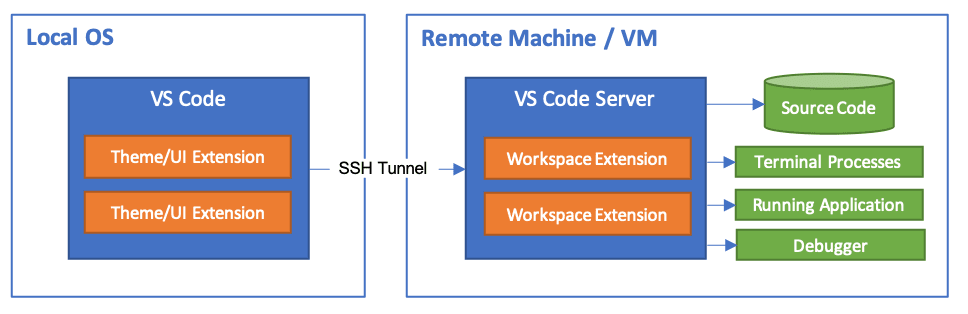
Visual Studio Code runs extensions in one of two places: locally on the UI/client side, or remotely on the SSH host. While extensions that affect the Visual Studio Code UI—like themes—are installed locally, most extensions reside on the remote machine. This setup ensures you have a smooth experience and allows you to install any needed extensions for a given workspace on a remote machine from your local machine. This way, you can pick up exactly where you left off, from a different machine complete with your extensions.
Only use Remote - SSH to connect to secure remote machines that you trust and that are owned by a party you trust. A compromised remote could use the Visual Studio Code Remote connection to execute code on your local machine.
In the next section, you'll install the Remote – SSH extension and use it to connect to the SSH server that you created.