Test screen reader support
Testing is crucial for ensuring screen reader accessibility. In this section, we'll introduce some of the processes and tools that are helpful for testing and debugging screen reader support in your digital products.
Manual testing
Here are some ways to manually test your website or app for screen reader support.
- Use the feature with a Screen Reader and keyboard:
- Windows: Narrator, JAWS, or NVDA
- Mac: VoiceOver
- iOS: VoiceOver
- Android: Talkback
- Navigate the feature:
- Use keyboard shortcuts to navigate through the app or website.
- Ensure the screen reader announces each element as you navigate, providing accurate and sufficient information for understanding location and context without looking at the screen.
- Ensure that the information is not overly verbose.
- Ensure the feature is tracking properly.
- Review element identification:
- Confirm that every element has a proper name, role, and value.
- Ensure that labels are correctly associated with their respective elements.
- Test two (2) navigation methods:
- Navigate the feature and ensure the screen reader follows.
- Navigate with the screen reader and then interact with the feature.
- Check titles and labels:
- Verify that each window or page has a title.
- Ensure visible labels are part of the element's name and that each is unique.
- Check input controls:
- Check that all input controls have names or instructions.
- Verify that relationships between elements are specified and error messages are clear.
- Check images:
- Ensure decorative images are skipped by the screen reader.
- Verify that important images have descriptive names that describe their content and context.
- Other verifications:
- Confirm that links have meaningful names, not just URLs.
- Ensure all text is accessible and readable by the screen reader.
- Verify that tables have headers and are announced correctly.
- Ensure the language of the content is specified for the screen reader.
User testing
User testing for screen reader support is crucial to ensure that websites and applications are usable by everyone, including people with disabilities. This type of testing helps identify and address barriers that might prevent users who rely on keyboards or assistive technologies from fully interacting with digital products. By involving people with disabilities in the testing process, developers can gain valuable insights into real-world challenges and ensure that the user experience is inclusive and accessible.
Tools
Here are some tools you can use to test your website or app's accessibility:
- Browser debuggers: Built-in tools in web browsers that assist developers in finding and correcting code errors. They enable you to set breakpoints, examine variables, and walk through code execution to diagnose and fix problems.
- Accessibility Insights for Web: This is a plugin for Edge and Chrome. This tool helps catch common accessibility issues quickly, but manual testing is still necessary.
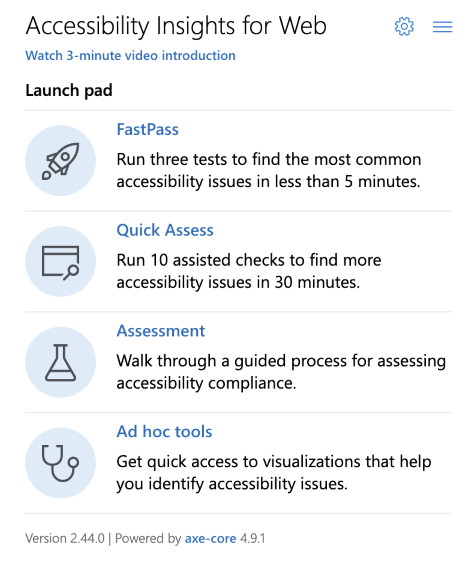
View of Accessibility Insights’ launch pad. It provides four options: FastPass, which runs three tests to find common accessibility issues in under 5 minutes; Quick Assess, which runs 10 assisted checks to find more accessibility issues in 30 minutes; Assessment, which guides users through a process to assess accessibility compliance; and Ad hoc tools, which offer quick access to visual tools for identifying accessibility issues.
- Accessibility Insights for Windows: This tool is great for debugging rich client apps on Windows and can also be used for web apps. The Live Inspect tool shows the accessibility tree, including parent and sibling elements. It displays control types, names, and patterns and allows you to invoke patterns like toggling a button. This tool helps identify whether issues are in your apps' HTML and ARIA, the browser's UIA exposure, or the screen reader's experience.
- Apple’s Accessibility Inspector: This tool is included with Xcode and allows you to inspect elements in iOS apps. Click the target tool, hover over an element to get information, and lock on it to see its properties and position in the accessibility tree. It also supports inspecting elements in an iOS simulator. However, we recommend always building to the device and running VoiceOver.
- Lighthouse: Lighthouse is a built-in Chrome tool that evaluates web pages for quality by checking performance, accessibility, best practices, SEO, and Progressive Web App features. It runs tests on any page and provides a report with issues and recommendations for improvement. Lighthouse helps developers optimize sites to be faster, more user-friendly, and accessible.