Use Copilot in Word to create a campaign brief
You’re a marketer at a company launching a new productivity app for small business owners. Your company’s goal is to increase sign-ups by 15% over the next 60 days through a digital campaign. You need to create a campaign brief to align your team.
Important
In order to complete this exercise, an eligible Microsoft 365 subscription and Microsoft 365 Copilot license is required.
Gather your information
Before opening Word, make sure you have the information you need. For this example, most are provided. Choose your own name for this application.
- Product name: Your choice
- Product description: A time-blocking and task management application
- Target audience: Small business owners from 30-50 years old
- Campaign goal: Increase sign-ups by 15% over the next 60 days
- Channels: Email, LinkedIn, and paid search
- Budget: $20,000 US
- Tone: Professional and friendly
Prepare the workspace
Open Microsoft Word. Make sure you're signed into a Microsoft 365 account with access to Microsoft 365 Copilot.
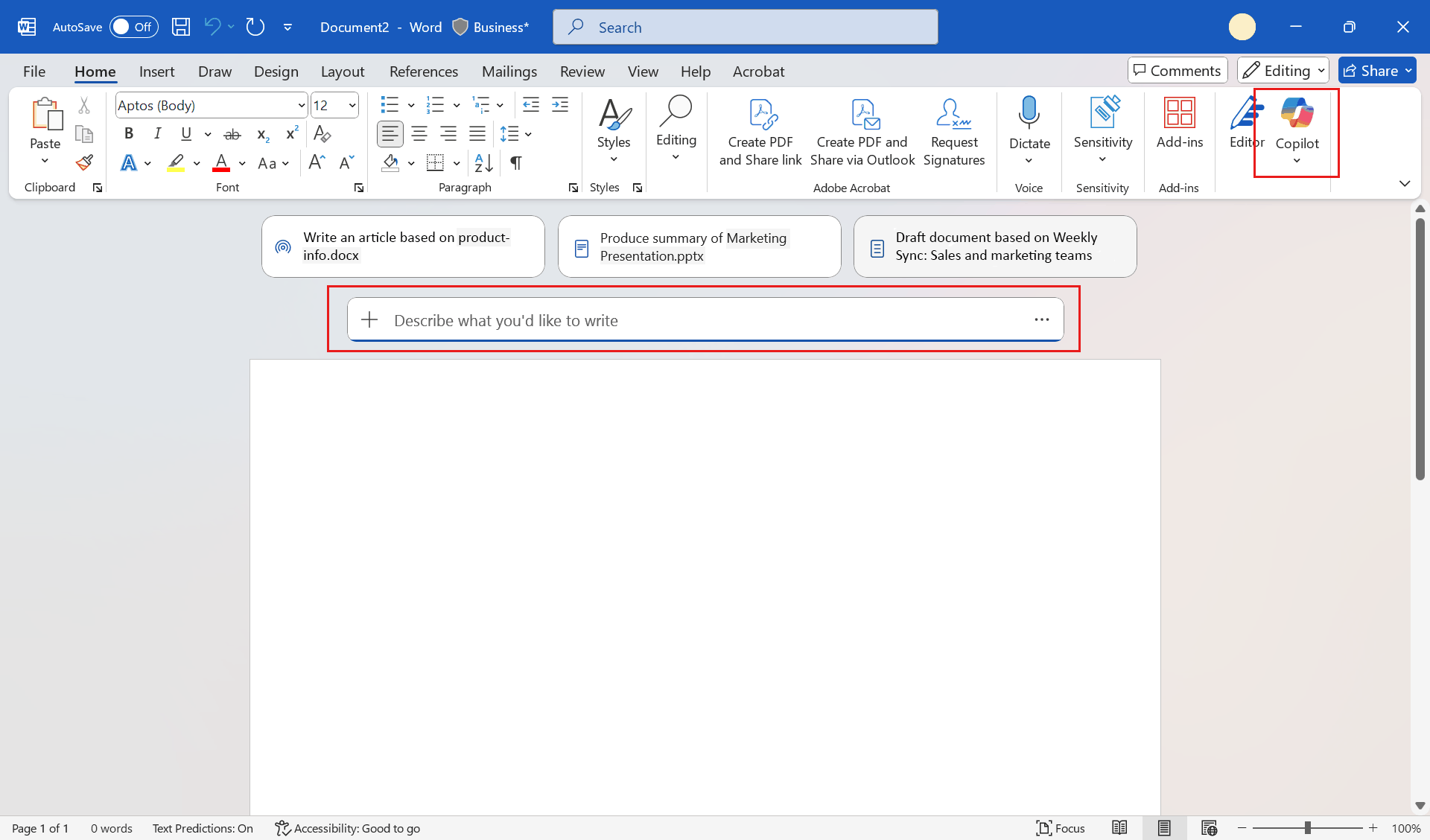
There are many places you can interact with Copilot in Word.
- Copilot on the Home Ribbon. This launches Microsoft 365 Copilot in a sidebar.
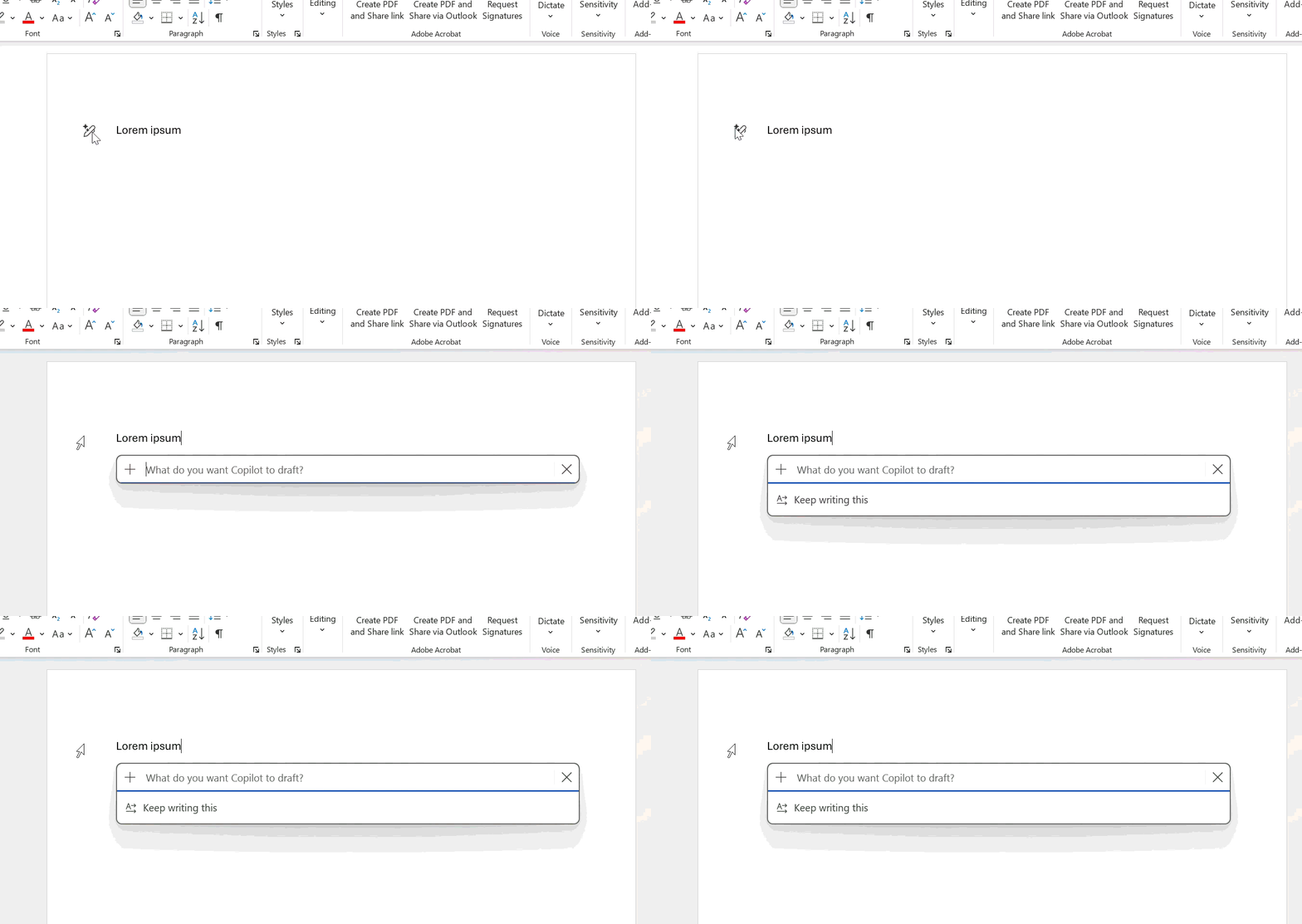
- Copilot prompt box. This first appears at the top of a blank document, and then appears inline as you write. You can also access it by pressing ALT+i.
In the Copilot prompt box above the document, use natural language to ask Copilot to write a campaign brief for a new product. You can use ALT+ENTER to add a new line, and you can copy and paste your information about the product into the prompt.
Create a campaign brief for a new application. Details are as follows.

- Product name: Your choice

- Product description: A time-blocking and task management application

- Target audience: Small business owners from 30-50 years old

- Campaign goal: Increase sign-ups by 15% over the next 60 days

- Channels: Email, LinkedIn, and paid search

- Budget: $20,000 US

- Tone: Professional and friendly
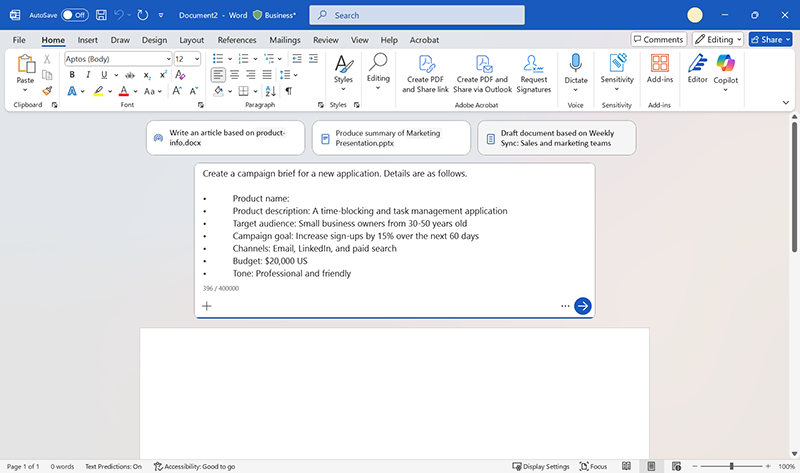
Press ENTER or the arrow button on the prompt box. Copilot in Word will begin drafting a campaign brief based on your information.
Note
If you have documents related to your product already created, such as product briefs, marketing guidance, or budget details, you can use the + button on the prompt box to add them. Copilot will integrate the data from these documents into your campaign brief.
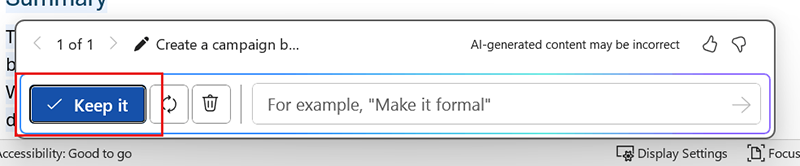
When Copilot has finished its draft, select Keep it to continue to the next step.
Important
If the content Copilot generated isn’t to your liking, you can select the Regenerate button to have it try again.
Review and refine content
Read through the draft Copilot generated. You might find some spots to be inaccurate, vague, or otherwise in need of revisions. These can also be fixed with Copilot.
Rewriting content
If you want Copilot to rewrite a section, you can do the following:
- Highlight the text to be changed.
- Select the pencil icon that appears in the margin.
- Select Auto rewrite.
- Check the variations it provides and select the one you want.
- Select Replace.
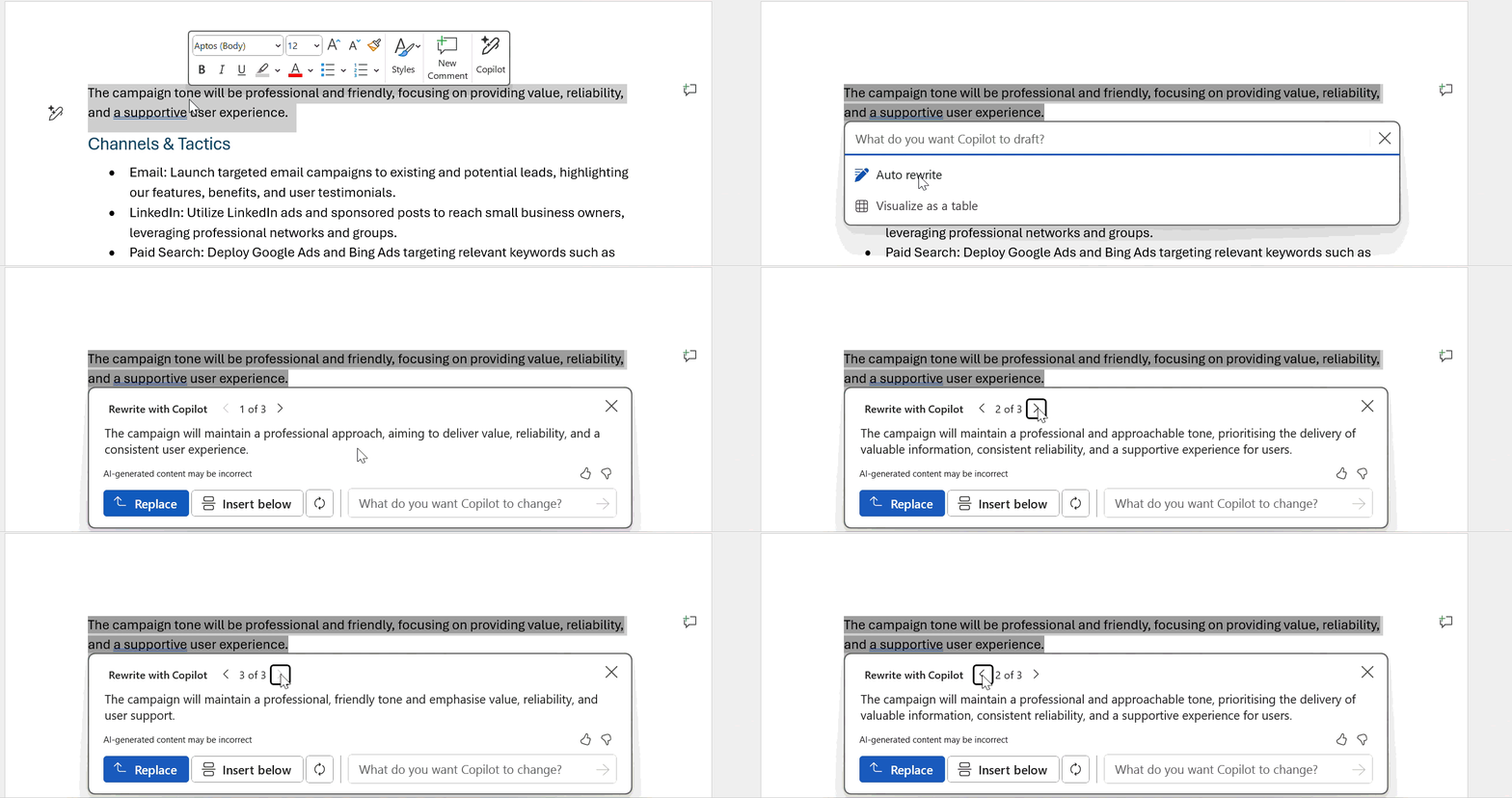
You can also provide suggestions to Copilot on how to change the rewrites before accepting one.
While in the Rewrite with Copilot experience, select the box that says What do you want Copilot to change?
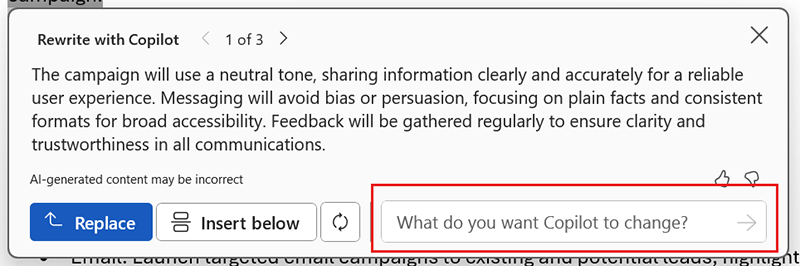
You can then enter in your criteria. Try asking Copilot to:
- Make the tone more professional.
- Simplify the language.
- Add more details.
- Add a bulleted list.
- Provide examples.
Copilot will integrate your requests into the rewrites and provide you with new copy to review.
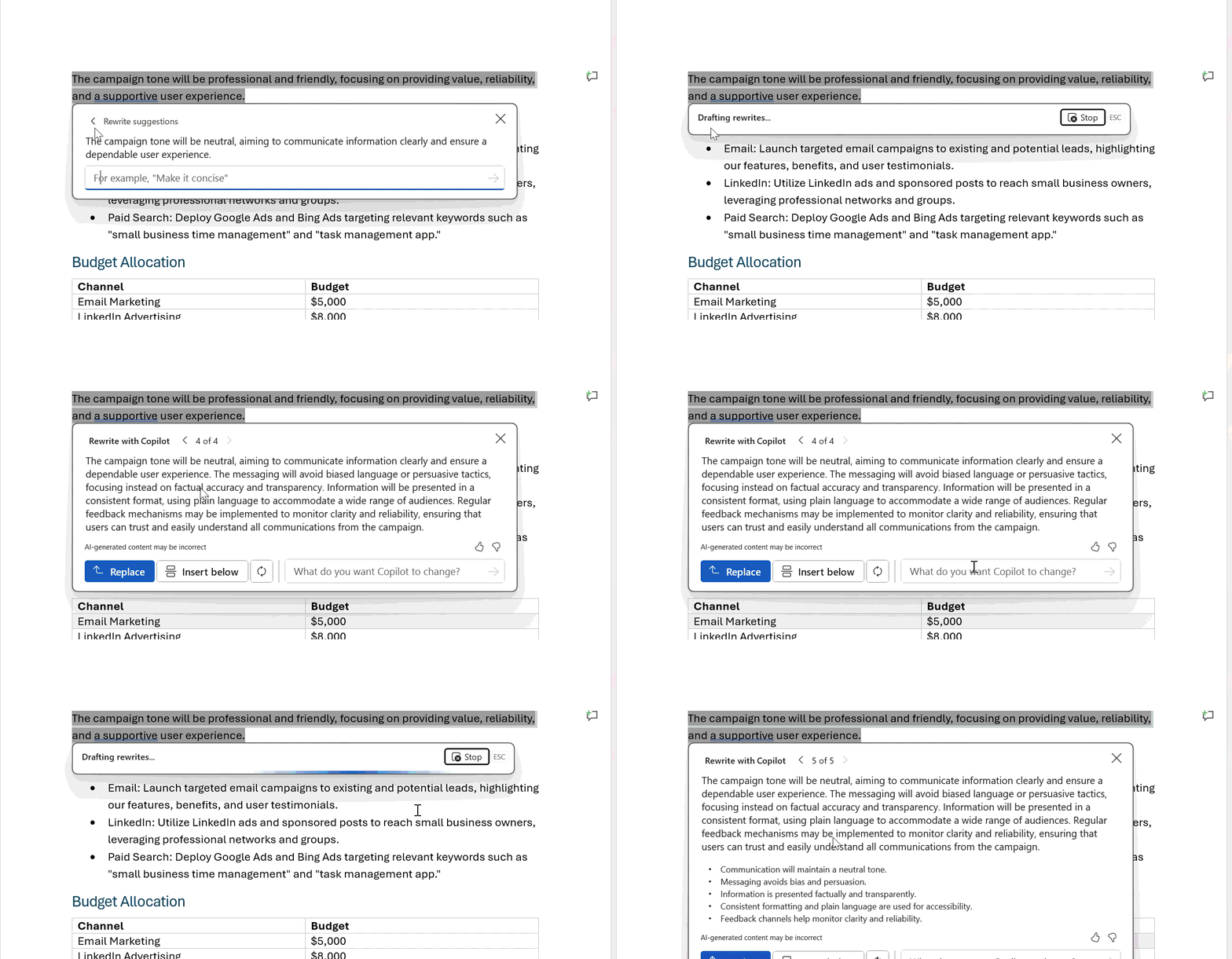
Adding content
You can also ask Copilot to add additional content.
Place your cursor where you want to add content and select the pencil icon in the margin.
When the prompt appears, use natural language to tell Copilot what you want to add. Give it as much detail as you can. It will provide you with a draft of the new content for your review and approval.
You can ask Copilot to:
- Add a new section with the heading Key Imagery.
- Create a bulleted list to summarize this section.
- Add more detail about this topic.
- Provide more examples of key messages.
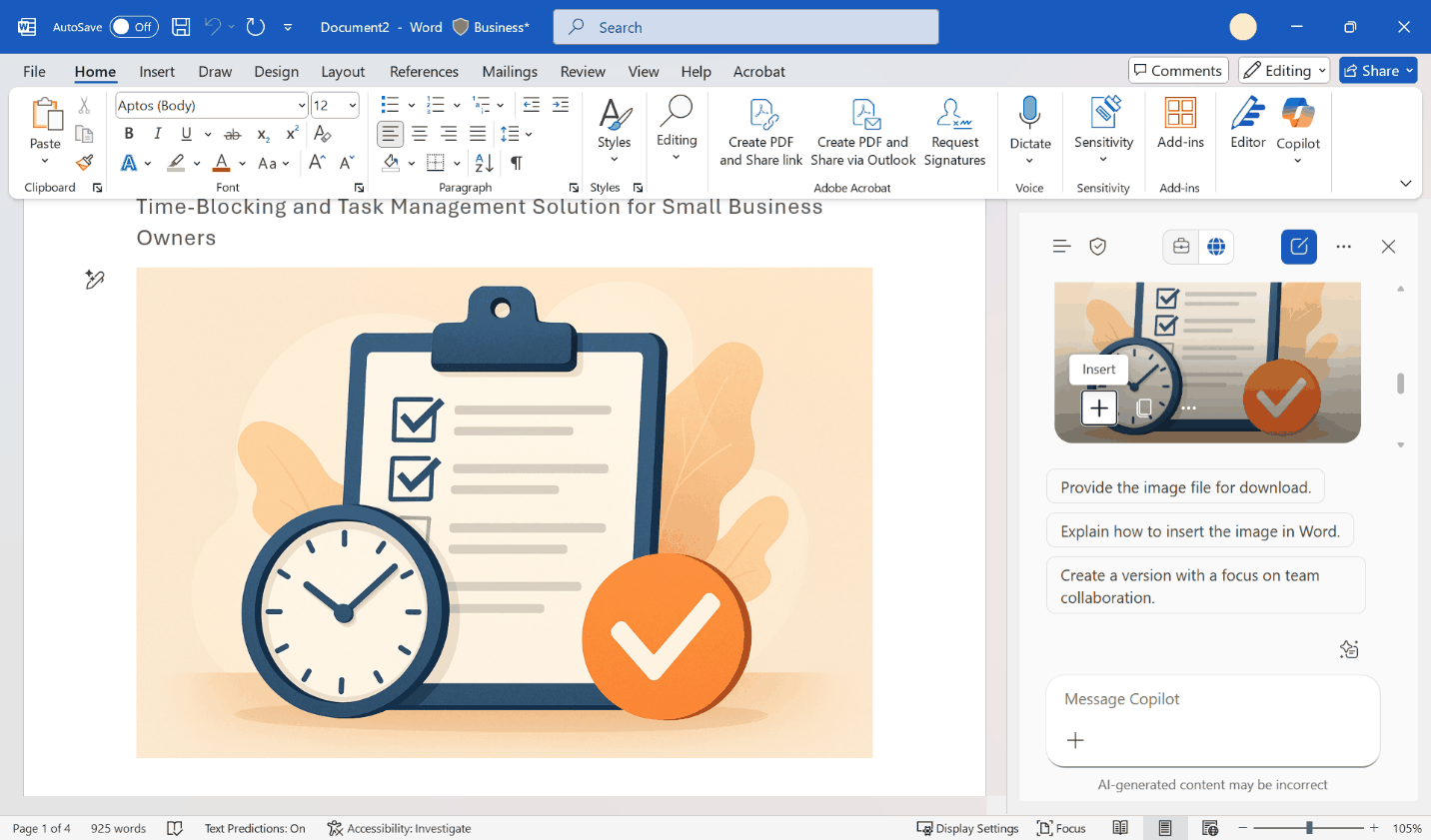
Use the Microsoft 365 Copilot sidebar
You can also access Microsoft 365 Copilot using the Copilot icon on the Home Ribbon.
You can use Microsoft 365 Copilot to do things like:
- Generate and insert images into the document.
- Review your brief and suggest content to add.
- Request ideas on how to make certain sections stronger.
- Summarize the brief for an email or LinkedIn post.
- Integrate data from work documents, meetings, messages, and emails.
- Rewrite the brief for a different audience.
Check your work
Use this checklist to evaluate your campaign brief:
- The objective is clearly stated and includes measurable outcomes.
- The target audience is well-defined with relevant characteristics.
- The selected channels align with the audience and campaign goals.
- The budget is specified and appropriate for the scope of the campaign.
- Key performance indicators (KPIs) are included to track success.
- The brief is structured into logical sections (e.g., objective, audience, message, channels, timeline, budget, KPIs).
- The tone and language are consistent with the intended audience and brand voice.
- The content is concise, actionable, and free of jargon or ambiguity.
- The brief supports collaboration and can be shared across teams.