Elevate your content using Copilot in Word
This unit focuses on how to refine and finalize your document in Word using Copilot. You'll rewrite content, restructure information, review suggestions, and use Copilot to analyze and summarize your document. You'll also use the Writing Coach agent as a final review step before sharing.
Rewrite text
To rewrite a section of your document, select the text you want to change, then select Edit Copilot from the context menu that appears. From the menu, select Auto Rewrite.
Copilot generates several alternative versions of the selected text. Use the arrows to navigate through the options, then:
- Select Replace to substitute the current text with the rewritten version.
- Select Insert below to keep both the original and the rewrite in the document.
- Select Regenerate to get a new set of suggestions.
To direct the rewrite more specifically, type a prompt in the compose box before selecting Replace. For example:
Rewrite this paragraph to make it more formal and emphasize the importance of the project timeline.
You can also type directly within the suggestion box to adjust the generated text before accepting it.
Visualize as a table
Text is often easier to review as a table. To convert a section:
- Select the text you want to convert.
- Open Copilot.
- Prompt: Convert this text to a table. Add detail to the prompt so that your table meets the desired format you're looking for.
- To adjust the table, enter additional prompts. For example: Add an empty third column for completion status.
Specific prompts give you more control over the output:
- Convert this list into a table with two columns: Item and Description.
- Create a table with columns for Date, Task, and Status.
- Turn this bulleted list into a table with columns for Category and Details.
Chat with Copilot about your document
The Copilot pane supports questions about the document you're working with. You can ask these questions in either Allow editing or Chat only mode.
Ask questions about the document
Use the Copilot pane to get a quick view of the document or locate specific content:
- Summarize this document.
- What are the action items in this document?
- Does this document include a call to action?
Copilot includes citations showing where information was retrieved from.
Ask open-ended questions
You can also ask questions that go beyond the document. If the answer isn't in the content, Copilot generates a response using general knowledge instead of your document.
Important
When this happens, the response won't include citations, so you may need to review and adapt it before adding it to your document.
For example:
- How can I revise this document to make it more appropriate for a technical audience?
- What is the standard structure for an executive summary?
Copy useful responses from the pane and paste them directly into the document.
Summarize your document
When you open a document saved in OneDrive or SharePoint, Copilot may generate a summary automatically at the top of the document. Select View more to expand it.
Select Show me a detailed summary for more context, or choose from the other suggested prompts to get additional information.
Request a summary manually
If a summary doesn't appear automatically, open the Copilot pane and enter a prompt such as:
Summarize this document. Include key points and action items in a table.
Generate a summary when sharing
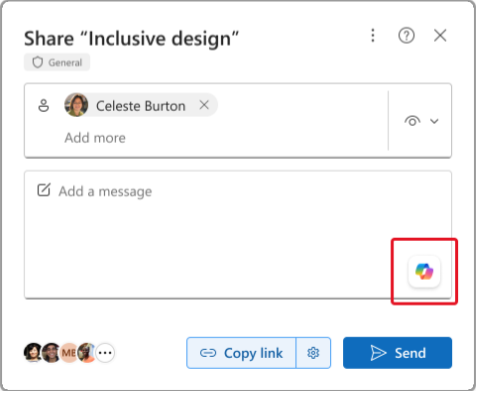
When sharing an unencrypted document, select Share, then select the Copilot icon in the Add a message box. Copilot generates a summary to include with the share notification.
Use the Writing Coach agent
Writing Coach is a prebuilt Microsoft Copilot agent that provides feedback on writing quality, with a focus on clarity, coherence, grammar, tone, and audience targeting. Use this agent as a final review step after editing your document.
Access Writing Coach
Writing Coach is available in Microsoft Copilot Chat. To open it:
- Open the Microsoft Copilot app or Copilot Chat in Microsoft Teams.
- In the Agents panel, select Writing Coach. If you don't see it listed, select All agents to find and install it.
Note
Availability depends on your organization's Microsoft 365 Copilot license and agent configuration. Your admin may also configure Writing Coach to be accessible directly from within Word. Check with your admin if you don't see it.
Prompt for feedback
Paste the text you want reviewed into the chat, then ask one focused question per message. Writing Coach responds best to one question at a time; combining multiple requests in a single prompt produces less specific feedback.
Sample prompts:
- Review this paragraph for clarity and coherence: [paste text]
- Suggest ways to make this executive summary more appropriate for a non-technical audience: [paste text]
- Identify any tone issues in the following section and suggest corrections: [paste text]
- How can I improve the structure of this conclusion? [paste text]
After reviewing the feedback, apply the changes directly in your Word document. You can then paste the revised text back into Writing Coach to confirm the updates address the original feedback.
Limitations
Keep the following considerations in mind when using Writing Coach:
- One question at a time: Ask one focused question per prompt. Compound or multi-part questions return less useful feedback.
- AI accuracy: Writing Coach uses generative AI and can make mistakes. Review all suggestions before applying them, particularly in regulated or high-stakes documents such as financial, legal, or medical content.
- Sensitive information: Content you paste into the agent is subject to your organization's data privacy policies. Avoid pasting personal data or confidential data unless your organization has approved that use.
- Language support: Writing Coach supports the languages available in Microsoft Copilot. See Supported languages for Microsoft Copilot for the current list.