Chat with Dragon Copilot
When you sign in to Dragon Copilot, Chat opens by default. Use chat to ask general clinical questions or questions about the current study open in PowerScribe One.
Chat is available while you're signed in to Dragon Copilot, whether a study is open in PowerScribe One or not. Use Chat to explore general healthcare topics, review available information, and access supporting resources within your workflow.
Watch the following video for an overview of how to use Chat in Dragon Copilot:
How chat works
Chat provides responses based on available healthcare content and relevant clinical information. When a study is open in PowerScribe One, Chat uses patient's prior reports to answer questions about the current study.
Exercise 1 - Use prebuilt prompts
Use prebuilt prompts to explore the type of questions you can ask Chat. The prompts include topics such as guidelines, differentials, and case examples.
Guided practice
Select a prompt.
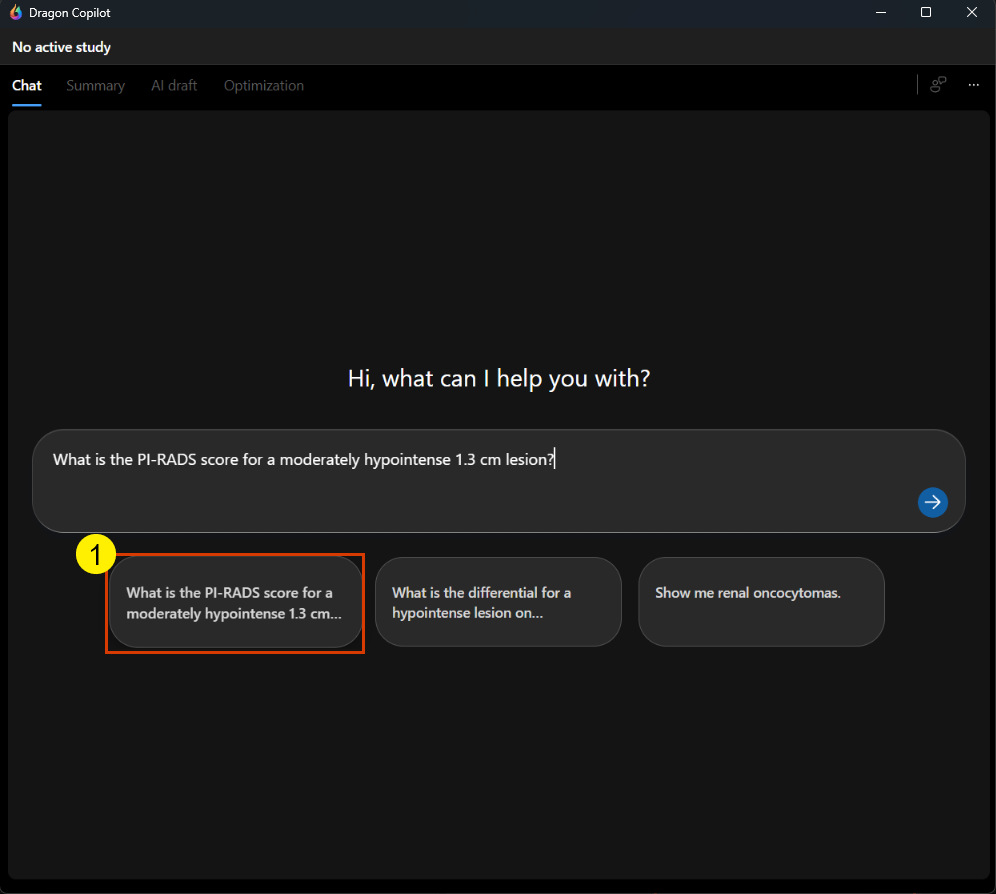
Review the response.
Select a provenance link to open information from the referenced healthcare source, such as Radiopaedia, in your browser.
Close the browser window when you're done.
Exercise 2 - Type a general radiology question
Use Chat to ask a general radiology question that isn't related to a specific patient or study.
Guided practice
Type a general radiology question. For example, type "What are the parameters for lungrads3?"
Review the response.
Select a provenance link to open information from the referenced healthcare source, such as Radiopaedia, in a browser.
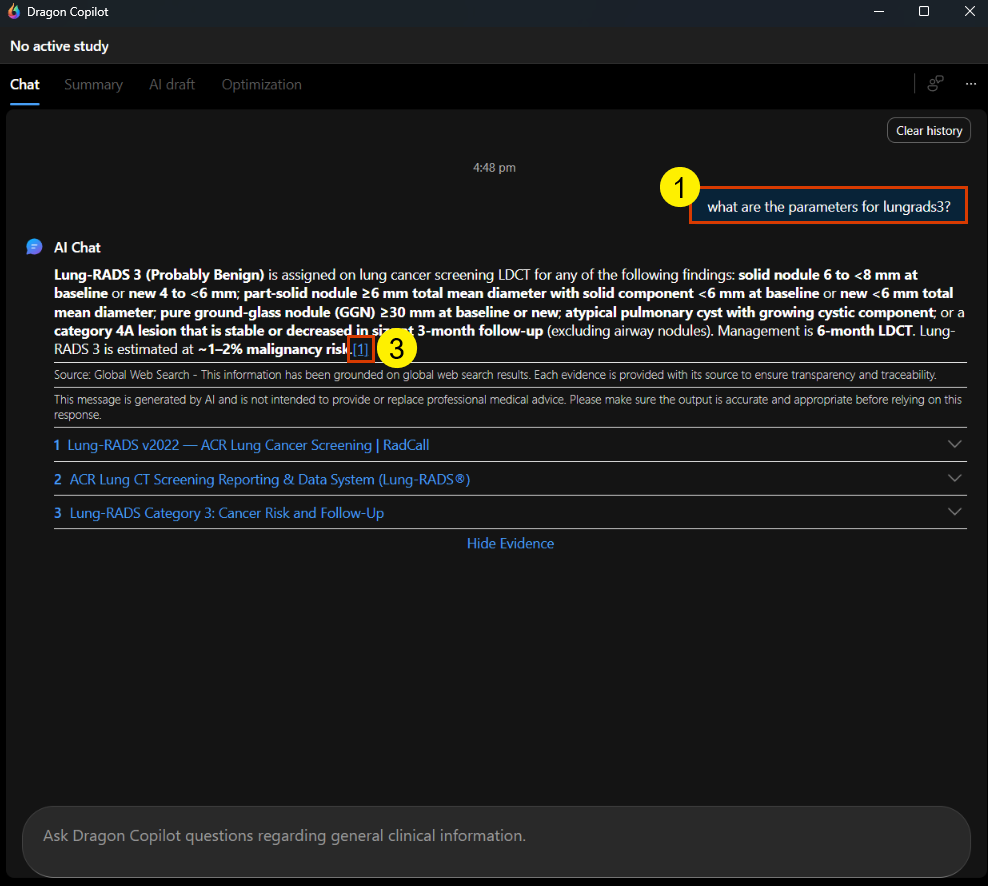
Close the browser window when you are done.
Exercise 3 - Type patient context questions
When you open a study in PowerScribe One, Dragon Copilot opens the patient context. You can ask questions about the current study. Dragon Copilot provides responses based on the patient's prior reports in PowerScribe One.
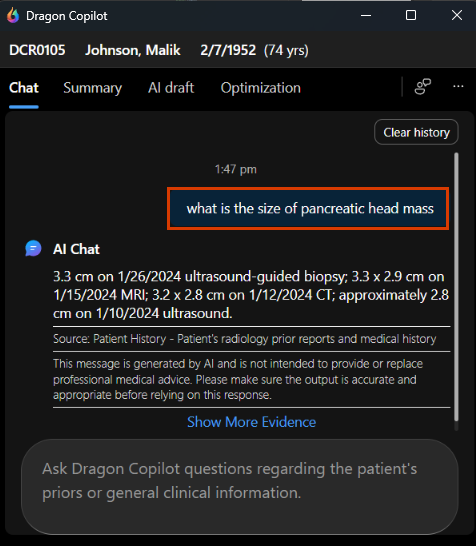
Note
If patient context isn't available in your system, Chat continues to support general clinical questions.
Guided practice
- Enter a question about the current study. For example, "Was the nodule previously described as new, stable, or growing?"
- Review the response.
- Ask additional questions as needed.
Clear history
You can clear chat history at any time.
To clear history, select the Clear History button on the upper-right corner of the Chat tab.
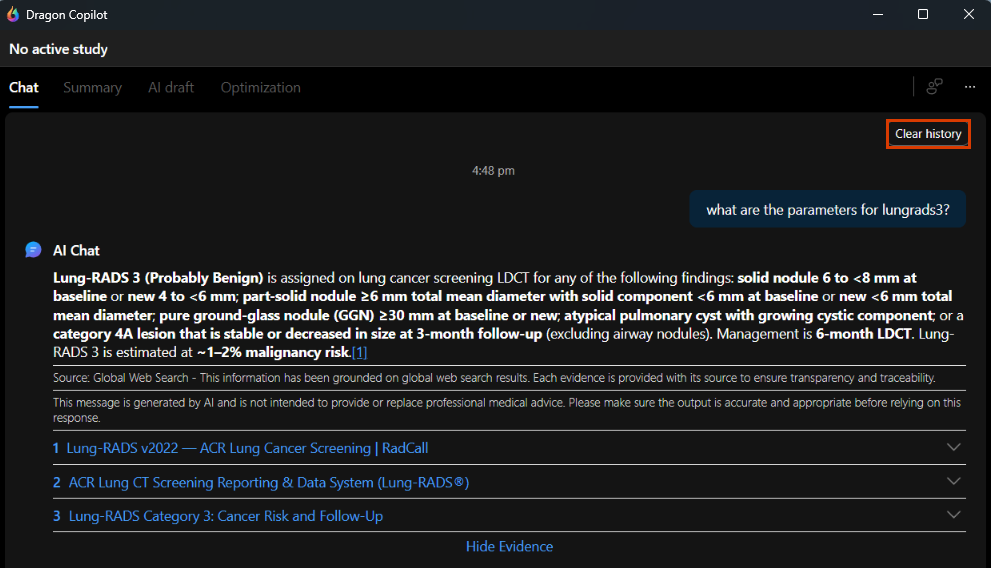
Chat history is also cleared when you close the current exam in PowerScribe One.