Identify key information from Prior reports summary
The Summary tab in Microsoft Dragon Copilot displays a summary of the patient's prior reports and referenced priors when you open a study in PowerScribe One. Use the Summary tab to review patient history that's relevant to the current study. You can also review the patient's available prior reports from PowerScribe One.
Watch the following video for an overview of the Summary tab in Dragon Copilot:
Prior reports summary
When you open a study in PowerScribe One, Dragon Copilot generates an AI summary based on the patient's prior reports. The summary highlights information that's relevant to the current study.
If a patient has records at multiple facilities within the same organization, Dragon Copilot displays relevant prior reports from those facilities. You can view these reports in Dragon Copilot, but you can't modify them.
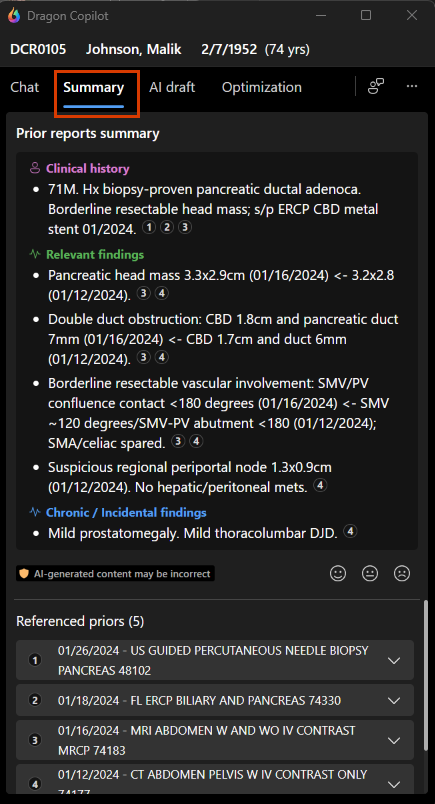
The Prior reports summary displays the following information:
History and reason for exam: Patient history that's relevant to the current study.
Acute and relevant findings: Relevant or acute findings in most recent prior reports, including findings that might require follow-up.
Chronic and incidental findings: Stable findings that are relevant to the current study, such as implants, anatomic changes and chronic conditions.
Rate the Prior reports summary
After you review the prior reports summary, use the feedback options to rate its quality:
- Select the smiling face if the summary is acceptable.
- Select the neutral face if the summary needs minor improvement.
- Select the frowning face if the summary is unacceptable.
Review Referenced priors
The Referenced priors list displays the patient's previous reports from PowerScribe One. Expand the list to review the prior reports and supporting information.
Use the following options to review supporting information:
- Select a provenance link to highlight the supporting information in the prior report.
- Select the summary text to view the corresponding information in the prior report.
Guided practice:
Open a study in PowerScribe One.
Review the prior reports summary in Dragon Copilot.
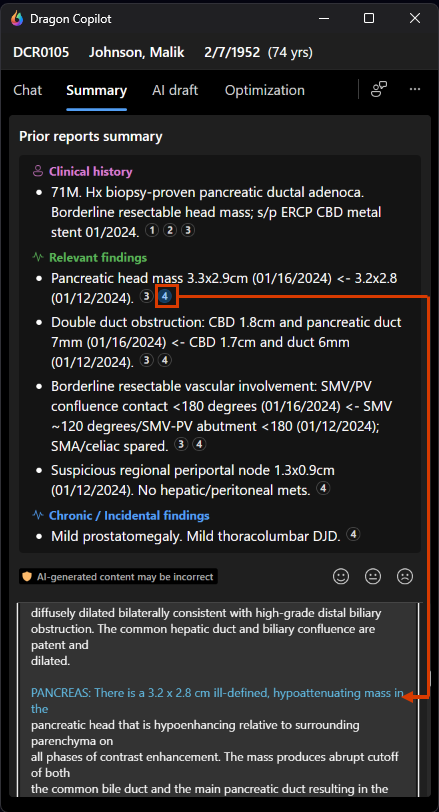
Select the provenance or summary text to highlight the supporting details in the prior report.
Expand Referenced priors to review the patient's previous reports. Referenced content appears in blue.