Launch and navigate
Sign in to Dragon Copilot
The first time that you use a workstation after Dragon Copilot is installed on your PowerScribe One server:
- Install Dragon Copilot for your user account on the workstation.
- Use your Windows credentials to sign in to Dragon Copilot.
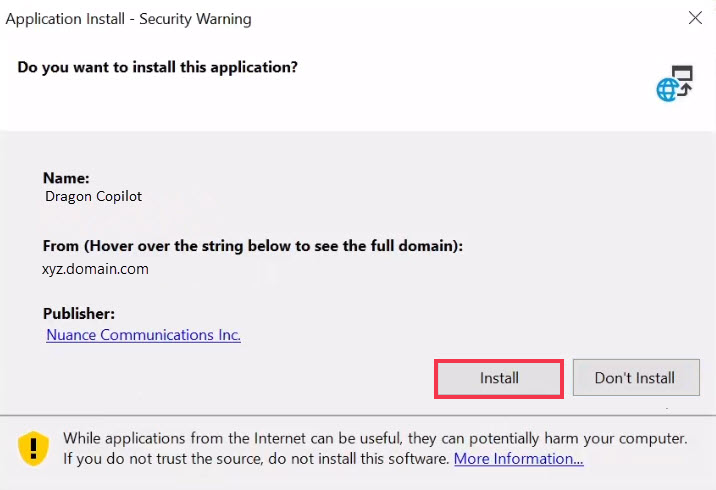
To sign in to Dragon Copilot:
- Sign in to PowerScribe One by using your organization's standard process. The process can vary based on your configuration. For example, signing in to PACS might automatically open PowerScribe One.
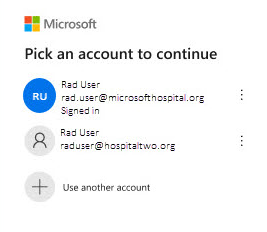
- If prompted, use your Windows credentials to sign in to Dragon Copilot.
Note
After the initial sign in, Dragon Copilot might prompt you for your Windows credentials again based on your organization's authentication policies.
Understand the screen layout
After you sign in, review the Dragon Copilot workspace. Each tab supports a different part of the radiology reporting workflow.
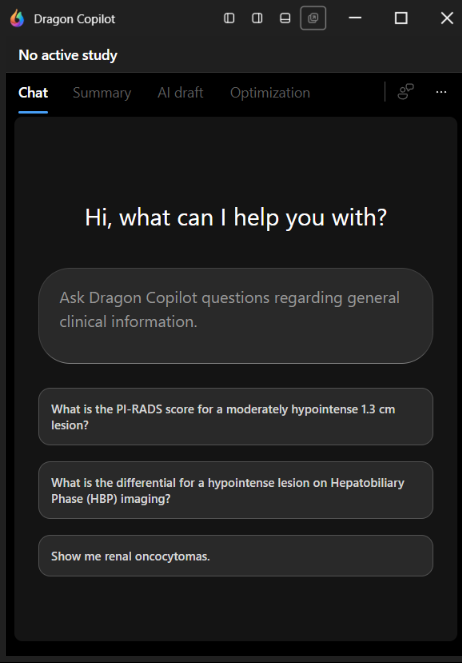
- Chat: Type general clinical questions. When an exam is open in PowerScribe One, you can also type questions about the current patient.
- Summary: Review the Prior reports summary and Referenced priors.
- Prior reports Summary: Review an AI-generated summary of relevant history, prior findings, and other available information.
- Referenced priors: Review the patient's available prior reports from PowerScribe One.
- AI draft: Review draft report or findings generated by integrated AI or participating third party solutions to incorporate into your report.
- Optimization: Review AI-generated recommendations that support report quality, consistency, and billing documentation.
Note
Available features might vary based on your organization's configuration and licensing.