Assess tenant readiness for a Copilot rollout
Every decision about Relecloud's rollout traces back to one question: who in the tenant is actually ready for Copilot, and who isn't yet? A gut check based on how the pilot felt doesn't answer that question. The Copilot Readiness Report does, and it's the first tool you open when you assess whether Relecloud can move past its 20-person pilot to the rest of the organization.
Read the Copilot readiness report
You find the report in the Microsoft 365 admin center: select Reports > Usage, then under Reports choose Microsoft 365 Copilot > Copilot, and view the Readiness tab (the Usage tab sits alongside it on the same report page). You need the AI Administrator role to view it, and the data reflects a rolling 28-day window, so what you see today reflects the past four weeks of activity rather than a single snapshot in time. The report becomes available within 72 hours, and once available its data can lag by up to another 72 hours—so a newly licensed wave won't show up immediately, and an empty or partial view right after you assign licenses isn't itself a readiness gap.
The report lists every user in a row of columns, and reading a row well means separating two kinds of column. Two are hard technical gates—without them, Copilot can't function for that user at all. The rest are signals: they predict how much a user benefits from Copilot on day one, not whether it works.
| Column | Kind | What it tells you |
|---|---|---|
| Has Copilot license been assigned | Gate | No = assign a license first; nothing works without it. |
| Uses eligible update channel | Gate | No = the device sits on a channel that never surfaces in-app Copilot; move it (next section). |
| Uses Teams Meetings | Signal | Attended at least one Teams meeting in the past 30 days. |
| Uses Teams chat | Signal | Sent at least one Teams chat in the past 30 days. |
| Uses Outlook Email | Signal | Sent at least one Outlook email in the past 30 days. |
| Uses Office docs | Signal | Collaborated on a document in OneDrive or SharePoint in the past 30 days. |
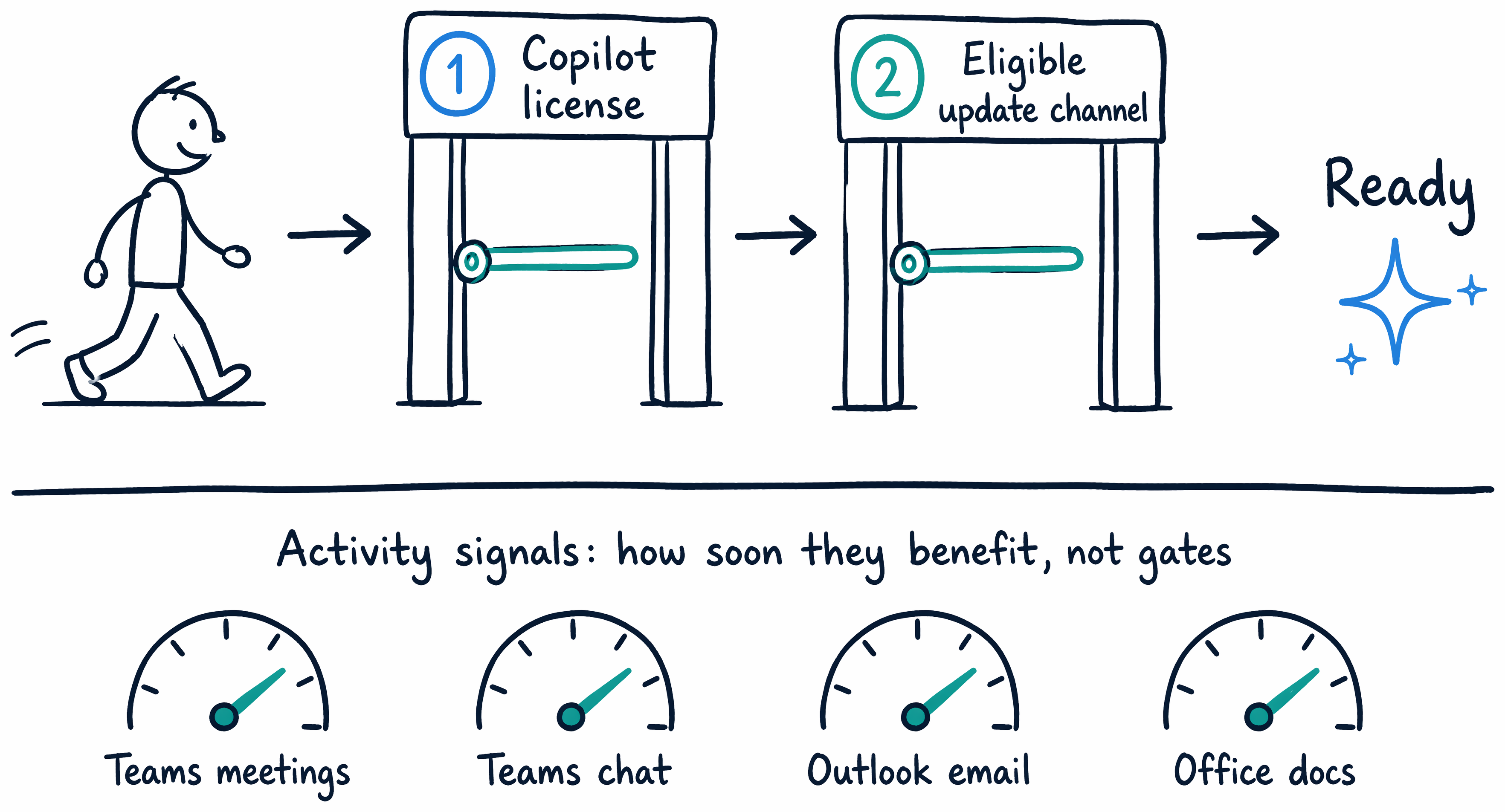
Read across a single row and you can tell exactly why a user isn't ready yet—a missing license, an ineligible channel, or both. Separately, the signal columns tell you whether that user is even active in the apps Copilot augments. A licensed user on the right channel is ready; a licensed user with no activity signals is ready but unlikely to see immediate value, which is a prioritization insight, not a blocker.
One column deserves a closer look: Suggested candidate for Copilot. This flag marks the top 25% of nonlicensed users, ranked by their Microsoft 365 app usage, and it recalculates every week using the preceding 28 days of activity. It's tempting to read this list as a performance ranking, but that's not what it measures. The report isn't intended to evaluate how well someone does their job—it's intended to show you which unlicensed users adopt Copilot fastest once you assign them a license, so your next wave of the rollout reaches people who benefit immediately instead of people who need months to change how they work.
Above the user list, four summary charts roll the same data up to the tenant level: Total Prerequisite Licenses (everyone with a license already assigned or available to assign), Users on an eligible update channel, Assigned Licenses, and Available Licenses. That last chart matters most when you plan the next wave—assign the licenses you already own before you request more, since unused licenses are the fastest readiness gap to close.
Learn more about the Microsoft 365 Copilot readiness report.
Confirm apps sit on a Copilot-eligible update channel
The Uses eligible update channel column looks like a simple Yes or No, but it hides a common failure mode: a user can hold a valid Copilot license and still never see the in-app Copilot experience in Word, Excel, or Outlook. That happens when the device's Microsoft 365 Apps installation sits on the wrong update channel. Copilot's in-app experiences require the Current Channel or the Monthly Enterprise Channel. Any other channel can carry a Copilot license without ever surfacing the feature, so a device on an ineligible channel looks licensed but behaves as if it isn't.
This distinction shifts in July 2026, when the Semi-Annual Enterprise Channel unifies into the Monthly Enterprise Channel. After that change, devices that previously reported as Semi-Annual Enterprise Channel move onto an eligible channel automatically. Until then—and for any device still on a channel other than Current or Monthly Enterprise—you have to move it deliberately.
How you move it depends on how you already manage Microsoft 365 Apps. You have five options: Cloud Update (managed from the Microsoft 365 Apps admin center), Microsoft Intune, Windows Autopatch, Microsoft Configuration Manager, and Group Policy. Microsoft recommends Cloud Update for doing this at scale, because it schedules and monitors the channel change centrally instead of relying on each device to update on its own—but if your estate already runs through Intune or Configuration Manager, driving the change from the tool you already operate is the pragmatic choice.
Learn more about how to change the update channel of Microsoft 365 Apps to enable Copilot.
Work the full readiness checklist
Licensing and update channels answer whether Copilot can appear for a user. They don't answer whether the tenant is ready for Copilot to appear for everyone. That's a broader checklist, and it includes several items beyond the report:
- A test environment to validate configuration changes before they reach production users.
- Pilot testing with a small group, to gather real feedback before a wider release.
- A communication plan that tells the rest of the organization what's changing and when.
- A Conditional Access policy review, since Copilot supports tenant-level Conditional Access in SharePoint and you want that policy to reflect your actual access requirements before rollout, not after.
- A SharePoint governance and data-readiness review, which checks for oversharing and stale permissions before Copilot can surface content through them.
- Network-requirement validation, to confirm the tenant's network can support Copilot traffic at full scale, not just for a pilot group.
Suppose Relecloud runs its pilot again, and this time it goes flawlessly: 20 users, two months, zero complaints.
Guiding question: Does a pilot with zero complaints tell you the tenant's data is safe to expose to everyone in a full rollout?
Most administrators assume yes, but that assumption doesn't hold up. A pilot validates configuration and gathers feedback only from the population and content it actually includes. Twenty users prove that a license, an eligible update channel, and the tested configuration work for those 20 people and whatever they happened to touch. It says nothing about the SharePoint sites, permissions, or oversharing that sat outside the pilot's path. That's exactly why the checklist keeps the data-readiness review as its own item—a clean pilot never substitutes for it.
Learn more about the full setup and licensing checklist for Microsoft 365 Copilot.
The checklist says to review data readiness before rollout. Relecloud's pilot never did. What does that review actually involve, and does it explain what happened to the Marketing employee?