Enable protection in Microsoft Defender
Real-time protection for Copilot Studio agents requires configuration in both the Microsoft Defender portal and the Power Platform admin center. Security engineers can't complete setup alone—the process demands coordination with Power Platform administrators who manage the environment where agents run. Here, you learn the step-by-step process to enable real-time protection and verify that the configuration is complete.
Navigate to Security for AI settings
The configuration process begins in the Microsoft Defender portal. Navigate to System > Settings > Security for AI agents. This settings page controls all AI agent protection capabilities, including the AI agent inventory, audit logging, and real-time runtime protection.
Note
The settings page can appear as Security for AI or Security for AI agents depending on your portal version. Both paths open the same configuration page.
Before configuring real-time protection, verify that the Microsoft 365 app connector shows a connected status. The Microsoft 365 connector is required for audit logs and alerts to flow into the Defender portal. If the connector isn't connected, real-time protection continues to block suspicious activity, but alerts and incidents related to those blocks don't appear in the Microsoft Defender XDR incident queue.
To enable the Microsoft 365 connector, select Connect Microsoft 365 from the app connectors page and follow the authentication prompts. The connector requires global administrator or security administrator permissions to establish.
Enable Security for AI agents
On the Security for AI settings page, locate the Security for AI Agents toggle. Turn on this toggle to enable the discovery and monitoring capabilities that form the foundation for real-time protection.
Enabling Security for AI Agents confirms that you read the disclaimer and agree to use Microsoft Defender AI agent protection features. This setting activates the automatic discovery process that identifies all Copilot Studio custom agents in your tenant.
The discovery process runs continuously after enablement. Within 30 minutes of turning on this toggle, the AI agent inventory begins populating with discovered agents, their associated connectors, and the data sources they access.
Configure real-time protection during agent runtime
With Security for AI Agents enabled, you're ready to configure real-time protection. In the Real time protection during agent runtime section on the same settings page, select the option to enable real-time protection.
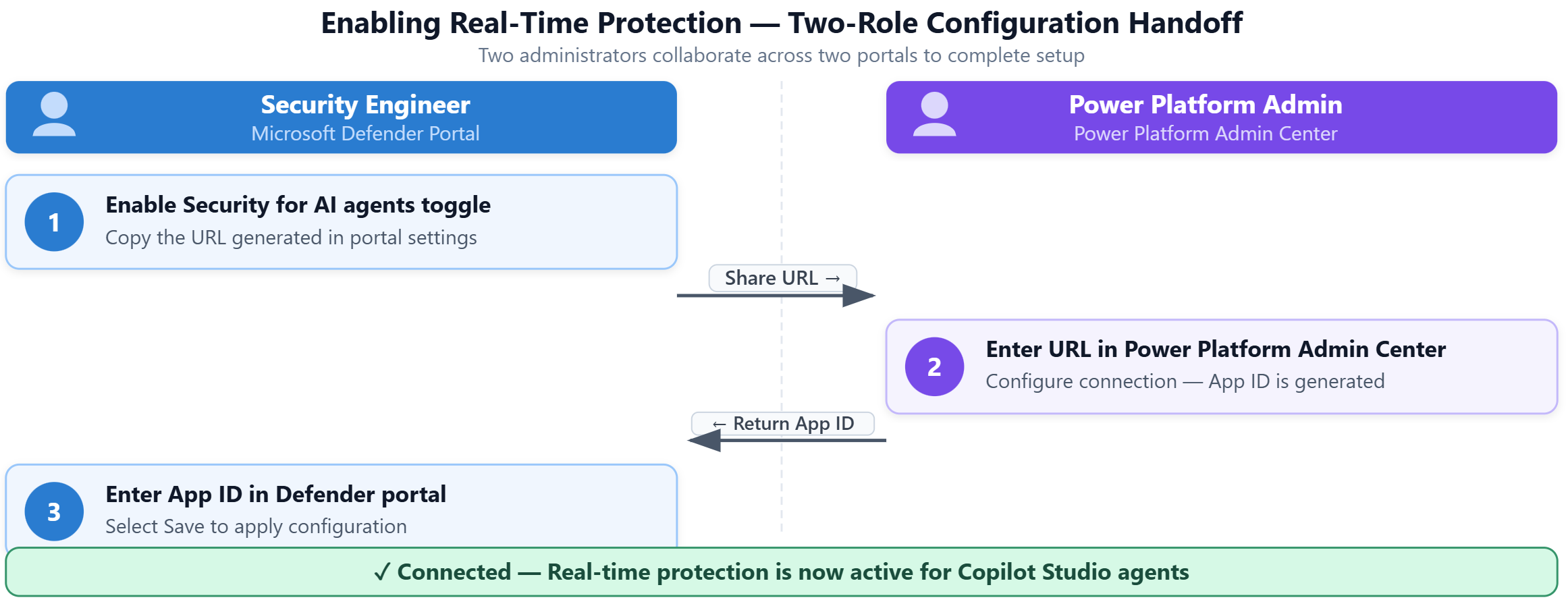
The portal provides a URL that you share with the Power Platform administrator. This URL contains the configuration endpoint that the Power Platform admin center uses to establish the proxy connection between Copilot Studio and Microsoft Defender.
The configuration requires an App ID that identifies the Microsoft Entra ID application used for the proxy connection. This App ID must match across both the Defender portal and the Power Platform admin center configuration.
Note
This proxy App ID represents the trusted connection between Power Platform and Microsoft Defender—it's separate from the Microsoft Entra Agent ID that Copilot Studio automatically creates for each agent's own channel authentication. You're configuring the inspection layer, not the agent's identity.
| Configuration step | Responsible role | Location |
|---|---|---|
| Share Defender URL with Power Platform admin | Security Engineer | Microsoft Defender portal > System > Settings > Security for AI |
| Configure threat detection endpoint | Power Platform Administrator | Power Platform admin center > Security > Threat Protection |
| Provide App ID to security engineer | Power Platform Administrator | Power Platform admin center configuration output |
| Enter App ID in Defender portal | Security Engineer | Microsoft Defender portal > System > Settings > Security for AI |
Coordinate with Power Platform administration
The Power Platform administrator completes their portion of the configuration in the Power Platform admin center. They navigate to Security > Threat Protection, then select Microsoft Defender - Copilot Studio AI Agents.
The Power Platform admin turns on Enable Microsoft Defender - Copilot Studio AI Agents and enters the URL you provided from the Defender portal. During this process, they create or select a Microsoft Entra ID application that represents the trusted connection between Power Platform and Defender.
This Microsoft Entra ID application generates an App ID. The Power Platform administrator shares this App ID with you. You can complete the configuration in the Defender portal.
After the security expert receives the App ID from the Power Platform admin, return to the Microsoft Defender portal and enter the App ID in the designated field on the Security for AI settings page. Select Save to apply the configuration.
Note
If you recently changed the App ID in Power Platform, it can take up to one minute for the update to propagate across all portals. If you encounter a validation error when saving the updated value, wait a short time and try again.
Verify connected status
After Contoso saves the App ID configuration, the Real time protection during agent runtime section displays a connection status indicator. When configuration is complete and the proxy connection is established, a green Connected status appears.
The connected status confirms that:
- The Microsoft Entra ID application configuration matches between Defender and Power Platform
- The proxy endpoint is reachable and authenticated
- Agent interactions now pass through Microsoft Defender for real-time inspection
If the status shows Disconnected or Pending, the Power Platform administrator portion of the setup is incomplete or the App ID entered in the Defender portal doesn't match the App ID configured in Power Platform. Return to the Power Platform admin center to verify the configuration.
Understand protection behavior after enablement
With real-time protection enabled and showing connected status, Defender for Cloud Apps begins inspecting tool invocations from protected agents. Each time an agent attempts to execute a tool—such as retrieving data from SharePoint or querying Dataverse—Defender evaluates the invocation against threat policies and behavioral analytics.
Suspicious invocations are blocked before they execute. The user who triggered the interaction receives a message indicating that their request was blocked for security reasons. Simultaneously, an alert is created in the Microsoft Defender portal under Incidents & alerts, where security teams can investigate the context and determine whether the block was appropriate.
Real-time protection introduces a proxy layer into agent interactions. While latency is typically minimal, you should communicate this architectural change to agent owners and monitor performance after enabling protection to ensure acceptable user experience.
Existing agent sessions can’t immediately reflect protection status. Real-time protection applies to new sessions initiated after the configuration is complete. Users who have active conversations with an agent often need to restart their session for protection to take effect.
Apply enablement to Contoso's scenario
Contoso Financial Services identified their customer service agent as a high-priority candidate for real-time protection. The security engineer navigated to the Microsoft Defender portal and enabled Security for AI Agents, then configured the real-time protection settings.
The security engineer shared the Defender URL with Contoso's Power Platform administrator. The Power Platform admin completed the threat detection configuration in the Power Platform admin center and provided the App ID back to the security engineer.
After entering the App ID in the Defender portal and saving the configuration, the connection status changed to green Connected within minutes. Contoso's customer service agent is now protected—any attempt to retrieve content from the sensitive SharePoint library identified during discovery is blocked before the agent executes the retrieval, and an alert is created for the security team to investigate.
The protection is now active and monitoring all interactions with the customer service agent in real time.