Manage backup and recovery
Dataverse environments are continuously backed up by the platform, giving administrators the ability to restore environments to a previous point in time. Understanding how backups work, including retention periods, restoration targets, and limitations, is essential for building a reliable disaster recovery plan.
Understand system backups
Power Platform automatically creates continuous backups for all environments with a Dataverse database. These backups capture the complete state of the environment including data, customizations, and configuration.
Key characteristics of system backups:
- Retention: 7 days by default for all environment types
- Extended retention: Up to 28 days for production Managed Environments (configurable in admin center or via PowerShell)
- Storage: Backups don't count against your organization's storage capacity
- Availability: System backups are available approximately 10-15 minutes after creation
Note
Trial environments can't be backed up or restored. For any environment you might need to recover, use production or sandbox types.
Create manual backups
In addition to system backups, you can create manual backups before performing risky operations such as bulk data imports, solution upgrades, or environment configuration changes.
To create a manual backup:
- Open the Power Platform admin center and navigate to Environments.
- Select the environment and choose Back up & restore from the command bar.
- Select Create backup, provide a label (for example, "Pre-upgrade backup 2026-06-04"), and confirm.
Manual backups follow the same retention policies as system backups - 7 days by default, or 28 days for production Managed Environments with extended retention enabled. There's no limit on the number of manual backups you can create.
Restore an environment
When you need to recover from data loss or a failed deployment, you can restore an environment to any available backup point within the retention window.
Restoration rules and constraints:
| Scenario | Supported? |
|---|---|
| Restore production → sandbox | Yes |
| Restore sandbox → sandbox | Yes |
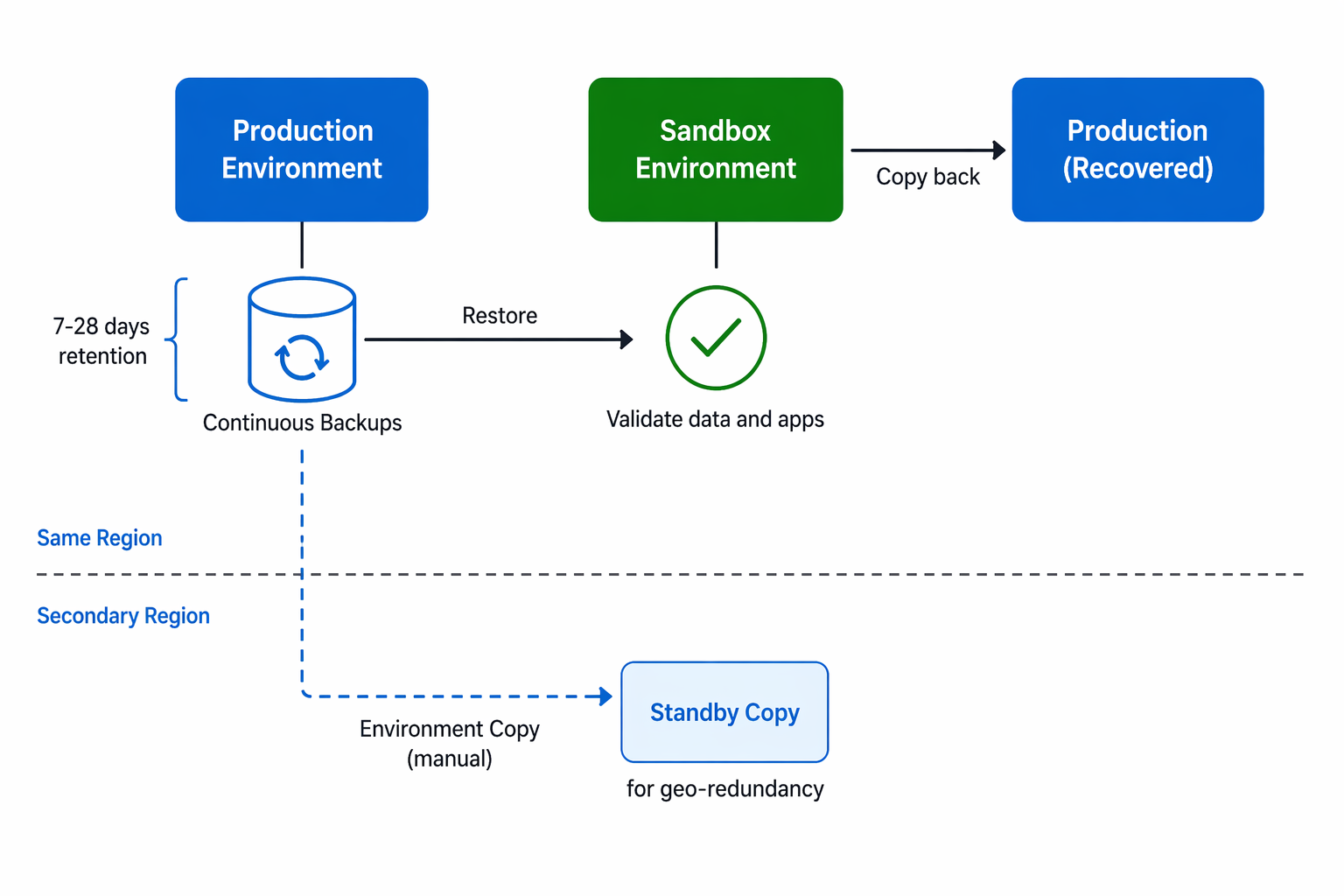
| Restore production → production (directly) | No - restore to sandbox first, then copy back |
| Restore across regions | No - source and target must be in the same region |
| Restore Managed Environment → non-Managed | No - target must also be Managed |
| Restore CMK-encrypted environment | Target must have the same customer-managed key applied |
To restore an environment:
- In the Power Platform admin center, select the target environment.
- Select Back up & restore > Restore or manage.
- Choose the backup point (system or manual) to restore from.
- Confirm the target environment. This overwrites all current data and customizations.
Important
Restoration replaces the entire target environment with the backup state. Any changes made after the backup point are lost. Always document what's being overwritten before restoring.
Configure extended backup retention
For production environments requiring longer recovery windows, enable extended retention:
- In the admin center, select the production environment.
- Select Back up & restore > Manage retention.
- Change the retention period to 28 days.
- Wait up to 24 hours for the change to take effect.
Extended retention requires the environment to be both a production type and a Managed Environment.
Plan for disaster recovery
A disaster recovery plan for Power Platform should address:
- Recovery Point Objective (RPO) - How much data loss is acceptable? With continuous system backups, RPO is typically minutes.
- Recovery Time Objective (RTO) - How quickly must the environment be operational? Restoration time depends on environment size but typically completes within 1-4 hours.
- Cross-region resilience - Since backups are region-bound, consider environment copies in a secondary region for geo-redundancy.
- Documentation - Maintain a runbook that specifies who can restore, which environments are critical, and the order of operations.
For environments requiring geo-redundancy, use the Copy environment feature to maintain a standby copy in another region. This copy won't be automatically synchronized, but it provides a starting point for recovery if an entire region becomes unavailable.
Tip
Test your disaster recovery process quarterly. Restore a production backup to a sandbox environment and verify that critical apps and flows function correctly. This validates both the backup integrity and your team's operational readiness.