Protect data with encryption and networking
Beyond backup and recovery, protecting data at rest and in transit requires encryption controls and network-level restrictions. Customer-managed encryption keys give you control over your encryption lifecycle, while IP firewall rules and Customer Lockbox ensure that only authorized parties, including Microsoft support, can access your data.
Encrypt data with customer-managed keys
By default, Dataverse encrypts all data at rest using Microsoft-managed keys. Customer-managed keys (CMK) let your organization maintain control over the encryption key in Azure Key Vault, giving you the ability to rotate, revoke, or audit key usage independently.
Prerequisites for CMK
Before enabling customer-managed encryption:
- The environment must be a Managed Environment
- Users need one of: Microsoft 365 E5, Microsoft 365 A5 Compliance, or Microsoft 365 F5 Security & Compliance license
- An Azure Key Vault with soft-delete and purge protection enabled
- An RSA or RSA-HSM key (2048-bit or 3072-bit)
Configure customer-managed keys
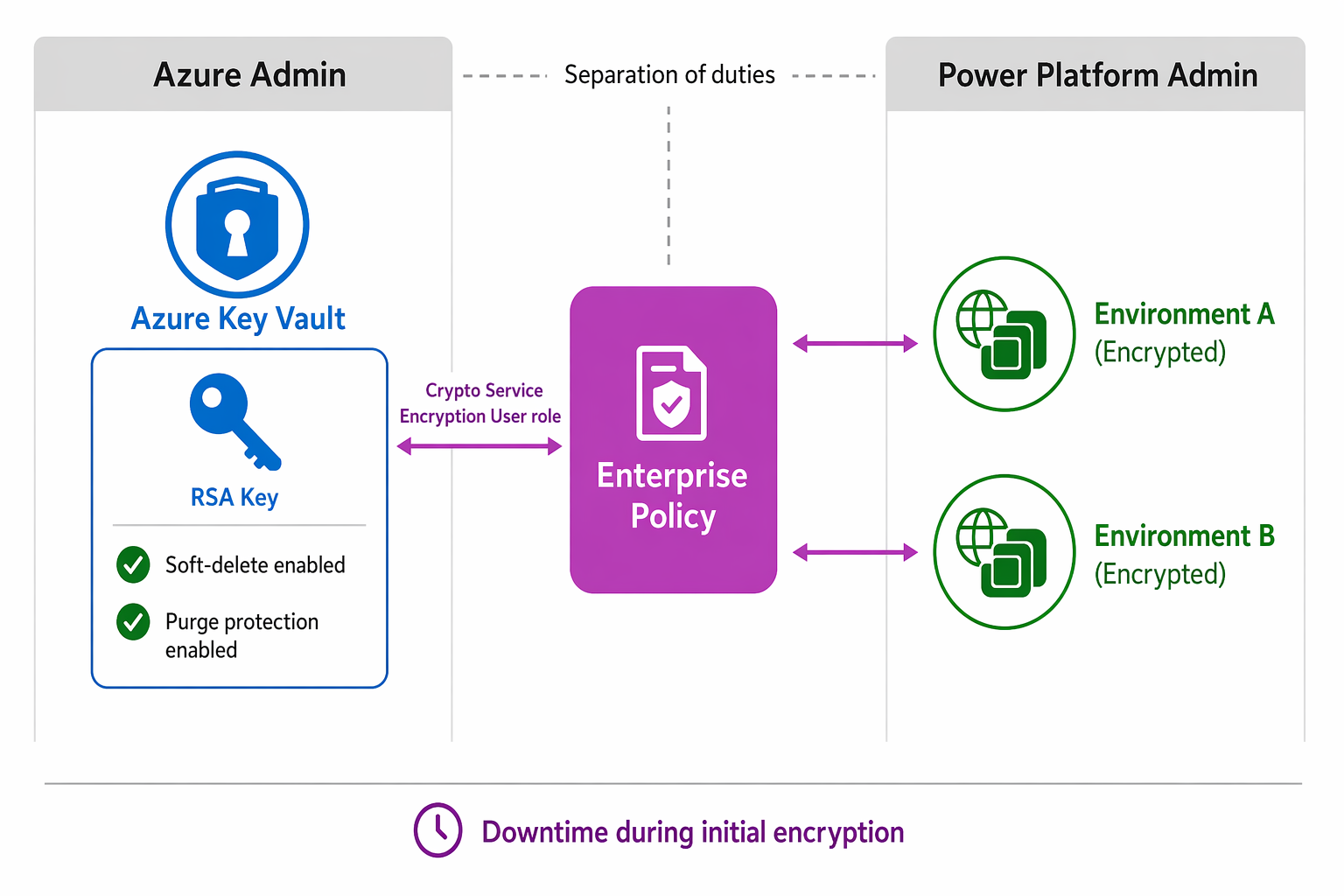
The setup process involves two roles working together - an Azure administrator and a Power Platform administrator:
- Create the key vault - In Azure, create a Key Vault with soft-delete and purge protection enabled. Generate an RSA key (2048 or 3072 bits).
- Register the resource provider - Register
Microsoft.PowerPlatformin your Azure subscription. - Create an enterprise policy - Deploy an ARM template that creates an enterprise policy referencing your key vault and key.
- Grant access - Assign the enterprise policy the Key Vault Crypto Service Encryption User role on the key vault.
- Add environments - In the Power Platform admin center, add target environments to the enterprise policy.
Important
Adding an environment to an encryption policy causes temporary downtime while the system re-encrypts data. Plan this operation during a maintenance window and communicate the expected impact to users.
Rotate encryption keys
Key rotation is a security best practice. Two approaches are available:
| Method | Process | Downtime |
|---|---|---|
| New key version | Create a new version of the existing key in Key Vault. The system detects and adopts it within 24 hours. | None |
| New policy | Remove environment from current policy, then add to a new policy with a different key. | Yes (twice: revert + re-encrypt) |
After rotation, keep the previous key version active for at least 28 days - it's required for database restoration from backups created under the old key.
Restrict access with IP firewall
The IP firewall evaluates every request to Dataverse against a configured list of allowed IP ranges. Requests from addresses outside the allowed ranges are blocked, providing network-level protection against unauthorized access.
Configure IP firewall rules
- In the Power Platform admin center, select the environment.
- Select Settings > Product > Privacy + Security.
- Under IP address settings, enable IP firewall.
- Add allowed IP ranges in CIDR format (up to 200 ranges).
- Choose the enforcement mode:
- Audit only - Logs blocked requests without actually blocking (recommended first)
- Enforcement - Actively blocks requests from non-allowed IPs
Tip
Run in audit-only mode for at least one week before switching to enforcement. Review audit logs (action code 118 in Dataverse) to identify legitimate traffic that might be blocked.
Configure service bypasses
Some scenarios require traffic from outside your corporate IP ranges:
- Azure service tags - Allow specific Azure services (App Service, API Management) to bypass the firewall
- Microsoft trusted services - Allow Microsoft support and monitoring services access (enabled by default)
- Application users - Allow first-party and third-party application users to bypass restrictions
For organizations using reverse proxies, configure the proxy to send the client IP in the Forwarded header so the firewall evaluates the actual client address rather than the proxy IP.
Requirements and limitations
- Available only for Managed Environments
- Requires the same compliance licensing as CMK (E5/A5 equivalent)
- Maximum 200 IP ranges, up to 4,000 characters total
- Changes take effect within 5-10 minutes
- Not supported in tenants using bring-your-own-key (BYOK) encryption (the older encryption model)
Enable Customer Lockbox
Customer Lockbox ensures that Microsoft engineers can't access your environment data without explicit approval from your organization - even during active support cases.
How Customer Lockbox works
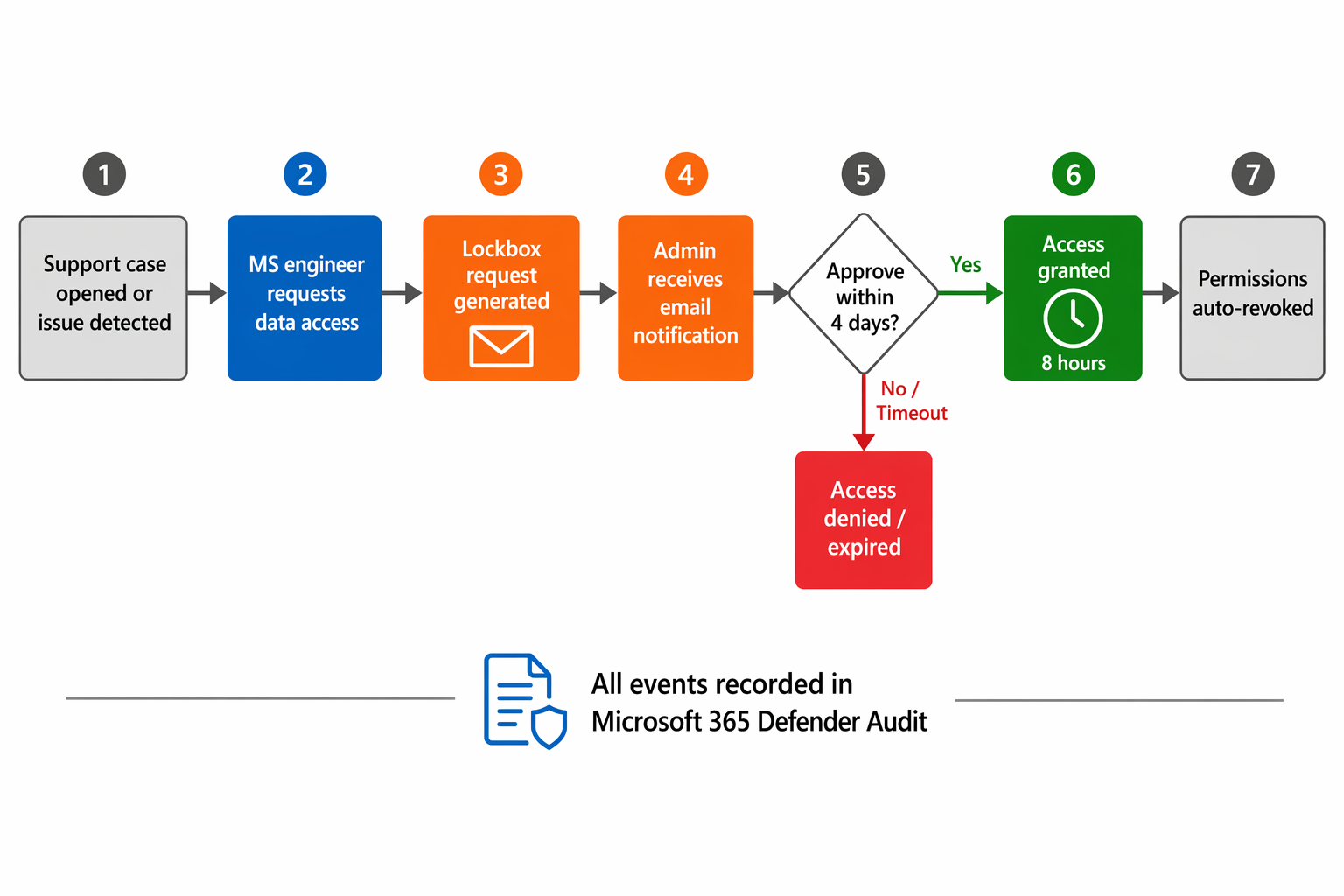
- A Microsoft engineer needs access to your data (either for a support case you opened or a proactive investigation).
- The engineer initiates an internal access request.
- If the environment is protected by Lockbox, a request is generated and Power Platform admins receive an email notification.
- An admin reviews the justification and approves or denies within 4 days (the request expires if no action is taken).
- If approved, the engineer receives elevated access for 8 hours, after which permissions are automatically revoked.
Enable Customer Lockbox
- In the Power Platform admin center, select Manage > Tenant settings.
- Under Customer Lockbox, toggle to Enable.
- The setting applies to all Managed Environments in the tenant.
Note
It can take up to 24 hours for all data sources to implement the Lockbox policy after enabling.
Audit Lockbox activity
All Lockbox events are recorded in Microsoft 365 Defender > Audit. Audit entries include:
- Request ID and creation timestamp
- Microsoft operator identifier
- Approval/denial status and who acted
- Support ticket number and justification
- Access window expiration
For organizations requiring long-term retention of these records, enable the 10-Year Audit Log Retention add-on.