Manage external access and data export
Organizations often need to control how their Power Platform tenant interacts with external tenants and export data for analytics without impacting production performance. Tenant isolation restricts cross-tenant connections, while Azure Synapse Link provides continuous data replication for business intelligence scenarios.
Configure tenant isolation
By default, Power Platform allows cross-tenant connections. This means that any user with valid credentials can connect to resources in another tenant using connectors that support Microsoft Entra ID authentication. Tenant isolation reverses this default by blocking all cross-tenant connections unless explicitly allowed.
Understand isolation directions
Tenant isolation operates in two directions:
| Direction | What it controls |
|---|---|
| Inbound | Connections from external tenants into your tenant's resources |
| Outbound | Connections from your tenant to external tenant resources |
You can enable two-way isolation (blocks both directions) or one-way inbound isolation (blocks only external access to your resources while allowing your users to connect outward).
Enable tenant isolation
- In the Power Platform admin center, navigate to Security > Identity and access > Tenant isolation.
- Enable Restrict cross-tenant connections.
- Choose the isolation mode (two-way or inbound only).
- Add exception rules for trusted partner tenants.
Exception rules specify which tenants are allowed in which direction:
- Inbound: Allow specific external tenants to connect to your resources
- Outbound: Allow your users to connect to specific external tenant resources
- Both: Allow bidirectional connections with a specific tenant
You can add up to 500 exception rules. Use the wildcard character (*) in either direction to allow all tenants in that direction while restricting the other.
Note
Changes take approximately one hour to be assessed against active apps and flows. Existing connections that violate the new policy will fail at their next execution.
Impact on makers and users
When isolation blocks a connection:
- Makers in Power Apps see: "The data didn't load correctly. Please try again"
- Power Automate flows are saved but marked as "Suspended" and fail at runtime
- Runtime failures appear in flow run history with tenant isolation error details
Communicate isolation policies to makers before enabling them so they can update affected apps and flows proactively.
Configure Azure Synapse Link for Dataverse
Azure Synapse Link (formerly Export to Data Lake) provides continuous, near real-time replication of Dataverse data to Azure Synapse Analytics or Azure Data Lake Storage Gen2. This enables analytics, machine learning, and reporting scenarios without querying production Dataverse directly.
How Azure Synapse Link works
The link continuously monitors selected Dataverse tables for changes (creates, updates, deletes) and replicates those changes to the destination. Data is stored in Common Data Model format, maintaining semantic consistency with the source.
Key characteristics:
- Push model - Changes are automatically pushed from Dataverse to the destination (no polling required)
- Initial sync - First activation performs a full snapshot of selected tables
- Incremental sync - After initial sync, only changed records are replicated
- Delete tracking - Deleted records are replicated as delete transactions for full audit trail
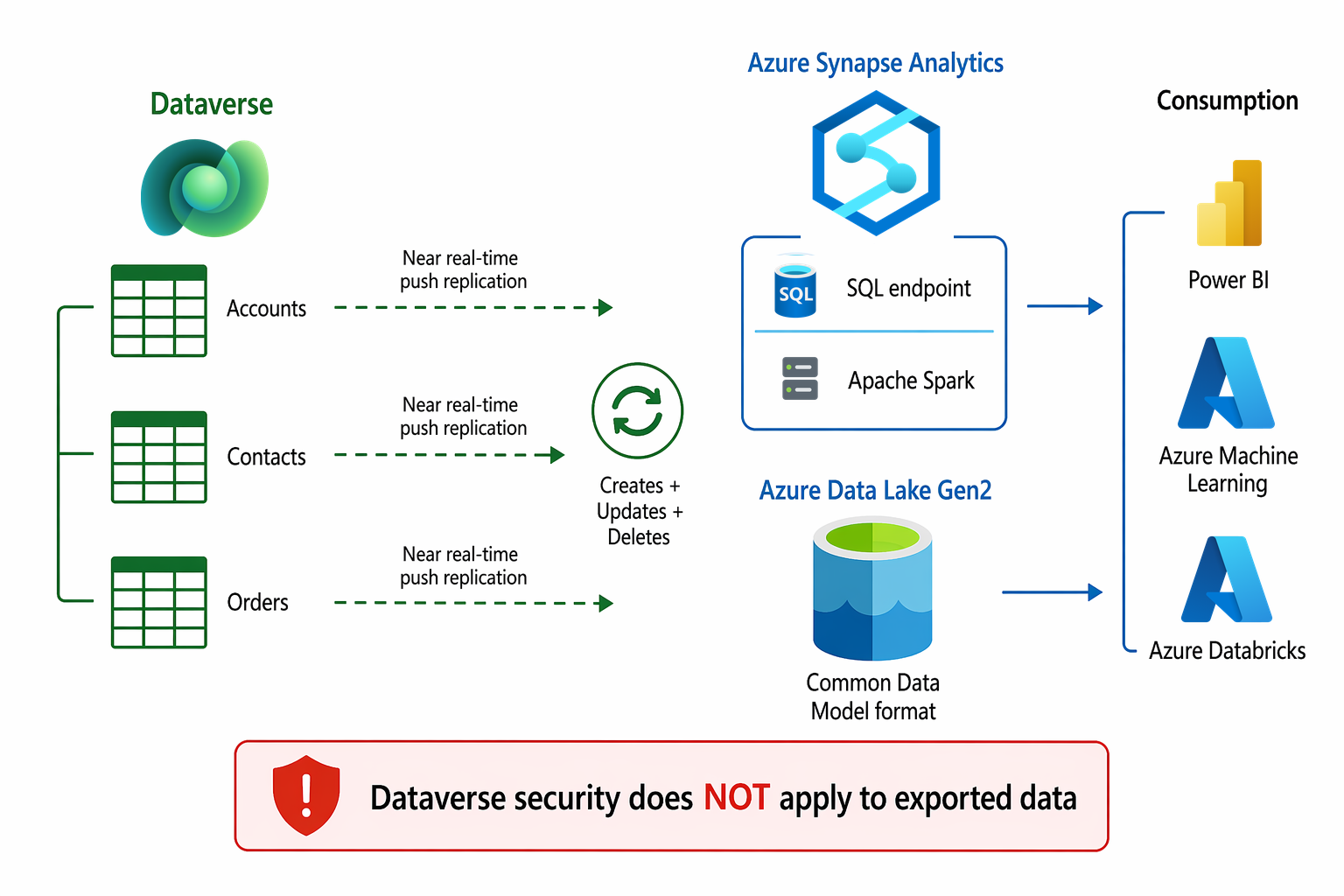
Set up Azure Synapse Link
- In Power Apps (make.powerapps.com), navigate to Azure Synapse Link under Dataverse.
- Select New link and choose your destination:
- Azure Synapse Analytics - For SQL-based analytics and integration with Synapse workspace
- Azure Data Lake Storage Gen2 - For raw data storage and flexible analytics tooling
- Authenticate to your Azure subscription and select the target resource.
- Choose the Dataverse tables to replicate.
- Configure options:
- Append only - Only inserts; no updates or deletes replicated (useful for immutable audit scenarios)
- Standard - Full CUD (create, update, delete) replication
- Activate the link to begin initial synchronization.
Plan your data export strategy
| Scenario | Recommended destination | Notes |
|---|---|---|
| Enterprise BI and reporting | Azure Synapse Analytics | SQL endpoint for Power BI; Spark for complex analytics |
| Data science and machine learning | Azure Data Lake Gen2 | Flexible format; accessible from Databricks, Azure Machine Learning |
| Long-term archival | Azure Data Lake Gen2 | Low-cost storage with lifecycle management |
| Cross-platform integration | Either | Data Factory or Synapse Pipelines for orchestration |
Security considerations
- The service principal used by Synapse Link needs appropriate permissions on both Dataverse (System Administrator or equivalent) and the Azure destination resource
- Data in the destination follows the destination's security model - Dataverse row-level security doesn't automatically apply to exported data
- Consider implementing Azure role-based access control (RBAC) on the destination to restrict who can query exported data
- For sensitive data, evaluate whether specific columns or tables should be excluded from replication
Important
Data exported via Synapse Link is outside the Dataverse security boundary. Ensure your destination has appropriate access controls - Dataverse security roles, field-level security, and column masking don't apply to the exported copy.