Configure elevation policies and rules
Endpoint Privilege Management relies on policy configuration to control how elevation is requested, approved, denied, or automatically applied. In Microsoft Intune, elevation policies define the baseline behavior for managed Windows devices and specify which apps, installers, or scripts can run with elevated privileges.
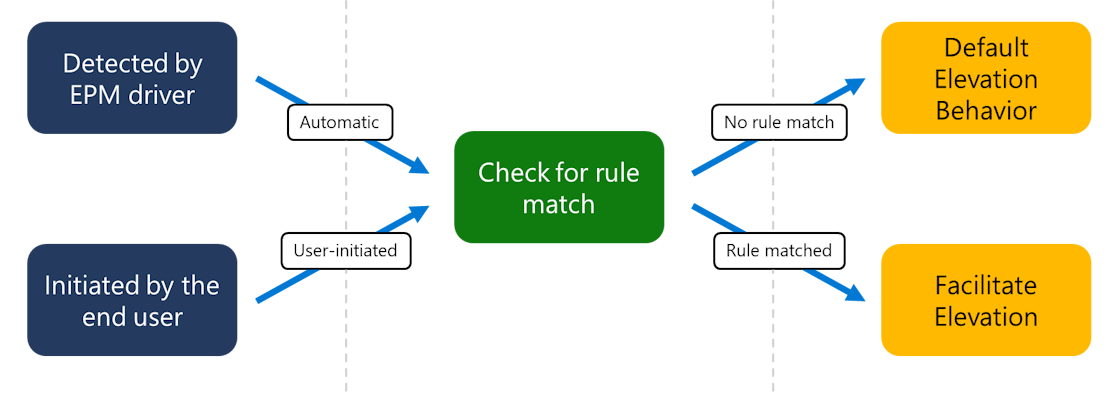
EPM uses two main policy types in Intune: an elevation settings policy and an elevation rules policy. The elevation settings policy controls the EPM client, reporting behavior, and the default response for files that don't match a rule. The elevation rules policy defines how specific files or scripts are handled when elevation is requested.
Configure the elevation settings policy
Start with a Windows elevation settings policy. This policy enables EPM on the device and defines the default behavior for elevation requests. In the Microsoft Intune admin center, create this policy from Endpoint security > Endpoint Privilege Management > Policies > Create, then select Windows as the Platform and Elevation settings policy as the profile.
Important configuration choices include:
- Endpoint Privilege Management: Enable or disable EPM on the targeted devices.
- Default elevation response: Decide what happens when a file doesn't match a specific elevation rule.
- Send elevation data for reporting: Decide whether devices send diagnostic and elevation data to Intune.
- Reporting scope: Choose whether to collect diagnostic data only, managed elevations only, or all endpoint elevations.
Choose a secure default elevation response
The default elevation response is important because it applies to files that don't match an elevation rule. A secure baseline usually starts with Deny all requests or Require support approval. This helps prevent users from elevating unknown or unapproved applications by default.
Available default responses include:
- Deny all requests: EPM doesn't elevate unmatched files.
- Require support approval: The user can submit an elevation request for review.
- Require user confirmation: The user confirms the elevation request and can be required to provide a business justification, Windows authentication, or both.
Use Require user confirmation carefully. Because the default response applies to files without a matching rule, this setting can allow broad elevation unless additional validation and reporting are configured.
For more information about the settings and options, see Create a Windows elevation settings policy.
Create elevation rules for approved files
After the settings policy is in place, create a Windows elevation rules policy. In the Microsoft Intune admin center, go to Endpoint security > Endpoint Privilege Management > Policies > Create, then select Windows as the Platform and Elevation rules policy as the profile. Each rule identifies a file and defines how EPM handles elevation for that file.
A rule should include enough file details to identify the intended executable or script. Common rule properties include:
- Rule name and description.
- Elevation type.
- Child process behavior.
- File name.
- File path.
- Signature source, certificate, or file hash.
- Minimum file version, when needed.
- Optional file metadata, such as product name or internal name.
Use file paths that point to locations standard users can't modify. This reduces the risk that a user replaces a trusted file with a different executable that still matches the rule.
EPM also supports reusable settings groups for elevation rules. A reusable settings group can store a publisher certificate that is used to validate files across multiple elevation rules or elevation rules policies. This is useful when several trusted applications share the same publisher certificate because the certificate can be managed in one place instead of being added separately to each rule.
To review all elevation rule settings and configuration options, see Creating elevation rules with Endpoint Privilege Management.
Configure child process behavior
Child process behavior controls what happens when an elevated process starts another process. This setting is important because installers, scripts, and support tools can start additional processes during execution.
| Child process behavior | What it does | When to use it |
|---|---|---|
| Require rule to elevate | A child process must match its own EPM elevation rule before it can run elevated. | Use as the preferred option for most deployments because each elevated process is still controlled by policy. |
| Allow all child processes to run elevated | Any child process started by the elevated parent process can also run elevated. Rule evaluation for the child process is skipped, including deny rules. | Use only for trusted, well-understood installers or tools where child processes are part of the same approved workflow. |
| Deny all | Prevents child processes from being created or elevated from the parent process. | Use when the elevated task should be tightly scoped to the parent process only. |
Use child process behavior carefully. An overly permissive setting can allow a trusted elevated process to start other tools or scripts with elevated privileges. For most rules, start with Require rule to elevate and create separate rules only for child processes that are known and trusted.
Select the right elevation type
Each elevation rule defines an elevation type. The elevation type controls what happens when a user or process requests elevation for a file that matches the rule.
| Elevation type | Behavior | When to use |
|---|---|---|
| Automatic | The file runs with elevated privileges without user interaction. | Use only for highly trusted files that are clearly identified with strong rule criteria, such as hash, certificate, path, and version. |
| User confirmed | The user receives a prompt before elevation. The rule can also require a business justification, Windows authentication, or both. | Use when the file is trusted but the organization wants user acknowledgment or accountability before elevation. |
| Support approved | The user submits an elevation request, and an administrator must approve it before the file can run elevated. | Use for exceptions, infrequent tasks, or higher-risk elevation scenarios that need human review. |
| Deny | The matched file is blocked from running with elevated privileges. Deny rules take precedence over allow rules for the same file. | Use to explicitly prevent known unsafe, unsupported, or unnecessary files from elevating. |
| Elevate as current user | The elevated process runs under the signed-in user's account instead of the EPM virtual account. | Use only when an application requires the active user profile or user context to work correctly. |
For most elevation types, EPM uses a virtual account to run the elevated process. This helps isolate the elevated action from the signed-in user's profile. Elevate as current user should be used carefully because it preserves the user context and can increase exposure to user-specific data.
Build rules from reports or requests
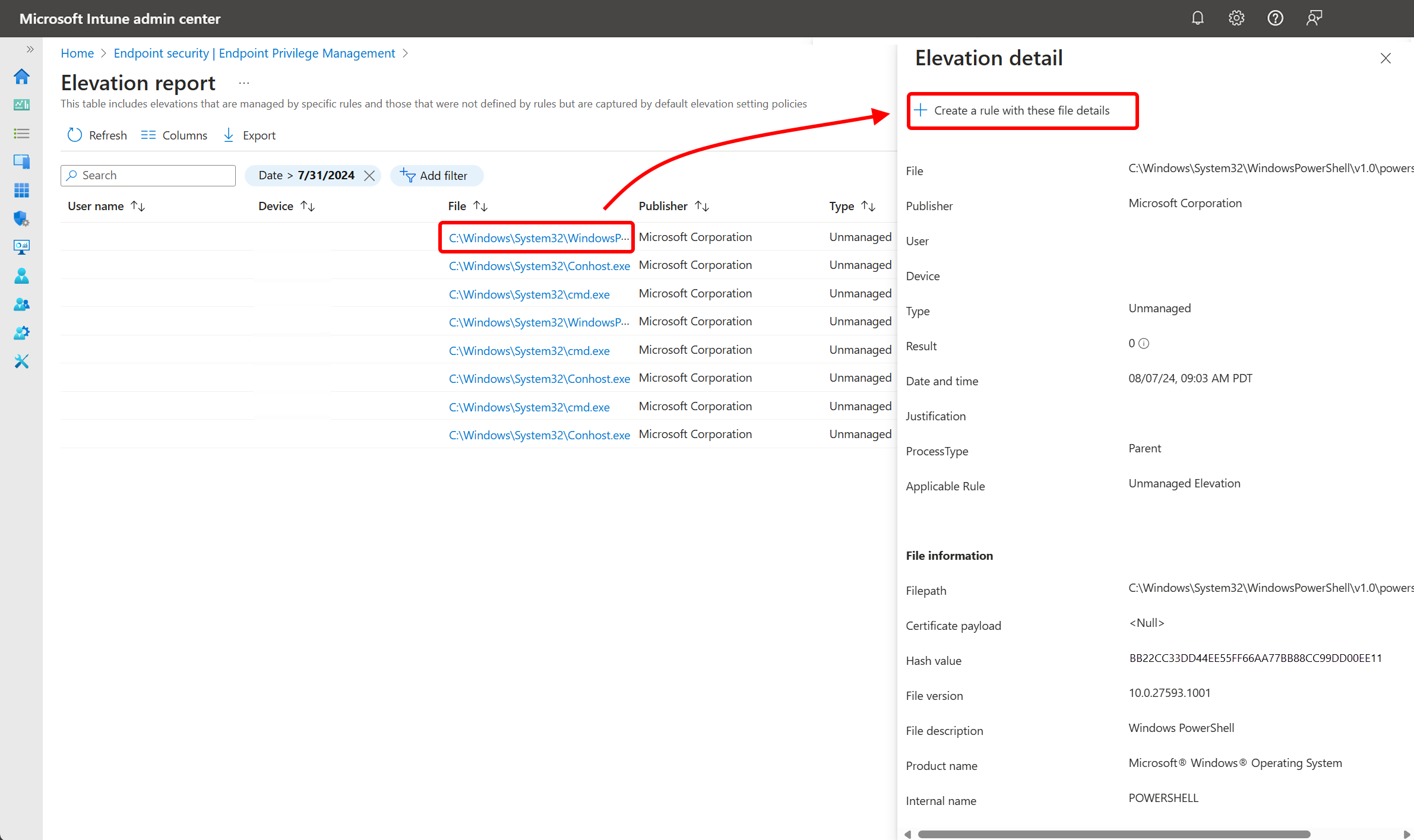
Elevation rules can be created manually, but they can also be created from EPM data. For example, administrators can start from the Elevation report or from a support-approved elevation request, review the file details, and create a rule using those details.
This approach helps reduce guesswork. Instead of building rules from incomplete app information, administrators can use observed elevation activity to create rules for real files users are trying to run.
Assign elevation policies to the right groups
Both elevation settings policies and elevation rules policies can be assigned to users or devices. Assignment planning is important because different roles may need different elevation behavior. For example, developers, support technicians, and standard information workers might each need different rules.
When multiple elevation rules apply to the same file, EPM evaluates rule specificity and precedence. Deny rules take precedence, user-targeted rules take precedence over device-targeted rules, and rules with a hash are treated as more specific.