Describe segments
Segments answer one of the most important questions in lead generation: which contacts or leads should enter a campaign or journey? Segments group contacts or leads based on shared attributes like industry, region, role, or lifecycle stage. They can also group people based on behavior like recent website activity, form submissions, event registration, or email engagement. Customer Insights - Journeys uses segments so marketing can target audiences based on what's true about them (attributes) or what they did (behavior).
Segments help businesses:
- Reduce wasted outreach by sending fewer, more relevant messages
- Increase engagement through personalization
- Align marketing investment with the highest-value audiences
- Create consistent rules for who qualifies for a campaign
Segment capabilities
Customer Insights - Journeys includes segment capabilities that support real-world targeting needs:
- Segment source awareness: You can identify whether a segment was created in Customer Insights - Journeys or comes from another source, including Customer Insights - Data. This distinction matters because organizations often want to reuse segment definitions across teams and systems.
- Exclusion and suppression use cases: Segments aren't only for defining who to include. They also define who shouldn't enter (exclude) or who should exit (suppression or exit criteria). This approach protects customer experience and avoids inappropriate messaging.
- Using segments for conditions: Segments work not only at the start of a journey, but also inside a journey for conditional logic. This helps route people differently based on membership.
Real-world segment examples
The following examples illustrate how segments work in practice.
Event follow-up segment
This segment targets people who registered for an event or checked in (attended) within a defined time window, for example, the last 14 days. Many teams split this further into sub-segments: attendees versus no-shows. They might also exclude employees, partners, or anyone who already requested a sales conversation. This segment typically drives post-event journeys such as "thank you" messages, session recap emails, a survey, and a follow-up offer based on the sessions the person attended.
Re-engagement segment
This segment targets contacts or leads who didn't engage during a recent period. For example, they had no email opens or link selections in 60 days, no website visits in 30 days, and no event registrations in the last quarter. Organizations often add guardrails like excluding people who recently unsubscribed, bounced, or are already in an active nurture journey. This segment drives win-back journeys that test new value messages, confirm preferences, and if there's still no engagement, gradually reduce outreach or move the person into a suppression segment.
Territory segment
This segment targets leads or contacts in a specific region, state, metro area, or sales territory. Teams often combine this with qualifiers like industry, company size, or intent signals. For example, a territory segment might include "Texas-based manufacturing leads who downloaded a buyer's guide in the last 30 days." Teams might also exclude current customers if the goal is net-new acquisition, or route customers to an account-based nurture instead. This segment is commonly used for local roadshows and field marketing journeys. Messaging includes location-specific dates, nearby venues, local sales contacts, and follow-up tasks to ensure handoff to the right territory rep.
Automate segment creation with Query Assist
Segment creation can be difficult because it often requires understanding complex data relationships. Query Assist reduces that barrier: you describe the audience in plain language and Copilot proposes segment logic that you can apply to the segment builder and then refine.
Suppose you want a post-event follow-up audience for a webinar called Contoso Coffee Tasting. You start in Customer Insights - Journeys under Audience > Segments and create a new segment targeting Contacts. In the Description field, you write what you mean in plain language, such as: "Contacts who attended the Contoso Coffee Tasting event and opened any email in the last 30 days." When you select Create, the segment builder opens and Query Assist appears with a proposed set of filters. For example, it might suggest an event attendance filter plus a recent email engagement condition.
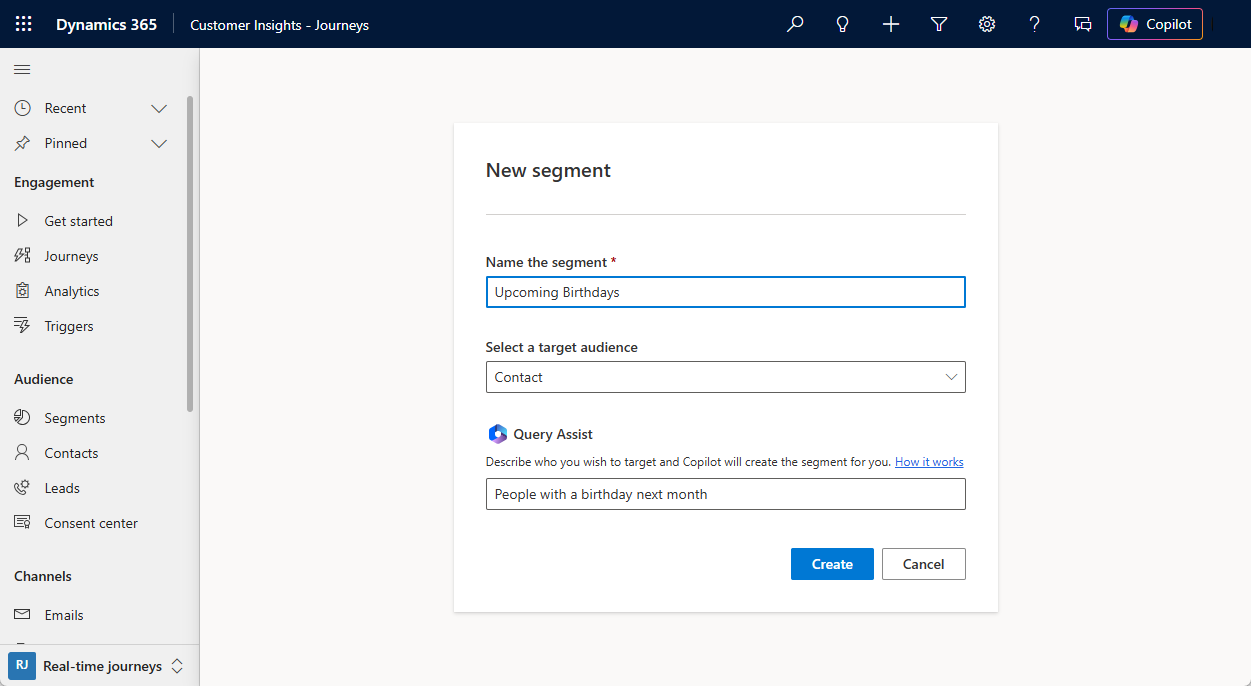
From there, you scan the suggested logic and select Use to apply it to the segment canvas. This is where business users usually do the final work: confirm the exact event name (or select the right event record), tighten the timeframe (30 days versus 60 days), and decide whether "opened" should be "selected a link" if you only want higher-intent engagement. If you also need exclusions, like employees, partners, recent unsubscribes, or anyone already in an active nurture journey, you add those conditions directly in the canvas. You can also ask Query Assist for an exclusion and select Use again. After the preview and estimated audience look right, you select Save and then use the environment's publish action (Go live, Publish, or Ready to use) so the segment becomes available in journeys.
Some example descriptions you can use with Query Assist:
- "Contacts who attended the Contoso Coffee Tasting event and opened any email in the last 30 days."
- "Leads created this month who didn't open or select a link in any email in the last 14 days (excluding unsubscribes and bounces)."