Enable customer portals with Power Pages
Dynamics 365 is designed for your employees. But many of the processes that happen inside Dynamics 365 have a counterpart outside it: customers submitting support requests, partners checking order status, suppliers confirming delivery schedules, field service customers booking appointments. Each of these interactions touches Dynamics 365 data internally, but the external users on the other end don't have Dynamics 365 licenses.
Power Pages solves this by letting you build external-facing websites that read and write Dataverse data directly. It's an alternative interaction channel that works on top of your existing Dynamics 365 data, without requiring external users to have any Microsoft license.
What Power Pages is
Power Pages is Microsoft's low-code platform for building secure, external-facing websites backed by Dataverse. Sites built with Power Pages are real, publicly or privately accessible websites. They're not embedded inside Dynamics 365, and external users don't need any Dynamics 365 or Power Platform license to use them.
When an external user submits a support case through a Power Pages portal, that case record is created directly in the Dataverse instance that backs your Dynamics 365 Customer Service deployment. A customer service agent sees it in their queue immediately, just as if it had been created from inside the app.
Creating a site with Copilot
The fastest way to start a new Power Pages site is through Copilot. In the Power Pages maker portal, you describe the site you want to build in natural language; for example, "a self-service support portal for customers to submit and track service requests." Copilot generates a site name, a web address, a home page layout, and other pages with relevant text and images, all based on your description. You can accept each step or regenerate it before moving on.
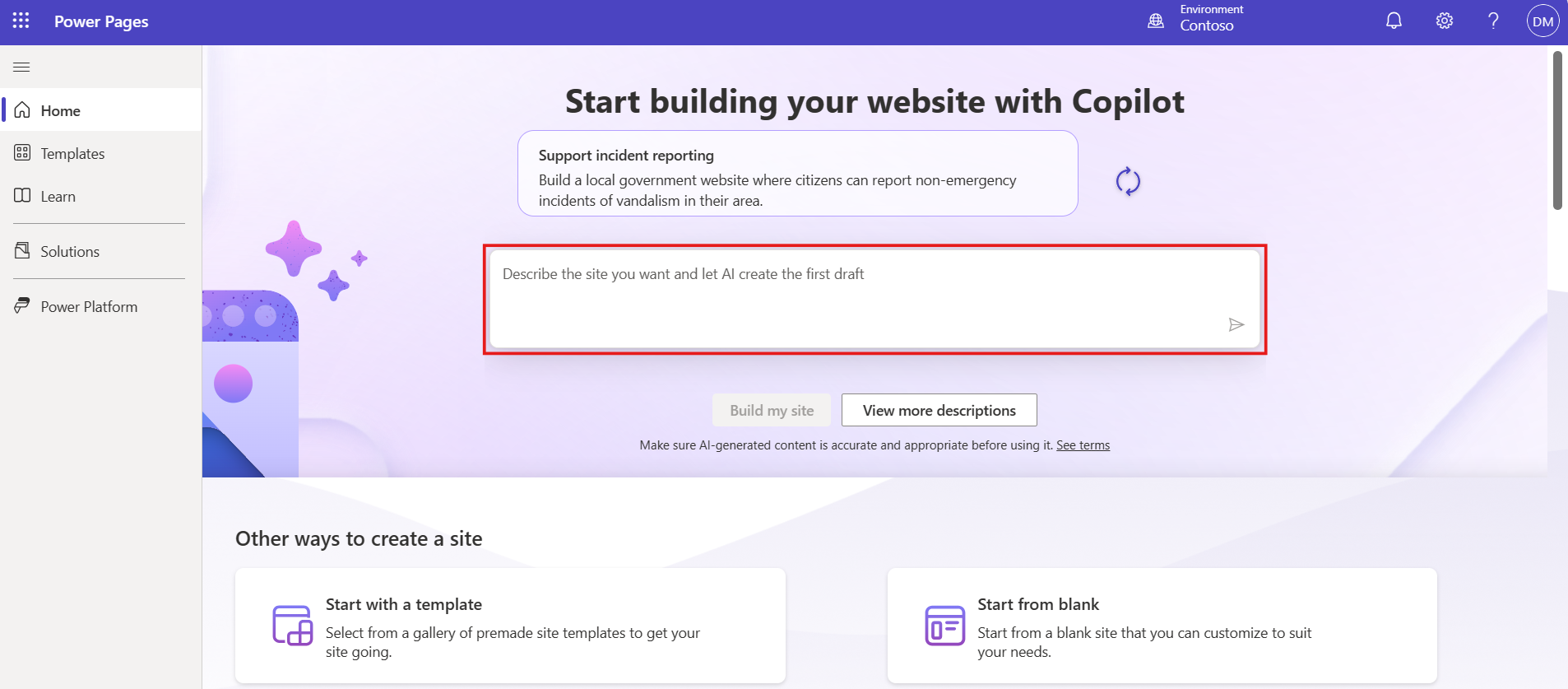
Once the site is created, you land directly in the design studio where you can continue refining the content. Copilot handles the initial scaffolding, so you're not starting from a blank canvas.
Designing with the design studio
The design studio is the primary authoring environment for Power Pages. It's organized into four workspaces, each focused on a specific area of site development—pages, data, styling, and setup. The Pages workspace opens by default and gives you an editor for building and editing page content without writing code.
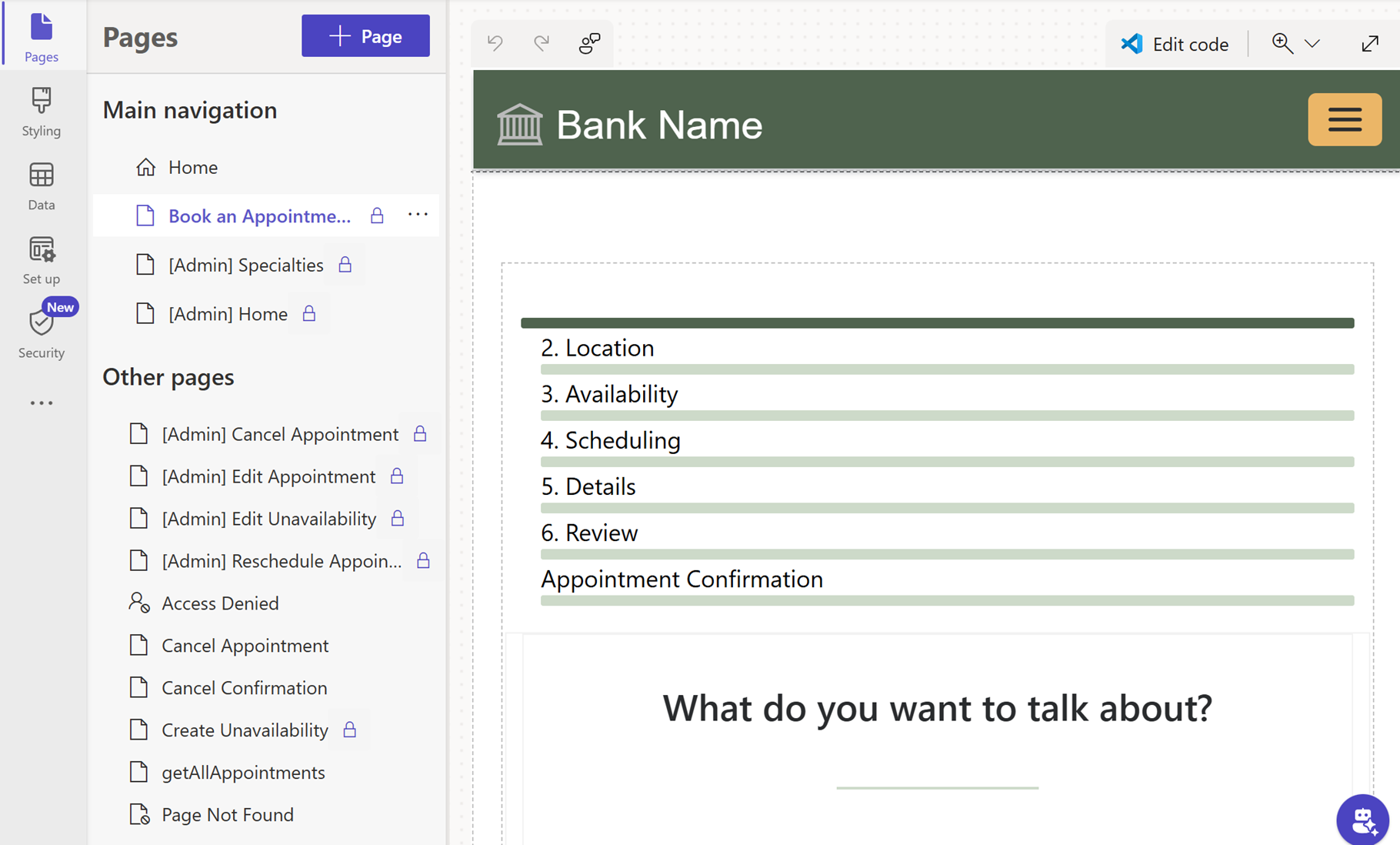
From the toolbar, you can preview the site on desktop or mobile, access the code editor for more advanced edits, and sync any changes made in the Portal Management app. For configurations that go beyond what the design studio exposes, such as advanced security settings or custom web roles, you access the Portal Management app via the ellipsis menu, then use the Sync button to reflect those changes back in the studio.
Authentication options
Power Pages supports several authentication models, giving you flexibility for different audience types:
- Microsoft Entra ID: Suitable for portals used by business partners or employees of partner organizations who have their own Microsoft Entra tenant. Users sign in with their existing work credentials.
- Local accounts: An identity managed directly by Power Pages, with a username and password stored in the portal. Useful when you need full control over the identity experience without an external identity provider.
Multiple providers can be enabled on a single portal, letting you offer different sign-in options for different audience segments.
Use cases across Dynamics 365 apps
Power Pages isn't a single template. The design and purpose of the portal varies depending on which Dynamics 365 app it's extending. Here are a few examples of how Power Pages can support the Dynamics 365 model-driven apps:
| App | Portal type | What external users do |
|---|---|---|
| Dynamics 365 Sales | Self-service quote and order tracking | Customers sign in to view active quotes, approve or request changes, and track order progress, without contacting their account manager for status updates |
| Dynamics 365 Customer Service | Self-service support portal | Customers submit new cases, check the status of existing cases, search the knowledge base, and update case details. The portal deflects repetitive tier-1 support volume by letting customers self-serve before escalating to an agent |
| Dynamics 365 Customer Insights | Preference center and consent management | Customers update their communication preferences and consent settings. Changes sync back to Customer Insights in real time, which updates segment membership and respects the new settings in future journey executions |
| Dynamics 365 Field Service | Customer asset and service scheduling portal | Customers view registered assets, check upcoming service appointments, request new bookings, and review service history, reducing inbound calls to your scheduling team |
How Power Pages connects to Dataverse
Getting data security right is critical when you're exposing Dataverse data to anonymous or authenticated external users. Power Pages uses two layered mechanisms for this:
Web roles define what categories of portal users have access to what pages and features. When a user authenticates, they're assigned to a web role, such as "Authenticated Customer" or "Partner Contact", which controls their navigation access, form permissions, and page visibility.
Table permissions define what create, read, update, and delete (CRUD) operations a web role can perform on specific Dataverse tables. You configure table permissions at the table level, scoped to specific web roles. You can also apply contact scope, so a customer can only read their own cases, not all cases in the system.
Important
Power Pages uses a secure-by-default model. Without explicit table permissions, authenticated external users can't access any Dataverse data. You must configure data access for each table your portal uses. This is a common setup step that's easy to miss the first time you build a portal—if your portal shows blank data for authenticated users, check table permissions first.
This two-layer model gives you precise control over what external users see and do, without compromising the security of your internal Dynamics 365 data.
Tip
Keep your portal's table permissions as narrow as possible. Grant each web role only the access it needs for the specific pages and operations in your portal. You can always expand permissions later; it's harder to restrict them after users have expectations around broader access.
Learn more about Power Pages and how it connects to Dataverse.