Use the Document Intelligence Studio
Tip
See the Text and images tab for more details!
The Azure Document Intelligence Studio is an online tool for visually exploring, understanding, and integrating features from the Document Intelligence service. You can use the Studio to analyze form layouts, extract data from prebuilt models, and train custom models—all through a visual interface.
You can access the Studio at documentintelligence.ai.azure.com.
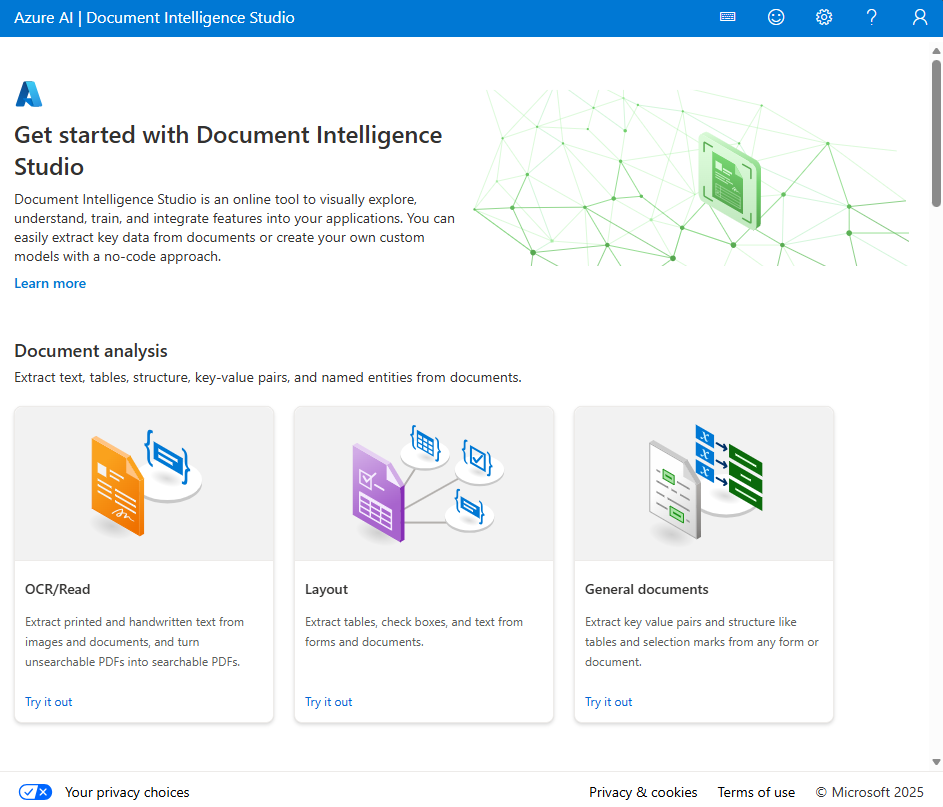
Studio capabilities
The Document Intelligence Studio supports the following project types:
Document analysis models: Test the read and layout models against your own documents to see extracted text, tables, and structure.
Prebuilt models: Analyze documents using any available prebuilt model, such as invoices, receipts, ID documents, and tax forms.
Custom models: Build, label, train, and test custom extraction models and custom classifiers.
Analyze documents with prebuilt models
To extract data from documents using prebuilt models in the Studio:
- Create an Azure Document Intelligence or Foundry Tools resource in the Azure portal.
- Open the Document Intelligence Studio and select a prebuilt model (for example, Invoice, Receipt, or ID Document).
- Provide your resource endpoint and key.
- Upload or provide a URL to the document you want to analyze.
- Review the extracted fields and their confidence scores.
Build custom model projects
You can use the Studio to handle the entire process of labeling, training, and testing custom models — without manually creating JSON files. The Studio generates the required ocr.json, labels.json, and fields.json files automatically.
The high-level workflow is:
- Create an Azure Document Intelligence or Foundry resource.
- Upload at least 5-6 sample forms to an Azure Blob Storage container.
- Configure cross-origin resource sharing (CORS) so the Studio can access your storage container.
- Create a custom model project in the Studio, linking your storage container and Document Intelligence resource.
- Label fields in your sample documents using the Studio's visual interface.
- Train your model and review accuracy metrics.
- Test the model against a new document that wasn't used during training.
You'll learn more about the custom model types and the alternative REST API/SDK training workflow in the Train and use custom models unit.
Add-on capabilities
Document Intelligence supports optional features that you can enable depending on your extraction scenario:
| Capability | Description |
|---|---|
| High resolution extraction | Extract text from high-resolution documents with greater accuracy. |
| Formula extraction | Detect and extract mathematical formulas from documents. |
| Font property extraction | Extract font information such as style, weight, and color. |
| Barcode extraction | Detect and read barcodes in documents. |
| Searchable PDF | Convert scanned documents into searchable PDF files. |
| Query fields | Use natural language queries to extract specific fields from documents. |
| Key-value pairs | Extract key-value pair relationships from documents using the layout model. |
Note
Some add-on capabilities are premium features that incur extra costs. Check the pricing page for details.