Identify data sources
Depending on your specific requirements, many options are available to help bring your activity log data into Power Automate Process Mining. You can connect directly to your data source, use an existing template, or import the data from a CSV file. You can also connect to your own Microsoft Azure Data Lake Storage Gen 2 that contains the event log data.
To evaluate the best option, you should become familiar with the different templates and connectors that are available. Also, you should consider where your data is coming from and what type of transformation it might require.
Identify the ideal time range of the data
The broader process mining team should discuss what time range is ideal for doing the process monitoring on. This time range can influence your efforts to extract data from various systems. For example, if you're only considering the last 90 days, it’s counterproductive to extract beyond that time range from any of the systems.
Generally, process mining works best when you have a complete picture of all data for a case. Performing analysis by using cases that contain only a subset of events could lead to challenges in analysis. While you could filter out these events at analysis time, it can be more efficient to try ingesting a complete event log.
A common cause of missing data happens when one system in a multiple-system process recently started collecting data. In this example, you might limit your analysis to the last 30 days or whatever the start date for collecting data is.
In situations where continuous improvement is happening, the request for data might be for the last 30-60 days on a rolling basis.
Identify the source and evaluate
The first step in bringing your activity log data into Power Automate Process Mining is to identify the data source for each system of record that’s involved in the process and then evaluate the available data. In many cases, the tables in the system’s database that you're familiar with hold the current state of the data and not the historical log of what happened. Often, the system uses a separate table or mechanism to store your activity until you need to locate it. For example, many Microsoft Dynamics 365 applications track this activity in the Activities table. Other applications, such as SAP or Salesforce, have similar concepts but might differ in the names of the tables.
Locating the activity data is only part of the work. Keep the following considerations in mind for each source:
Whether all activity data is relevant or if some data isn’t relevant for process mining - Often, these logs contain data beyond the start and end of a process event.
Whether the log contains all data that you need - For example, you might often need to join the log data to the current state data to obtain case and event log-level attributes. Additionally, you might identify that the system doesn’t track all events that you need. If so, you need to modify the system to start tracking the missing event data.
Use templates for simplified data source integration
Power Automate Process Mining has many built-in templates that you can use to quickly get started with various data sources. By using the templates, you can quickly ingest data into Power Automate Process Mining without needing to transform or map the event log data from these sources.
Power Automate Process Mining has templates for the following data sources:
Azure templates - Templates are available for Microsoft Azure DevOps, Microsoft Azure Logic Apps, and the Durable Functions feature from Microsoft Azure Functions. These templates allow you to use process mining to identify and optimize your development processes.
Finance and operations apps templates - These templates can provide a quick start when you're bringing in data from an SAP system. Templates are available to support the Accounts Payable and the Procure to pay processes. One advantage of the Procure to pay template is that it comes with many extra KPIs and visualizations that are built on top of the standard process mining report.
Microsoft Power Platform templates - With these templates, you can quickly ingest data from Power Automate desktop flows, Microsoft Copilot Studio bots, and Microsoft Power Apps insights.
When you use a template, it starts with a Microsoft Power Platform dataflow and a Microsoft Power BI report that’s customized for the template business process. Similar to how you would start from blank in Power Automate Process Mining, you can customize the data flow and the report to accommodate other requirements that the template you started with doesn’t handle.
Connect directly to your data source
By using the start from blank option, you can choose to connect to one of the many sources of data by using the provided connectors.
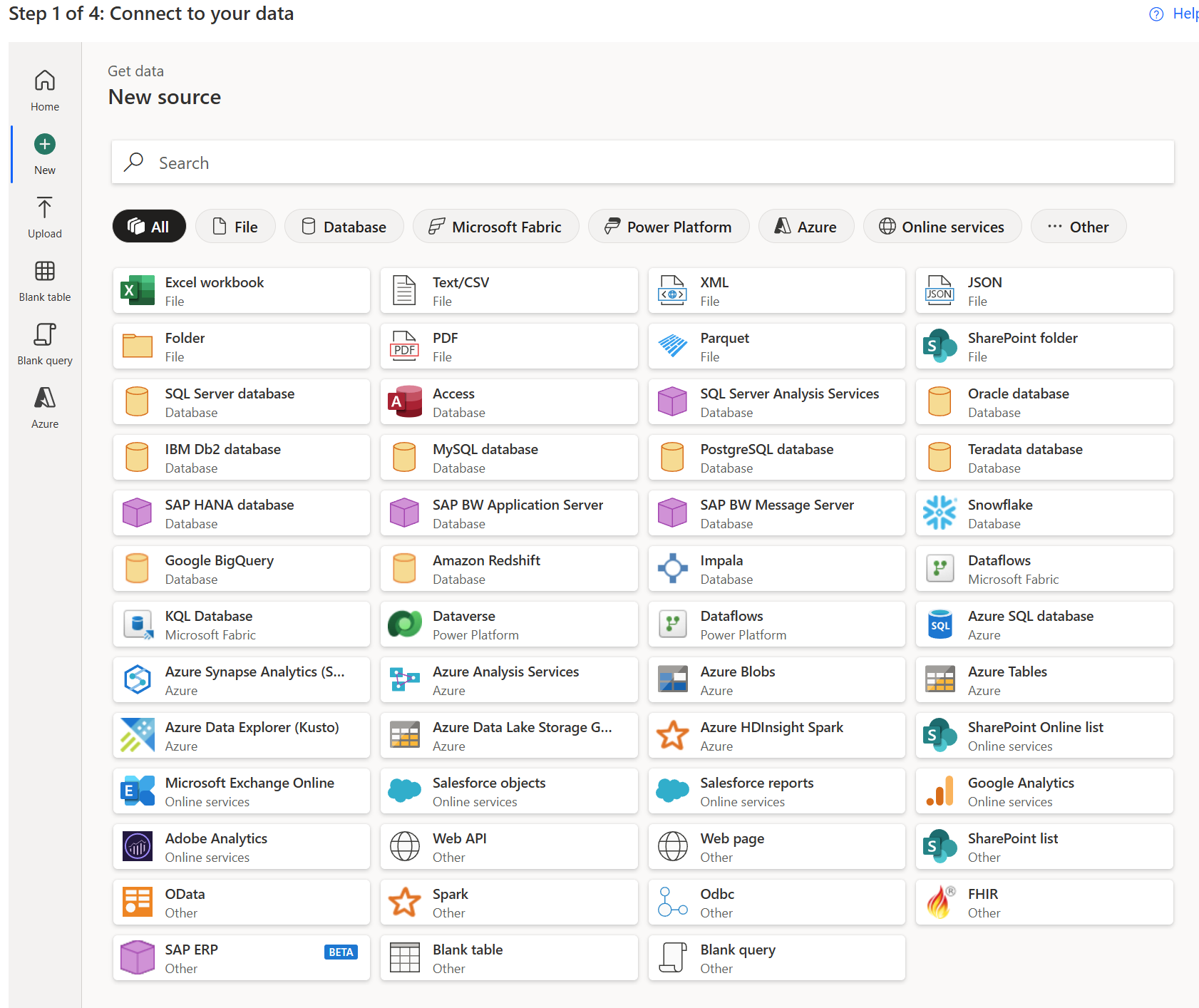
After connecting to the data source, you can optionally use Power Query to transform the event log data before mapping the data into Power Automate Process Mining.
Connect directly to your own Azure Data Lake Storage Gen2
With Azure Data Lake Storage Gen2, you can directly bring your event log data into Power Automate Process Mining with the least amount of overhead to ingest the data.
When you use this option, you choose a single file or a folder that contains your event log data. The files must use the CSV file format. When you use multiple files, all files must have the same headers and format. Additionally, the data in the files must be in the final event log format and not require further transformation before you map them into Power Automate Process Mining.
When you connect to your data source, Microsoft Copilot in Power Automate Process Mining performs process discovery and attempts to identify the type of process that your event log data is related to.
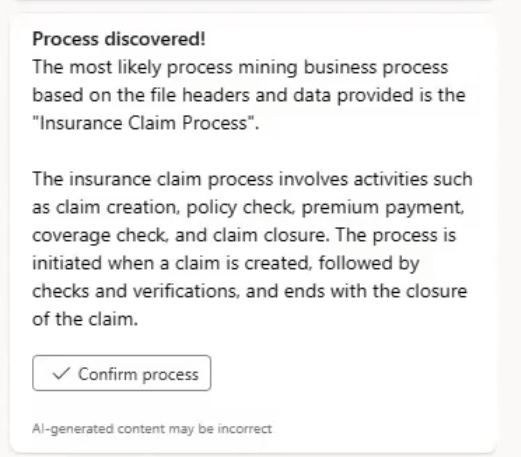
Copilot can be helpful for further analysis and automapping the data to prepare it for use with process mining.
This approach to ingesting data is ideal when you complete any necessary transformation or combining of the data and then load that data to Azure Data Lake Storage Gen1. For example, for an insurance claims process analysis, an organization might need to get data from a CRM, an internal claims management system, and an SAP. By using their standard extract, load, and transform (ETL) tools, the organization could extract the relevant event log data daily from the three systems and then write the transformed and combined data into the storage account. Then, Power Automate Process Mining could ingest this data after the organization maps it into the process analysis workspace. The following video goes through this example in detail.