Validate data
Data validation is an important step of process mining, and it should be one of the first steps that you take after identifying your data sources. Two different data validations are available:
A validation that you perform to prepare and validate your data before loading it into process mining
A data validation report that the system produces after the initial analysis of your process completes
General steps that you should take before loading the data include:
Access verification - If you're using connectors, make sure that you can connect to the data sources and that you have access to all required fields.
Ensure that data is in the correct format - Verify that data conforms to the correct format. If data arrives in an unsupported format, ensure that you can convert it into CSV format.
Identify optional fields - Sometimes, the data includes fields that are useful and some that aren't so useful. It's a good idea to identify the optional fields that you want to include in your process mining and what attribute you want them to map to.
Validation report
After you generate the initial process report, you need to check for validation errors. You should receive an in-browser notification informing you of validation errors. To download the generated data validation report, select the Get data validation report link.

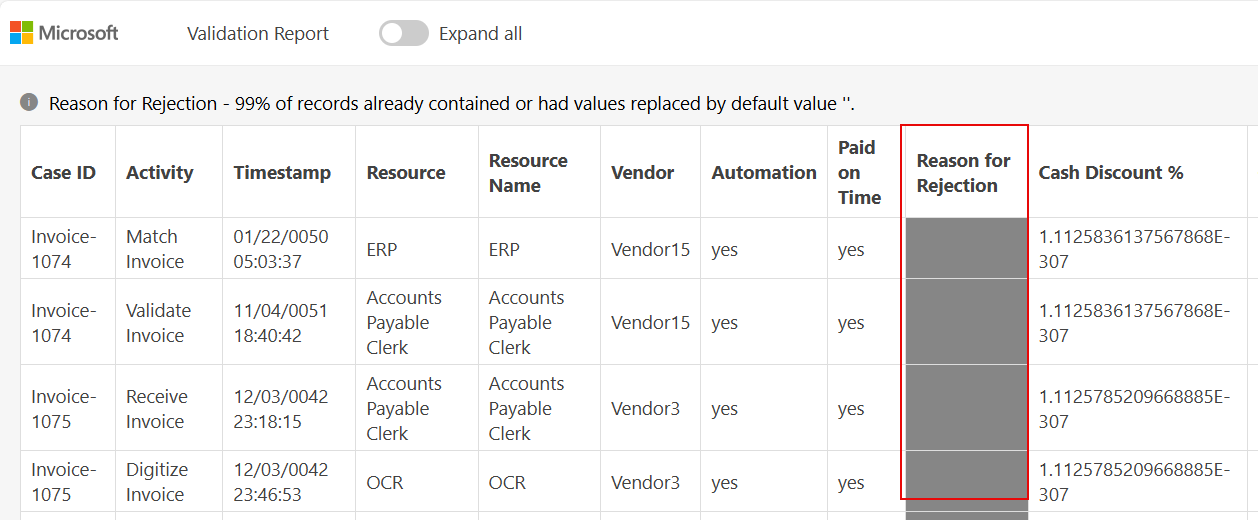
After you open the validation report, a summary of the report should display. In the following example, the report indicates that the Reason for Rejection column in 99% of the records already contained or had values replaced by the default value. You can expand all sections by using the toggle switch or by selecting the summary text.

After expanding the report, you can review the validation issues. Based on your findings, you can decide whether extra steps are necessary to correct the data and reload it or not.
If you decide to make corrections, you can go to the Details view of the process and then select Setup.


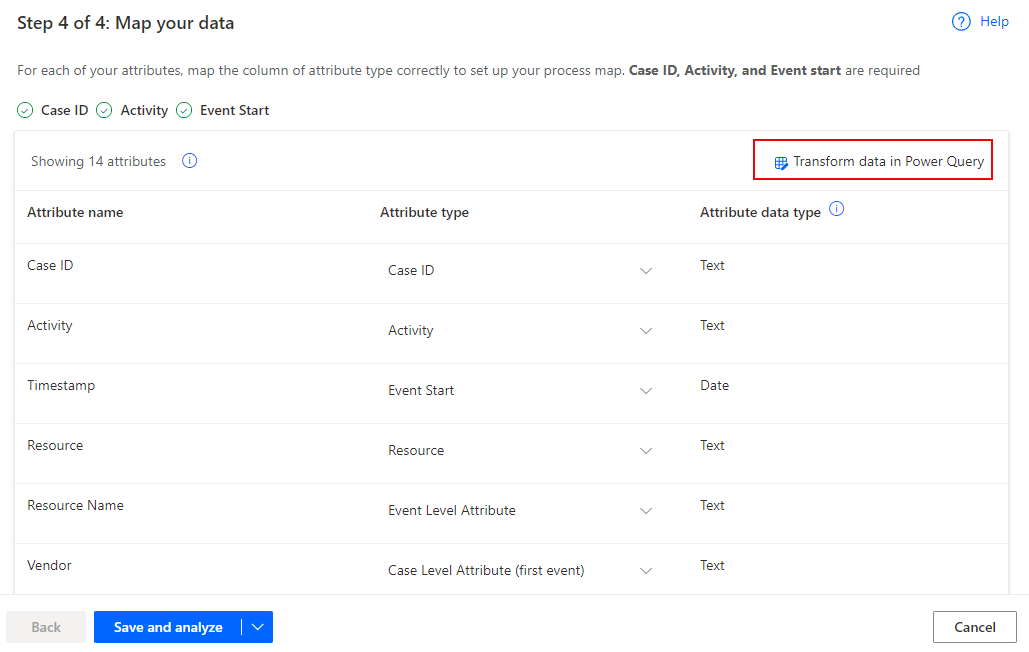
If mapping issues cause the data validation errors, then you can make the necessary corrections in the Setup area. After making your corrections, save and analyze the data again. You can also return to Power Query and make more transformations by selecting the Transform data in Power Query button.