Explore the application
Customer Insights - Data ingests data from your different data sources and then unifies it into a single customer profile. After you have a unified profile, you can use capabilities such as measures, enrichment, and AI-assisted insights. From within the customer profile, you can track data across different demographics and identify trends based on key data that you want to monitor.
The types of insights that you can expect to view on the home page are shown in the following image.
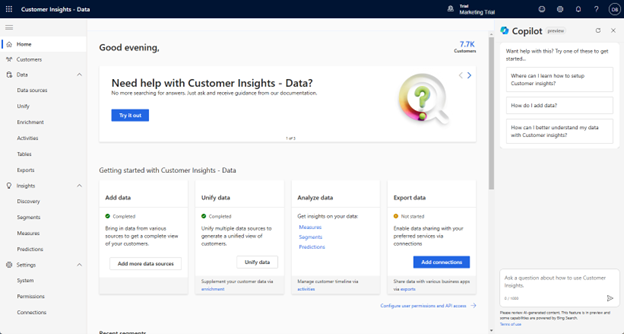
From the main menu, you have access to all the different application features, based on your needs.
The main menu provides you with access to the following capabilities:
| Area | Description |
|---|---|
| Home | Central overview of available insights, segments, and enrichment data for your organization. |
| Customers | Individual customer cards based on unified customer profiles. |
| Data > Data Sources | Ingest data from your different systems into Customer Insights - Data. |
| Data > Unify | Build your unified customer profile by defining which tables to unify and the rules for how they're merged. |
| Data > Enrichment | Enrich unified profiles with supplemental data from Microsoft and partner sources, including brand affinities, address standardization, and third-party demographic data. |
| Data > Activities | Consolidate activities from multiple sources into a single chronological timeline. |
| Data > Tables | View all tables in your instance, including profiles, activities, measures, and more. |
| Data > Export destinations | Define how Customer Insights data is exported for use in other applications. |
| Insights > Discovery | Use Copilot to ask natural-language questions and surface insights from your data. |
| Insights > Segments | Group and categorize customers based on demographic, transactional, or behavioral attributes. |
| Insights > Measures | Define and track key business KPIs such as customer lifetime value and average purchase frequency. |
| Insights > Predictions | Use integrated AI models to predict customer behavior. |
| Settings > System | Manage refresh schedules, API usage, refresh statuses, and other system settings. |
| Settings > Permissions | Control access for users working directly in the application. |
| Settings > Connections | Define connections to external applications that receive exported data. |
Work with customers
After you define all the activities, relationships, measures, and segments that are used for tracking and working with data, you can use this data to gain deeper insight into your customers through the Customers page. The Customers page presents a consolidated view of each customer based on profile data that you gathered from all your data sources. Customers can be individuals or organizations. From within the Customers page, you can search for and locate customers.
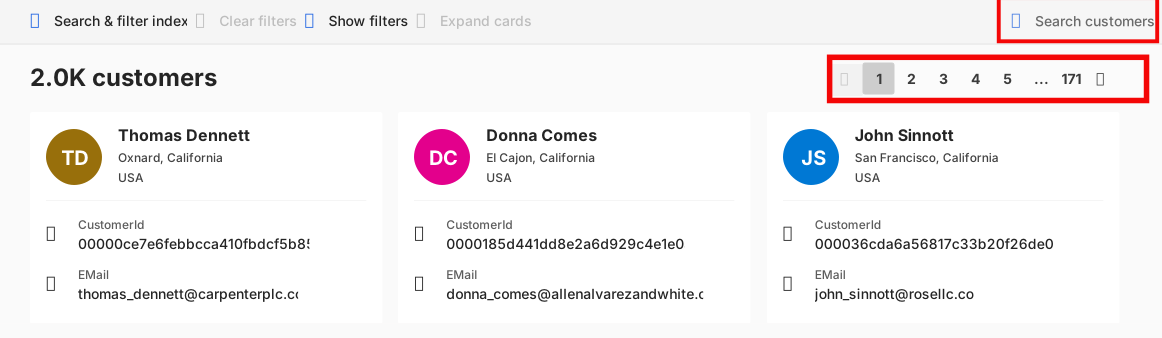
Each customer profile is represented by a customer card tile. Depending on whether the customer is an individual or organization, the customer card displays slightly different information. You can use the buttons at the lower-right side of the Customers page to move through all the available customer profile pages.
Important
You won't be able to access the Customers page until your organization's administrator has defined at least one searchable attribute on the Search & filter index screen. If this step has not been done, the application will take you to the Search & filter index screen. When at least one attribute is defined as searchable, you will be able to see the Customers page.