Perform basic source control tasks
To ensure a smooth workflow, you should follow best practices, such as committing changes frequently, writing clear and descriptive commit messages, and using branches to manage features or versions of your application.
Use a metadata search window to find elements and create projects
This section demonstrates how you can perform metadata-based searches throughout your application.
Go to Extensions > Dynamics 365 > Metadata search.
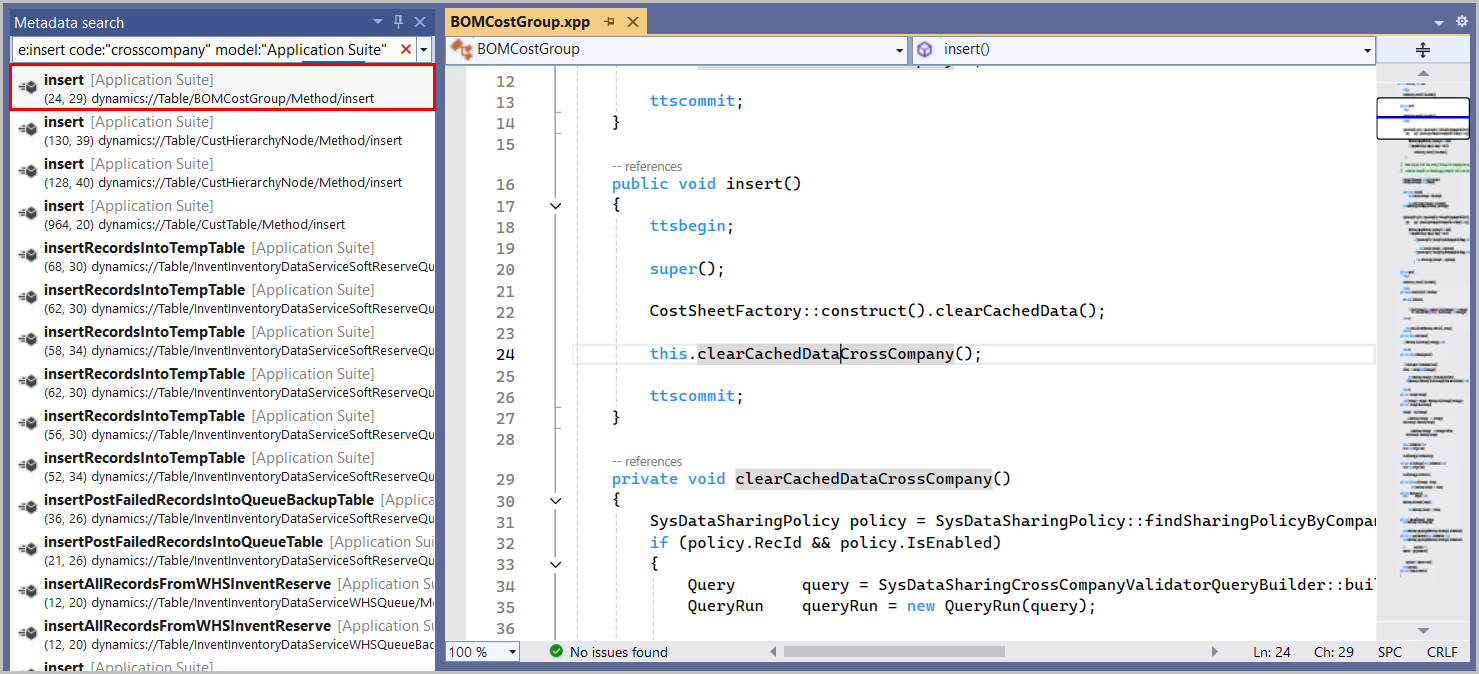
In the Metadata search window, in the Search field, enter the following text to find all table insert methods in the Application Suite model that contain a cross-company query. To do so, enter the following logic:
table,method name:insert code:"crosscompany" model:"Application Suite"
Wait for the search to complete.
Double-click a result in the list. The code editor opens and places the cursor at the line that matches your search criteria.
Select several elements in the results list by holding down the Ctrl key for multiple selections, right-clicking, and then selecting Add to new project. Adding the elements allows you to create a new solution and project that contain the selected elements.
Work with the latest version
Working with the latest version of the code is important to avoid conflicts and maintain code integrity. In Visual Studio, the Source Control Explorer tool provides a centralized view of all code and objects that are checked into source control. To access the tool, go to the View menu, select Other Windows, and then select Source Control Explorer. When the tool opens, you can fetch the latest version of files by right-clicking an object or folder and then selecting Get Latest Version.
Merge code and resolve conflicts
Merge conflicts can occur when multiple developers modify the same file. Visual Studio handles these conflicts by first attempting automatic resolution. Any unresolved conflicts display in the Resolve Conflicts window, where you can choose from the following options:
- Take Source - Use the version from source control, discarding your local changes.
- Keep Local - Retain your changes, discarding those changes in source control.
- Merge using Merge Tool - Compare both versions side by side, deciding on which changes to keep.
You can't check in a changeset until unresolved merge conflicts no longer exist, so mastering these tools is key to your success as a member of a development team.
Roll back changes
If you need to undo changes, Visual Studio allows you to roll back a specific changeset. Open the Source Control Explorer, right-click the branch that you want to revert, and then select View History. Then, locate the changeset that you want to roll back, right-click it, and then select Rollback Entire Changeset. This process restores the branch to a previous state without affecting other changes.