Header and line details for subcontracts
A project manager will need to create a subcontract in Project Operations to employ subcontractors and to purchase products and services from vendors:
In the navigation page, under Purchasing, select Subcontracts.
On the Subcontract page, select New.
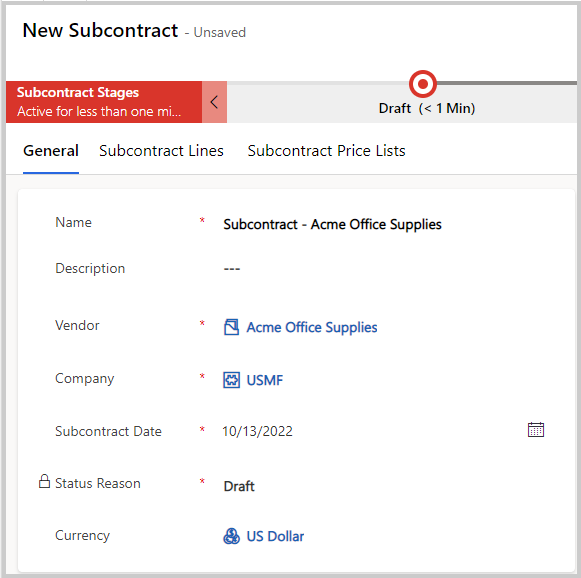
Enter the required information and Save the record. Several other fields might be useful on the header page, such as:
Name - The name of the subcontract, which will appear in other dropdown lists in the system as well.
Description - A brief description of the services and products that will be purchased or used in the subcontract.
Vendor - The name of the company that the products and services are being purchased from. Additionally, it has a relationship type (Vendor or Supplier). When a vendor is selected, other values will automatically be entered in other fields based on the default values that are assigned to the vendor.
For more information, see: Header details for subcontracts | Microsoft Learn.
Subcontract lines can be divided into several categories. You can add time, expense categories, products, resources, and milestones to subcontract lines on the Subcontract header record.
Time subcontract lines - Allow a project manager to buy vendor resource time to staff project tasks and resource requirements. To create a subcontract line for time in Project Operations, follow these steps:
- Select Subcontracts in the navigation pane under Purchasing and then open a subcontract.
- On the Subcontract Lines tab, select New.
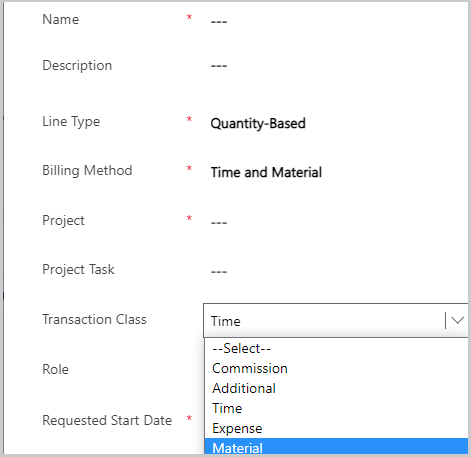
- On the Quick Create page, in the Transaction Class field, select Time.
- Enter the remaining information and then Save the record.
You can add other fields and information as well. For the full list, see Subcontract lines for time | Microsoft Learn.
Expense category lines - Allow a project manager to purchase categories of services or products from vendors that they can charge to a project. The process to create a purchase category line is the same as the Time subcontract lines process; however, instead of selecting Time, you'll select Expense in the Transaction Class field. For more information, see Subcontract lines for expense categories | Microsoft Learn.
Subcontract line for Products - A way to purchase products from vendors that project managers can then use on project tasks. To create a product line, go to Purchasing > Subcontract and then select a subcontract. Add a new line, and in the Transaction class field, select Material. For more information, see Subcontract lines for products | Microsoft Learn.
Resource subcontract lines - For vendors to specify resources that will be used to supply the resource capacity that's being purchased on the subcontract line for time. To create a subcontract line resource, go to Purchasing > Subcontract and then select a subcontract. Open the Subcontract line for time and then select + New subcontract line resource on the Subcontract line resources tab. Add extra information for the subcontract line resource and then select Save. For more information, see Subcontract line resources | Microsoft Learn
Subcontract line milestones - Use to specify a milestone-based invoice for a fixed-price billing method subcontract line. You can generate milestones for vendor invoicing automatically by using a set frequency, but you can also create them manually. For more information, see Subcontract line milestones | Microsoft Learn.