Work with conversations
While in a session, representatives interact with customers through the Conversation panel. By default, the panel is hidden when a representative is in the application and is only visible when the representative is engaging in a conversation with a customer. For example, when Jennifer signs in to the application, Jennifer only sees the Home session in the session panel. The Conversation panel isn't displayed at all. When Jennifer accepts an incoming conversation request, the panel appears as part of the new session that was opened.
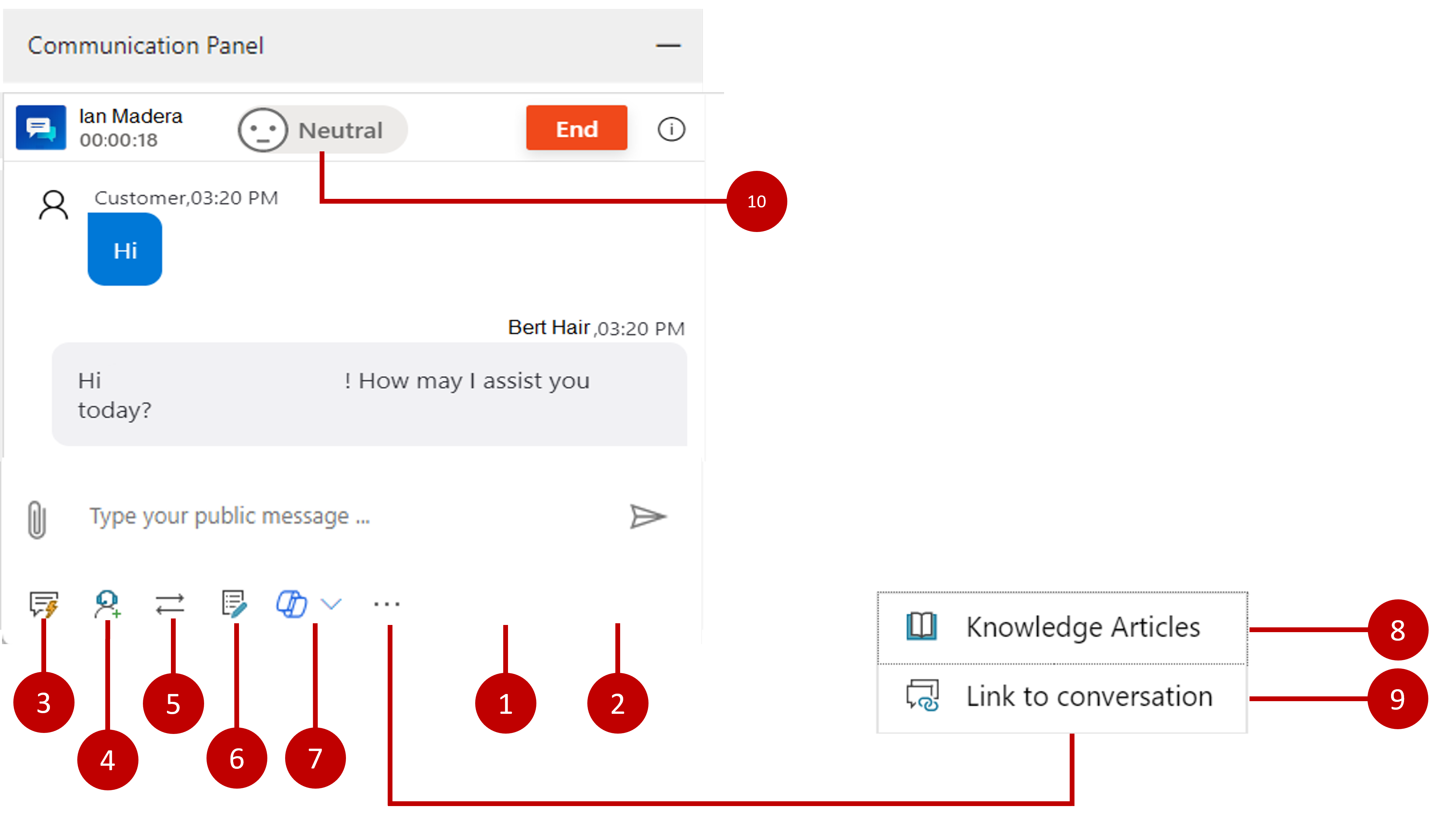
Representatives can perform the following tasks from the Conversation panel:
Public - Representatives can engage with both internal representatives or supervisors and the end customer.
Internal - Only sends messages to Dynamics 365 users, such as other representatives or supervisors.
Quick replies - Templated messages built to speed up communication with customer.
Consult - Representatives can find and engage with other representatives or supervisors.
Transfer - Allows representatives to transfer a conversation to another representative or supervisor.
Notes - Provides a control that representatives can use to take notes that are specific to the conversation.
Copilot – Opens Copilot capabilities available to the representative such as creating summaries.
Knowledge articles - Representatives can search for knowledge articles and share them with customers.
Link to conversation - Quickly associates a knowledge article to the conversation.
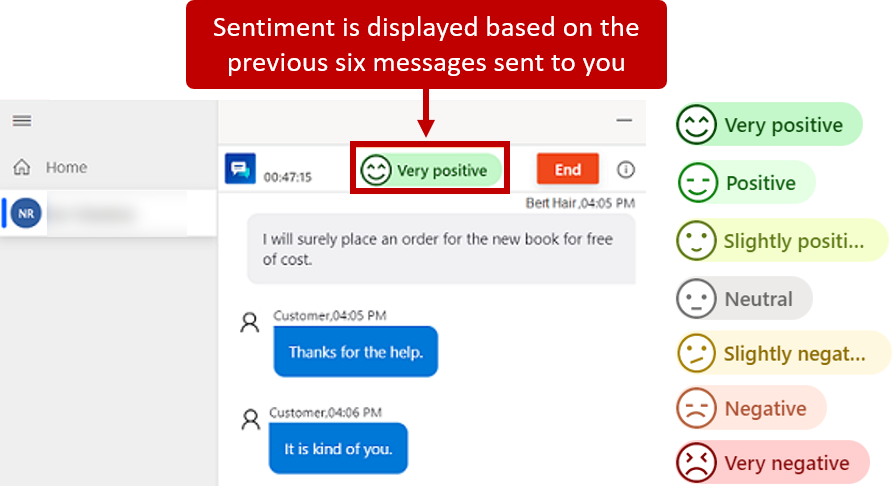
Customer sentiment - Displays real-time customer satisfaction levels.
Representatives can access all the listed tasks with a mouse while they are in the conversation panel. However, many representatives find it quicker to use their keyboard to speed up customer interaction. Many of the features that are available from the communication panel, such as see quick replies, consult, transfer, and note controls, can also be started by using keyboard shortcuts.
For a breakdown of the available keyboard shortcuts, see Enhance agent productivity using keyboard commands.
Working with internal and external participants
When a conversation is initiated, it's automatically in public mode. While the conversation is in public mode, other participants like internal representatives and/or supervisors can be added to it. Any messages that are sent while conversations are in public mode goes to all added participants. Occasionally, a representative might want to send a message to internal participants only. They can complete this task by selecting the Internal option. In this situation, the representative still uses the same conversation window, but only the internal participants see the messages. When the conversation is switched back to public mode, both internal and external participants see the messages.
Representatives can also use keyboard commands to send internal and public messages:
/i - Toggles to Internal
/p - Toggles to Public
Send templatized messages
Because representatives communicate with multiple customers and through multiple channels at once, it can be challenging for representatives to keep track of their conversations. It's often easiest to provide representatives with some predefined, templated communication that they can quickly access from the Communication panel. In Omnichannel for Customer Service, this task can be completed with Quick replies.
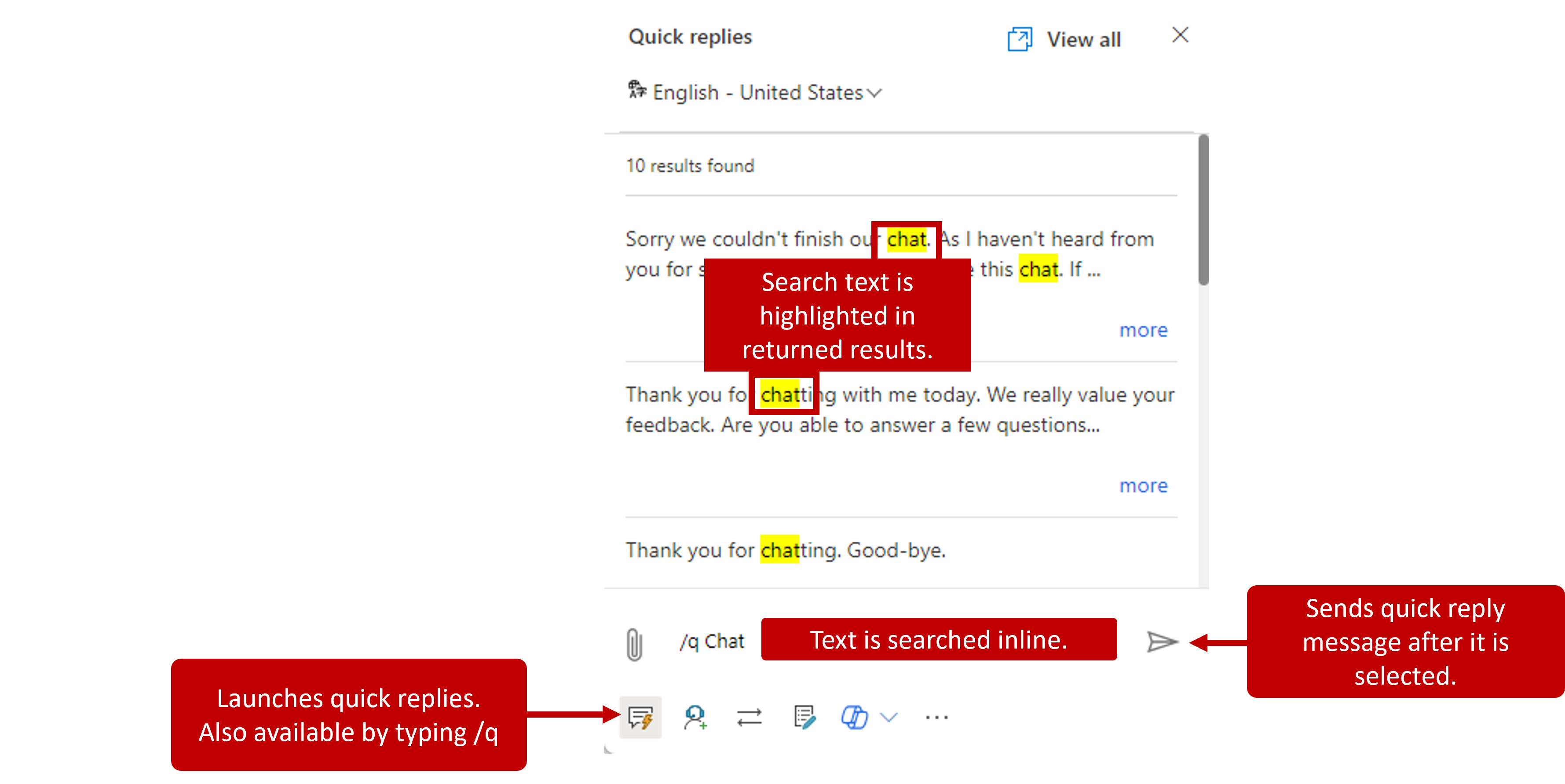
Quick replies can be sent to both external and internal participants. Organizations can create quick replies based on the needs of their representatives. For representatives that prefer shortcuts, they can also be opened by entering /q, which displays the Quick replies flyout menu. From the flyout menu, representatives can continue to type key words that they're looking for. As possible matches are found, the results are displayed in the menu. Representatives can use the arrow keys on their keyboard to cycle through the all the replies that were returned.
Collaborate with other representatives and supervisors
While working with a customer, a representative might need more help or guidance. The needed guidance might be as simple as reaching out to someone else and finding the answer, or it might be a scenario where the representative isn't the best person to resolve the issue.
When a representative needs to talk with another team member, they can use the Consult button to invite other representatives or supervisors. The Consult option can also be accessed by typing /c. With this option, the representative can search for the person they want, and the results are displayed in the panel. While there's no limit to the number of consulting representatives that can be invited to a conversation, we highly recommended that the invitation is limited to five.
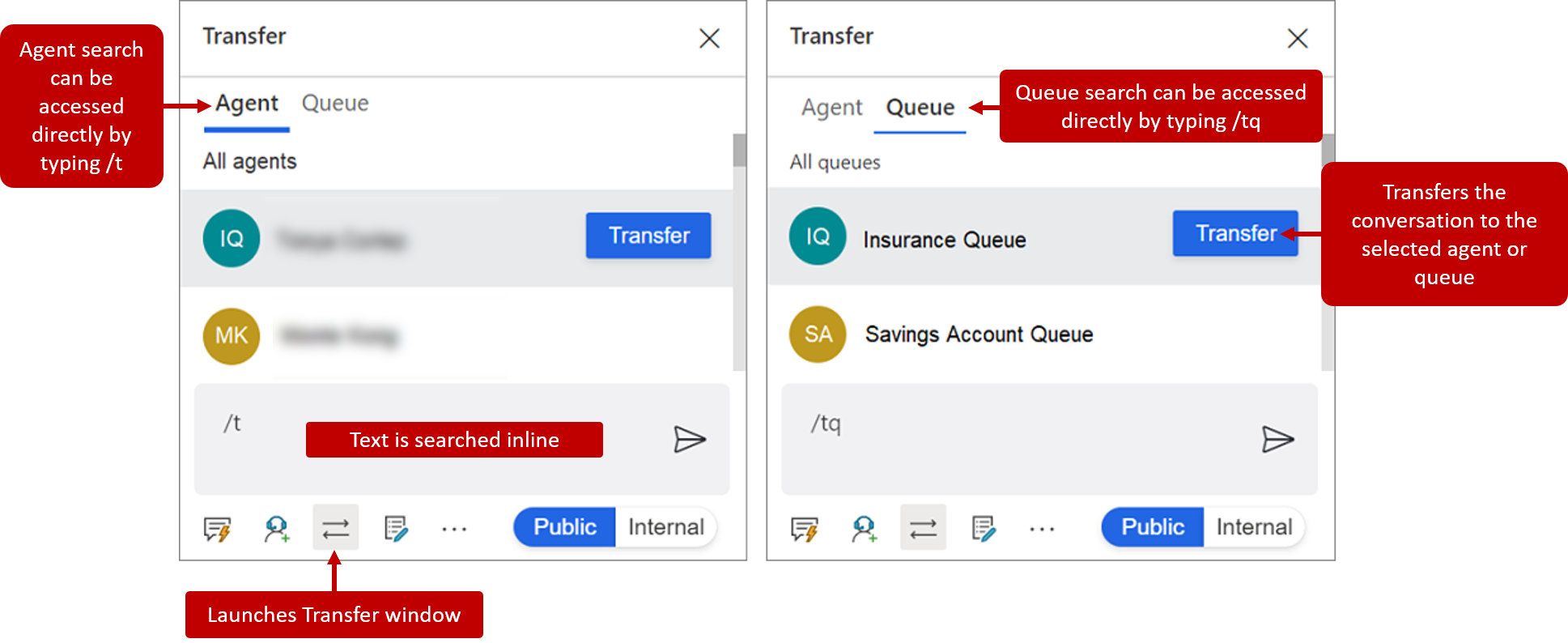
If someone is more qualified to work on an item, the conversation can be transferred to another representative or queue. Transferring can also be done by entering /t (Transfer to Agent) or /tq (Transfer to Queue). When transferring an item to someone else, representatives can only transfer to representatives that are in the same work stream and queue. For example, if a representative is working in a conversation that came from a billing queue, it can't be transferred to a representative from the service queue. The conversation can only be transferred to representatives in the billing queue. If the transferred request is coming from another queue, routing rules assign the conversation to the appropriate representative in the queue.
Work with knowledge articles
Representatives need to be able to quickly locate the information that they need to resolve customer issues. They need quick access to the same knowledge content that is used to resolve cases. From the Conversation panel, representatives can search for relevant knowledge articles as they're working in a session. Representatives can also launch the knowledge base by entering /kb, which displays knowledge articles in a new application tab in the session. When the representative finds an article that solves the problem, they can share it with the customer from the Conversation panel by selecting the Send link button.
Monitor real-time customer satisfaction
Unfortunately, not every customer is going to be happy while they're talking to you. Some customers might start out unhappy, while others might become unhappy as the conversation proceeds. Factors such as how long it takes a representative to respond, providing incorrect information, or even how the representative types messages affect customer satisfaction on the call. Frequently, the customer's satisfaction begins to change only slightly. However, if customer sentiment isn't recognized and acted on, it can escalate quickly.
To help assist representatives in better understanding how a customer is feeling, real-time sentiment is displayed at the top of the Conversation panel. When a representative first opens a conversation, the sentiment icon is neutral. In scenarios where the conversation was escalated from a bot, the sentiment is based on previous messages that were exchanged between the customer and the bot. The sentiment changes as the representative interacts with the customer and it looks at the six most recent messages that were sent. By looking at most recent communication, the sentiment display helps to ensure that a representative is made aware of the change before it potentially becomes an issue.