How does GitHub authentication work?
In the previous unit, you learned about typical administration tasks at the team, organization, and enterprise level. In this unit, you’ll explore one of the most common administrative tasks performed by organization owners, which is setting up and controlling users' authentication to GitHub.
GitHub's authentication options
There are several options for authenticating with GitHub:
Username and password
Administrators can allow users to continue using the default username and password authentication method, sometimes known as the "basic" HTTP authentication scheme.
Note
GitHub no longer supports password authentication for Git operations or API usage. We strongly recommend using one (or several) of the other options listed in this unit.
Personal access tokens
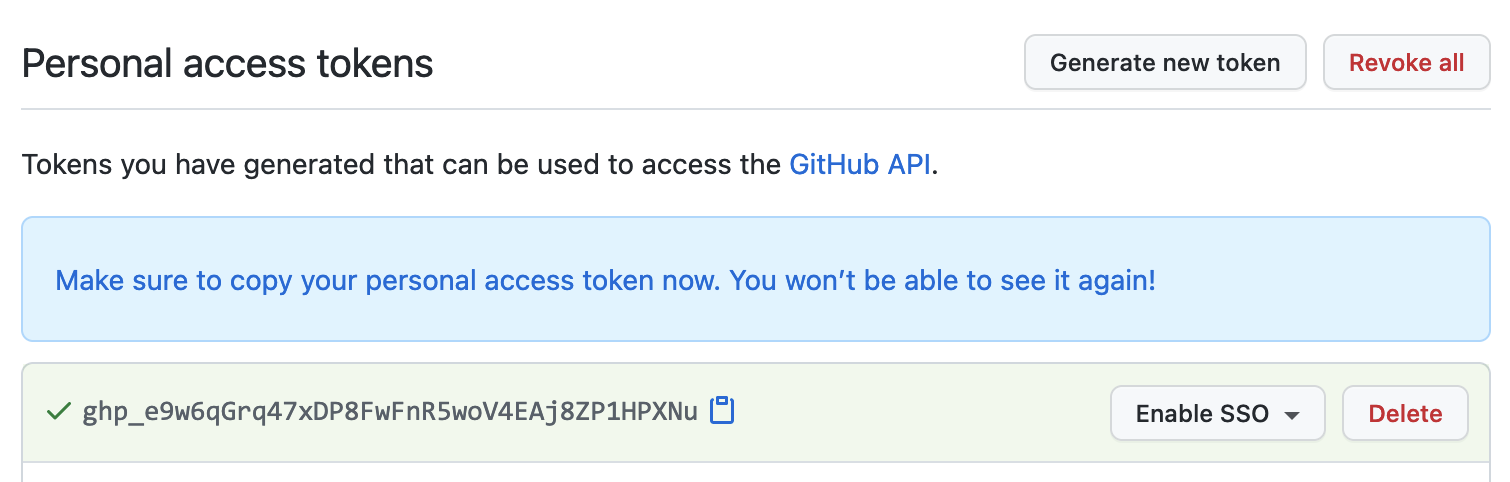
Personal access tokens (PATs) are an alternative to using passwords for authentication to GitHub when using the GitHub API or the command line. Users generate a token via the GitHub's settings option, and tie the token permissions to a repository or organization. When users interact with GitHub by using the git command-line tool, they can enter the token information when they're asked for their username and password.
SSH keys
As an alternative to using personal access tokens, users can connect and authenticate to remote servers and services via SSH with the help of SSH keys. SSH keys eliminate the need for users to supply their username and personal access token for every interaction.
When setting up SSH, users generate an SSH key, add it to the ssh-agent, and then add the key to their GitHub account. Adding the SSH key to the ssh-agent ensures that the SSH key has a passphrase as an extra layer of security. Users can configure their local copy of git to automatically supply the passphrase, or they can supply it manually each time they use the git command-line tool to interact with GitHub.
You can even use SSH keys with a repository owned by an organization that uses SAML single sign-on (SSO). If the organization provides SSH certificates, users can also use it to access the organization's repositories without adding the certificate to their GitHub account.
Deploy keys
Deploy keys are another type of SSH key in GitHub that grants a user access to a single repository. GitHub attaches the public part of the key directly to the repository instead of a personal user account, and the private part of the key remains on the user's server. Deploy keys are read-only by default, but you can give them write access when adding them to a repository.
To configure fork settings:
- Go to the repository’s Settings.
- In the left sidebar, under Security, click Deploy keys.
- Locate the Add deploy key option to create a new key.

GitHub's added security options
GitHub provides a range of security options to help protect accounts and organizational resources.
Two-factor authentication
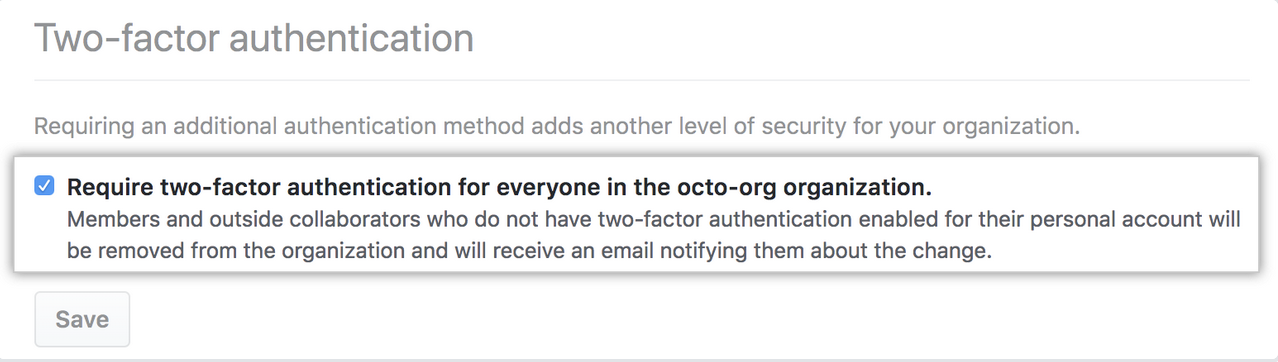
Two-factor authentication (2FA), sometimes known as multifactor authentication (MFA), adds an extra layer of protection to your GitHub account. With 2FA, users sign in with their username and password, and then provide a second form of authentication.
GitHub supports several second-factor options:
- Authenticator apps (like Microsoft Authenticator, Google Authenticator, or Authy) that generate time-based one-time codes.
- Hardware security keys (such as YubiKey or Titan Security Key) that support FIDO2/WebAuthn.
- Passkeys for passwordless, phishing-resistant authentication.
- SMS-based codes, which are supported but considered less secure than other options and are not recommended as a primary method.
2FA enforcement:
- For organizations on GitHub Team and GitHub Enterprise Cloud, organization owners can require members, outside collaborators, and billing managers to enable 2FA for their personal accounts.
- Enterprise Managed Users (EMUs) and GitHub Enterprise Server (GHE.com): Admins can require 2FA for enterprise-managed accounts only, but cannot enforce 2FA on users’ personal GitHub.com accounts.
Enforcing 2FA helps protect organizations from unauthorized access and strengthens the security of repositories and sensitive data.
SAML SSO
If you centrally manage your users' identities with an identity provider (IdP), you can configure SAML single sign-on (SSO) to protect your organization’s resources on GitHub. SAML SSO allows organization and enterprise owners to control and secure access to repositories, issues, pull requests, and more. When accessing resources, GitHub redirects users to authenticate with the organization’s IdP.
GitHub supports all identity providers that implement the SAML 2.0 standard, with official support for several popular providers, including:
- Active Directory Federation Services (AD FS).
- Microsoft Entra ID.
- Okta.
- OneLogin.
- PingOne.
LDAP (GitHub Enterprise Server)
LDAP (Lightweight Directory Access Protocol) is a widely used protocol for accessing and managing user directory information. On GitHub Enterprise Server, LDAP integration allows you to authenticate users against your existing company directory and manage repository access centrally.
GitHub Enterprise Server integrates with major LDAP services such as:
GitHub Enterprise Server integrates with popular LDAP services like:
- Active Directory.
- Oracle Directory Server Enterprise Edition.
- OpenLDAP.
- Open Directory.