Create and apply data policies
Data policies (sometimes referred to as Data loss prevention (DLP) policies) define boundaries around how connectors share data in Power Platform. Rather than restricting what makers can build, DLP policies restrict how data moves between services - preventing sensitive information from flowing to unapproved destinations while keeping approved combinations available.
Understand connector groups
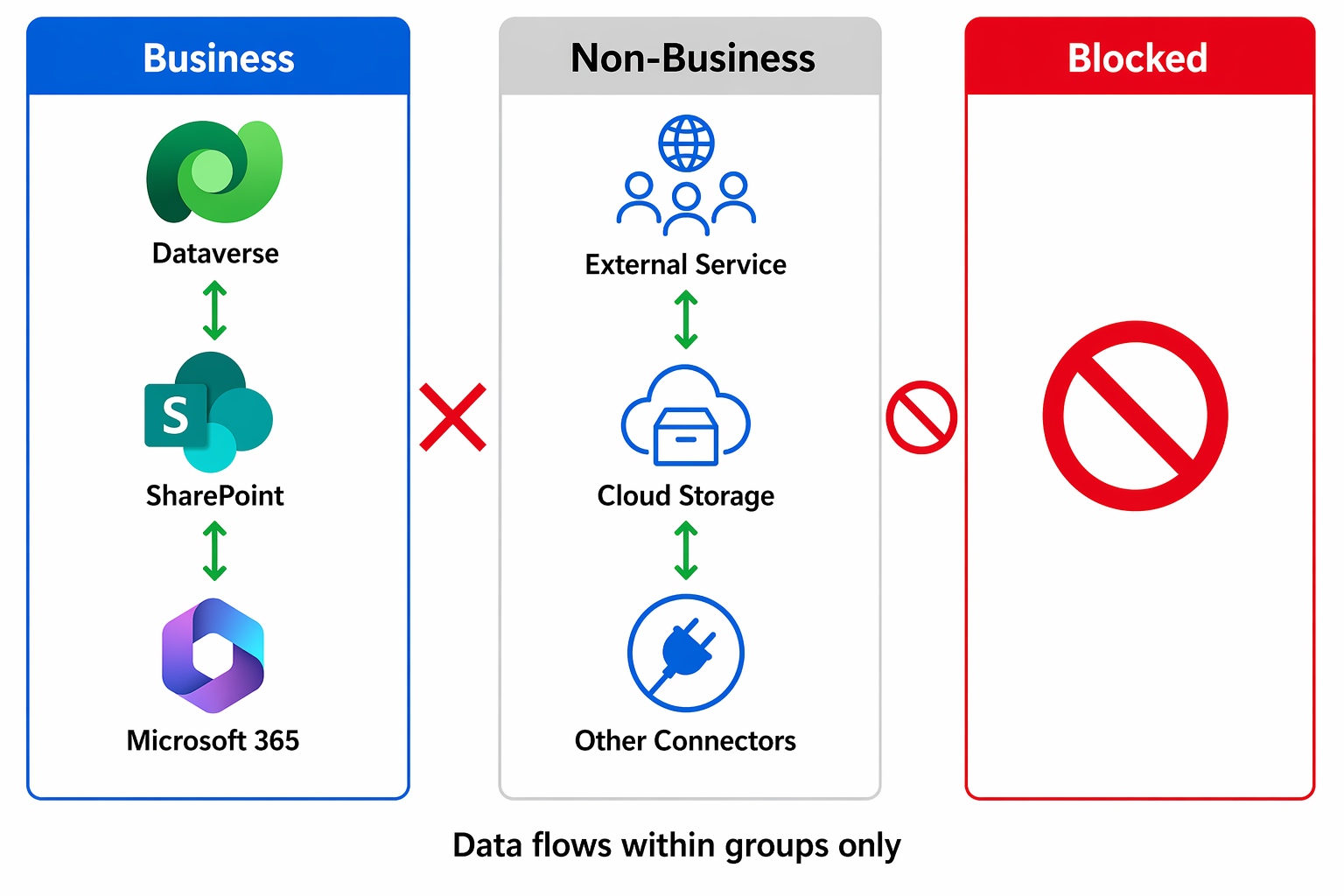
Every data policy classifies connectors into three groups:
- Business - Connectors that handle organizational or sensitive data (for example, Dataverse, SharePoint, Dynamics 365). Connectors in this group can share data with each other but not with connectors in other groups.
- Non-Business - Connectors used for general-purpose or personal productivity (for example, MSN Weather, Bing Maps). These connectors can share data within their group only.
- Blocked - Connectors that makers can't use at all. Any app or flow that references a blocked connector is suspended.
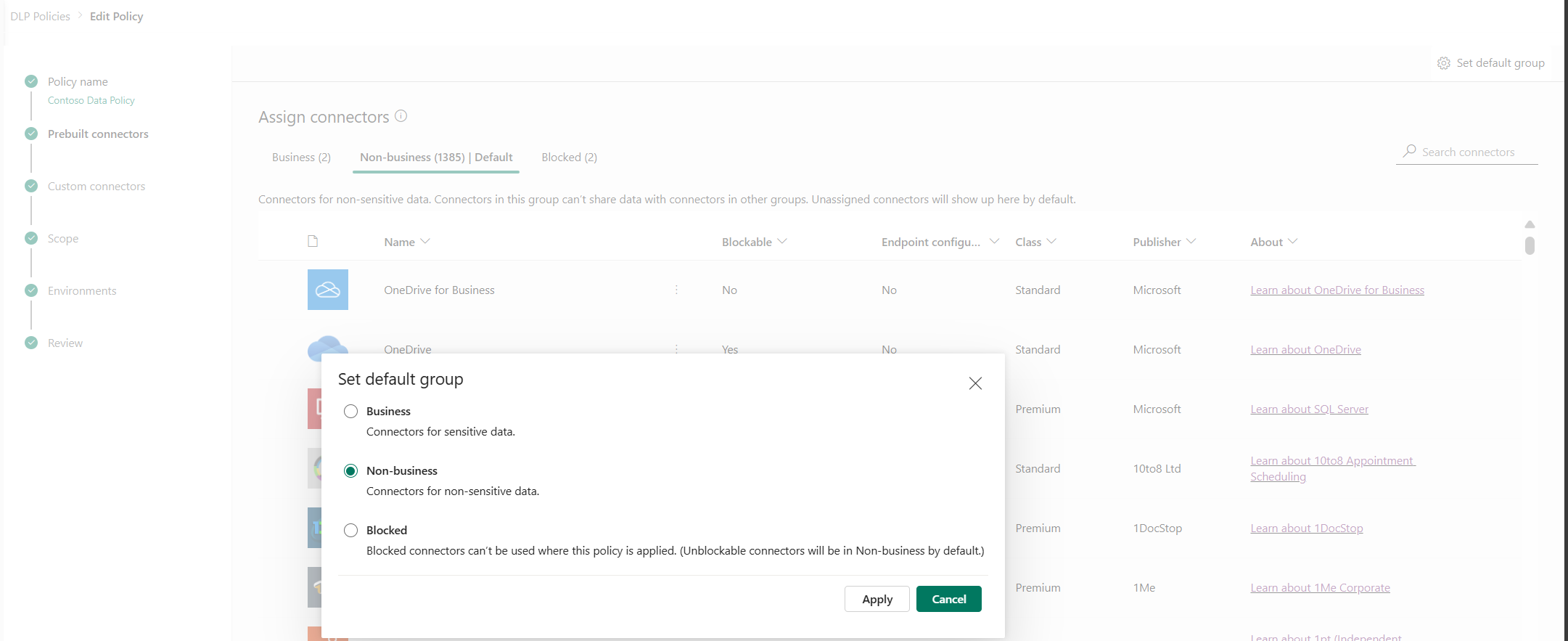
When you create a new policy, all connectors start in the Non-Business group by default. You then move sensitive or approved connectors into Business and problematic ones into Blocked. The core rule is simple: data can flow between connectors in the same group but never between groups.
Note
Some connectors can't be blocked. Dataverse, Approvals, Notifications, Microsoft 365 core services (Outlook, Teams, SharePoint, OneDrive), and several others can only be placed in Business or Non-Business. Use action-level controls for granular restriction on these connectors.
Choose the right policy scope
Data policies operate at two scope levels, and understanding the difference is critical for your strategy:
Tenant-level policies apply across all environments in your tenant - or a selected subset you define. They set the governance floor that no environment-level policy can override. Environment admins and makers can't relax a tenant-level restriction. Tenant-level policies are the right choice for organizational baselines like "Dataverse may never share data with social media connectors."
Environment-level policies apply to a single environment only. They can add restrictions beyond the tenant baseline but can't remove them. Use environment-level policies when a specific workload needs tighter controls - for example, Zava Pay's production environment might block connectors that are perfectly acceptable in the marketing sandbox.
When both levels apply, the system enforces the most restrictive combination. If a tenant policy places Connector X in Business and an environment policy blocks it, the connector is blocked in that environment.
Create a data policy in the admin center
To create a data policy in the Power Platform admin center:
- Sign in to the Power Platform admin center.
- Select Security > Data and Privacy > Data Policies.
- Select + New Policy.
- Enter a descriptive name for the policy, such as "Zava Tenant Baseline - Block Social Media".
- On the Prebuilt Connectors page, move connectors to Business or Blocked groups as needed.
- Select the policy scope: All environments, Exclude certain environments, or Include certain environments.
- Review and create the policy.
After creation, the policy begins enforcing within approximately one hour. Existing apps and flows that violate the policy are suspended at runtime, and makers see design-time errors when they attempt to use blocked combinations.
Understand enforcement timing
Data policy enforcement happens at two stages:
- Design-time enforcement - When a maker tries to save an app or flow that violates a policy, the save is blocked with an error that explains which connectors conflict. This error prevents new violations.
- Runtime enforcement - A background process periodically evaluates existing resources against current policies. If a previously compliant app or flow now violates a policy (because you changed the policy), the resource is suspended. Suspended apps show an error to users; suspended flows stop running.
Important
Policy changes propagate within one hour for most environments. In rare cases, propagation can take up to 24 hours. Plan your rollout accordingly - communicate policy changes to affected makers before enforcement begins.
Scope policies to specific environments
Instead of applying every policy to all environments, target specific environments to implement zoned governance:
- All environments (including future) - Use for your organizational baseline that applies everywhere.
- Exclude certain environments - Start with "all" but carve out developer environments where makers need broader access for experimentation.
- Include certain environments - Apply restrictive policies only to specific production or regulated environments (like Zava Pay).
This scoping model lets you layer policies progressively. A broad tenant baseline ensures minimum governance everywhere, while targeted policies add restrictions where the risk profile demands them.