Create and manage SharePoint sites
In the previous unit, flipping a single Copilot control did nothing to fix Relecloud's Finance site, because the problem never lived in Copilot's settings. It lived in the site itself: who owns it, who can edit it, and who can only view it. You can't govern how Copilot grounds on a site until the site exists and someone deliberately decides who belongs there. Relecloud's Finance team needs a private space to collaborate on payroll data. The same organization also needs a separate space to publish company-wide announcements. Those are two different jobs, and they call for two different site types with two different permission models.
Choose the site type that matches the purpose
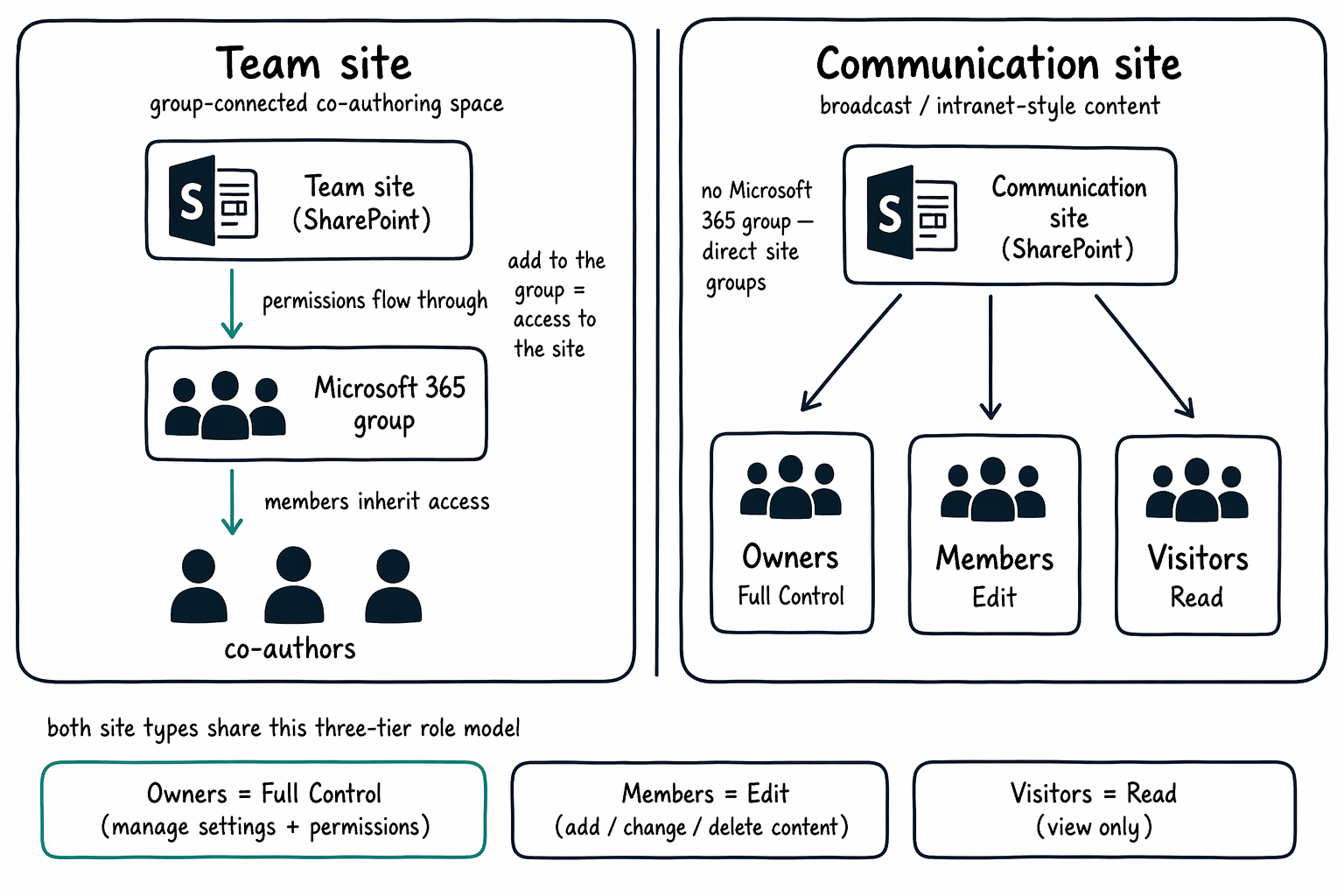
SharePoint offers two primary site types, and picking the wrong one bakes the wrong access assumptions into a site from day one. A team site is a group-connected collaboration space: every member of the associated Microsoft 365 group can co-author documents, and permissions flow through that group rather than through SharePoint's built-in site groups. When you add someone to the Microsoft 365 group, they gain access to the team site, its shared mailbox, and every other resource tied to that group in one step.
A communication site works differently. It's built to broadcast to a broad audience, such as an intranet page, a policy announcement, or a project showcase, rather than to support day-to-day co-authoring. Communication sites don't have an associated Microsoft 365 group. Instead, permissions are managed directly through the site's built-in Owners, Members, and Visitors groups.
For Relecloud, the distinction matters immediately. Payroll collaboration among a small, defined Finance team fits a team site, where membership in the Microsoft 365 group controls exactly who can see and edit that content. A company-wide announcement page fits a communication site, where most employees only need to view content as visitors, and a small set of owners manages what gets published. Creating the announcement space as a team site, for example, would connect it to a Microsoft 365 group that members could use to co-author content nobody intended them to edit.
| Aspect | Team site | Communication site |
|---|---|---|
| Purpose | Day-to-day co-authoring for a defined group | Broadcast to a broad audience (intranet, announcements) |
| Microsoft 365 group | Connected—permissions flow through the group | None—permissions set directly on the site |
| Access managed via | Membership in the associated Microsoft 365 group | The site's built-in Owners, Members, and Visitors groups |
| Fits Relecloud's | Finance payroll collaboration | Company-wide announcement page |
Learn more about team, communication, and other site types and how each manages permissions.
Build the right permission model with owners, members, and visitors
Once you pick a site type, the next decision is who occupies each permission role, and this decision is where a site's real exposure boundary gets set. Every SharePoint site, team or communication, uses the same three-tier model:
| Role | Permission level | Can do |
|---|---|---|
| Owners | Full Control | Manage site settings and permissions, plus content |
| Members | Edit | Add, change, and delete content—but not site configuration |
| Visitors | Read | View content only |
You grant access by adding users or security groups to these roles, not by setting permissions on a document, a folder, or a person at a time. On a team site, that means adding people to the associated Microsoft 365 group. On a communication site, it means adding them directly to the site's Owners, Members, or Visitors group. Managing access at the group level keeps the permission model consistent as people join and leave a project, and it's what makes an access review at the site level meaningful instead of a scattered audit of individual permissions.
For the Finance site, this is exactly where the earlier oversharing problem originated. If the Finance team's Microsoft 365 group had accumulated members well beyond the people who actually work with payroll data, or if someone had added a broad security group to the Visitors role without checking who belonged to it, the site's exposure grows every time that group grows, with no separate action required. The permission model at the group level is the control. Everything downstream, including what Copilot can ground on, inherits from decisions made here.
Guiding question: Where do you think a site's real exposure boundary gets set? Most administrators point to Copilot settings or search configuration. Based on what you just read, is that where the boundary actually lives?
Learn more about how default SharePoint groups map to permission levels and how permissions cascade through a site.
Control who can provision new sites
Getting the permission model right on an existing site solves only part of the problem, because anyone who can create a site can also decide its initial owners, members, and visitors. If site creation is wide open, the deliberate access model you just built for Finance can be undermined the moment someone spins up an uncontrolled duplicate.
The SharePoint admin center lets you govern provisioning itself. From site creation settings, you decide whether users can create sites directly, whether new sites require approval, and whether site creation is limited to specific security groups. Some organizations route every new site through a request process so an administrator confirms the site type and initial ownership before it goes live. Others allow self-service creation but restrict who can trigger it. Either way, the goal is the same: don't let an unmanaged site creation process erase the discipline you apply to sites like Finance's.
Learn more about controlling who can create SharePoint sites and the site-provisioning model.
With site types chosen deliberately, permission roles populated by the right people, and site creation itself under control, you've established the access model that every later governance control in this module builds on. None of the sharing settings, discovery reports, or restricted access controls that follow can repair a site whose owners, members, and visitors were never deliberately assigned. The next unit shifts from individual sites to the organization as a whole: the SharePoint and OneDrive external sharing settings that set a ceiling on top of every per-site decision you just made.