Set the boundary: SharePoint and OneDrive sharing settings
Unit 2 gave the Finance site a deliberate access model: specific owners, members, and visitors, and nobody else. That model answers a narrower question than it looks like it does. It answers who can open the site directly. It doesn't answer what happens when a Finance team member creates a sharing link, invites a guest, or shares a file outside the group you just built. That's governed by a separate, organization-wide layer: SharePoint and OneDrive external sharing settings. This unit sets that boundary, and the boundary turns out to matter for a reason you might not expect: it's also the boundary for Microsoft 365 Copilot.
Understand what Copilot actually respects
Copilot doesn't maintain its own access model. It retrieves data through Microsoft Graph, and it grounds answers only on content that a user's existing permissions and sharing settings already allow that user to reach. If a marketing employee could never open the Finance site's payroll spreadsheet directly, Copilot can't surface that spreadsheet's content in an answer to that employee either. Copilot behaves like a very fast, very literal reader standing over each user's shoulder: it only sees what that user is already permitted to see, and it never expands the view.
This reframes the problem you're solving. Fixing the Finance site's Copilot exposure isn't about finding a Copilot-specific setting. It's about tightening the same two layers that already govern human access to that site. Unit 2 covered the first layer: who's an owner, member, or visitor. This unit covers the second, broader layer: the sharing settings that decide whether content can leave that group at all, through a link or a guest invitation.
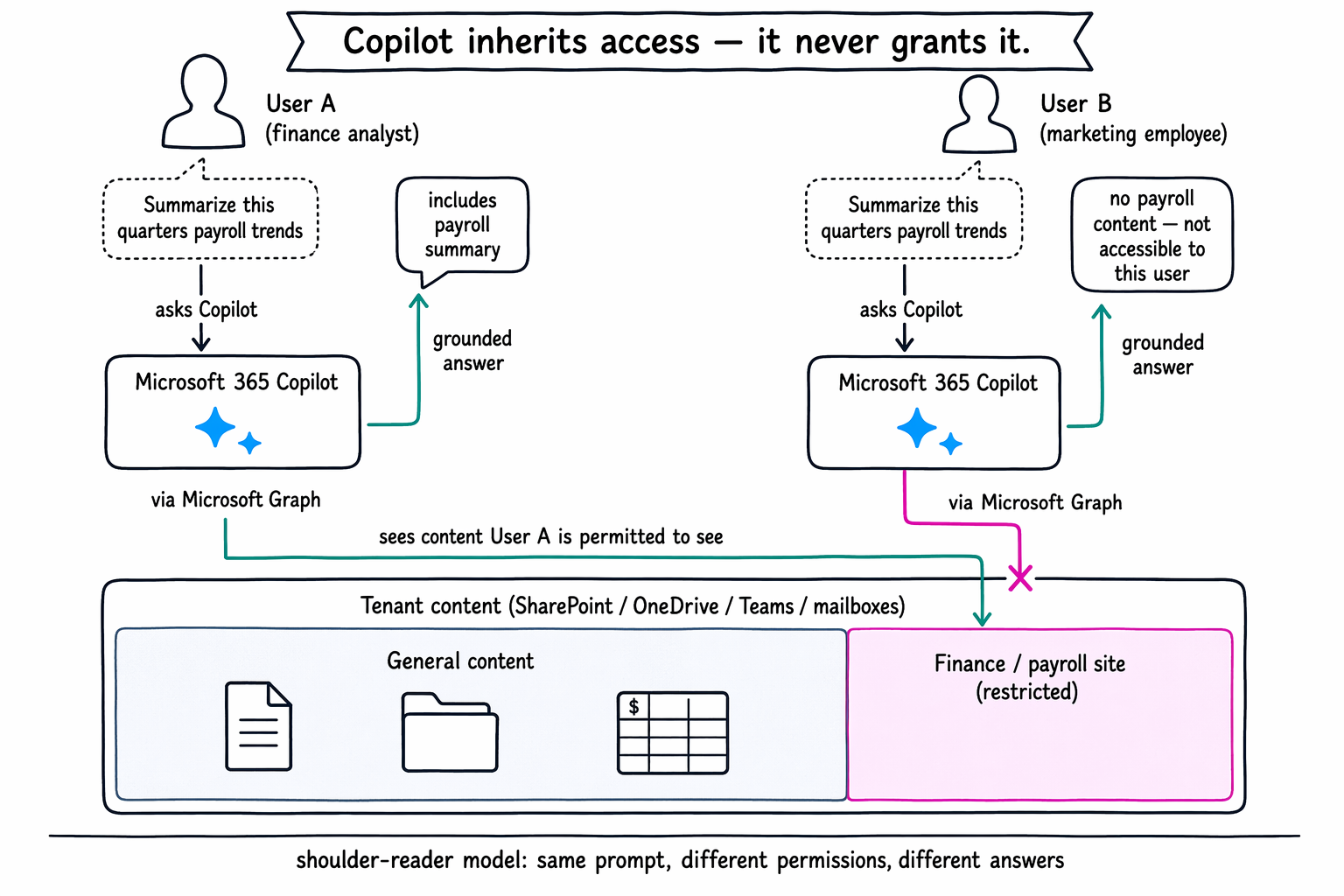
Learn more about how Copilot and agents retrieve data from Microsoft Graph and respect existing permissions, sharing, and policies.
Set the organization-wide sharing ceiling
SharePoint and OneDrive each expose four external sharing options, set at the organization level (separately for SharePoint and for OneDrive) in the SharePoint admin center. From most to least permissive:
- Anyone — lets anyone with a link open content without signing in.
- New and existing guests — requires recipients to sign in or create a guest account.
- Existing guests — limits sharing to guests already added to your directory.
- Only people in your organization — turns off external sharing entirely.
This organization-level setting acts as a ceiling, not a fixed value. Every individual site keeps its own sharing setting, and that site-level setting can match the organization ceiling or sit below it, but it can never exceed it. If the organization-wide setting for SharePoint is Existing guests, the Finance site can restrict itself further to Only people in your organization, but no site owner can loosen it back up to Anyone. Setting the right ceiling at the organization level is what keeps a single misconfigured site from overriding the standard you want everywhere else.
Learn more about external sharing options and how to configure them for SharePoint and OneDrive.
Know the OneDrive-versus-SharePoint asymmetry
SharePoint and OneDrive get separate organization-level sharing settings, and the relationship between them follows one consistent rule: OneDrive's setting can be equally or more restrictive than SharePoint's, but never more permissive. In practice, an organization might leave SharePoint at New and existing guests for team collaboration while setting OneDrive to Existing guests or Only people in your organization, since personal OneDrive libraries typically hold less curated, less reviewed content than a managed team site. The admin center enforces this asymmetry directly: you can't configure OneDrive to allow Anyone links while SharePoint is restricted to Only people in your organization.
The direction only ever runs one way. OneDrive tightens against SharePoint's ceiling; it never loosens beyond it. That asymmetry shows up often enough in real deployments and on assessments that it's worth holding onto as a fixed rule, not something to re-derive each time.
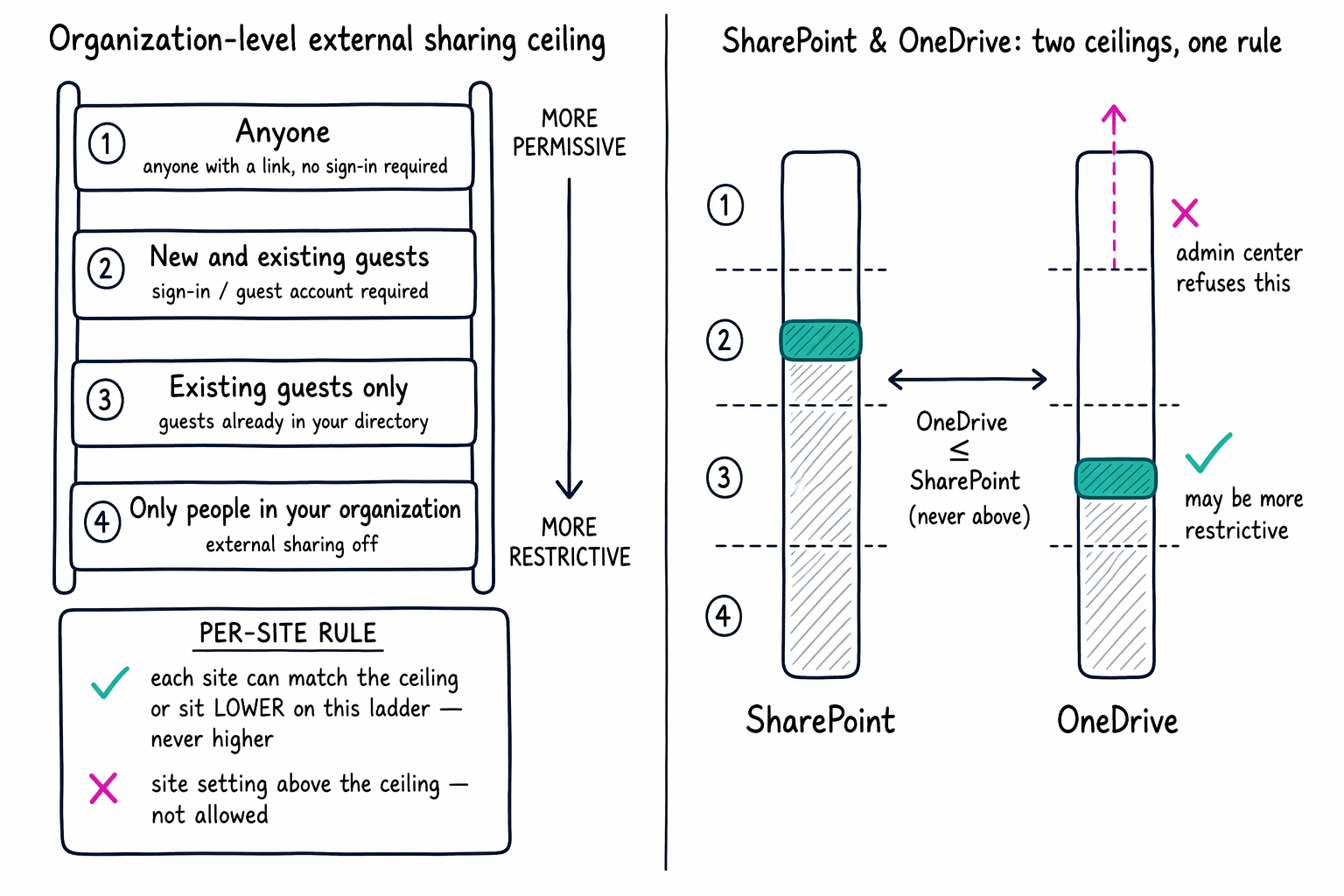
Guiding question: An organization sets SharePoint's external sharing to New and existing guests. Which OneDrive settings are valid alongside that, and which one would the admin center refuse to let you set?
Narrow the ceiling further with granular controls
The four sharing levels set the outer boundary, but several additional settings shrink what a link or a guest account can actually do within that boundary:
| Control | What it does |
|---|---|
| Link expiration | Sharing links stop working after a set number of days |
| Default permission for Anyone links | Restrict anonymous links to view-only instead of edit |
| Domain allow and block lists | Limit which external domains a guest invitation can come from |
| Guest access expiration | Removes a guest's access after a set period of inactivity |
Each of these controls directly shrinks what Copilot could ever surface from a given site, because Copilot only ever surfaces what's currently accessible. A link that expired last month, a guest account that lost access after 90 days of inactivity, or an "Anyone" link locked to view-only all narrow the same underlying permission set that Copilot reads from. Tightening sharing settings here does more of the real governance work than any Copilot-specific control could.
With the organization-wide ceiling set and the granular controls narrowing it further, you've addressed how content gets shared going forward. That still leaves an older problem. Relecloud's SharePoint environment has years of sites created before this ceiling existed, and some of them likely still carry "Anyone" links or overly broad guest access from long before anyone thought about Copilot. Setting tomorrow's ceiling doesn't tell you which sites already broke it. Next, you need a way to find them.