Access management
You can use the Power Automate Process Mining capabilities in a Microsoft Power Platform environment. Additionally, you can use the standard Microsoft Power Platform security controls to grant access to your team. Your team members might need to have access to a Microsoft Power Platform environment depending on their roles in the project, such as:
Environment maker - This Dataverse security role is for users who need to create, share, and contribute to the process mining analysis effort.
Process mining - This Dataverse security role is for users who need to view the process reports.
System administrator - This Dataverse role grants users with full permissions to create and access all processes in the environment, regardless of who created the process.
In a Microsoft Power Platform environment, multiple users with the environment maker role or system administrator role can create process mining processes. These processes aren't visible to other non system administrators until you share them with the users.
Sharing
Users can share their processes with other users. A few different places are available to access the share options.
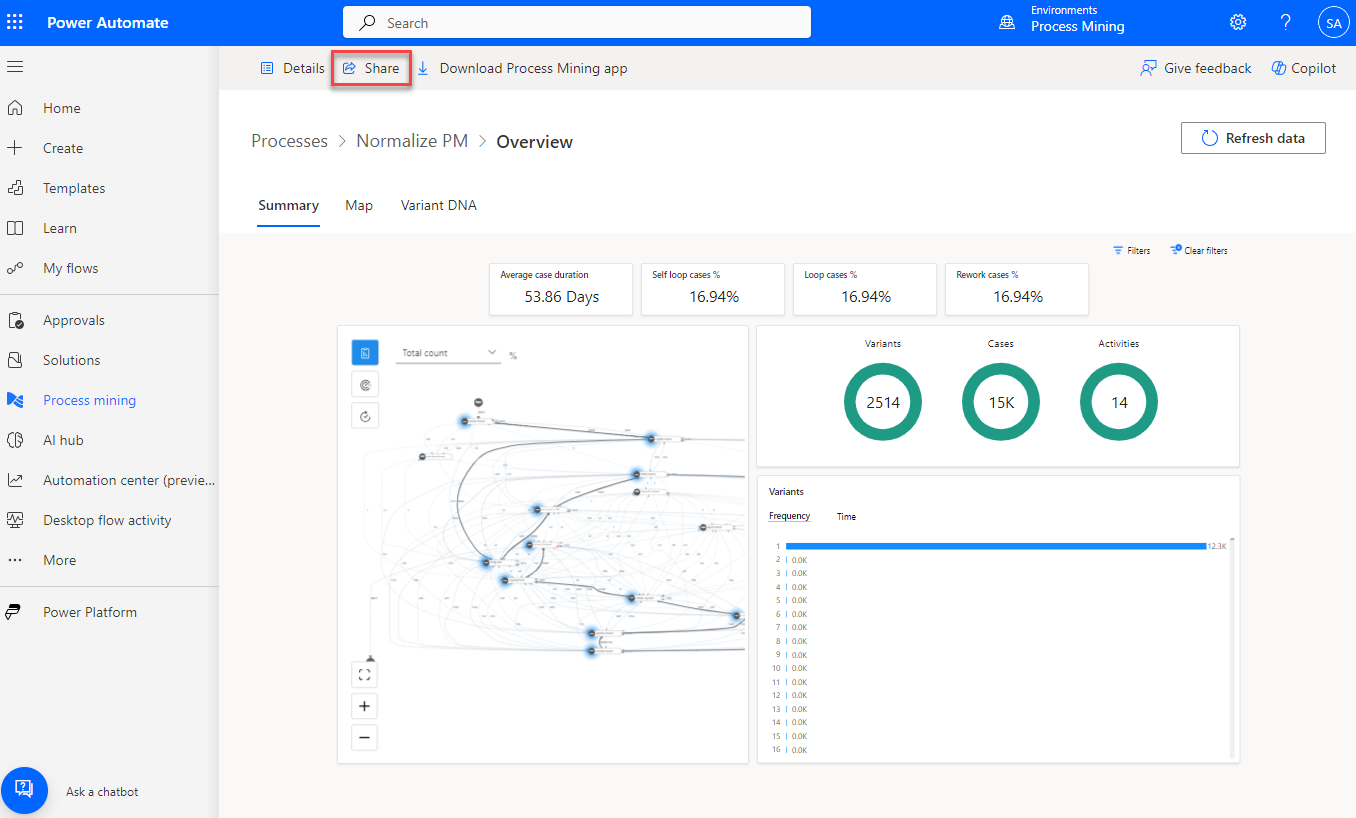
On the report page, select Share from the upper part of the page.
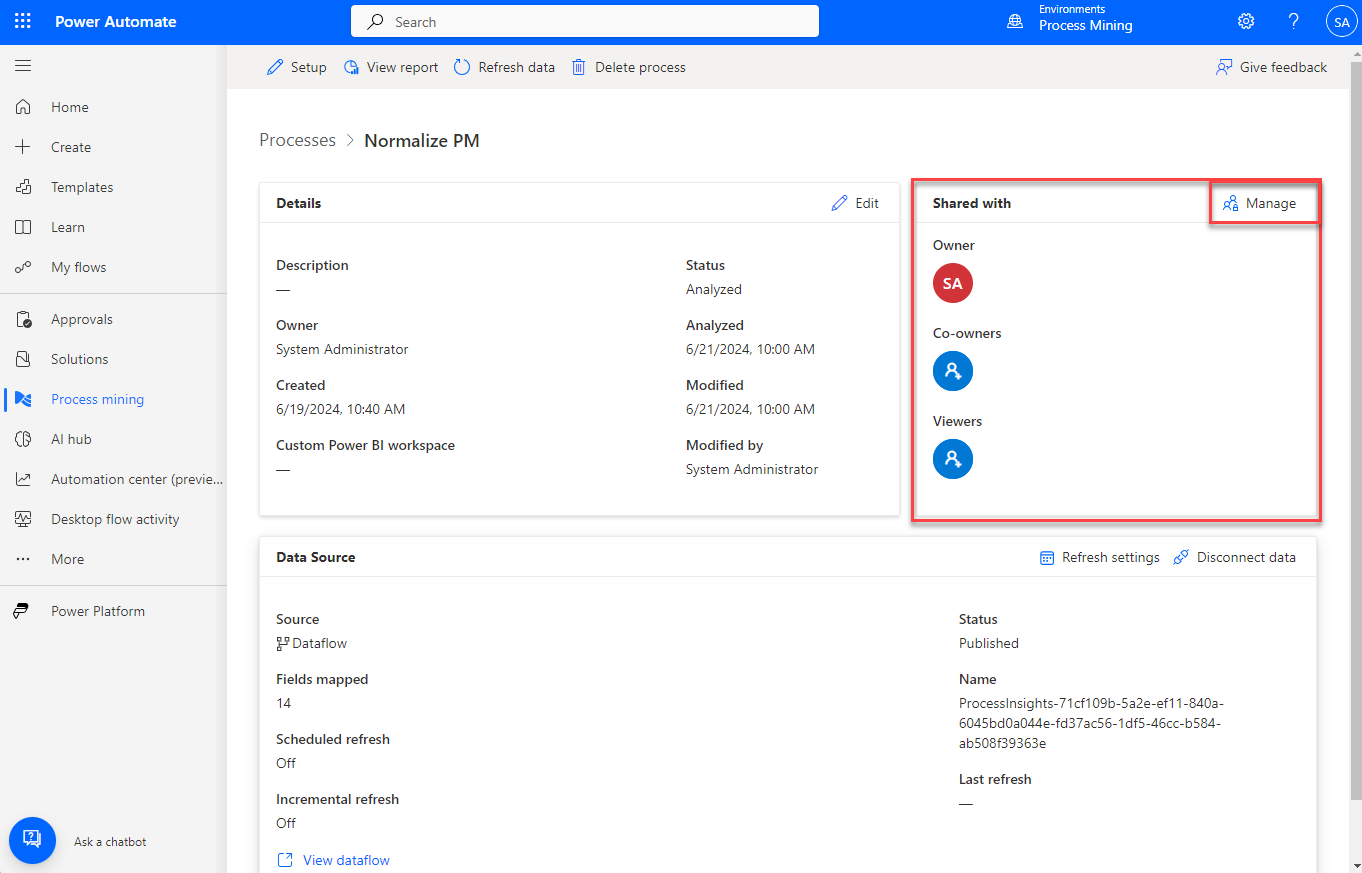
On the process details page, the Shared with tile shows users who currently have access. Select Manage to launch the share dialog.
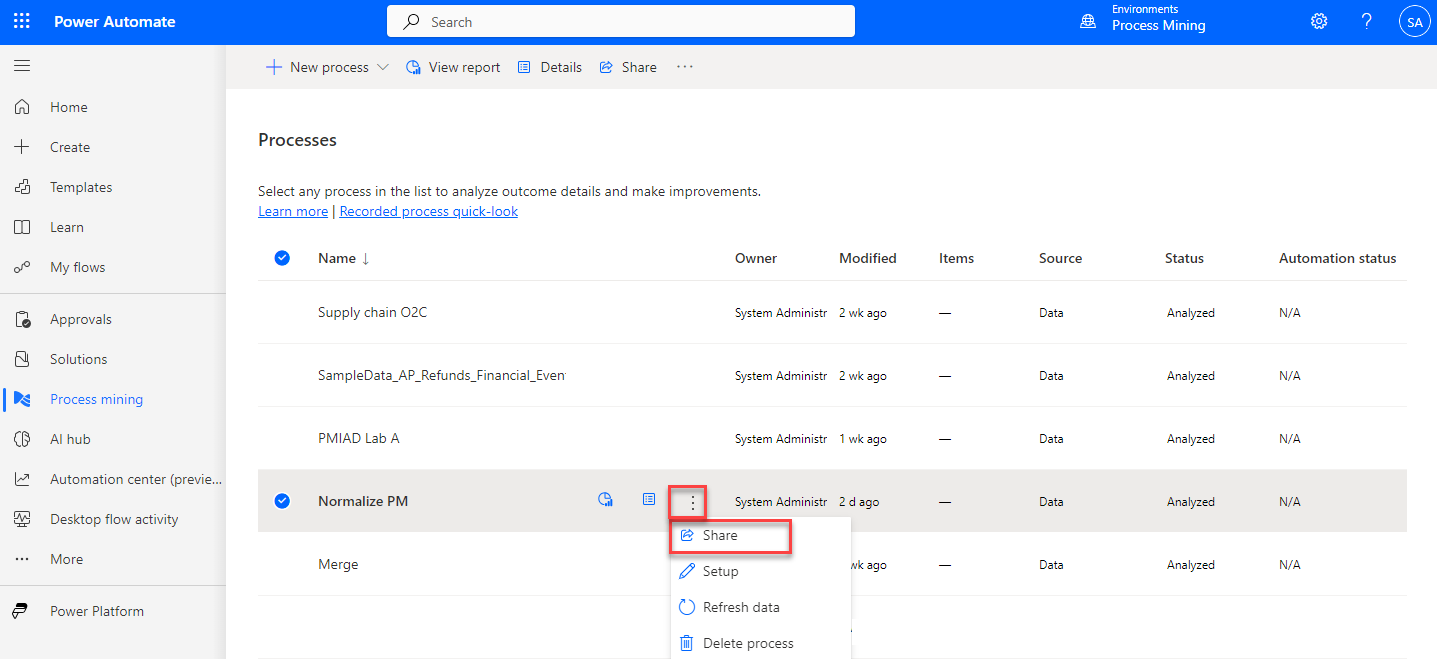
You can share from the Processes list page. Hover your mouse cursor over the name of the process, select the ellipsis (...) to show options, and then select Share.
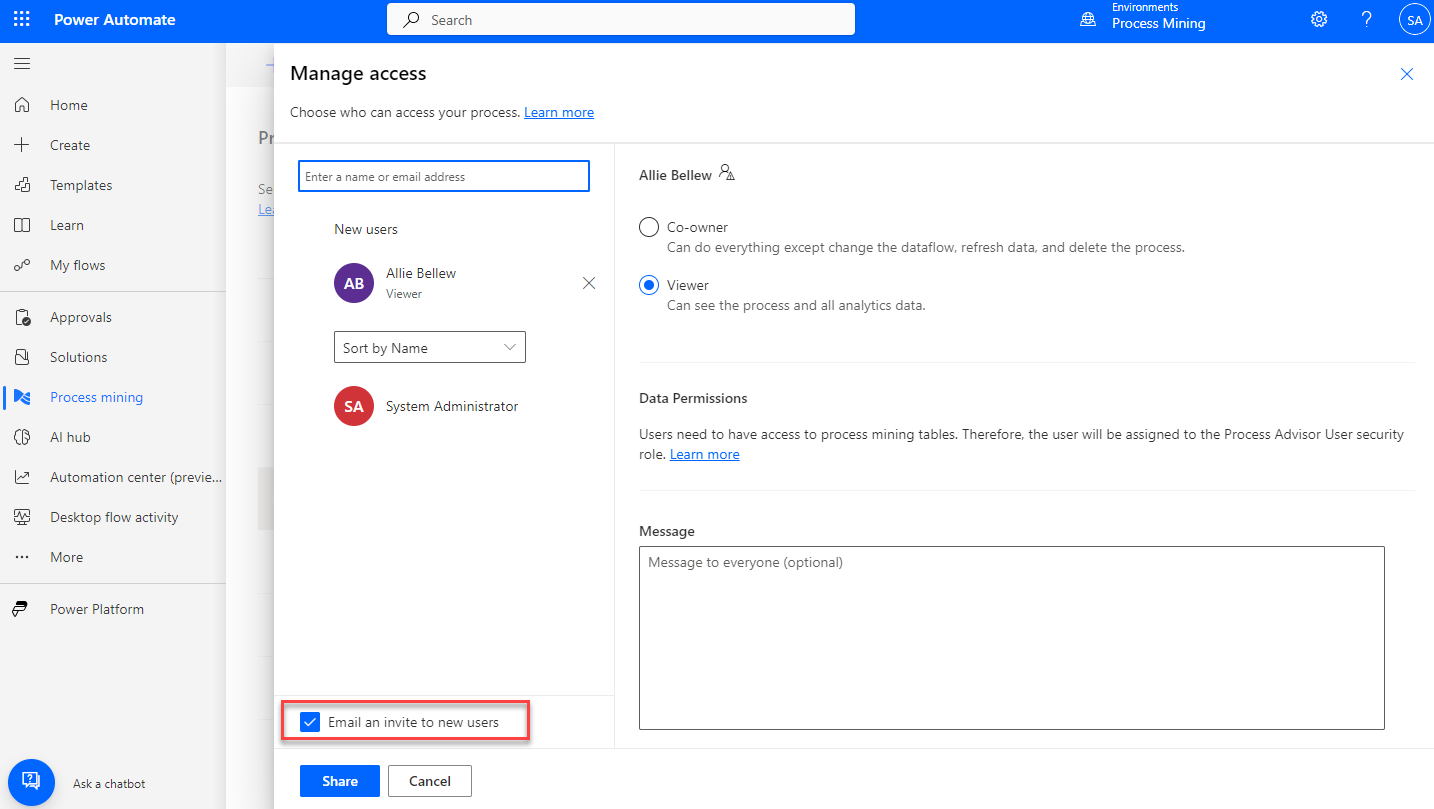
Each path opens the Manage access dialog where you can add users and set their permissions. By default, users whom you select receive an email notification of the share. You can make the user whom you're sharing the process with a Co-owner or a Viewer.
The following video demonstrates how to share a process.