Configure connector tools and inputs
A connector tool gives an agent access to a specific action from a Power Platform connector. Connectors support hundreds of services, including SharePoint, Outlook, Dataverse, Salesforce, and ServiceNow. Use an existing connector action when it already provides the operation that your agent needs.
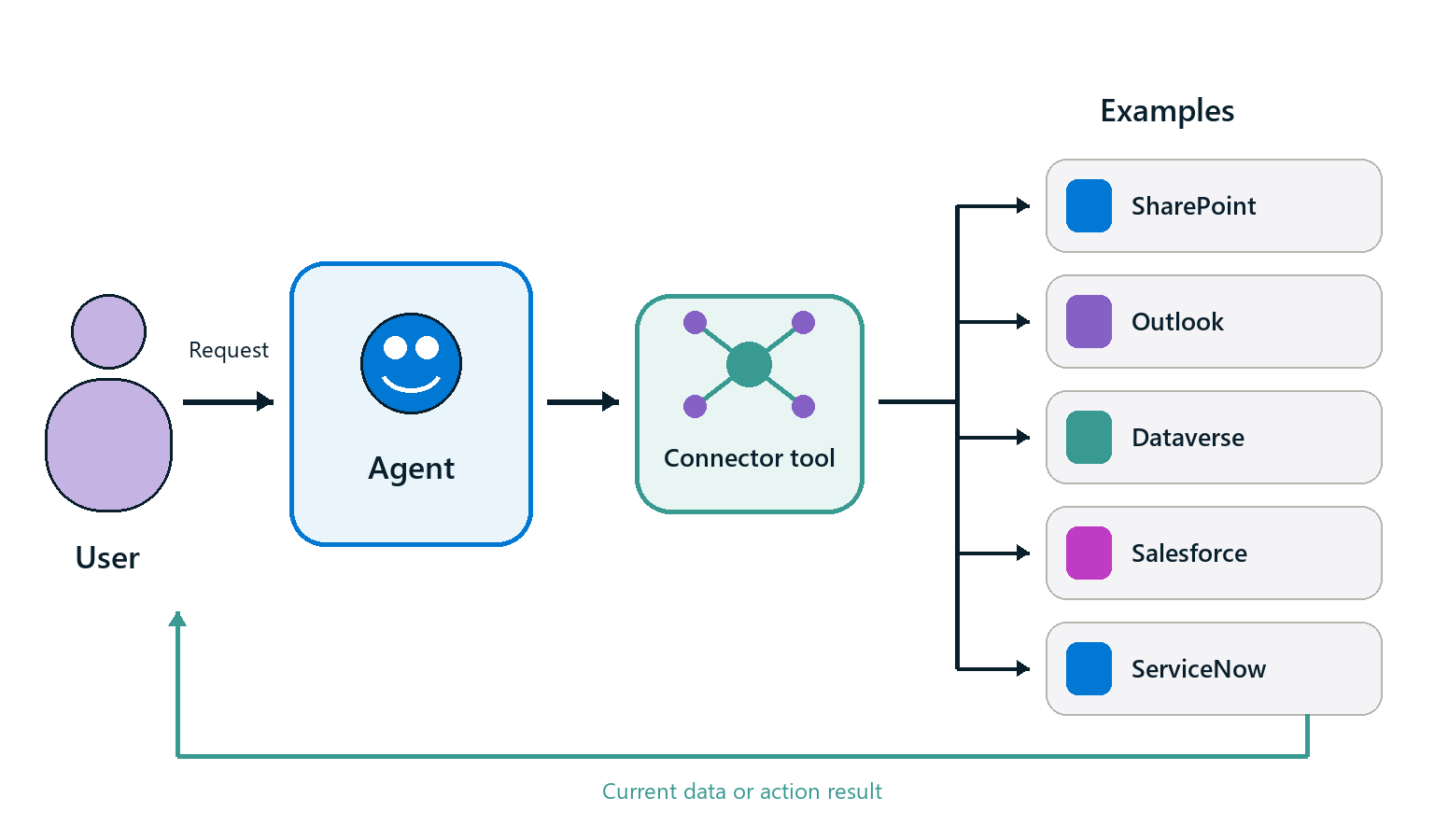
Add an existing connector action
In Copilot Studio, open the agent's Build tab, select Tools, and then add a connector. Select the service, action, and connection that the agent should use. The action becomes a tool that the agent can select when a request matches its purpose.
Review these areas before testing the tool:
- Name: State what the tool returns or does. For example,
Get equipment inventoryis clearer thanGet items. - Description: Explain what the tool does, when to use it, and important limits. The agent uses this description to decide whether the tool fits a request.
- Authentication: Confirm whose credentials the connection uses and whether that choice fits the intended channel and data permissions.
- Inputs: Define how the tool gets each required value.
- Completion: Choose which outputs the agent can use and how the agent responds after the tool runs.
Configure connector inputs
The following input settings apply to connector actions that you configure for an agent. Connector inputs usually fall into two groups:
- Fixed configuration: Values that stay the same for every call, such as a SharePoint site, list name, environment, or region. Set Fill using to Custom value and provide the value.
- Request-specific information: Values that vary with the user or conversation, such as an item name, date, location, or email address. Use Dynamically fill with AI so the agent extracts the value from context or asks the user when the value is missing.
For an input filled by AI, use a clear name and explain what information it needs. Add an example if users might not know the expected format. If the value must follow a rule, such as using a valid email address, configure the tool to check the value or ask again.
Use a fixed value for settings that don't change, such as the SharePoint site address. Let AI fill information that changes with each request, such as a location or item name.
These Fill using options apply to connector tools. For an MCP tool, the server owner defines the inputs. For a workflow tool, the workflow author defines them. In every case, clear names and descriptions help the agent provide the right values.
Check the connector tool
Before moving on, test the connector connection and action with known values. Then use Preview to submit a request that should select the tool. Verify that the agent:
- Selects the intended tool.
- Uses fixed inputs without asking the user for them.
- Extracts or asks for request-specific inputs.
- Returns current data without inventing missing results.
This quick check confirms that the connector works. Later, you learn how to test tool selection and diagnose problems across all tool types.