Create rubrics with AI in Microsoft Teams Assignments
Rubrics communicate expectations to learners and provide a consistent framework for grading. In Microsoft Teams Assignments, educators can use AI to generate rubric criteria and descriptions, then customize the results to match their specific needs.
Rubrics serve two purposes. First, they help learners understand what success looks like before they begin. Second, they structure the feedback process by creating a structure for comments to the learner that Copilot can help summarize.
Build standards-aligned rubrics
To create a rubric with AI assistance in Microsoft Teams Assignments:
- Go to a class team and select Assignments.
- Create a new assignment or edit an existing one.
- Select Add rubric > + Add rubric to open the rubric creator.
- Enter a title and description. The information you provide here prompts the AI, so detailed descriptions produce better results.
- Select a grade level and language for the generated content.
- Choose one or more standards to align the rubric to academic goals, like Common Core or state standards. The AI uses these standards when suggesting criteria.
- Select a rubric scale (like Excellent/Good/Fair/Poor or create a custom scale).
- Enter criteria for what the rubric evaluates. Add original content or use AI-generated suggestions based on a title and description.
- Select Create rubric using AI.
The AI generates concise, clear expectations for each cell of the rubric and describes what learners need to demonstrate at each performance level.
Note
AI-generated rubrics current support English, German, Spanish, Norwegian, French, Portuguese, Japanese, Dutch, and Swedish. Content generates in the language Microsoft Teams is set to.
Customize rubric criteria and performance levels
AI-generated rubrics provide a starting point, not a final product. Educators can customize every element:
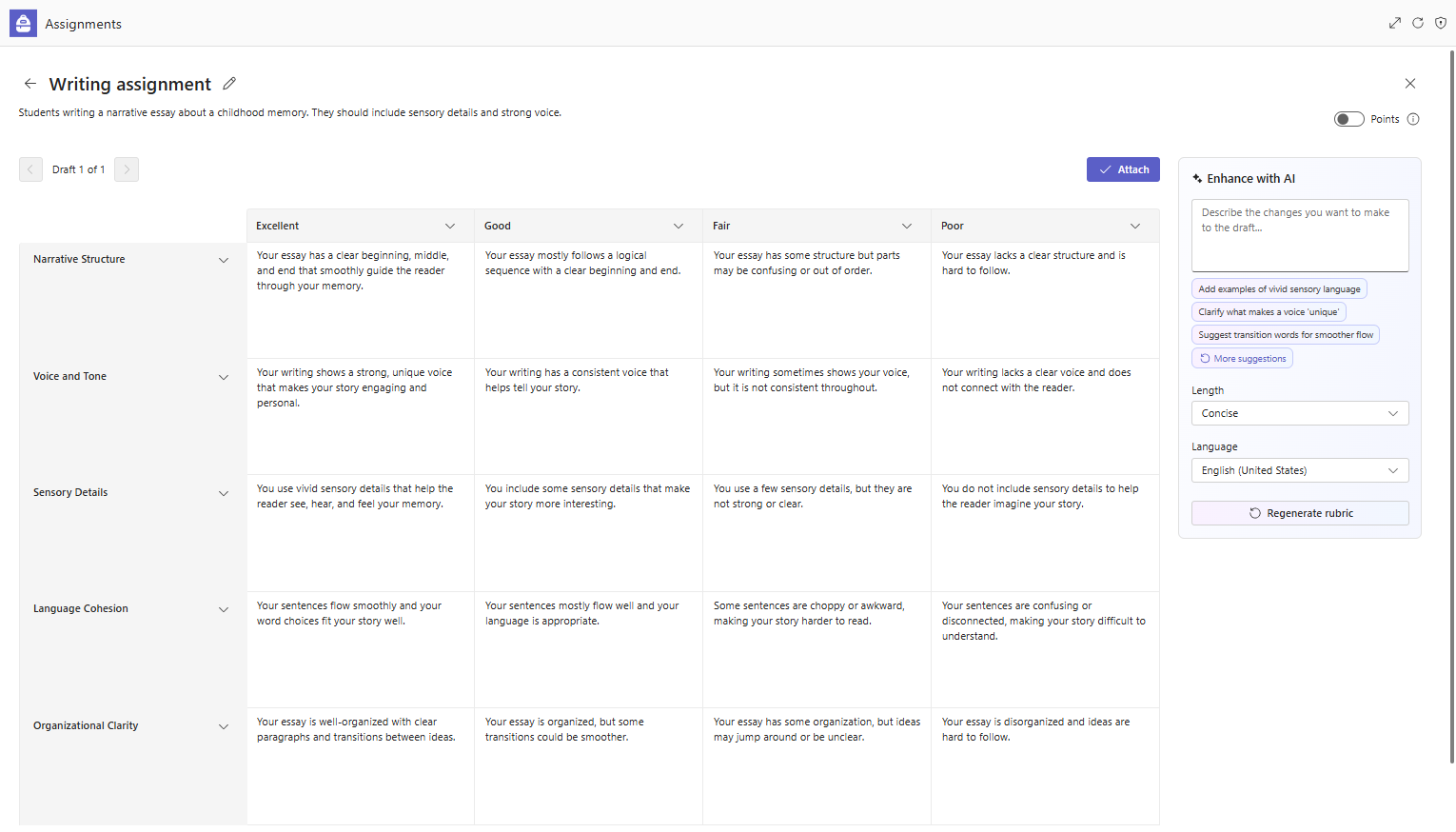
- Headers: Select the down arrow on any row or column header to rename the column heading or adjust grade weights.
- Performance levels: Adjust the default scale labels to match the grading approach. Edit the descriptors in each cell to clarify what distinguishes each level.
- Criteria: Use + New Criteria to add rows or delete criteria that don't fit the assignment.
- Points: Turn on Points to assign weighted percentages to each criterion. Percentages must total 100—select Evenly redistribute weights to quickly reset them.
- Regenerate with AI: If the initial generation doesn't fit the assignment, select Enhance with AI to:
- Adjust the grade level
- Add more detail to the description
- Change the level of detail (Concise for one-sentence entries, Expanded for two-sentence entries).
- Regenerate individual rows or columns by selecting Fill in row/column using AI.
Ensure clear and consistent rubric language
Effective rubrics use specific, observable language. When you're reviewing AI-generated content:
- Check that descriptors clearly differentiate between performance levels.
- Ensure that language is appropriate for the learners' grade level.
- Verify alignment with stated learning objectives.
- Confirm that criteria match what's being assessed.
After customizing the rubric, select Attach to add the rubric to the assignment. Learners can reference the rubric when they open the assignment, and educators can download it as a Word document to print or share.
Reflection: How might you use the regeneration features to create rubrics at different detail levels for different purposes—like a simple checklist for formative feedback versus a detailed rubric for a major project?