Why educator-guided AI use matters
Learners today have access to powerful AI tools that can help with writing, research, problem-solving, and creative work. This access brings new learning opportunities as well as new questions. When is AI assistance appropriate? How much help is too much? What skills should learners develop independently without using AI?
Without clear answers to these questions, learners face uncertainty. Research and feedback from schools indicate that learners are often unsure when and how to use AI in their work. Some learners avoid AI entirely out of fear of doing something wrong. Other learners use it extensively without understanding appropriate boundaries. This inconsistency creates stress for learners and makes it difficult for educators to assess authentic learning.
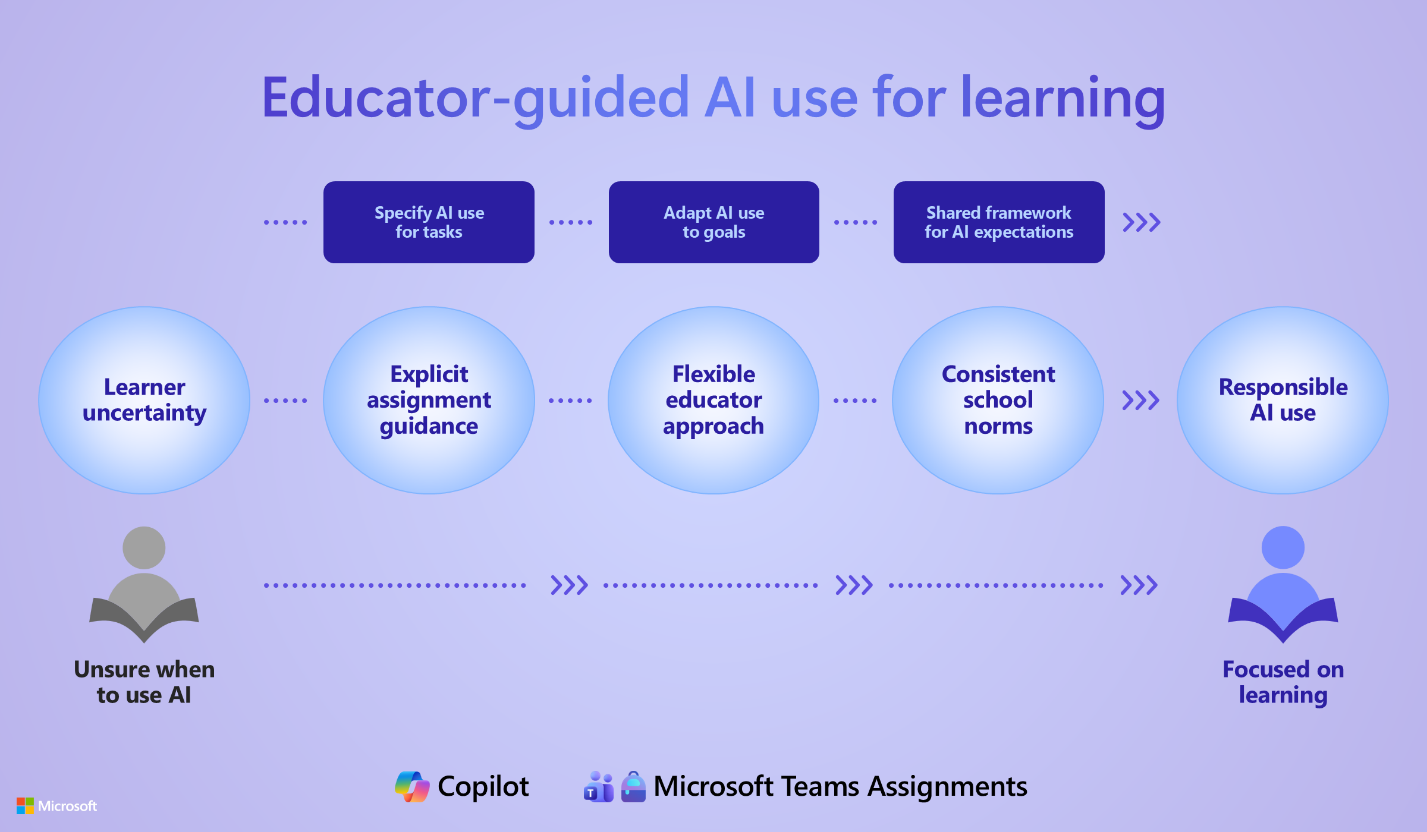
For an accessible version of the infographic, see this PDF file.
Why educators need clear AI guidelines
Clear, consistent guidelines benefit everyone in the learning community. For learners, explicit Student AI Guidelines remove guesswork. When educators specify whether AI assistance is encouraged, limited, or not permitted for a particular assignment, learners can focus on the work itself rather than worrying about crossing an unclear line. This clarity supports academic integrity and allows learners to develop AI literacy skills.
For educators, setting Student AI Guidelines at the assignment level provides flexibility. A writing instructor might allow AI brainstorming tools for early drafts but require independent revision. A math educator might permit AI for checking work but not for solving problems. A science educator might encourage AI research assistance while requiring original analysis. Different learning goals call for different approaches.
For schools, consistent tools for communicating AI expectations help establish shared norms across classes. When every educator sets clear guidelines using the same framework, learners receive coherent messages about responsible AI use throughout their educational journey.
Copilot's role as a supportive assistant
Microsoft Copilot in Assignments is designed to support—not replace—educator judgment.
When educators set Student AI Guidelines in Assignments, they choose from predefined levels or customize the guidance text to match their instructional goals. Assignments displays these guidelines to learners within the assignment, but the educator determines the message. The tool provides consistency and visibility; the educator provides professional judgment about what's appropriate for each learning context.
The same principle applies to feedback. When educators use Copilot to summarize rubric-based feedback, the AI extends and rewrites what the educator already assessed. It doesn't generate feedback independently or evaluate learner work. The educator grades the assignment, applies the rubric, and adds comments. Copilot then helps transform those inputs into a clear summary that learners can understand and act on. If the summary doesn't match the educator's intent, they can edit before sharing with the learner.
This approach keeps the educator at the center of instruction while using AI to handle routine formatting and communication tasks. The result is a workflow that saves time without compromising the quality of feedback or the authenticity of the educator-learner relationship.
What you learn in this module
This module walks through a complete workflow for setting AI expectations and streamlining feedback in Assignments in Teams for Education and Microsoft 365 LTI.
Learn to use the Student AI Guidelines feature to define clear AI use policies for different assignments and set defaults that carry forward to future assignments. Discover how to create rubrics that communicate expectations to learners and structure grading. Finally, you explore how Copilot can summarize rubric feedback into concise, actionable messages with the educator maintaining full control over what learners receive.
Along the way, consider best practices for responsible AI use, including equity, accessibility, and privacy.
Note
Educators can set Student AI Guidelines regardless of whether they have their own Copilot license. For learners, the Copilot button is available when they have access to Microsoft 365 Copilot. Availability can also depend on your tenant rollout and configuration.
Reflection: What student AI guidelines would be most helpful for learners in your teaching context? Consider how different assignments might call for different levels of AI assistance.