Exercise - Develop code features using GitHub Copilot tools
You and your coworker meet to discuss your goals for the library application. You want to improve the user experience for the librarians and patrons. You discuss several new features that could be added to the application.
You agree to work on the following features:
Book availability: Enable a librarian to determine the availability status of a book. This feature should display a message indicating if a book is available for loan or the return due date if the book is currently on loan to another patron.
Book loans: Enable a librarian to loan a book to a patron (if the book is available). This feature should display the option for a patron to receive a book on loan, update Loans.json with the new loan, and display updated the loan details for the patron.
Book reservations: Enable a librarian to reserve a book for a patron (unless the book is already reserved). This feature should implement a new book reservation process. This feature may require creating a new Reservations.json file along with the new classes and interfaces required to support the reservation process.
Each of you will work on one of the new features and then regroup. You'll work on the feature to determine the availability status of a book. Your coworker will work on the feature to loan a book to a patron. The final feature, to reserve a book for a patron, will be developed after the other two features are completed.
During this exercise, you complete the following tasks:
Create a "book availability" branch in the code repository.
Develop a new "book availability" feature.
- Use GitHub Copilot suggestions to help implement the code more quickly and accurately.
- Sync your code updates to the "book availability" branch of your remote repository.
Create a pull request to merge your changes into the main branch of the repository.
Create a new branch in the repository
Before you start developing the new "book availability" feature, you need to create a new branch in the repository. This enables you to work on the new feature without affecting the main branch of the repository. You can merge the new feature into the main branch when it's ready.
Use the following steps to complete this section of the exercise:
Ensure that you have the AccelerateDevGitHubCopilot solution open in Visual Studio Code.
Select the Source Control view and ensure that the local repository is synchronized with the remote repository (Pull or Sync).
In the bottom-left corner of the window, select main.
To create a new branch, type book availability and then select + Create new branch.
To push the new branch to the remote repository, select Publish Branch.
Develop a feature that enables a librarian to determine the availability status of a book
In this section of the exercise, you use GitHub Copilot to help you implement a new feature for the library application. Your new feature enables a librarian to determine the availability status of a book.
The book availability feature should include the following code updates:
- Add a new
SearchBooksaction toCommonActions. - Update the
WriteInputOptionsmethod in ConsoleApp.cs. Add support for the newCommonActions.SearchBooksoption. Display the option to check if a book is available for loan. - Update the
ReadInputOptionsmethod in ConsoleApp.cs. Add support for the newCommonActions.SearchBooksoption. - Update the
PatronDetailsmethod in ConsoleApp.cs. AddCommonActions.SearchBookstooptionsbefore callingReadInputOptions. Add anelse ifto handle theSearchBooksaction. Theelse ifblock should call a new method namedSearchBooks. - Create a new
SearchBooksmethod in ConsoleApp.cs. TheSearchBooksmethod should read a user provided book title. Check if a book is available for loan, and display a message stating either "book.titleis available for loan" or "book.titleis on loan to another patron. The return due date isloan.DueDate.
Use the following steps to complete this section of the exercise:
Open the SOLUTION EXPLORER view.
Open the CommonActions.cs file, and then select the
CommonActionsenum.You need to add a new
SearchBooksaction toCommonActions.Open the inline chat and then enter the following prompt:
Update selection to include a new `SearchBooks` action.GitHub Copilot should suggest a code update that adds the new
SearchBooksaction to theCommonActionsenum.Review the suggested update and then select Accept.
public enum CommonActions
{
    Repeat = 0,
    Select = 1,
    Quit = 2,
    SearchPatrons = 4,
    RenewPatronMembership = 8,
    ReturnLoanedBook = 16,
    ExtendLoanedBook = 32,
    SearchBooks = 64
}
Open the ConsoleApp.cs file.
Find and then select the
WriteInputOptionsmethod.You need to add support for the new
CommonActions.SearchBooksoption. Display the option to check if a book is available for loan.Open the inline chat and then enter the following prompt:
Update selection to include an option for the `CommonActions.SearchBooks` action. Use the letter "b" and the message "to check for book availability".GitHub Copilot should suggest a code update that adds a new
ifblock for theSearchBooksaction.Review the suggested update and then select Accept.
The suggested update should be similar to the following code snippet:
static void WriteInputOptions(CommonActions options)
{
    Console.WriteLine("Input Options:");
    if (options.HasFlag(CommonActions.ReturnLoanedBook))
    {
        Console.WriteLine(" - \"r\" to mark as returned");
    }
    if (options.HasFlag(CommonActions.ExtendLoanedBook))
    {
        Console.WriteLine(" - \"e\" to extend the book loan");
    }
    if (options.HasFlag(CommonActions.RenewPatronMembership))
    {
        Console.WriteLine(" - \"m\" to extend patron's membership");
    }
    if (options.HasFlag(CommonActions.SearchPatrons))
    {
        Console.WriteLine(" - \"s\" for new search");
    }
    if (options.HasFlag(CommonActions.SearchBooks))
    {
        Console.WriteLine(" - \"b\" to check for book availability");
    }
    if (options.HasFlag(CommonActions.Quit))
    {
        Console.WriteLine(" - \"q\" to quit");
    }
    if (options.HasFlag(CommonActions.Select))
    {
        Console.WriteLine("Or type a number to select a list item.");
    }
}
Scroll up slightly to find and then select the
ReadInputOptionsmethod.You need to add support for the new
CommonActions.SearchBooksoption. Include a case that handles the user selecting theSearchBooksaction.Open the inline chat and then enter the following prompt:
Update selection to include an option for the `CommonActions.SearchBooks` action.GitHub Copilot should suggest a code update that adds a new
casethat handles the user selecting theSearchBooksaction.Review the suggested update and then select Accept.
The suggested update should be similar to the following code snippet:
static CommonActions ReadInputOptions(CommonActions options, out int optionNumber)
{
    CommonActions action;
    optionNumber = 0;
    do
    {
        Console.WriteLine();
        WriteInputOptions(options);
        string? userInput = Console.ReadLine();

        action = userInput switch
        {
            "q" when options.HasFlag(CommonActions.Quit) => CommonActions.Quit,
            "s" when options.HasFlag(CommonActions.SearchPatrons) => CommonActions.SearchPatrons,
            "m" when options.HasFlag(CommonActions.RenewPatronMembership) => CommonActions.RenewPatronMembership,
            "e" when options.HasFlag(CommonActions.ExtendLoanedBook) => CommonActions.ExtendLoanedBook,
            "r" when options.HasFlag(CommonActions.ReturnLoanedBook) => CommonActions.ReturnLoanedBook,
            "b" when options.HasFlag(CommonActions.SearchBooks) => CommonActions.SearchBooks,
            _ when int.TryParse(userInput, out optionNumber) => CommonActions.Select,
            _ => CommonActions.Repeat
        };

        if (action == CommonActions.Repeat)
        {
            Console.WriteLine("Invalid input. Please try again.");
        }
    } while (action == CommonActions.Repeat);
    return action;
}
Scroll down to find and then select the
PatronDetailsmethod.There are two things that you need to accomplish:
- You need to add
CommonActions.SearchBookstooptionsbefore callingReadInputOptions. - You also need to add an
else ifto handle theSearchBooksaction. Theelse ifblock should call a new method namedSearchBooks.
You can address both of these together.
- You need to add
Open the inline chat and then enter the following prompt:
Update selection to add `CommonActions.SearchBooks` to `options` before calling `ReadInputOptions`. Add an `else if` block to handle the `SearchBooks` action. The `else if` block should call a new method named `SearchBooks`.GitHub Copilot should suggest a code update that adds
CommonActions.SearchBookstooptionsbefore callingReadInputOptions.Review the suggested update and then select Accept.
async Task<ConsoleState> PatronDetails()
{
    Console.WriteLine($"Name: {selectedPatronDetails.Name}");
    Console.WriteLine($"Membership Expiration: {selectedPatronDetails.MembershipEnd}");
    Console.WriteLine();
    Console.WriteLine("Book Loans:");
    int loanNumber = 1;
    foreach (Loan loan in selectedPatronDetails.Loans)
    {
        Console.WriteLine($"{loanNumber}) {loan.BookItem!.Book!.Title} - Due: {loan.DueDate} - Returned: {(loan.ReturnDate != null).ToString()}");
        loanNumber++;
    }

    CommonActions options = CommonActions.SearchPatrons | CommonActions.Quit | CommonActions.Select | CommonActions.RenewPatronMembership | CommonActions.SearchBooks;
    CommonActions action = ReadInputOptions(options, out int selectedLoanNumber);
    if (action == CommonActions.Select)
    {
        if (selectedLoanNumber >= 1 && selectedLoanNumber <= selectedPatronDetails.Loans.Count())
        {
            var selectedLoan = selectedPatronDetails.Loans.ElementAt(selectedLoanNumber - 1);
            selectedLoanDetails = selectedPatronDetails.Loans.Where(l => l.Id == selectedLoan.Id).Single();
            return ConsoleState.LoanDetails;
        }
        else
        {
            Console.WriteLine("Invalid book loan number. Please try again.");
            return ConsoleState.PatronDetails;
        }
    }
    else if (action == CommonActions.Quit)
    {
        return ConsoleState.Quit;
    }
    else if (action == CommonActions.SearchPatrons)
    {
        return ConsoleState.PatronSearch;
    }
    else if (action == CommonActions.RenewPatronMembership)
    {
        var status = await _patronService.RenewMembership(selectedPatronDetails.Id);
        Console.WriteLine(EnumHelper.GetDescription(status));
        // reloading after renewing membership
        selectedPatronDetails = (await _patronRepository.GetPatron(selectedPatronDetails.Id))!;
        return ConsoleState.PatronDetails;
    }
    else if (action == CommonActions.SearchBooks)
    {
        return await SearchBooks();
    }

    throw new InvalidOperationException("An input option is not handled.");
}
Note
Inline chat suggestions may also create stub code for the
SearchBooksmethod.Take a minute to consider the process requirements for the
SearchBooksmethod.What does the method need to do? What should it return? Does it require parameters?
The
SearchBooksmethod should implement the following process:Prompt the user for a book title.
Read the user provided book title.
Check if a book is available for loan
Display a message stating one of the following options:
- "
book.titleis available for loan" - "
book.titleis on loan to another patron. The return due date isloan.DueDate.
- "
To build the message options, your code will need to access the following JSON files:
Books.jsonis needed to find the matchingTitleandBookId.Loans.jsonis needed to find theReturnDateandDueDatefor the matchingBookItemId. TheBookItemIdis the same as theBookIdinBooks.json.
Ensure that you have the following
SearchBooksmethod created in the ConsoleApp.cs file:async Task<ConsoleState> SearchBooks() { return ConsoleState.PatronDetails; }Note
Be sure to remove any code comments created by GitHub Copilot. Unnecessary and inaccurate comments can negatively influence GitHub Copilot's suggestions.
Select the
SearchBooksmethod.Open the inline chat and then enter the following prompt:
Update selection to obtain a book title. Prompt the user to "Enter a book title to search for". Read the user input and ensure the book title isn't null.GitHub Copilot should suggest a code update that captures the user supplied book title.
Review the suggested update and then select Accept.
async Task<ConsoleState> SearchBooks()
{
    string? bookTitle = null;
    while (String.IsNullOrWhiteSpace(bookTitle))
    {
        Console.Write("Enter a book title to search for: ");
        bookTitle = Console.ReadLine();
    }

    // Perform book search logic here

    return ConsoleState.PatronDetails;
}
Select the
SearchBooksmethod.Note
GitHub Copilot may create a separate method to handle user input of a book title. You can continue to develop the primary logic in the
SearchBooksmethod.Open the Chat view.
Add the following files to the Chat context: ConsoleApp.cs, JsonData.cs, JsonLoanRepository.cs, Books.json, Loans.json, BookItems.json, .
Enter the following prompt:
@workspace Explain how to update the `SearchBooks` method and ConsoleApps class to find a matching book title in the `Books.json` file. Use the user supplied book title to find a matching book. If a book is found, use Loans.json to check if the book is available for loan. If the book has been returned, display a message stating "`book.title` is available for loan". If the book is on loan, display a message stating "`book.title` is on loan to another patron. The return due date is `loan.DueDate`".Take a minute to review the suggested updates.
GitHub Copilot should propose updates similar to the following suggestions:
To update the
SearchBooksmethod andConsoleAppclass to find a matching book title in theBooks.jsonfile and check if the book is available for loan, follow these steps:a. Add a method to search for books by title in the
JsonDataclass. b. Update theSearchBooksmethod in theConsoleAppclass to use this new method. c. Check the loan status of the book and display the appropriate message.Here is the updated code:
Step 1: Add a method to search for books by title in the JsonData class
public class JsonData
{
    // Existing code...

    public Book? SearchBookByTitle(string title)
    {
        return Books?.FirstOrDefault(b => b.Title.Equals(title, StringComparison.OrdinalIgnoreCase));
    }
}
Step 2: Update the SearchBooks method in the ConsoleApp class
public class ConsoleApp
{
    // Existing fields...

    JsonData _jsonData;

    public ConsoleApp(ILoanService loanService, IPatronService patronService, IPatronRepository patronRepository, ILoanRepository loanRepository, JsonData jsonData)
    {
        _patronRepository = patronRepository;
        _loanRepository = loanRepository;
        _loanService = loanService;
        _patronService = patronService;
        _jsonData = jsonData;
    }

    // Existing methods...

    async Task<ConsoleState> SearchBooks()
    {
        string bookTitle = ReadBookTitle();

        Book? book = _jsonData.SearchBookByTitle(bookTitle);

        if (book == null)
        {
            Console.WriteLine($"No book found with title: {bookTitle}");
            return ConsoleState.PatronDetails;
        }

        Loan? loan = _jsonData.Loans?.FirstOrDefault(l => l.BookItemId == book.Id && l.ReturnDate == null);

        if (loan == null)
        {
            Console.WriteLine($"{book.Title} is available for loan.");
        }
        else
        {
            Console.WriteLine($"{book.Title} is on loan to another patron. The return due date is {loan.DueDate}.");
        }

        return ConsoleState.PatronDetails;
    }

    // Existing methods...
}
Step 3: Update the Program.cs to pass JsonData to ConsoleApp
using Microsoft.Extensions.DependencyInjection;
using Library.Infrastructure.Data;
using Library.ApplicationCore;
using Microsoft.Extensions.Configuration;

var services = new ServiceCollection();

var configuration = new ConfigurationBuilder()
.SetBasePath(Directory.GetCurrentDirectory())
.AddJsonFile("appSettings.json")
.Build();

services.AddSingleton<IConfiguration>(configuration);

services.AddScoped<IPatronRepository, JsonPatronRepository>();
services.AddScoped<ILoanRepository, JsonLoanRepository>();
services.AddScoped<ILoanService, LoanService>();
services.AddScoped<IPatronService, PatronService>();

services.AddSingleton<JsonData>();
services.AddSingleton<ConsoleApp>();

var servicesProvider = services.BuildServiceProvider();

var consoleApp = servicesProvider.GetRequiredService<ConsoleApp>();
consoleApp.Run().Wait();
With these changes, the
SearchBooksmethod in theConsoleAppclass will now search for a book by title in theBooks.jsonfile and check its loan status in theLoans.jsonfile. If the book is available for loan, it will display a message stating that the book is available. If the book is on loan, it will display a message stating that the book is on loan and provide the return due date.Add the suggested method to the end of the
JsonDataclass.public Book? SearchBookByTitle(string title) { return Books?.FirstOrDefault(b => b.Title.Equals(title, StringComparison.OrdinalIgnoreCase)); }Update the Program.cs file using the suggested updates.
using Microsoft.Extensions.DependencyInjection;
using Library.Infrastructure.Data;
using Library.ApplicationCore;
using Microsoft.Extensions.Configuration;

var services = new ServiceCollection();

var configuration = new ConfigurationBuilder()
.SetBasePath(Directory.GetCurrentDirectory())
.AddJsonFile("appSettings.json")
.Build();

services.AddSingleton<IConfiguration>(configuration);

services.AddScoped<IPatronRepository, JsonPatronRepository>();
services.AddScoped<ILoanRepository, JsonLoanRepository>();
services.AddScoped<ILoanService, LoanService>();
services.AddScoped<IPatronService, PatronService>();

services.AddSingleton<JsonData>();
services.AddSingleton<ConsoleApp>();

var servicesProvider = services.BuildServiceProvider();

var consoleApp = servicesProvider.GetRequiredService<ConsoleApp>();
consoleApp.Run().Wait();
Add the
JsonData _jsonData;field declaration to theConsoleAppclass before the class constructor.Add a
JsonData jsonDataparameter to theConsoleAppclass constructor and use it to initialize the_jsonDatafield inside the constructor.The updated class constructor should look like the following code snippet:
public ConsoleApp(ILoanService loanService, IPatronService patronService, IPatronRepository patronRepository, ILoanRepository loanRepository, JsonData jsonData)
{
    _patronRepository = patronRepository;
    _loanRepository = loanRepository;
    _loanService = loanService;
    _patronService = patronService;
    _jsonData = jsonData;
}
Notice that JsonData isn't recognized in the
ConsoleAppclass.You need to add
using Library.Infrastructure.Data;to the top of theConsoleApp.csfile.Ensure that the
using Library.Infrastructure.Data;statement is added to the top of theConsoleApp.csfile.Use the code suggestions to update the
SearchBooksmethod:The suggested code should use a LINQ query to search for the book by title. If the book is found, another LINQ query is used to determine if the book is on loan. The code also includes logic to display the availability status of the book based on the search results. The logic used to display response messages can be implemented in several ways. An example is provided in the code snippet below.
The following code snippet shows one possible implementation of the
SearchBooksmethod:async Task<ConsoleState> SearchBooks() { string bookTitle = ReadBookTitle(); Book? book = _jsonData.SearchBookByTitle(bookTitle); if (book == null) { Console.WriteLine($"No book found with title: {bookTitle}"); return ConsoleState.PatronDetails; } Loan? loan = _jsonData.Loans?.FirstOrDefault(l => l.BookItemId == book.Id && l.ReturnDate == null); if (loan == null) { Console.WriteLine($"{book.Title} is available for loan."); } else { Console.WriteLine($"{book.Title} is on loan to another patron. The return due date is {loan.DueDate}."); } return ConsoleState.PatronDetails; }Select the
SearchBooksmethod.Open the Chat view, and then enter the following prompt:
Explain the LINQ queries and the evaluation of the book's availability status.Take a minute to review the explanation provided by GitHub Copilot.
For the query that checks whether the book is on loan, you should see a description that's similar to the following explanation:
**Search for the Loan Status of the Book**Loan? loan = _jsonData.Loans?.FirstOrDefault(l => l.BookItemId == book.Id && l.ReturnDate == null);- _jsonData.Loans: Accesses the list of loans from the JsonData class. - ?.: The null-conditional operator ensures that if _jsonData.Loans is null, the entire expression will return null without throwing a NullReferenceException. - FirstOrDefault: A LINQ method that returns the first element in the collection that matches the specified condition, or null if no such element is found. - Lambda Expression: l => l.BookItemId == book.Id && l.ReturnDate == null - l.BookItemId == book.Id: Checks if the BookItemId of the loan matches the Id of the book being searched. - l.ReturnDate == null: Checks if the loan's ReturnDate is null, indicating that the book is currently on loan and has not been returned. - Result: If a matching loan is found, it is assigned to the loan variable. If no matching loan is found, loan is null. **Evaluation of the Book's Availability Status** After executing the LINQ queries, the method evaluates the availability status of the book: - If `loan` is `null`, the book has been returned. The method prints that the book is available for loan. - If `loan` is not `null`, the book is currently on loan (no return date). The method prints that the book is on loan and provides the date when the book should be returned.Verify the logic implemented by the Check if the Book is on Loan query.
Null-Conditional Operator: The
?.operator is a null-conditional operator. It ensures that if_jsonData.Loansisnull, the entire expression will evaluate tonullwithout throwing aNullReferenceException.Lambda Expression: The lambda expression
l => l.BookItemId == book.Id && l.ReturnDate == nulldefines the condition for theFirstOrDefaultmethod. It checks eachloanobjectlto see if itsBookItemIdmatches theIdof thebookobject and if itsReturnDateisnull.This code attempts to find the first
loanin the_jsonData.Loanscollection where theBookItemIdmatches theIdof the givenbookand theReturnDateisnull. If no suchloanis found or if_jsonData.Loansisnull,loanwill be set tonull.Note
Most modern libraries have multiple copies of the same book. This code assumes that there is only one copy of each book. If the library has multiple copies of the same book, the code will need to be updated to handle multiple loans for the same book. For the purposes of this training, we are assuming that there is only one copy of each book and that the logic provided is sufficient.
Build the solution to ensure that there are no errors.
You'll see Warning messages, but there shouldn't be any errors.
To build the solution in the Solution Explorer view, right-click AccelerateDevGitHubCopilot and then select Build.
Sync your changes with the remote repository
Select the Source Control view.
Ensure that the files you updated are listed under Changes.
Use GitHub Copilot to generate a message for the Commit.
To stage and commit your changes, select Commit and then select Yes.
Sync (or Push) changes to the remote repository.
Check your work
In this section of the exercise, you complete the following tasks:
- Verify that the new feature correctly determines the availability status of a book.
- Create a pull request to merge your changes into the main branch of the repository.
Verify that your new feature works as expected
Since you don't have automated tests, manual testing can be used to verify that the new feature works as expected. Using a data source that can be verified is important. In this case, you use the Books.json and Loans.json files to verify that the new feature reports the availability status of a book correctly.
Use the following steps to complete this section of the exercise:
Open the Solution Explorer view.
To run the application, right-click Library.Console, select Debug, and then select Start New Instance.
When prompted for a patron name, type One and then press Enter.
You should see a list of patrons that match the search query.
At the "Input Options" prompt, type 2 and then press Enter.
Entering 2 selects the second patron in the list.
You should see the patron's name and membership status followed by book loan details.
At the "Input Options" prompt, type b and then press Enter.
Entering b selects the option to search for a book's availability status.
You should see a prompt to enter a book title.
Type Book One and then press Enter.
In the original data that you downloaded, Book One is currently on loan to Patron Forty-Nine, so it shouldn't be available.
Verify that the application displays a message indicating that the book is on loan to another patron.
Verify that Book Nine has been returned by Patron One.
In the previous exercise, during a test of the Library application, you had Patron One return Book Nine. If the application shows that Book Nine hasn't been returned by Patron One, use the input options to select and return Book Nine before continuing.
Note
The
Library.Console.csprojfile ensures that the JSON data files are copied to the output directory when the application is built. However, performing Clean or Rebuild operations will essentially reset the data. Repeated Build operations do not reset the data in the output directory (/bin/Debug/net8.0/).At the "Input Options" prompt, type b and then press Enter.
Type Book Nine and then press Enter.
Verify that the application displays a message indicating that the book is available for loan.
At the "Input Options" prompt, type q and then press Enter.
Stop the debug session.
Open the
Loans.jsonfile.The
Loans.jsonfile is used to track the loan status of each book. You can use theLoans.jsonfile to verify that the availability status of Book One and Book Nine is correct.The updated
Loans.jsonfile should be located in either theLibrary.Console\bin\Debug\net8.0\Jsonfolder orLibrary.Console\Jsonfolder.If you're using the Visual Studio Code debugger to run the app, the updated
Loans.jsonfile should be located in theLibrary.Console\bin\Debug\net8.0\Jsonfolder.If you're using a
dotnet runcommand from theAccelerateDevGitHubCopilot\src\Library.Console>folder to run the app, the updatedLoans.jsonfile should be located in theLibrary.Console\Jsonfolder.
Verify that loan ID 37 and loan ID 46 are both for Book One (
"BookItemId": 1).- Loan ID 37 should have a
ReturnDatevalue (2024-01-17) - Loan ID 46 shouldn't have a
ReturnDatevalue. TheReturnDatevalue should benull.
The
ReturnDatevalue is used to determine whether the book is currently on loan. If theReturnDatevalue isnull, the book is considered to be on loan.- Loan ID 37 should have a
Verify that loan ID 22 is for Book Nine (
"BookItemId": 9) and that theReturnDatevalue is set to today's date.If you're running in the debugger and you cleaned the solution after making changes to the
Loans.jsonfile, those changes are lost. After you clean the solution, theLoans.jsonfile is reset to the original data the next time you run the application. You can manually update theLoans.jsonfile to test the availability status of Book One and Book Nine.
Create a pull request to merge your changes into the main branch
You completed the new feature that enables a librarian to determine the availability status of a book. Now you need to merge your changes into the main branch of the repository. You can create a pull request to merge your changes into the main branch.
Use the following steps to complete this section of the exercise:
Open your GitHub repository in a web browser.
Open the Pull requests tab.
Select New pull request.
Under Compare changes, ensure that base is configured for the main branch.
Ensure that compare is configured for the book-availability branch.
After you configure the branches, a comparison of the changes between main and book-availability is displayed. You should see the changes for each of the files you updated.
Select Create pull request.
Enter a title and description for the pull request.
You can use the following title and description:
- Title: feat: Add search functionality for books in ConsoleApp
- Description: This pull request adds a new feature that enables a librarian to determine the availability status of a book. The feature includes a new
SearchBooksaction inCommonActions, updates to theWriteInputOptions,ReadInputOptions, andPatronDetailsmethods inConsoleApp, and adds a newSearchBooksmethod inConsoleApp.
Note
Members of an enterprise with a subscription to GitHub Copilot Enterprise, can use GitHub Copilot to generate a summary of a pull request on GitHub.com. You can use the summary to help reviewers understand your changes, or to quickly understand the changes in a pull request you're reviewing. Select GitHub Actions and then select Summary to generate a summary of the pull request.
Here's an example of a pull request summary that was generated using a GitHub Copilot Enterprise account:
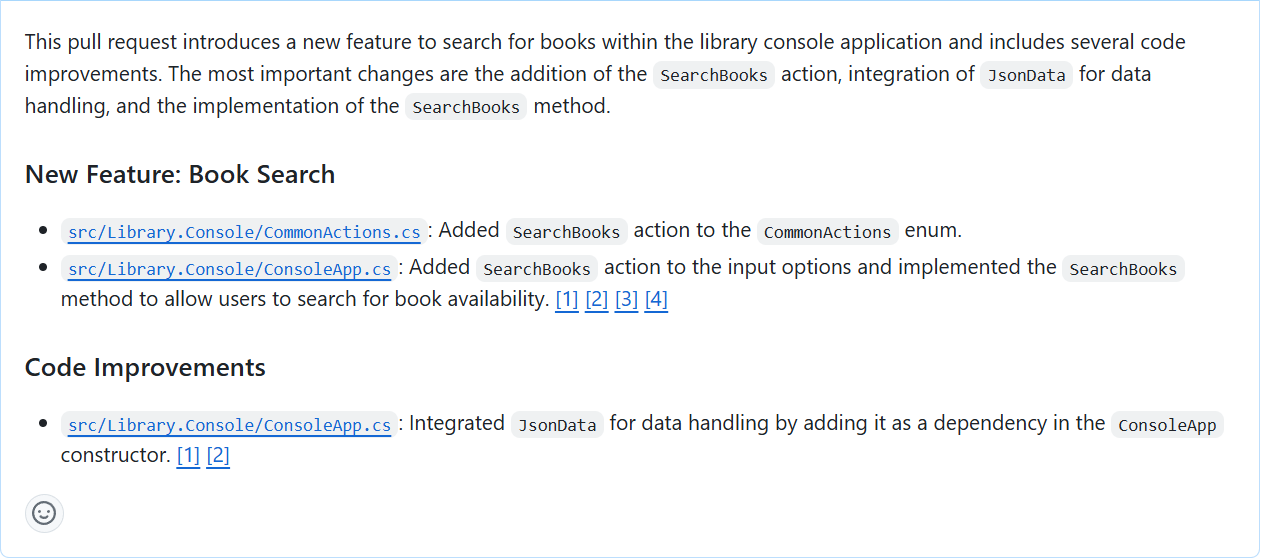
Ensure that the title and description reflect your code updates, and then select Create pull request.
Wait for the checks to complete, and then verify that all checks passed and that there are no conflicts with the base branch.
It can take a minute for the checks to complete. You need to address any issues that are identified before you can merge the changes into the main branch.
To merge your changes into the main branch, select Merge pull request, and then select Confirm merge.
Notice that you can delete the
book-availabilitybranch after merging the changes.Open Visual Studio Code.
Switch to the main branch of the repository.
Pull the changes from the remote repository.
Verify that the changes you made in the book-availability branch are now in the main branch.