Exercise - Analyze your data
In this exercise, you visualize the care management dashboards.
View the dashboard
Select the FL HC Cloud workspace you created.
Locate and select the FLHealthcare_msft_cma_report report. Replace FL with your initials.

The Power BI dashboard loads.
Select the Overview page.
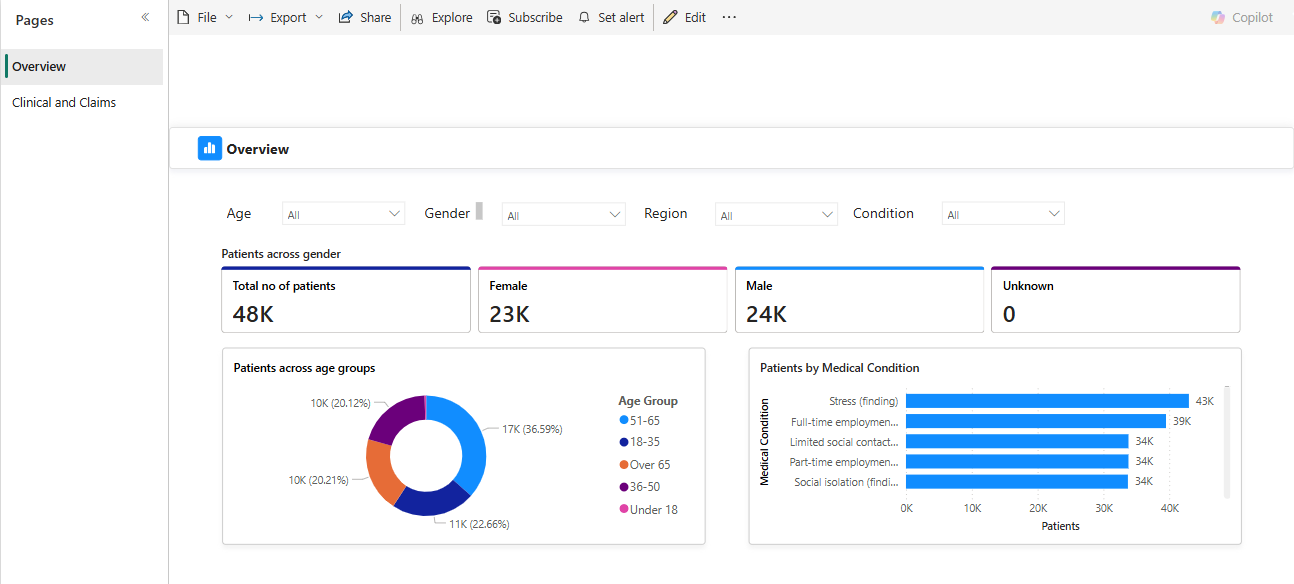
The dashboard provides an overview of key patient performance metrics, with charts offering detailed insights segmented by age and condition. To refine the analysis, use the chart filters to drill down into specific datasets as needed. The data powering these insights is sourced directly from the clinical sample data.
Select the Clinical and Claims page.
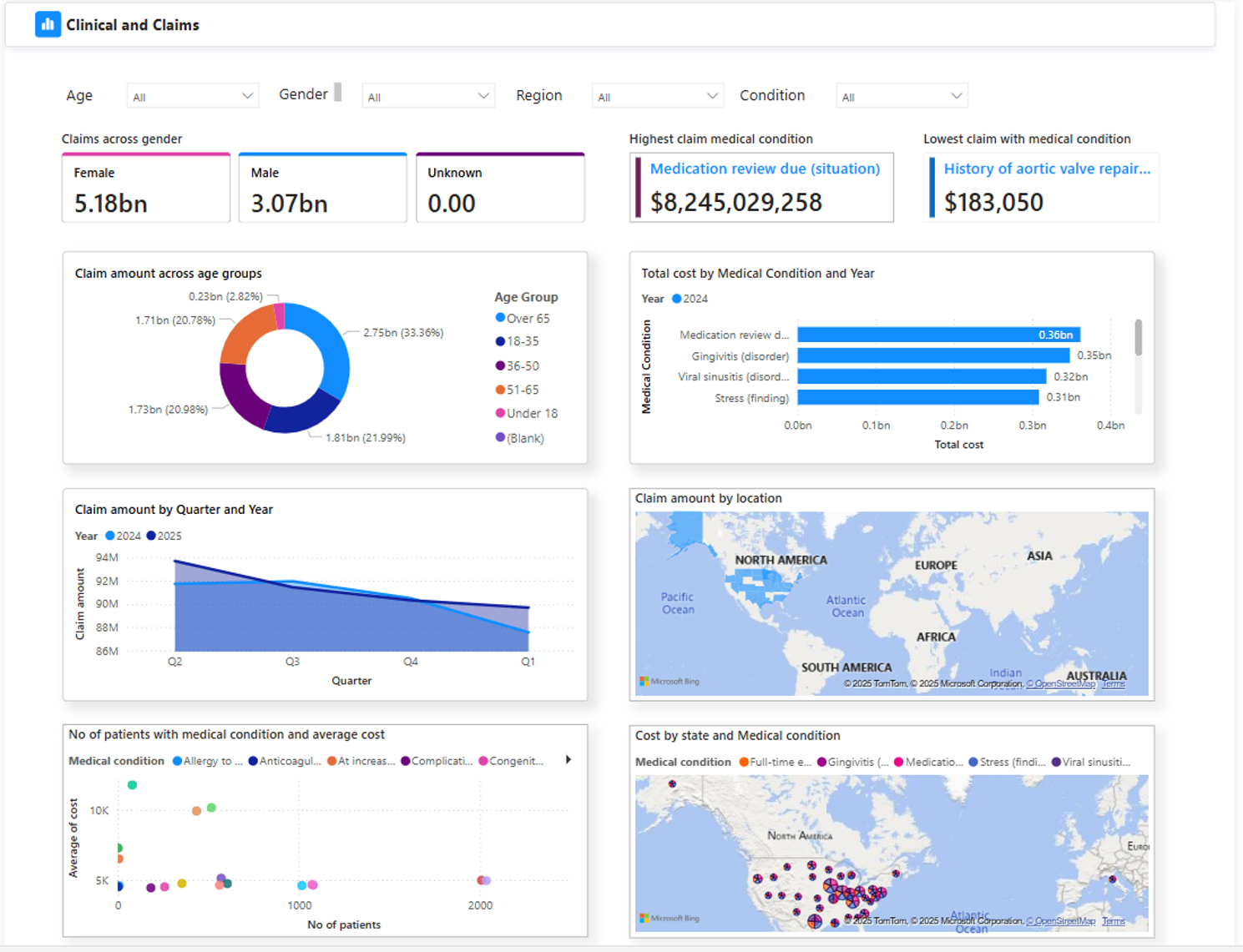
The visualizations on this page generate from both the clinical and claims sample data sources. You can explore various use cases, such as:
- Analyzing claims across different age groups
- Identifying medical conditions with the highest claims
- Observing claim trends over the years
These insights help you understand patient demographics, predict healthcare needs, and optimize resource allocation.
Note
If the age-group visuals fail to load, use the following steps to refresh the calculated fields.
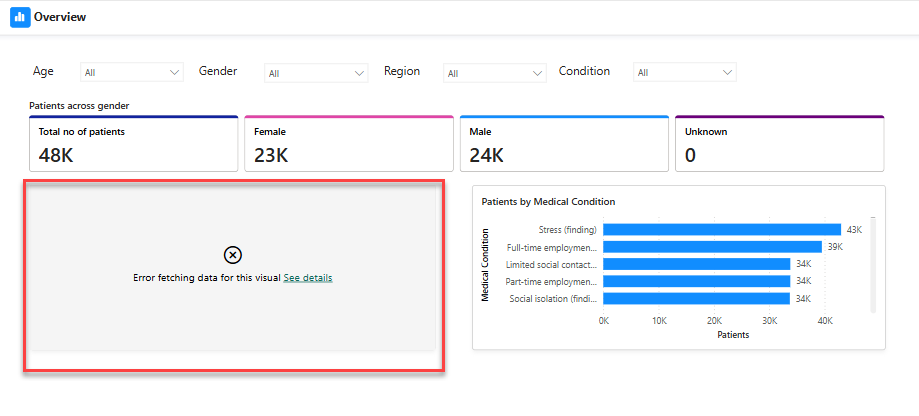
Select the workspace you created.
Locate FLHealthcare_msft_cma_semantic_model and select the … More options button. Replace FL with your initials.
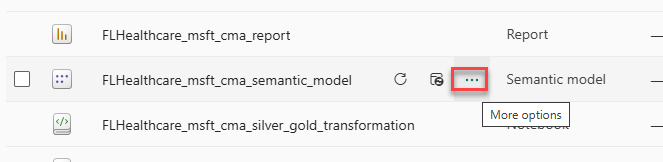
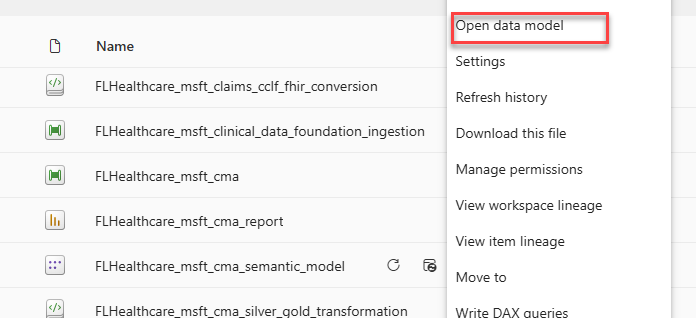
Choose Open data model.
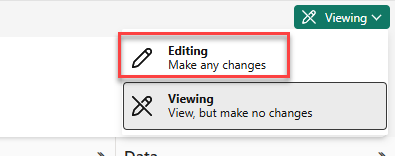
Switch from Viewing to Editing mode.
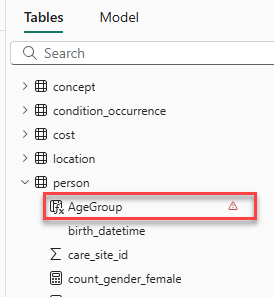
Expand the person table to see any fields that have errors. In this case, the AgeGroup field has an error, select it.
Go to the formula bar, remove, "Unknown".
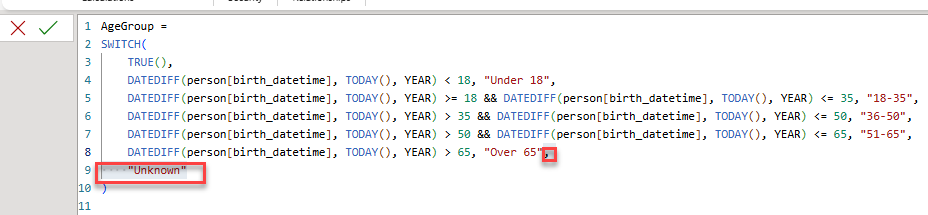
Select Commit.

Add back the "Unknown" and select Commit again.

The error should go away.
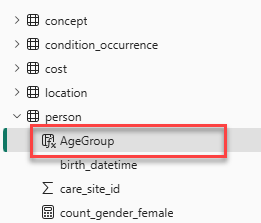
Review all fields and make sure there are no fields with errors.
Select the workspace you created.
Locate and select the FLHealthcare_msft_cma_report report.
Select Refresh. The dashboard should now load all visuals.
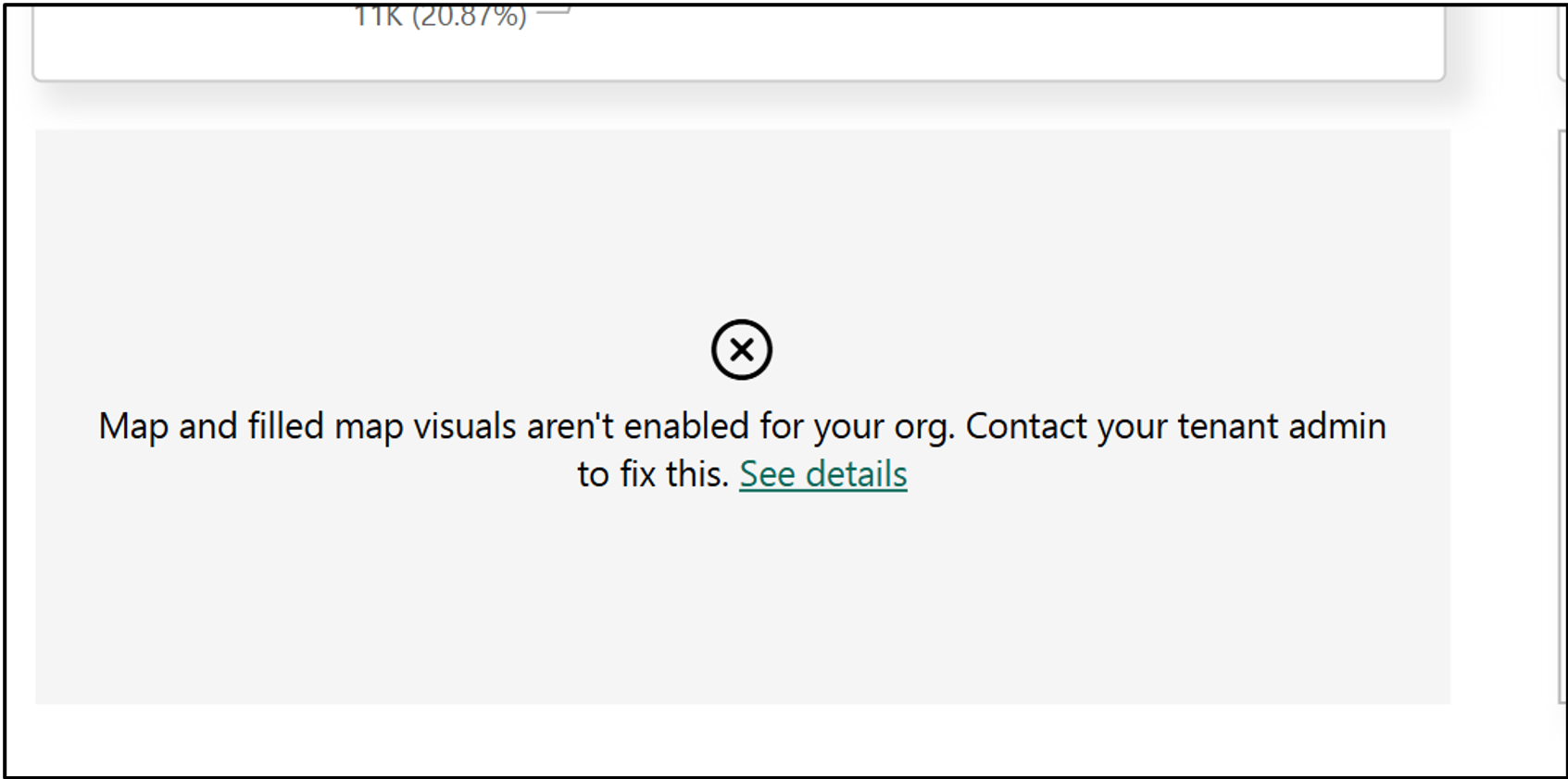
If you get the Map and filled map visuals aren’t enabled error, use the following steps to refresh the calculated fields.
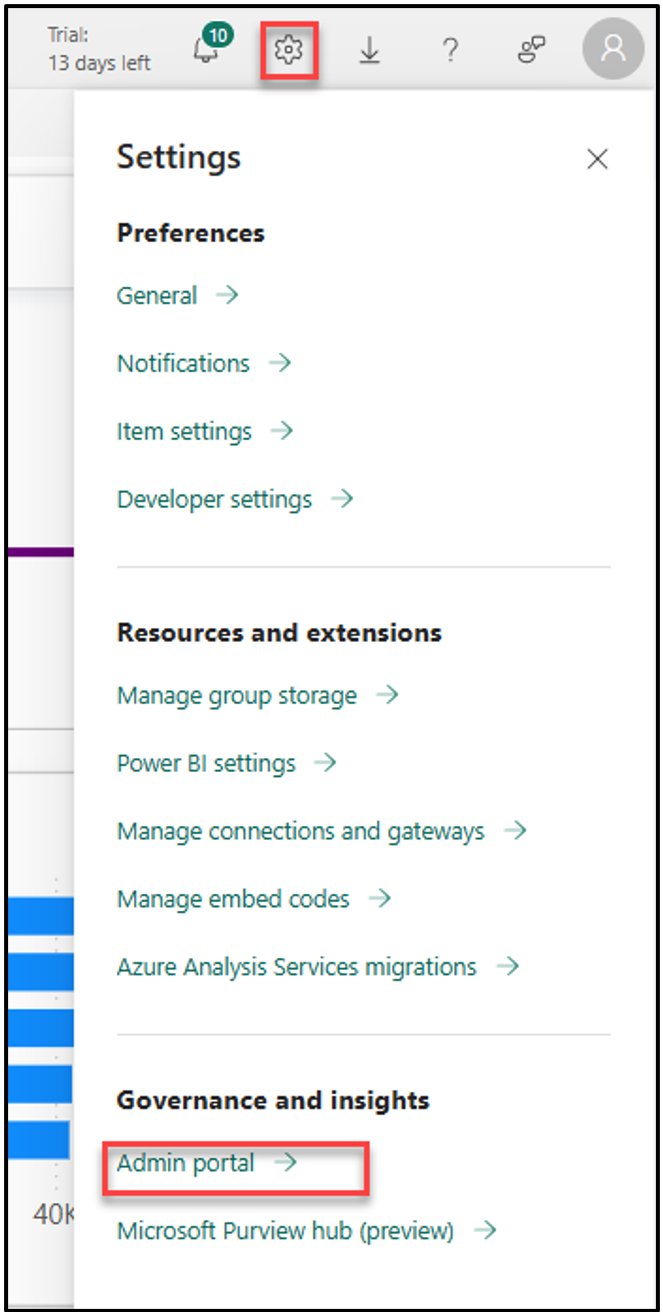
Select Settings and select Admin portal.
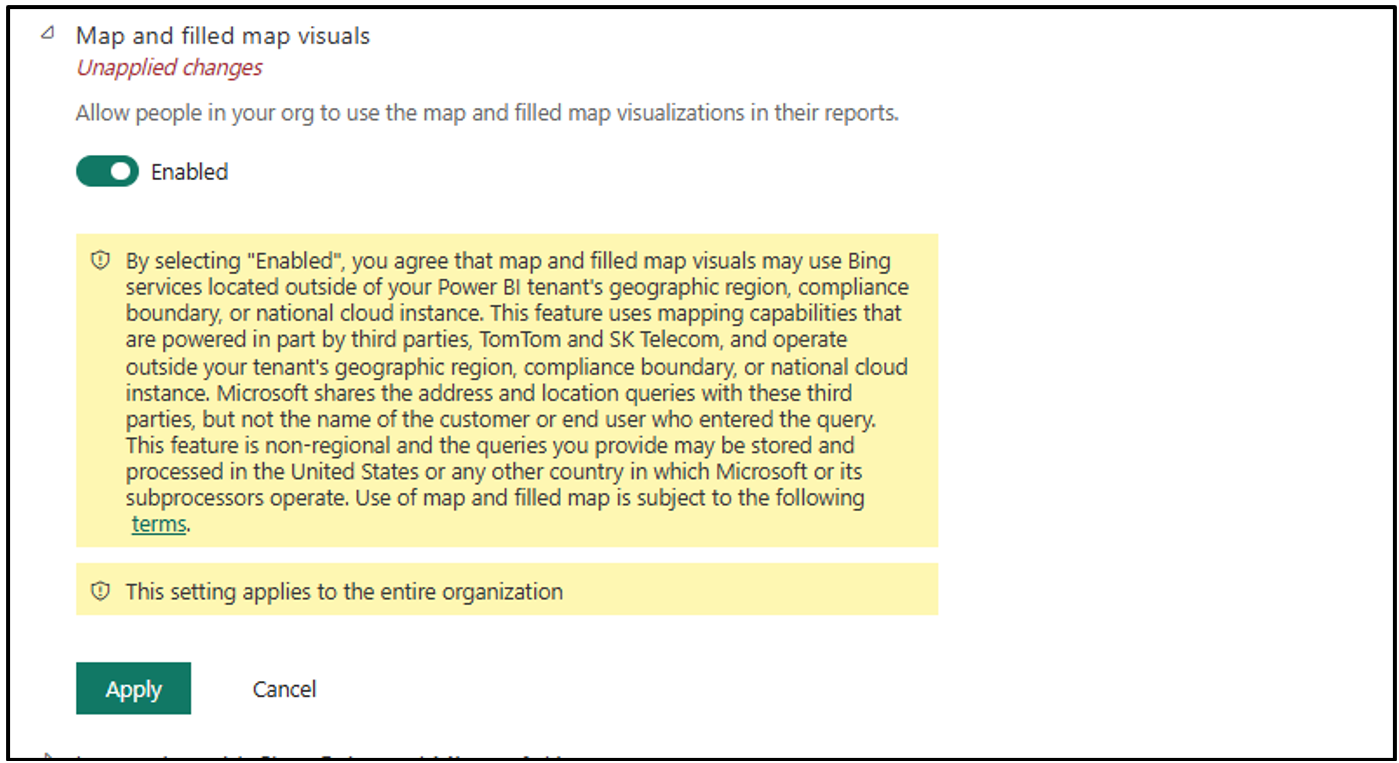
Scroll down to the Integration settings section and expand Map and filled map visuals section. Select to enable it and then select Apply.
Locate and select the FLHealthcare_msft_cma_report report.
Select Refresh. The dashboard loads all the visuals.
Add another visuals
The out of the box dashboards offer insight into your data, but you can continue to build out the dashboards with any data that impacts your organization.
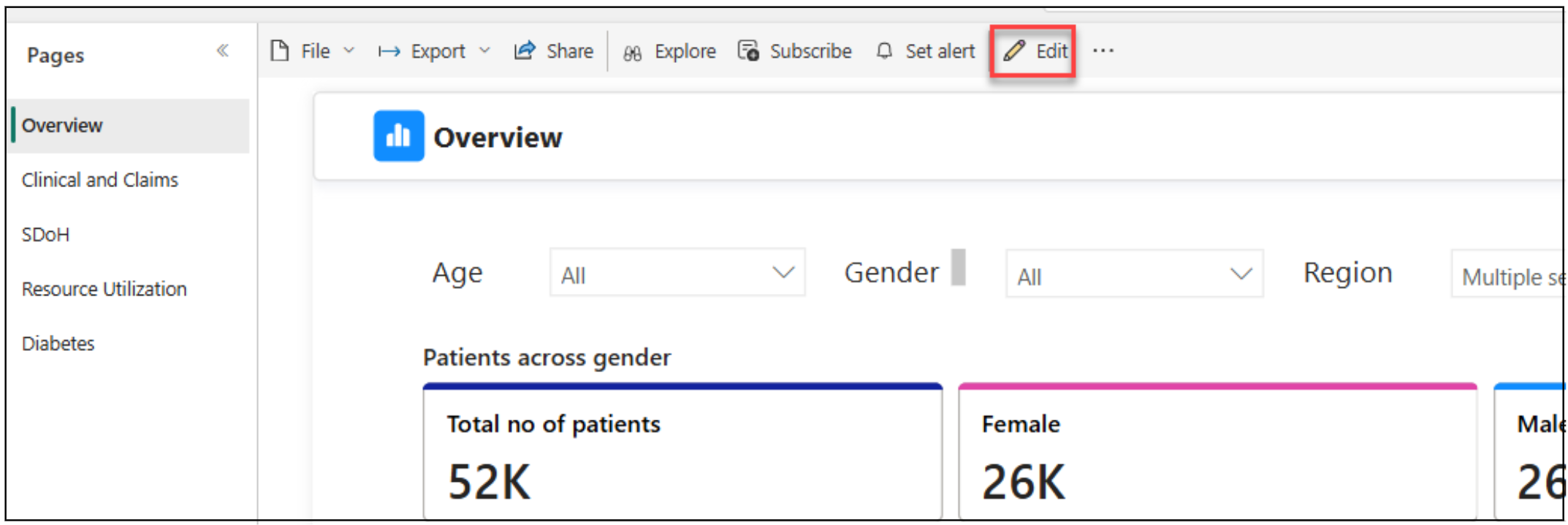
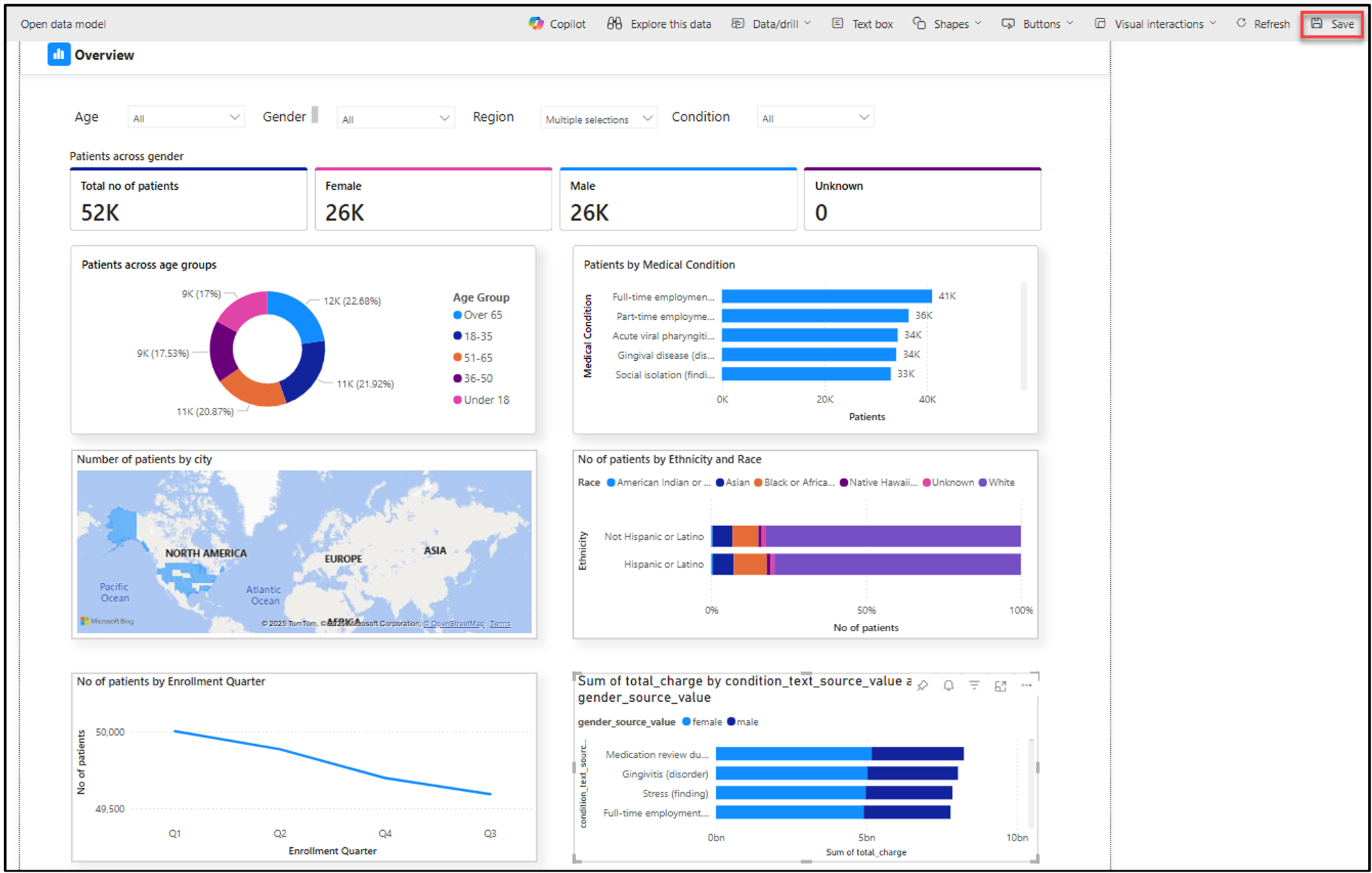
Select the Overview page and then select the Edit button.
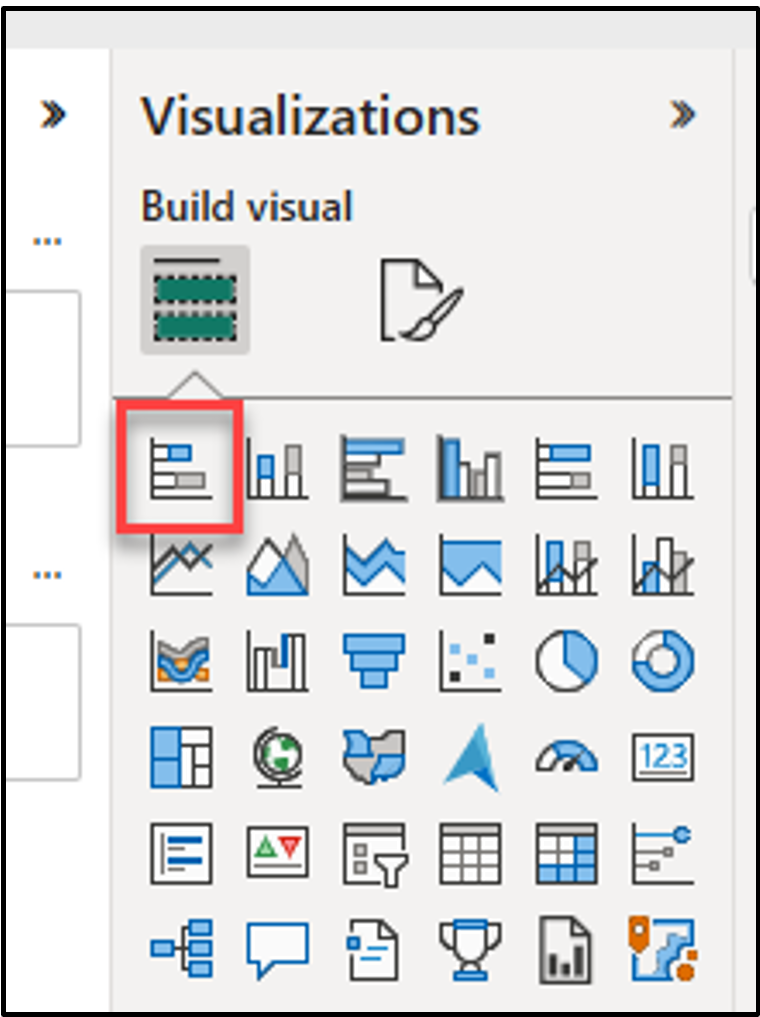
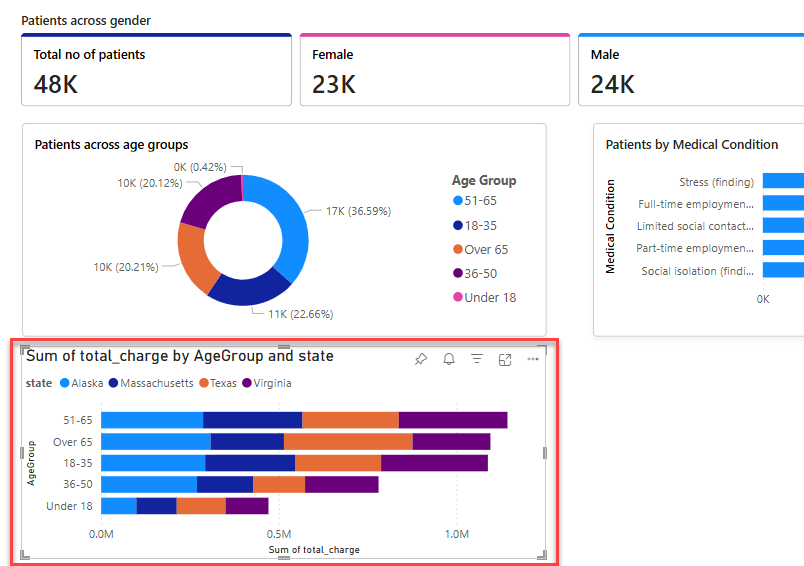
Add Stacked bar chart to the dashboard.
Expand the person table and drag the AgeGroup field to Y-axis.
Expand the cost table and drag the total_charge field to X-axis.
Expand the location table and drag the state field to legend.
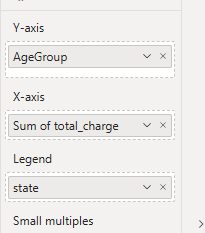
The visual should look like the following image.
Add another Stacked bar chart to the dashboard.
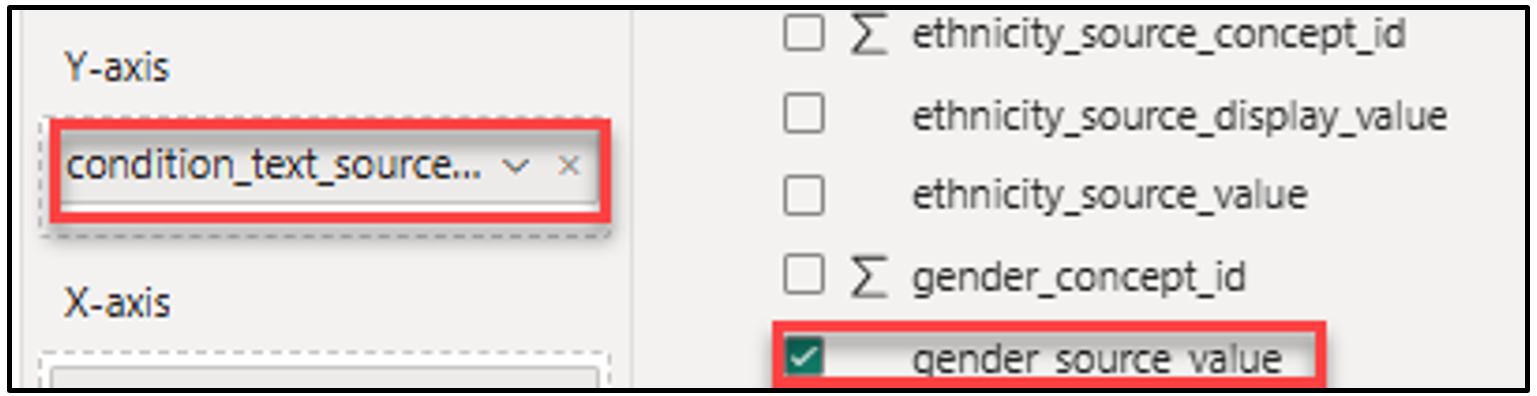
Expand the condition_occurrence and drag the condition_text_source_value field to Y-axis.
Expand the cost table and drag the total_charge field to the X-axis.
Expand the person table and drag the gender_source_value field to Legend.
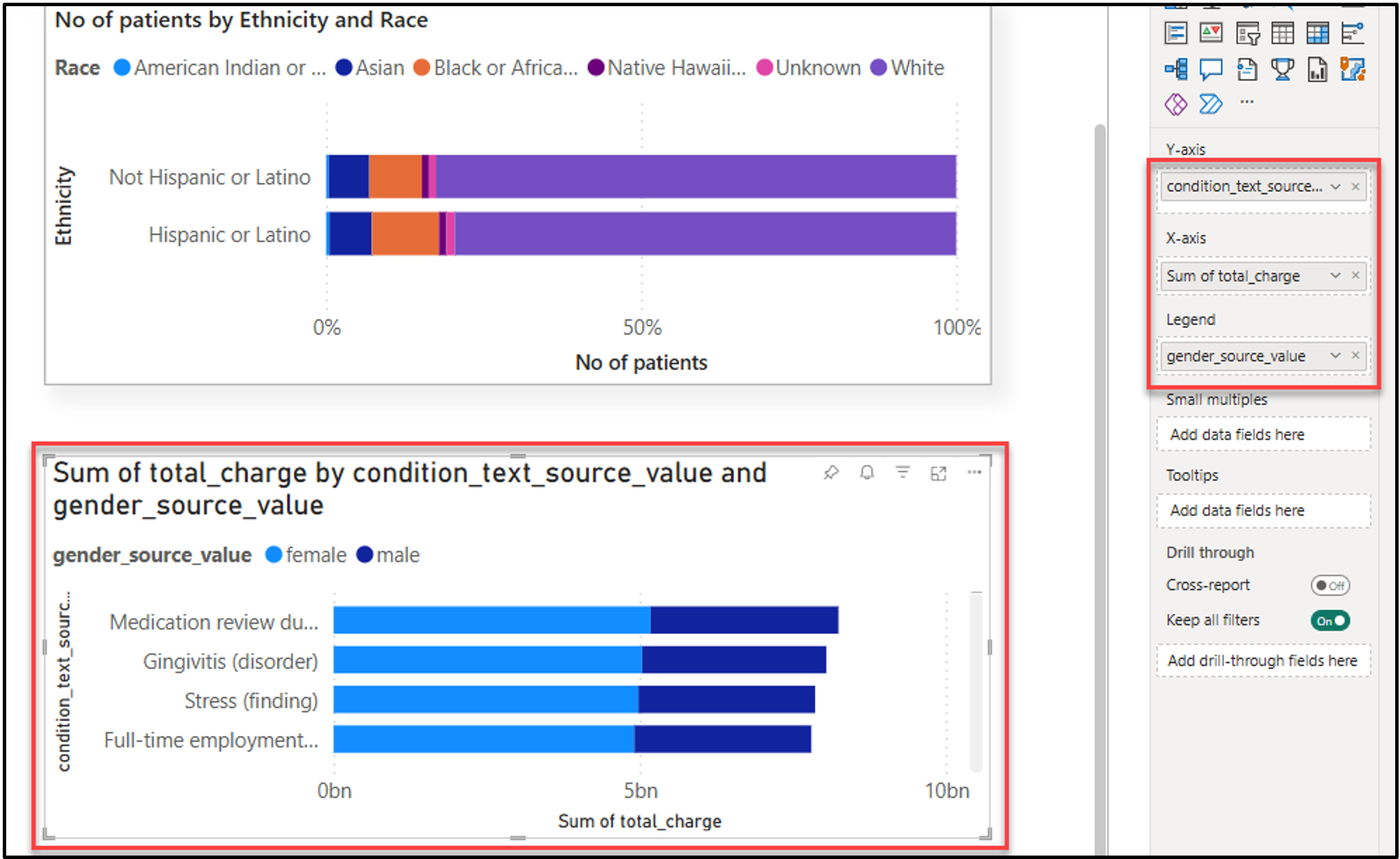
The overview page looks like the following image. You can change the title and labels of the visuals. You can update the title, label, and style of the new visuals to match the existing visuals. Select Save.
Select the Clinical and Claims page.

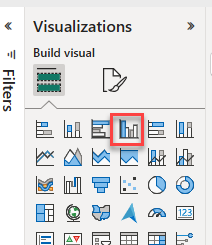
Add Clustered column chart to the dashboard.
Expand the person table and drag the gender_soource_value and the AgeGroup to X-axis.
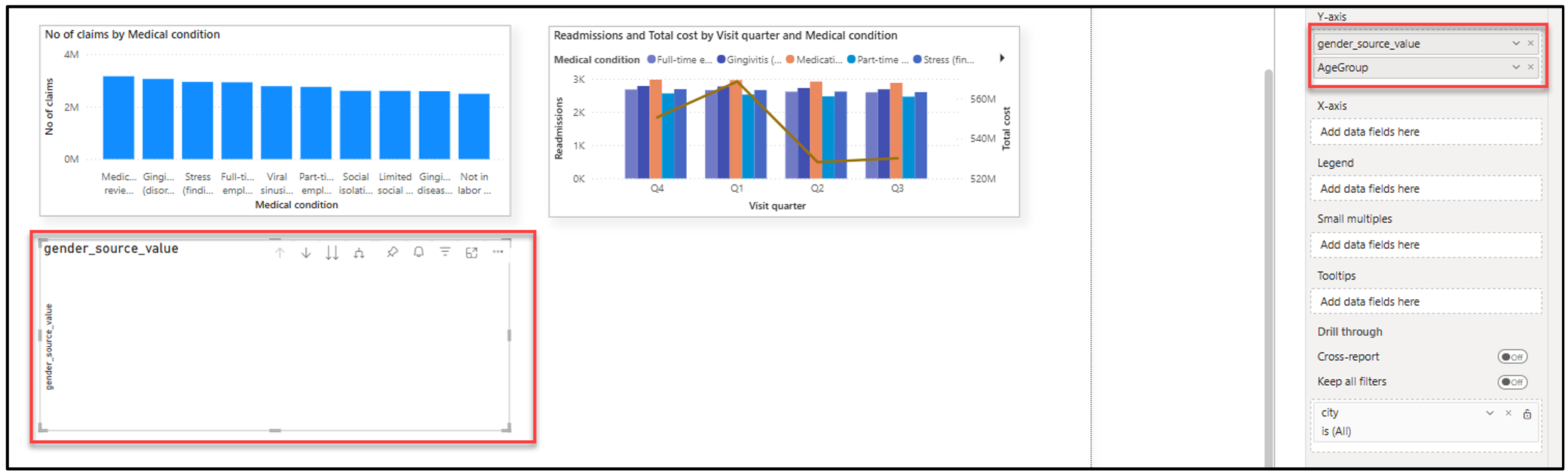
Expand the cost table and drag the total_charge field to Y-axis.
Expand the location table and drag the state field to Legend.
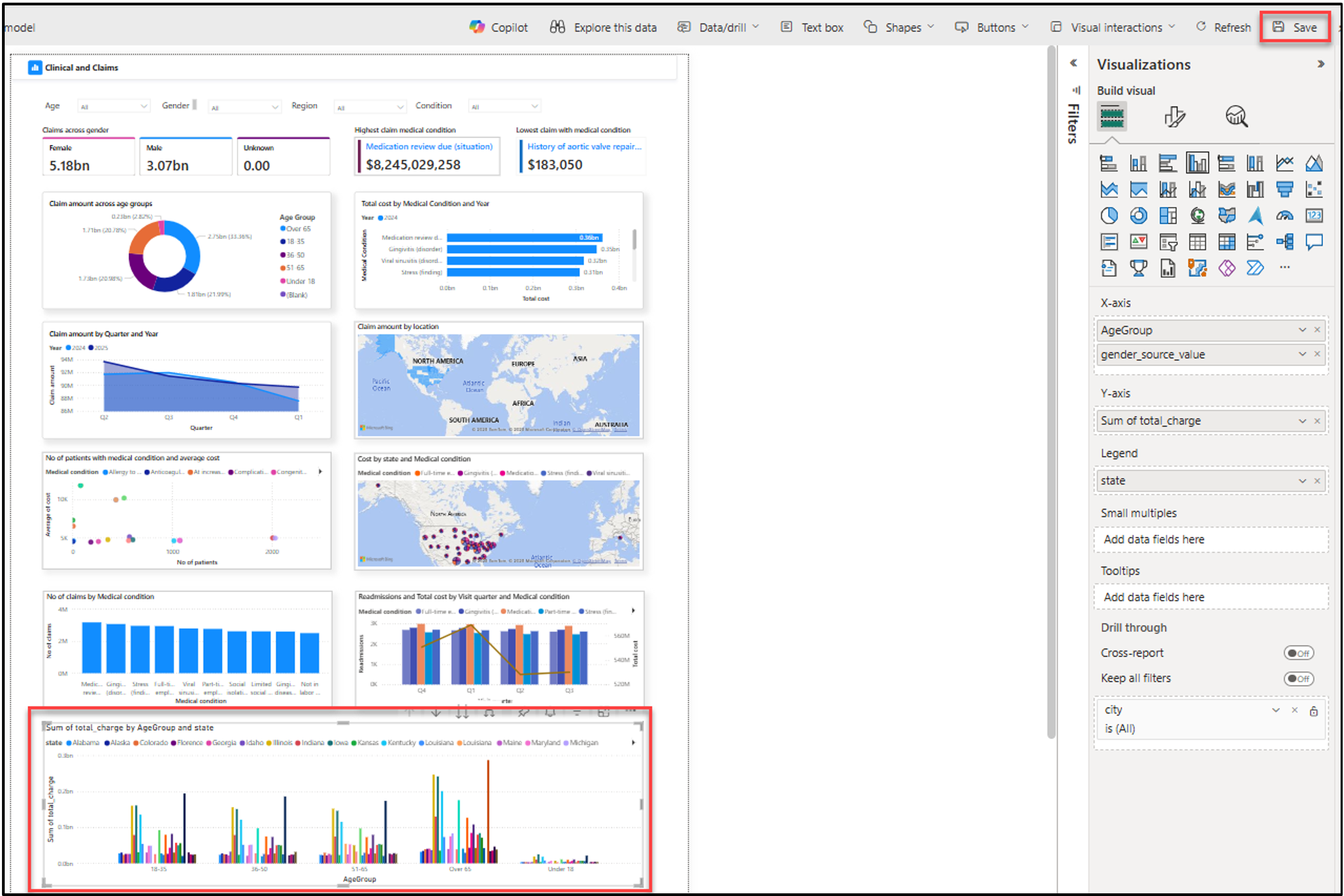
Expand the visual. The dashboard should now look like the following image. You can update the title, label, and style of the new visuals to match the existing visuals. Select Save.
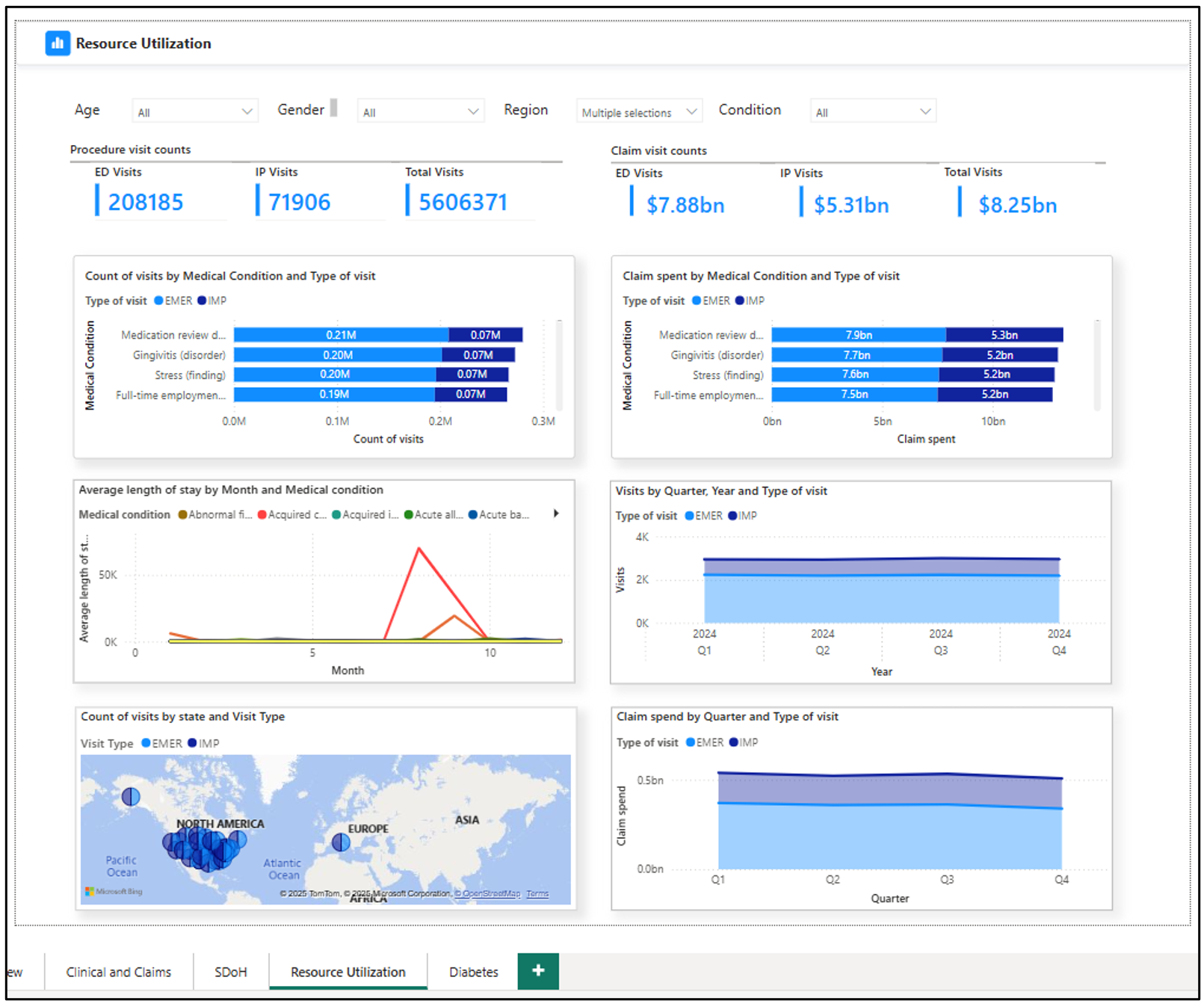
Select Resource Utilization. The following page displays.
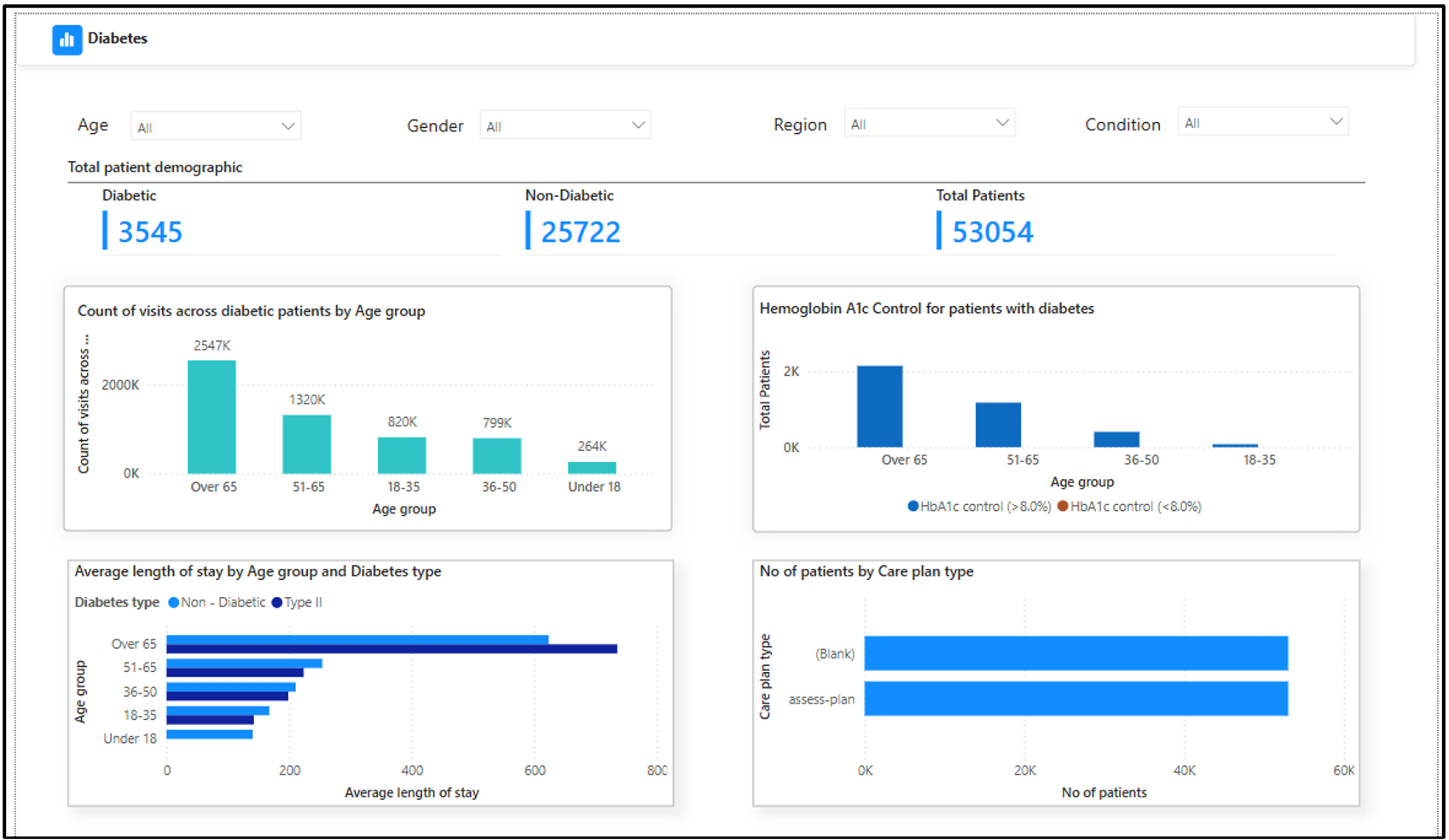
Select Diabetes. The following page displays.
Select the Reading view button.
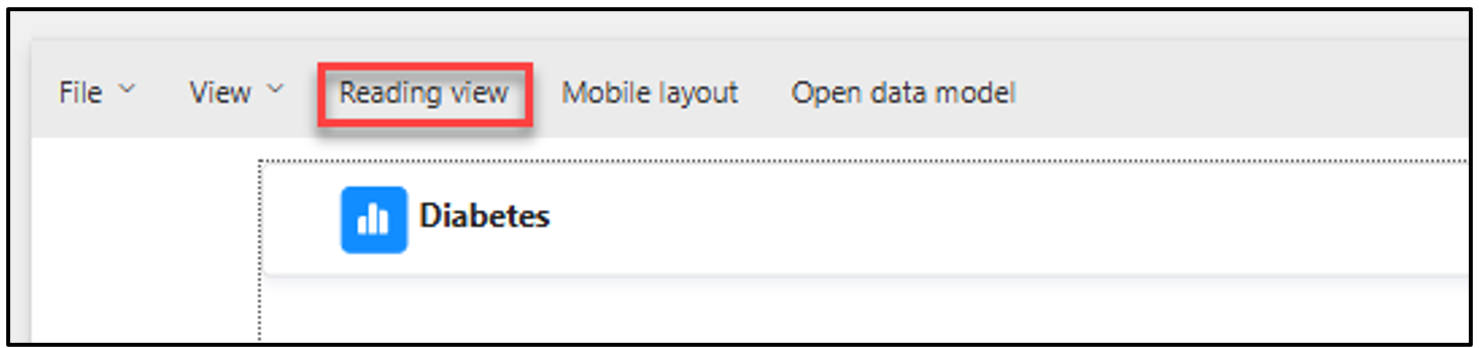
You should be back on the reading view of the dashboard.
