Exercise - Connect to Dynamics 365 Customer Insights
In this exercise, you sign up for Dynamics 365 Customer Insights trial and install Dynamics 365 Customer Insights - Data.
Set up Dynamics 365 Customer Insights trial
Navigate Power BI https://app.powerbi.com/ and sign in.
Using the same browser session, navigate to https://www.microsoft.com/dynamics-365/products/customer-insights.
Select Try for free.
Make sure the email is correct and then select Start free trial.

Select Go to trial.
Navigate to Power Platform admin center.
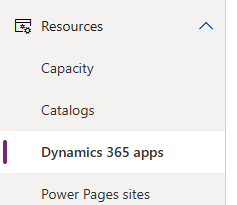
Expand Resources and select Dynamics 365 apps.
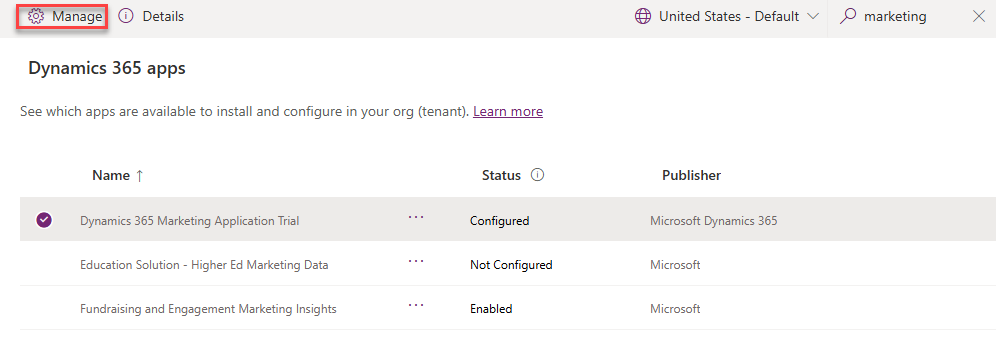
Search for marketing and select Dynamics 365 Marketing Application Trial and then select the Manage button.
Select OK.
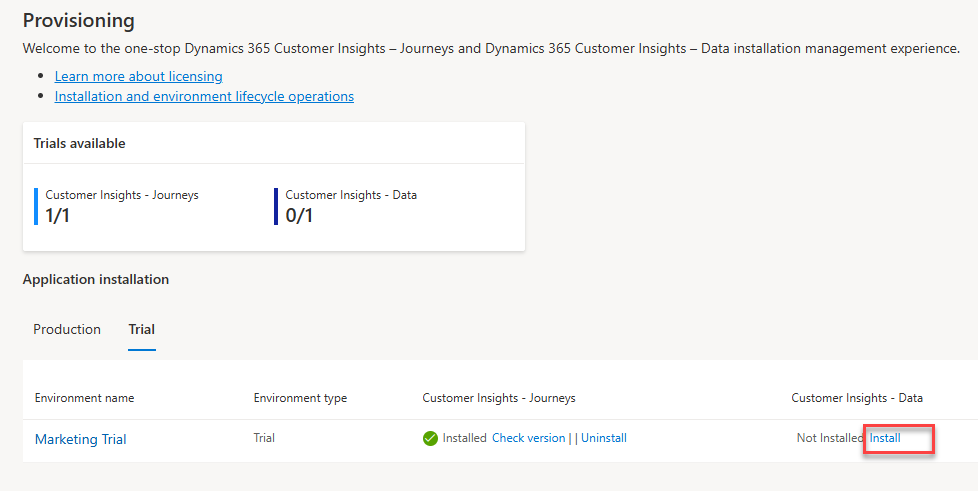
On the Provisioning page, select the Trial tab and wait for the installation to be completed.
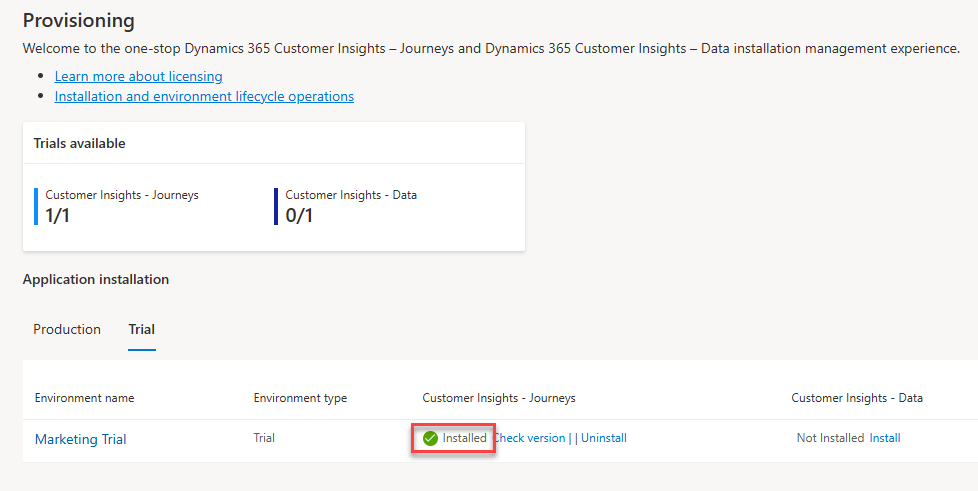
In the Customer Insights - Data column, select Install.
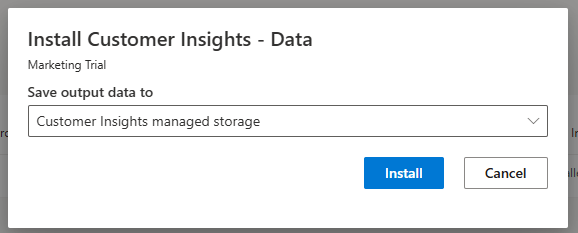
From the Save output data to dropdown, select Customer Insights managed storage, and then select Install.
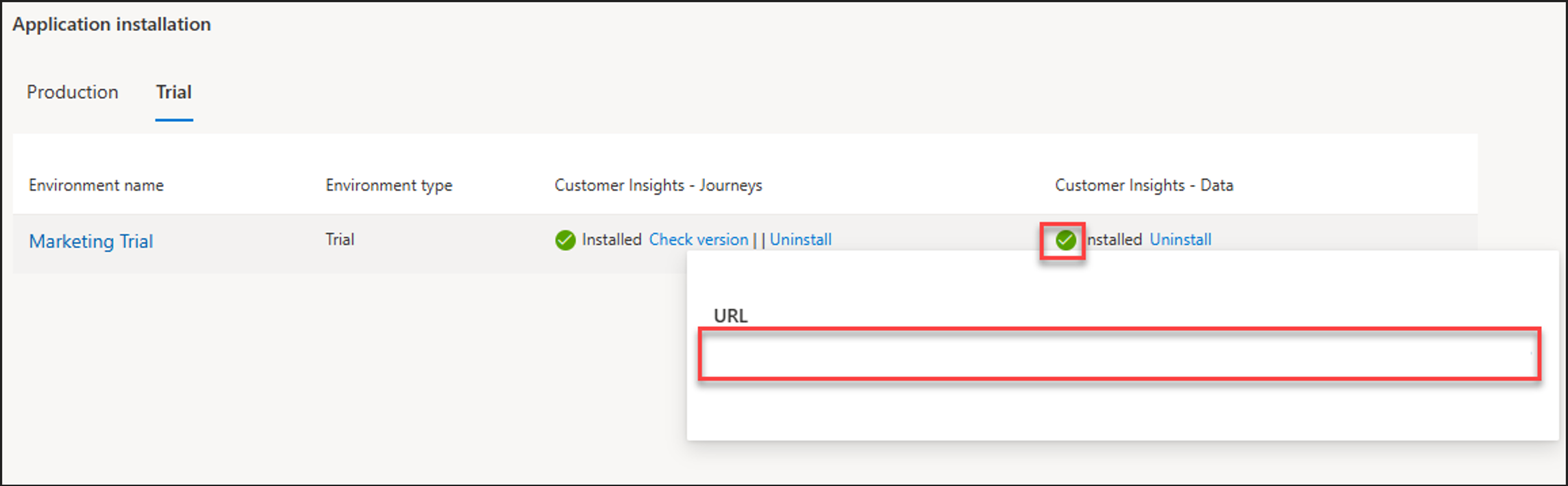
Wait for the installation to be completed. You can refresh the page to see the installation progress.
Hover over the green checkmark under the Customer Insights - Data, navigate to the link that appears.
Wait for the configuration to complete and stay on this page.
Configure permissions on storage
To allow Customer Insights - Data to connect to the ADLS Gen2 storage account, assign the Storage Blob Data Contributor role to the Dynamics 365 AI for Customer Insights service principal on the container. For instructions, see Connect to an Azure Data Lake Storage account by using a Microsoft Entra service principal.
In this section, you create Microsoft Entra service principal for Customer Insights and add the Storage Blob Data Contributor role to your storage.
Ensure the data environment is created as mentioned in the Prerequisites.
Open a new browser and navigate to Azure portal.
You will first look for existing service principal. Select Microsoft Entra ID.
Under Manage select Enterprise applications.
Select the Application type filter, change the Value from Enterprise applications to Microsoft Applications and then select Apply.
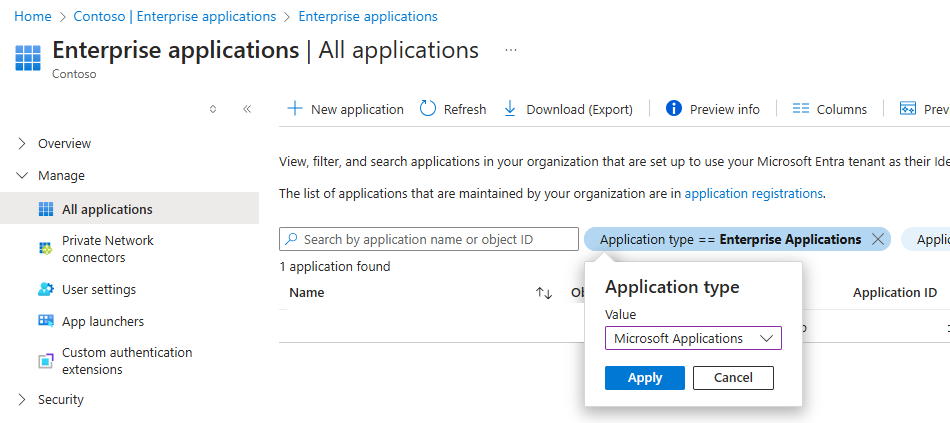
Search for Dynamics 365 AI for Customer Insights. If one already exists, skip to step #16 and if not continue to the next step.
Select Home.
Select Microsoft Entra ID.
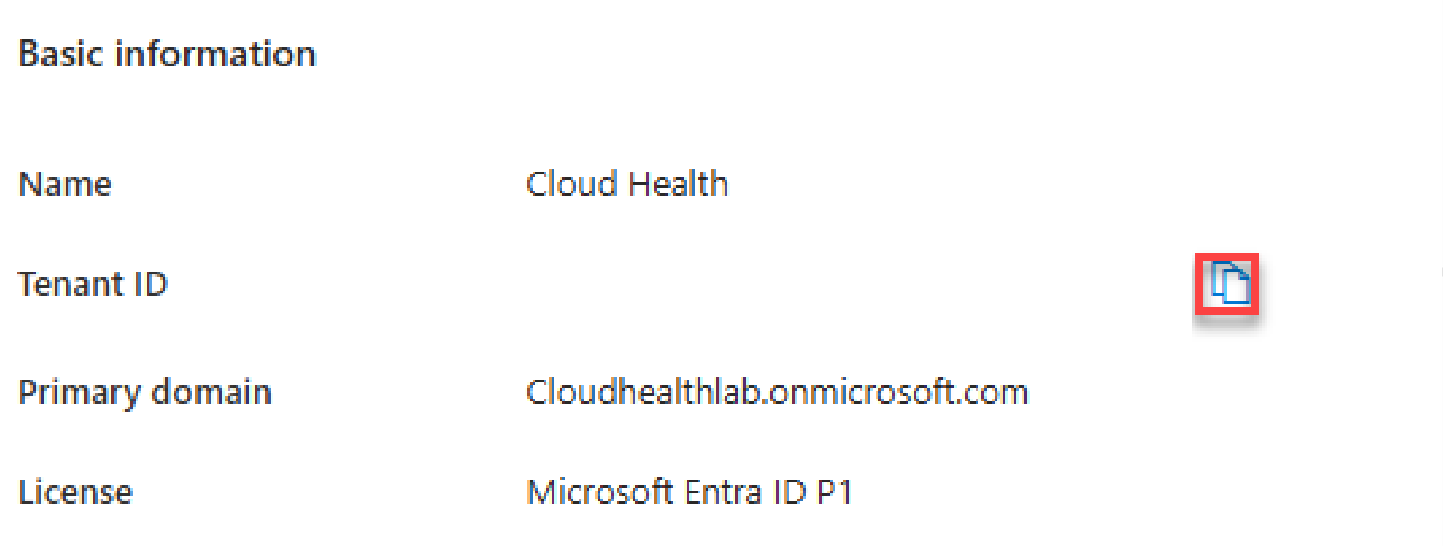
Locate and copy your Tenant ID and make note of this ID.
Select the Cloud Shell button.

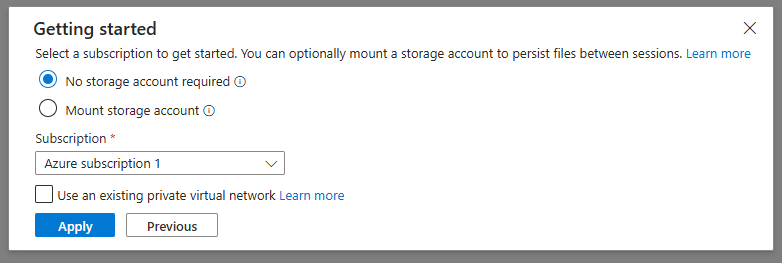
Select your subscription and then select Apply.
If prompted, select PowerShell.
Paste the following command to connect to your Azure AD and press Enter. Replace [Your Tenant ID] with the tenant ID you copied.
Connect-AzureAD -Tenant "[Your Tenant ID]" -AzureEnvironmentName Azure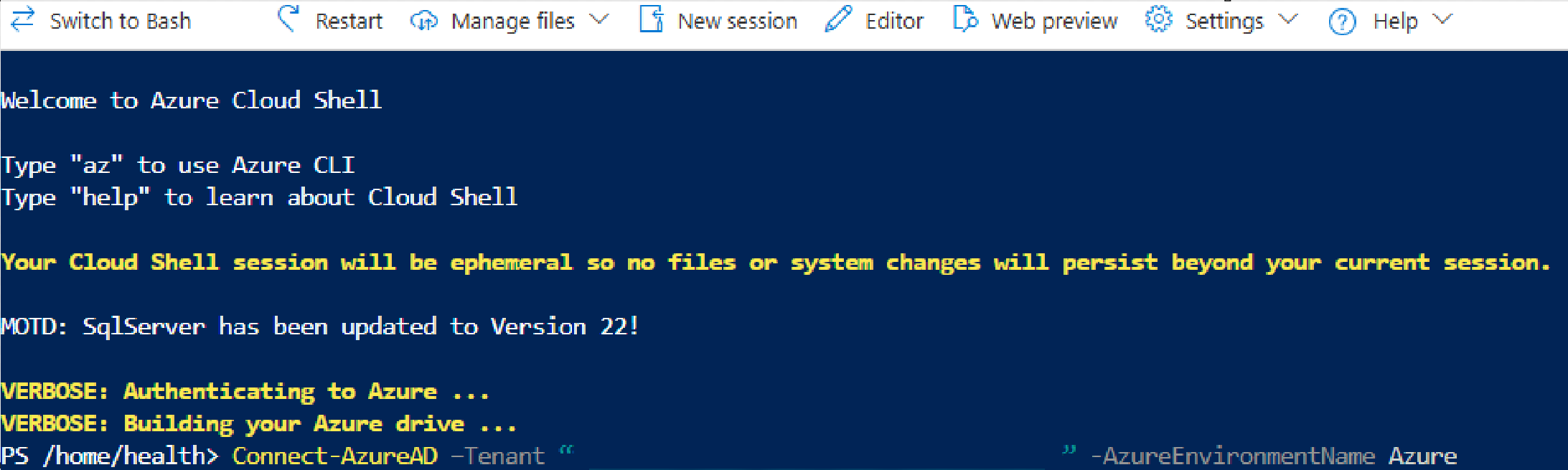
Paste the following command and ENTER. This command creates the service principal on the selected Azure subscription.
New-AzureADServicePrincipal -AppId "0bfc4568-a4ba-4c58-bd3e-5d3e76bd7fff" -DisplayName "Dynamics 365 AI for Customer Insights"Close the Cloud Shell window.
Select Home.
Locate and open the storage account you created.
Select Access Control (IAM).
Select + Add and then select Add role assignment.
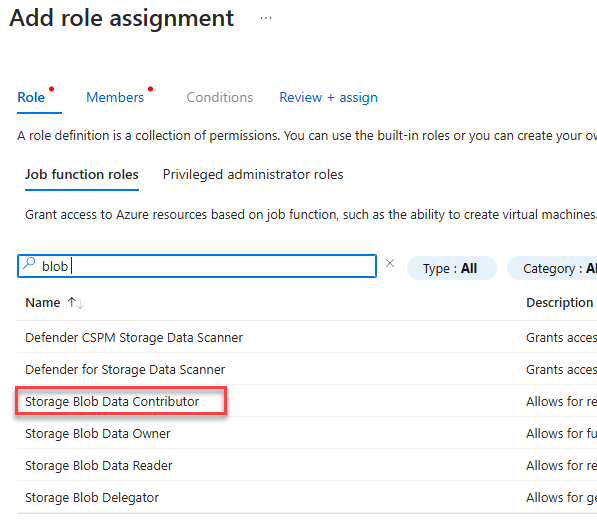
Search for blob and select Storage Blob Data Contributor.
Select Next.
From the Members tab, select the + Select members button.
Search for Dynamics 365 ai and select Dynamics 365 AI for Customer Insights Application and then select the Select button.
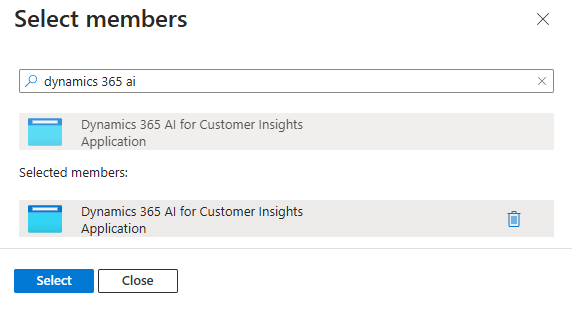
Search for your user name and select it.
You should now have two members selected.
Select Review + assign.
Select Review + assign again and wait for role assignment to be added.
Configure the data source
In this section, you configure the data source for your Customer Insights - Data application to bring in data from the Delta tables.
Go to the Customer Insights - Data application and select Data > Data sources.
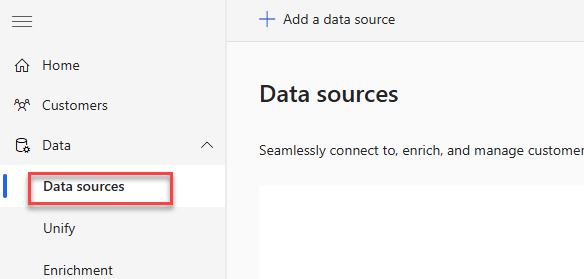
Select + Add a data source.
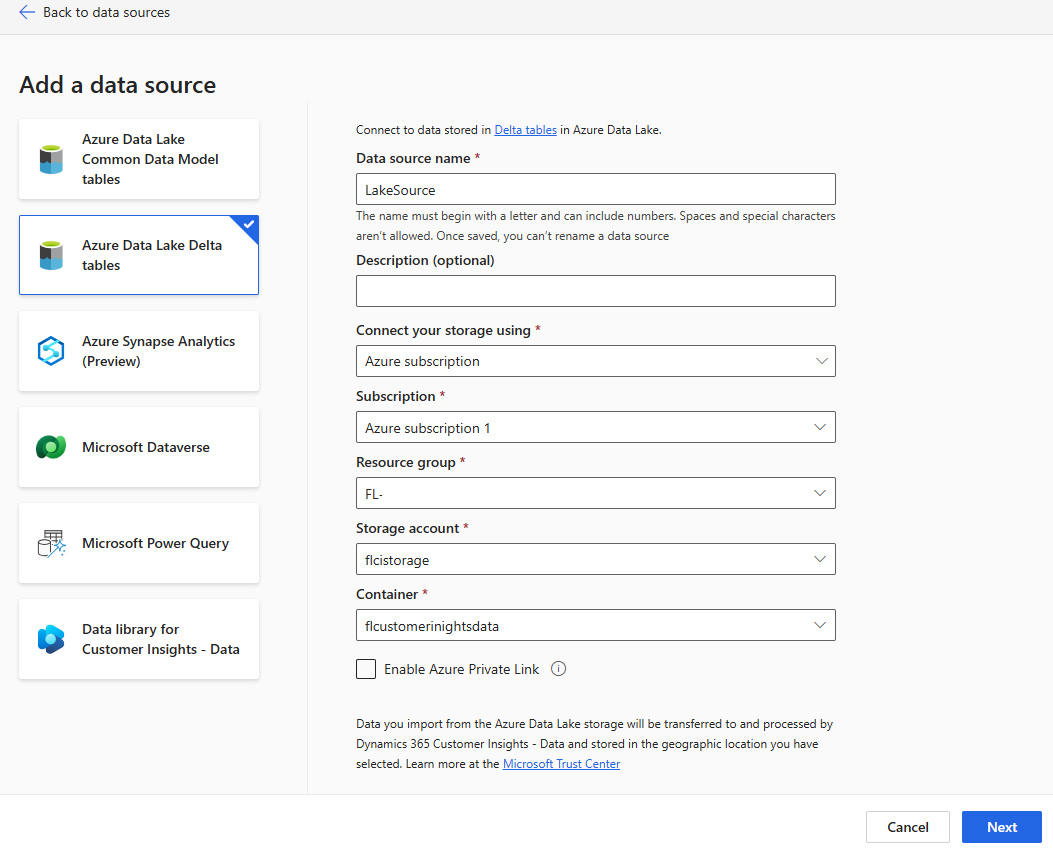
Select Azure Data Lake Delta tables.
Enter LakeSource for Data source name and provide the connection details to the Azure Data Lake Storage Gen2 storage account created in Prerequisites.
Select Next.
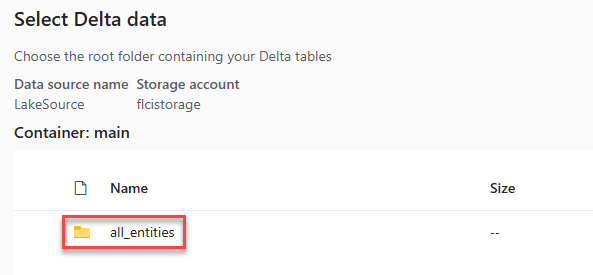
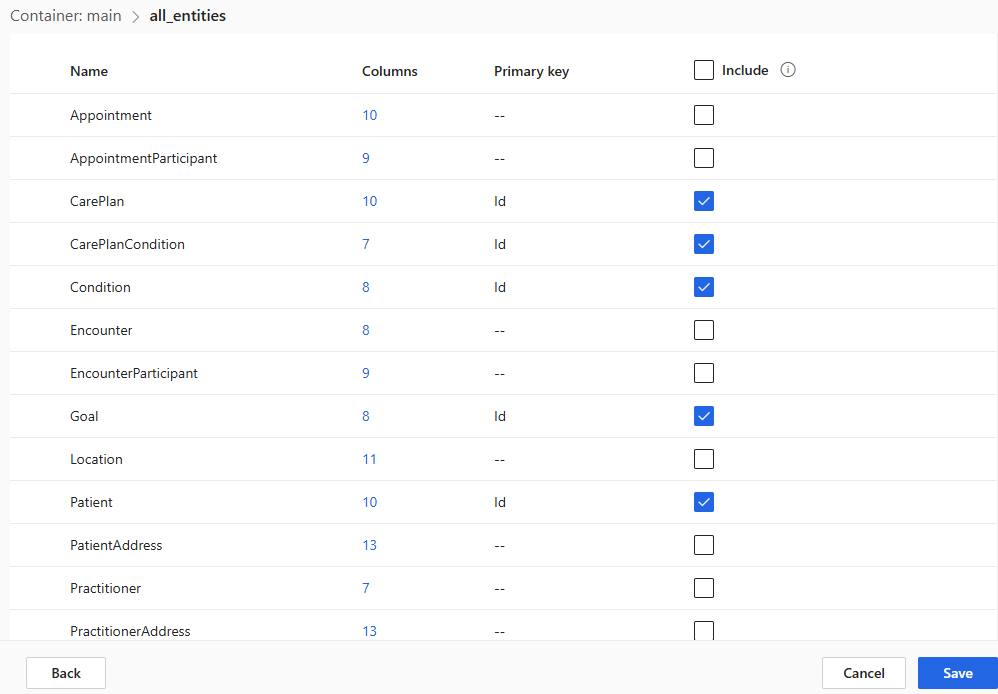
You should see a folder named all_entities. Open the folder.
Select the Patient entity's to Include checkbox and then select the Required button.
Select Id for Primary key and then select Close.
Repeat the same steps for the following entity.
Goal
CorePlan
CorePlanCondition
Condition
You should have five entities selected. Select Save.
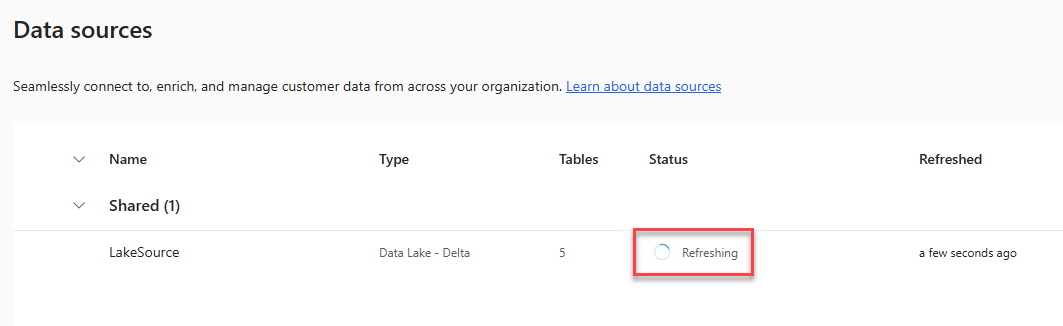
Wait for the refresh to complete.
Unify and configure relationships
After setting up your data source, you can unify the data. Data unification lets you unify once-disparate data sources into a single dataset that provides a unified view of your customers.
In the left navigation pane, select Unify.
Select Get started.
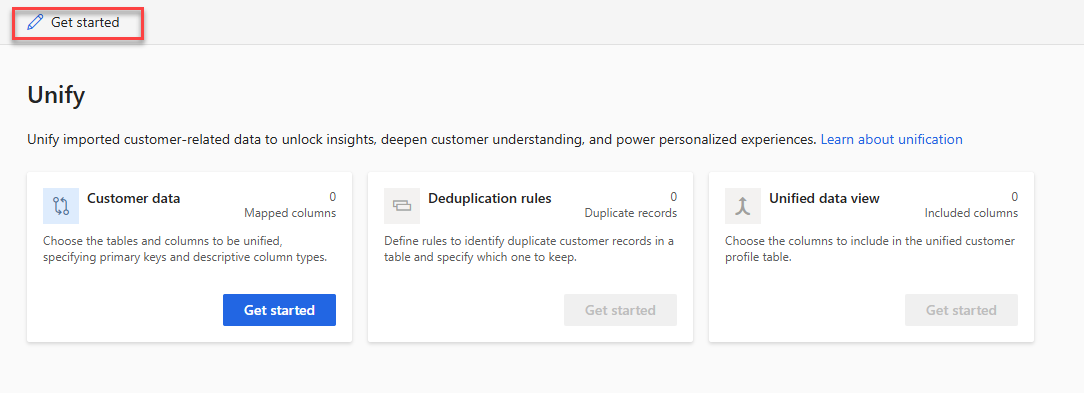
Select + Get started again.
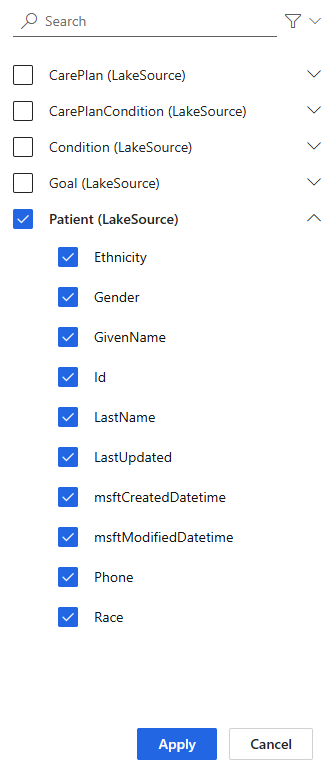
Select the Patient table and columns, and then select Apply.
Select Next.
Select Next.
Select Next.
Select Create customer profile.
Select Unify and wait for the refresh to complete.
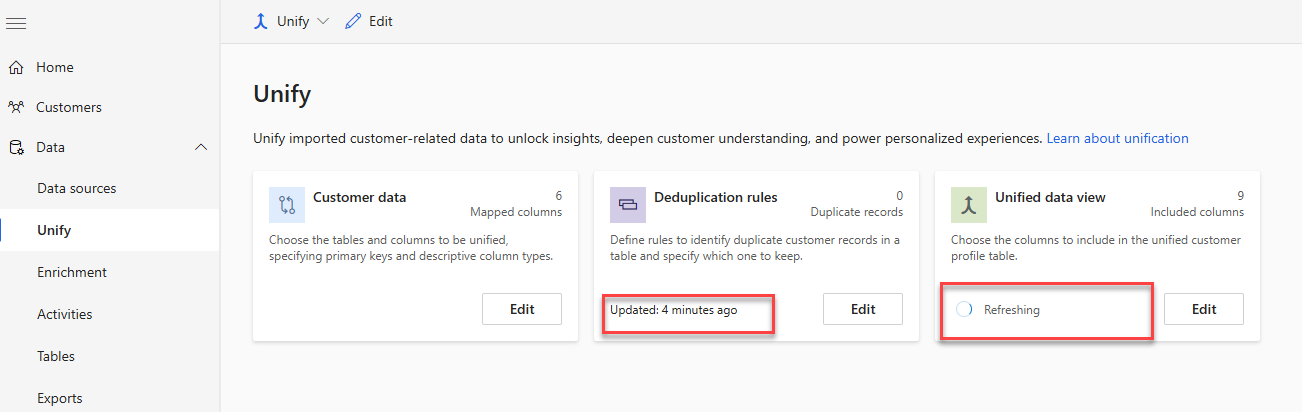
Select Tables from the left navigation.
Select the Relationships tab and then select + New relationship.
Enter the Name as GoalToPatient.
Select Goal as source Table, Many for Condition, and SubjectPatient for Source field.
Select Patient as target Table, One for Condition, and Id for Source field.
Select Save.
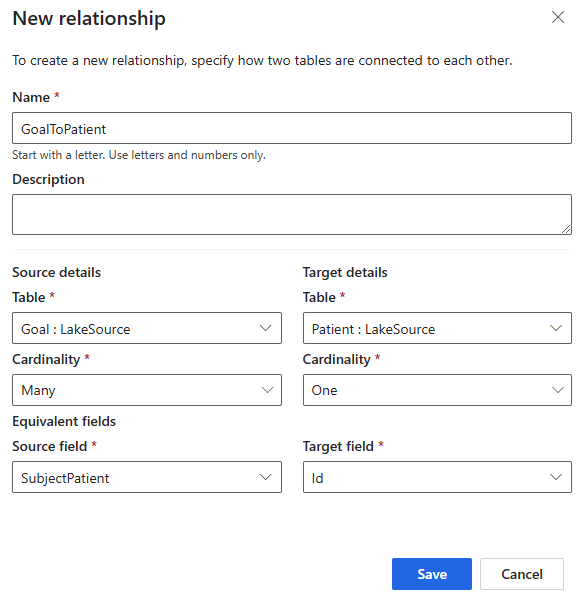
Select + New relationship again.
Enter CarePlanToGoal for Name.
Select CarePlan as source Table, Many for Condition, and Goal for Source field.
Select Goal as target Table, One for Condition, and Id for Source field.
Select Save.
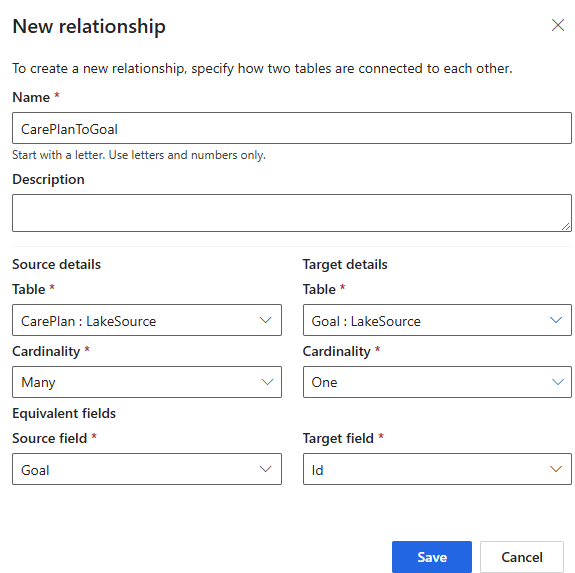
Select + New relationship again.
Enter CarePlanConditionToCarePlan for Name.
Select CarePlanCondition as source Table, Many for Condition, and CarePlanId for Source field.
Select CarePlan as target Table, One for Condition, and Id for Source field.
Select Save.
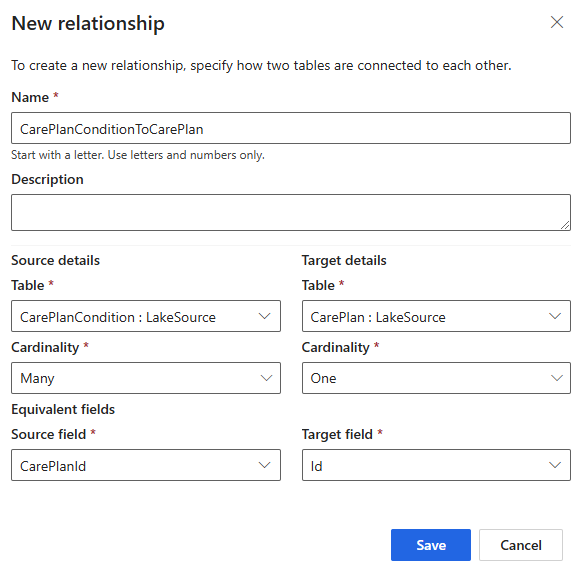
Select + New relationship again.
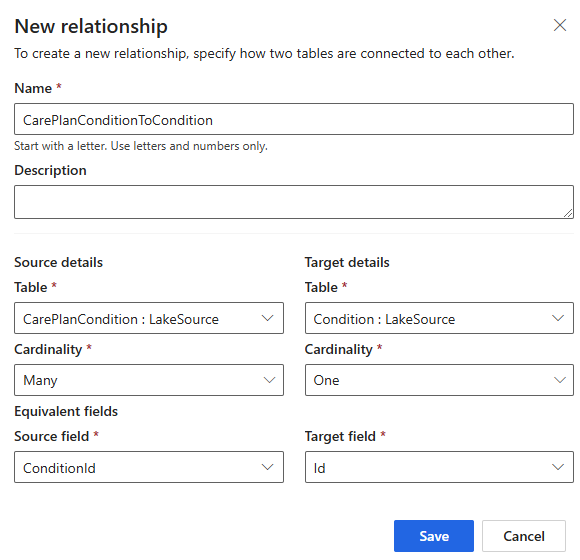
Enter CarePlanConditionToCondition for Name.
Select CarePlanCondition as source Table, Many for Condition, and ConditionId for Source field.
Select Condition as target Table, One for Condition, and Id for Source field.
Select Save.
Select + New relationship again
Enter CarePlanToCustomer for Name.
Select CarePlan as source Table, Many for Condition, and SubjectPatient for Source field.
Select Customer as target Table, One for Condition, and Id for Source field.
Select Save.
Select + New relationship one more time.
Enter CarePlanToPatient for Name.
Select CarePlan as source Table, Many for Condition, and SubjectPatient for Source field.
Select Patient as target Table, One for Condition, and Id for Source field.
Select Save.
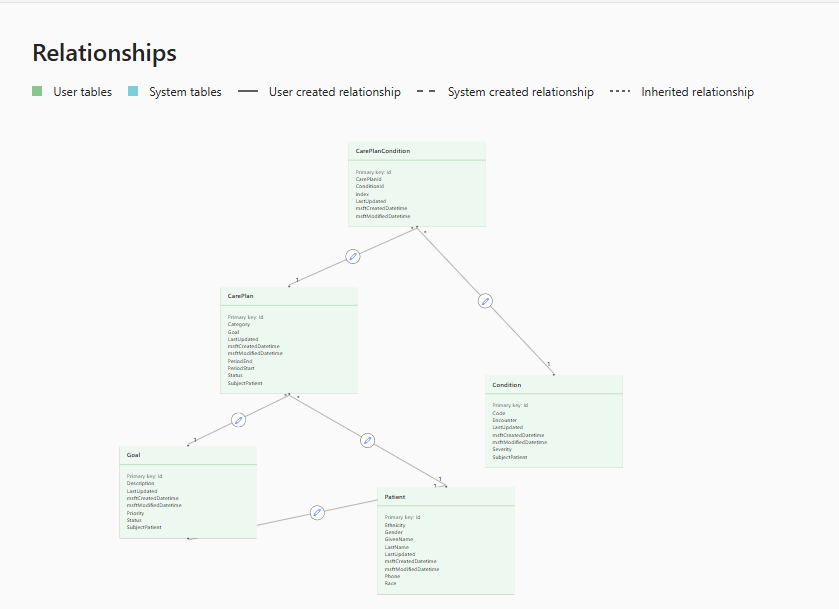
You should have six relationships. Select Visualizer.
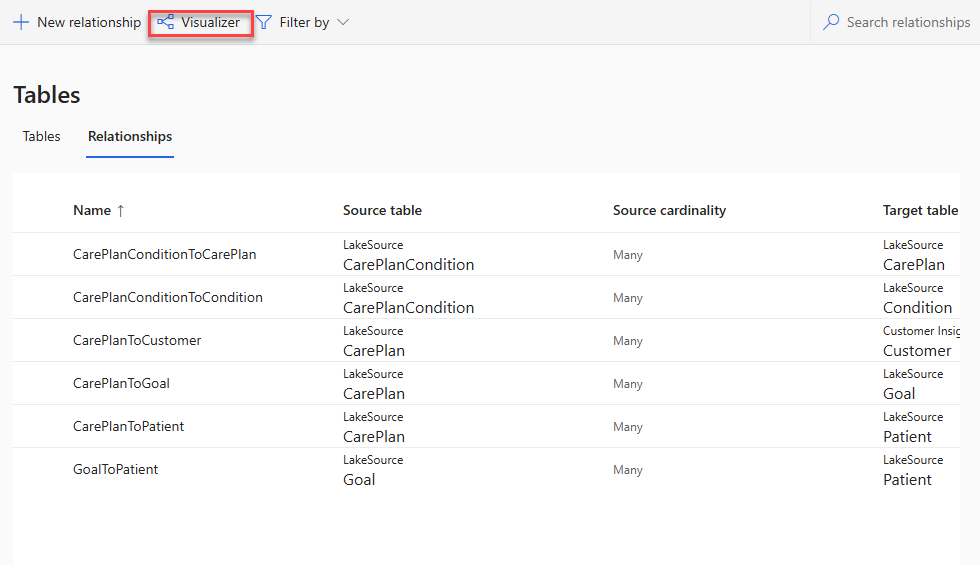
The relationships look as shown in the following image.