Prepare data for Dynamics 365 Customer Insights
After you transformed the silver lakehouse data to the Azure Data Lake Storage, you connect to your Dynamics 365 Customer Insights instance. From a high-level perspective, you perform the following tasks to be able to use this data from Dynamics 365 Customer Insights.
Storage permissions - The storage account permissions must be modified to grant access to the Dynamics 365 Customer Insights - Data service principal to the storage account data.
Configure the data source - In Dynamics 365 Customer Insights - Data you configure a data source to connect to the Azure Data Lake Storage Gen2 that contains your healthcare data that was transformed from the silver lakehouse. During this process, you select the tables you plan to use.
Unify the data - The unification process maps customer data from your data sources, removes duplicates, matches the data across tables, and creates a unified profile.
Configure relationships - In this step, you establish the relationships between the customer profile and the healthcare data you connected to the instance.
Configuring the data source
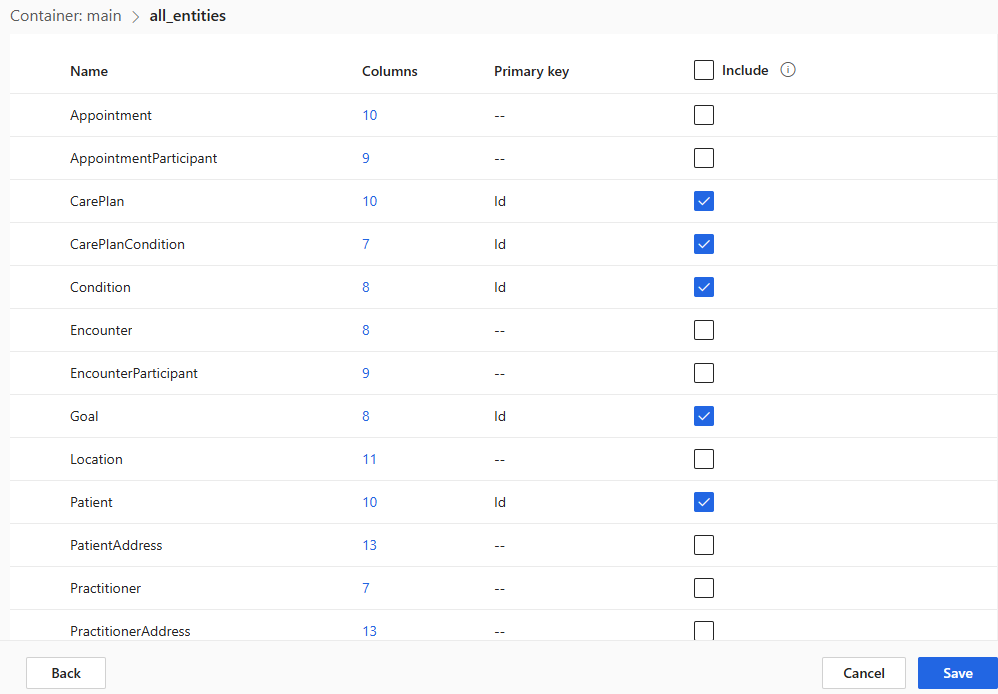
As part of configuring the data source, you should have a good idea of which tables you plan to use with Dynamics 365 Customer Insights - Data. You can view the customer insights lakehouse in Fabric to understand which tables are available. You aren't required to map all the tables available when you configure the data source. By evaluating the data, you need your scenarios to help you identify which tables to map.
To configure the table, you select Include and configure the Primary Key as shown in the following image.
Unification of the data
The healthcare data you bring into Dynamics 365 is centered around a Patient table. Customer Insights - Data is centered around a customer profile. Unification is how you map the patient table data to the customer data. For basic scenarios where you bring in the healthcare data, the unification tasks simply involve mapping the patient to the customer profile. For advanced scenarios, you have multiple sources you plan to map into the customer profile. In these advanced scenarios, you perform extra steps in the unification process, including establishing deduplication rules and matching rules. For more details on the full unification capabilities of Dynamics 365 Customer Insights - Data, you can review Data unification process.
Configuring relationships
To take advantage of the relationships between the healthcare data in Dynamics 365 Customer Insights - Data, you configure the relationships after you select the tables during the configuration of the data source. By defining the relationships, you can use them as part of the criteria for the customer segments configured.
The following diagram shows the relationships that exist between the tables that are available for your use. This diagram helps you understand the intended relationships between these tables. You don’t need to define all of these relationships in Dynamics 365 Customer Insights - Data. You only need to map the relationships where you plan to navigate them as part of building your customer segments.
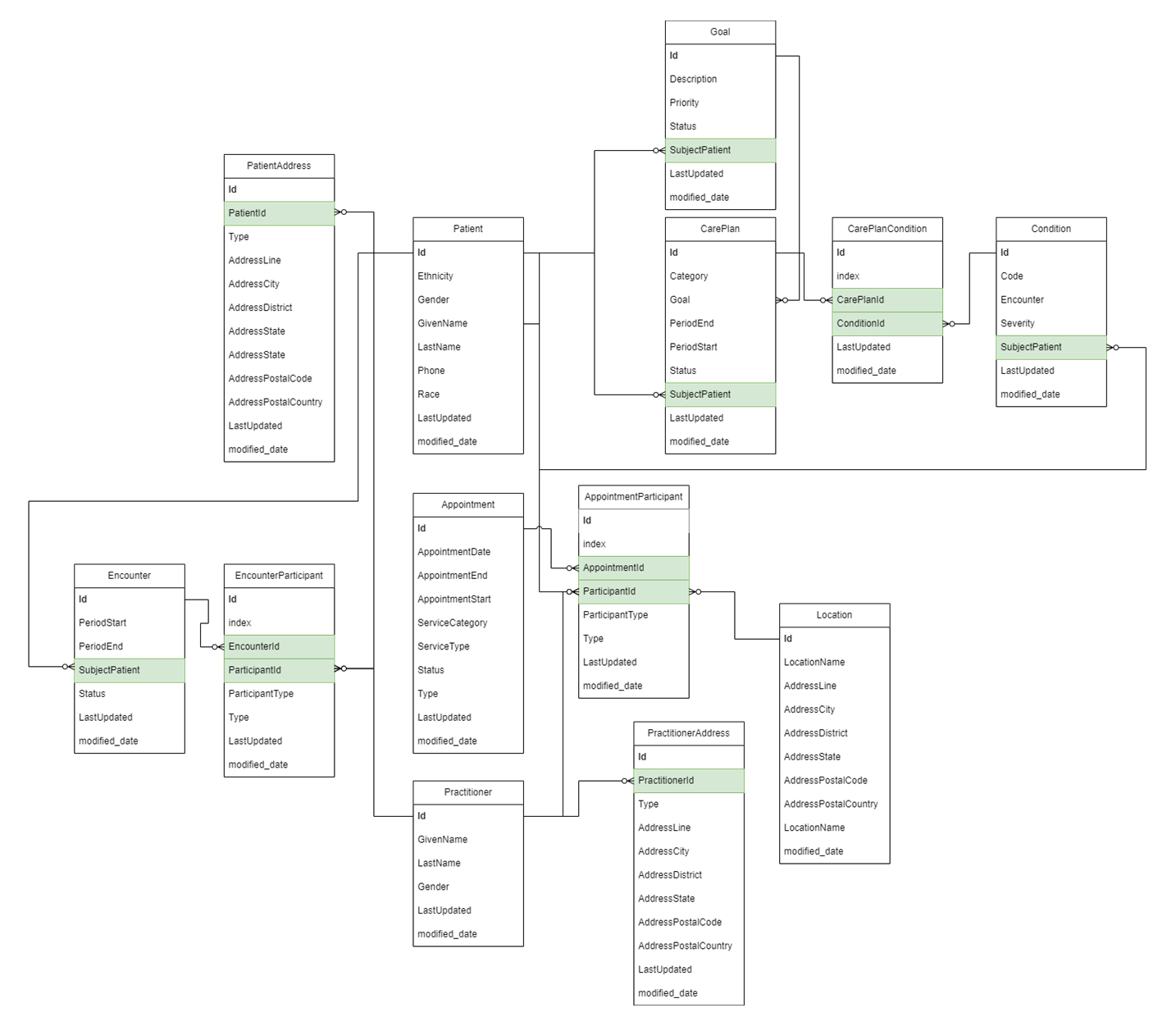
You can build relationships to navigate across multiple levels of relationships. In the diagram, everything is focused on the Patient. When you build relationships to use with your segments, everything is focused on Customer. For example, if you wanted to use data from the Care Plan table in your criteria for the segment, you would need a defined relationship between Customer and Care Plan.