Review trials
When you use Optuna to try multiple hyperparameter combinations, you can review the details of each trial. You can review these details in two ways:
- View the MLflow run for each trial.
- Use the Study and Trial classes to capture run details.
View the MLflow run for each trial
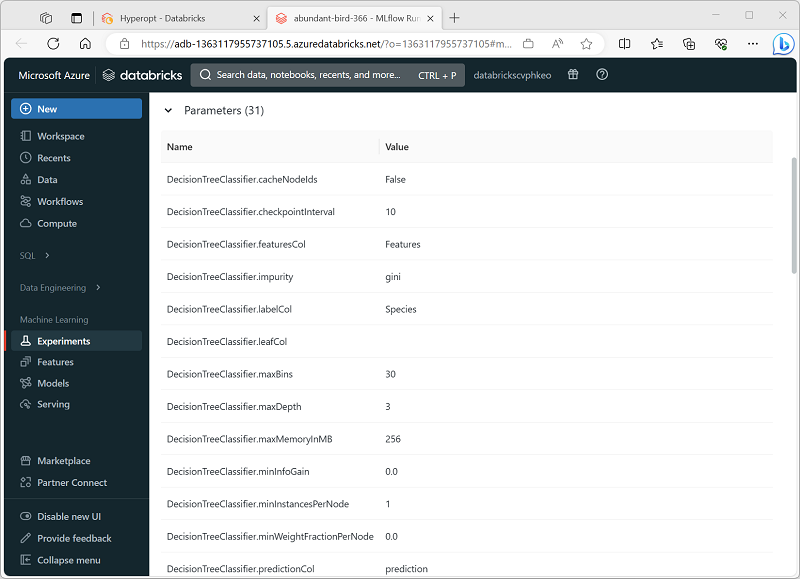
In Azure Databricks, you can integrate Optuna with MLflow to automatically generate MLflow experiment runs for each trial. This provides an easy way to view the full set of hyperparameters and metrics for each trial in the Azure Databricks portal, as shown here:
Use the Study and Trial classes
Optuna manages trial details using the Study and Trial classes.
Study: A study represents an optimization session. It manages the overall process of finding the best hyperparameters. You can think of it as a container that stores all the trials, their results, and the best parameters found so far.
Trial: A trial represents a single run of the optimization process with a specific set of hyperparameters. Each trial records the parameter values used, the resulting objective value (like accuracy or loss), and other metadata (such as duration, state, etc.).
The following code example shows how to use Optuna to review the details of each trial.
import optuna

def objective(trial):
    # Define your hyperparameters using trial.suggest_* methods
    x = trial.suggest_float("x", -10, 10)
    # ... your model training and evaluation ...
    return (x - 2) ** 2  # Example objective

study = optuna.create_study(direction="minimize")
study.optimize(objective, n_trials=100)

print("Best param values: ", study.best_params)

# Get details from each trial run
print("trials:")
for trial in study.trials:
    print("\n", trial)
Tip
For more information about the details recorded by the Trial classes, see the Optuna documentation.