Plan application protection strategies for BYOD and corporate devices
In modern endpoint management, securing the physical device is no longer enough. Users expect to access work data from personal phones, and even on fully managed corporate devices, you must prevent sensitive data from leaking into unauthorized cloud storage or personal apps.
This is where Mobile Application Management (MAM) and App Protection Policies (APP) come in. Rather than managing the whole device (MDM), APP allows you to manage and secure the data inside specific applications (like Microsoft Outlook, Teams, or Edge).
Here is how to plan an effective application protection strategy across both BYOD and corporate scenarios.
The core concept: containerize the app
App Protection Policies work by creating a secure, invisible "container" around a managed application. This container acts as a cryptographic boundary. When a user signs into Microsoft Outlook with their corporate Entra ID account, Intune applies your App Protection Policies to that specific session. If the user also has their personal Gmail account loaded into the exact same Outlook app, the policy actively ignores the personal account.
Key capabilities of APP include:
- Data Relocation: Restricting copy, paste, and "Save As" functions between corporate and personal apps.
- Access Requirements: Enforcing an App-PIN or biometric (FaceID/Fingerprint) check just to open the app.
- Conditional Launch: Blocking the app from opening if the device is jailbroken/rooted, or if the OS version is too old.
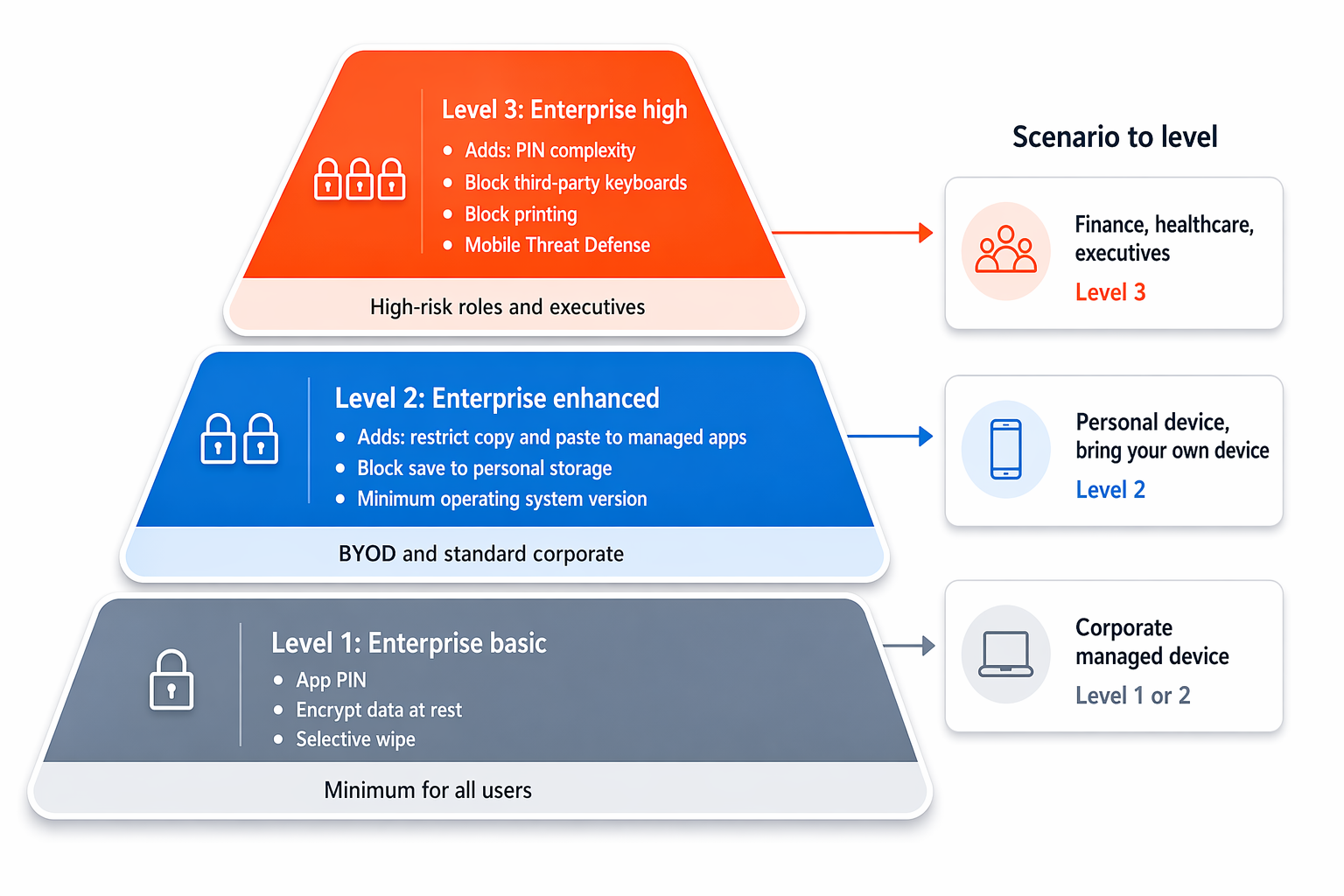
The following diagram shows the three protection levels and the scenarios that map to each.
Strategy for BYOD: MAM without enrollment (MAM-WE)
For Bring Your Own Device (BYOD) scenarios, user privacy is the biggest hurdle. Employees are often hesitant to hand over full device control (MDM) to their IT department.
MAM without Enrollment (MAM-WE) is the perfect compromise. It allows you to protect corporate data without ever touching the device's native settings or personal data.
- The scenario: An employee wants to check work email on their personal iPhone, but refuses to install a management profile.
- The strategy:
- Don't require MDM enrollment.
- Deploy an App Protection Policy targeting unmanaged devices.
- Configure the policy to block copy/paste from Outlook to personal apps (like WhatsApp or Apple Notes).
- Force a 6-digit PIN to open the Outlook app.
- The result: If the employee leaves the company, IT can issue a Selective Wipe. This command reaches into the Outlook app and deletes only the corporate emails, leaving the user's personal accounts, photos, and messages strictly untouched.
Note
When communicating a MAM-WE rollout to your users, clearly emphasize that IT cannot see their web history, personal text messages, or what other apps are installed on their device. Building trust increases adoption.
Strategy for corporate devices: defense in depth (MDM + MAM)
A common misconception is that if a device is fully managed (MDM), you do not need App Protection Policies. This is false. MDM secures the hardware; MAM secures the data flow.
- The scenario: A user has a fully managed, corporate-owned Android device. They download a personal cloud storage app (like Dropbox) from the Google Play Store.
- The strategy:
- The device is already enrolled in Intune (MDM) with compliance policies enforcing device-wide encryption and a lock screen passcode.
- Deploy a second layer of security: an App Protection Policy specifically targeting managed devices.
- The result: Even though the device is trusted, the user can't open a confidential Excel spreadsheet from their corporate OneDrive and save it to their personal Dropbox. The APP boundary prevents the data leak.
App Protection Policy configuration matrix
When planning your deployment, use this matrix to define your baseline security requirements for both device ownership types.
| Protection Capability | iOS/Android BYOD (Unmanaged) | iOS/Android Corporate (Managed) | Windows (Unmanaged - MAM) |
|---|---|---|---|
| Send Org data to other apps | Policy Managed apps only (Forces data to stay within the secure Microsoft ecosystem). | Policy Managed apps only (Prevents leaks to user-installed personal apps). | Policy managed apps (Restricts organizational data flow to protected corporate applications). |
| Save copies of org data | Block. Users cannot save corporate files to their local personal storage. | Allow to OneDrive for Business / SharePoint only. | Block (with specific exceptions allowed for corporate SharePoint and OneDrive locations). |
| Restrict Cut, Copy, Paste | Policy Managed apps with paste in. (Users can copy from the web into an email, but cannot copy an email out to a personal text). | Policy Managed apps. | Policy Managed apps. |
| Require App PIN for access | Yes (Required). Acts as the primary security barrier since the device lock screen is not controlled by IT. | Optional / No. Since MDM already enforces a complex device-wide PIN, an App PIN can cause unnecessary user friction. | Not available. App PIN is not supported on Windows MAM; access control is handled via Microsoft Entra ID sign-in instead. |
| Block Jailbroken/Rooted devices | Block. | Block. | N/A (Jailbreak and root detection parameters apply exclusively to mobile ecosystems). |
The three-tier framework
- Level 1: Enterprise basic data protection
- Overview: This is the absolute minimum configuration recommended for any corporate or ecosystem-connected endpoint.
- Capabilities: It replaces basic legacy access controls by requiring an App PIN, enforcing data encryption at rest, and providing selective wipe capabilities. It creates a baseline of data containment with minimal disruption to the end-user experience.
- Level 2: Enterprise enhanced data protection
- Overview: This level builds upon Level 1 and represents the standard recommended configuration for the majority of mobile users accessing corporate data.
- Capabilities: It heavily restricts data transfer scenarios by locking down outbound Save-As paths, restricting Cut/Copy/Paste to policy-managed apps only, and enforcing minimum operating system versions to shield against unpatched vulnerabilities.
- Level 3: Enterprise high data protection
- Overview: This tier introduces advanced, restrictive mechanisms designed specifically for high-risk users, specialized devices, or organizations with sophisticated security requirements.
- Capabilities: It increases PIN complexity constraints, blocks non-standard or third-party keyboards, completely blocks data printing, and integrates directly with Mobile Threat Defense (MTD) services to block application access dynamically if a live threat is detected on the endpoint.
Map the framework to deployment scenarios
To translate this framework into real-world deployments, align your device enrollment state and user roles to the appropriate protection level:
- BYOD (Unmanaged Devices): Unenrolled employee devices typically warrant Level 2 (Enhanced) protection. Because IT does not control the underlying operating system or device settings via MDM, strict application-layer containment is required to ensure corporate data cannot easily leak out to personal apps or local cloud storage.
- Corporate Managed Devices: Fully enrolled devices generally align with Level 1 (Basic) or Level 2 (Enhanced) settings. Because Mobile Device Management (MDM) configuration profiles already force device-wide full disk encryption and hardware complex passcodes, you can afford to minimize application-level friction for low-risk users, or leverage Level 2 to establish deep defense-in-depth layers.
- High-Security Roles: Users or departments handling highly regulated or sensitive information (such as Finance, Healthcare personnel, or Executive leadership teams) universally warrant Level 3 (High) enforcement. For these populations, absolute data isolation takes precedent over user convenience.
Enforce the strategy with Conditional Access
App Protection Policies are useless if users bypass them by using native, unmanaged mail apps (like the built-in iOS Mail app) that don't support Intune APP.
To complete your strategy, you must integrate Intune with Microsoft Entra Conditional Access.
- Create a Conditional Access policy targeting your users.
- Under Cloud apps or actions, select Office 365.
- Under Conditions > Client apps, select Mobile apps and desktop clients.
- Under Grant, require Require app protection policy.
Now, if a user tries to log into work email using an unauthorized app, Entra ID will block the sign-in and redirect them to download the secure, managed Microsoft Outlook app instead.