Configure App Protection Policies for unenrolled BYOD devices
In a Bring Your Own Device (BYOD) environment, users expect to access corporate emails, files, and chats from their personal smartphones. However, employees are often—and rightfully—hesitant to allow their IT department full administrative control over their personal hardware.
To bridge this gap, Microsoft Intune utilizes MAM Without Enrollment (MAM-WE). By deploying App Protection Policies (APP) specifically targeted at unenrolled devices, you can securely containerize corporate data within approved apps (like Microsoft Outlook) without touching the user's personal data, apps, or web history.
How App Protection works on unenrolled devices
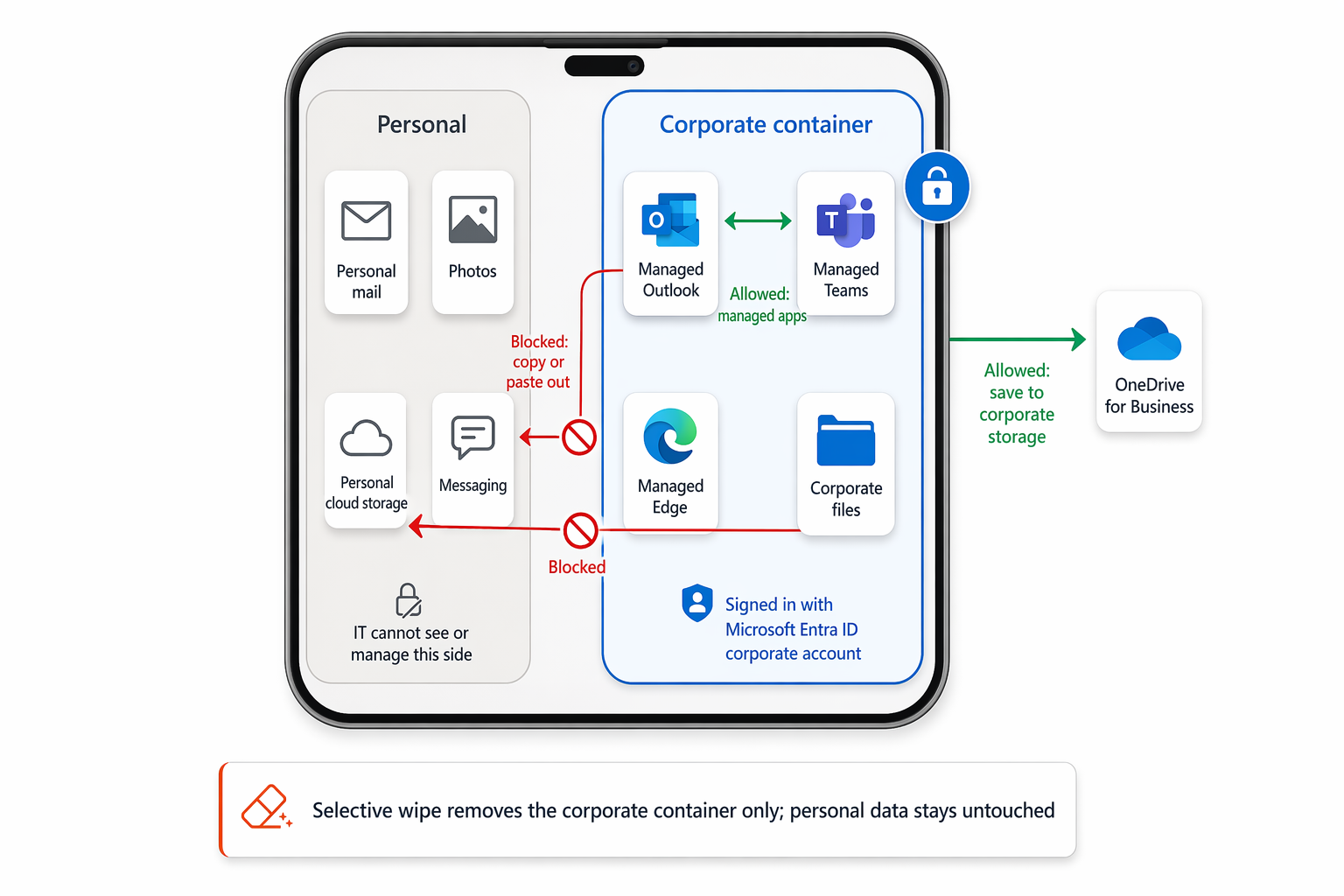
When you deploy an App Protection Policy to a BYOD user, the policy targets the user's corporate identity rather than the physical device.
If a user downloads the Microsoft Outlook app from the public iOS App Store and signs in with their personal email account, Intune ignores the session. The moment that same user adds their Microsoft Entra ID corporate account to the app, Intune intercepts the sign-in and applies your protection policy.
This policy creates a secure, invisible cryptographic boundary around the corporate data.
The following diagram illustrates this boundary, showing the split between the personal zone and the managed corporate container on the same device.
- Supported Platforms: App Protection Policies for unenrolled devices are supported across mobile and desktop operating systems, including iOS/iPadOS, Android, and Windows 10/11.
Microsoft Intune supports Mobile Application Management without enrollment (MAM-WE) on Windows endpoints to protect corporate data on unmanaged or personal PCs.
- Mobile Platforms (iOS/iPadOS and Android): Supports a broad ecosystem of first-party and third-party apps integrated via the Intune App SDK or the Intune App Wrapping Tool.
- Windows 10/11: Supported specifically for core productivity workflows using Microsoft Edge for Business and Microsoft 365 Apps for enterprise.
- Key Difference from Mobile: Unlike mobile platforms that use deep app SDK containerization to isolate data, Windows MAM relies on OAuth2 token protection tied to the user's corporate identity.
Configure APPs for BYOD
The configuration for a BYOD policy differs significantly from a corporate-owned device policy. Because you do not control the physical device (e.g., you cannot force a strong lock screen passcode or require device-wide encryption via MDM), your App Protection Policy must be stricter to compensate.
Step 1: Target the correct device state
When creating the policy in the Microsoft Intune admin center (Apps > App protection policies), you must ensure it only applies to personal devices.
- Target to apps on all device types: Set this option to No.
- Device types: Select Unmanaged.
Note
This setting tells Intune to apply this policy only if the device is not enrolled in MDM.
Step 2: Configure data protection
Your primary goal is to prevent data leakage from the managed corporate container to the unmanaged personal side of the phone.
- Send org data to other apps: Select Policy managed apps.
- Save copies of org data: Select Block (Allowing exceptions only for corporate OneDrive/SharePoint).
- Restrict cut, copy, and paste between other apps: Select Policy managed apps with paste in.
Note
This setting allows the user to copy text from their personal browser into a work email, but prevents them from copying a confidential work email into their personal WhatsApp.
Step 3: Configure access requirements
Because you can't guarantee the user has a passcode on their personal phone, you must secure the front door of the app itself.
- PIN for access: Set to Require.
- Allow Biometrics (Touch ID / Face ID / Fingerprint): Set to Yes.
Note
This setting reduces user friction by letting them use native biometrics instead of typing the PIN every time.
Step 4: Configure conditional launch
These settings continuously check the health of the app and the device it's running on.
- Jailbroken/rooted devices: Set to Block. (Compromised OS environments easily bypass application sandboxes).
- Offline grace period: Set a block after 12 hours and a wipe after 90 days.
Enforce the policy with Conditional Access
An App Protection Policy alone will not stop a user from bypassing your secure Outlook app and simply logging into their corporate email using the native, unmanaged iOS Mail app.
To enforce your BYOD strategy, you must integrate Intune MAM with Microsoft Entra Conditional Access.
- Create a Conditional Access policy targeting your BYOD users.
- Under Target resources, select Office 365.
- Under Conditions > Client apps, select Mobile apps and desktop clients.
- Under Grant, choose Grant access and check Require app protection policy.
Note
If a user attempts to access corporate data using an unmanaged app, Entra ID will block the authentication and instruct them to download a managed app (like Microsoft Edge or Outlook) from the app store.
The exit strategy: selective wipe
One of the greatest benefits of MAM-WE is how it handles employee offboarding.
When an employee leaves the company, you do not need to perform a full factory reset on their personal phone (which would delete their personal photos, contacts, and messages). Instead, you issue a Selective Wipe from the Intune admin center.
- Navigate to Apps > App selective wipe.
- Select Create wipe request.
- Choose the user and the specific unmanaged device.
The next time that device connects to the internet, Intune will reach inside the managed applications and permanently delete only the corporate data and the cryptographic keys associated with the Entra ID account. The user's personal data remains completely untouched.