Enforce Password Protection for cloud accounts
Scoping strong methods and requiring MFA only defends what a user has to prove at sign-in. It doesn't touch what they were allowed to set as a password in the first place—and Relecloud's board wants proof that "in the first place" is under control too. So you check the tenant: Microsoft Entra Password Protection is active, the global banned-password list applies to every cloud sign-in automatically, and you added Relecloud's brand and product names to the custom list yesterday. That should settle it. Instead, one of Relecloud's engineers proves it doesn't in a single test—they change their password to "Relecloud2026Widget!" and it goes through, even though "Relecloud" is on the custom list you added specifically to block exactly this.
Two lists work together on every cloud password change
Microsoft Entra Password Protection evaluates every cloud password change or reset against a combined list of terms drawn from two sources. The global banned password list is Microsoft-maintained, built from ongoing Entra security telemetry, and applied automatically to every tenant. It catches the passwords every attacker tries first—password, welcome, qwerty, seasonal variants, and thousands of others. You can't view it, edit it, or turn it off; it's simply always on for every cloud user.
The custom banned password list is your job. Under Protection > Authentication methods > Password protection in the Microsoft Entra admin center, you enable Enforce custom list and add up to 1,000 terms, each 4–16 characters long. The list is case-insensitive and Entra automatically handles common character substitutions (0 and o, 1 and l, $ and s, @ and a), so you add a term once and its predictable variants come with it. Configuration requires the Authentication Policy Administrator role.
| Attribute | Global banned list | Custom banned list |
|---|---|---|
| Maintained by | Microsoft (from Entra security telemetry) | You |
| Always on? | Yes—can't view, edit, or disable | Optional—turn on Enforce custom list |
| Contents | Common attacked passwords and their variants | Up to 1,000 org-specific terms, 4–16 characters each |
What belongs on the custom list is anything specific to Relecloud that an attacker targeting the company would try:
- Brand and product names (
Relecloud, and every product name you ship) - Headquarters city, office locations, common team or department abbreviations
- Internal jargon or code names that would be obvious to someone who worked there
- Months and weekdays in the local languages of your workforce
What doesn't need to be on it is anything the global list already handles—the tenant already stops those.
Entra also matches, without any configuration from you, against each user's first name, last name, and the tenant name (for terms four characters or longer). A Relecloud user named Alice Chen can't set AliceChen2026 even if you never touched the custom list.
How Entra actually decides whether a password passes
Predict: You added "Relecloud" to the custom banned password list yesterday. An engineer tries to change their password to "Relecloud2026Widget!" today. Will Entra block it? Predict yes or no before you read on.
Most admins predict yes, and most admins are wrong. Entra doesn't do a simple "banned word present → block" check. It runs a three-stage strength calculation, and a password containing a banned word can still pass if the overall password is strong enough.
Here's what actually happens when the engineer submits Relecloud2026Widget!:
- Normalization. Uppercase becomes lowercase; common substitutions are undone.
Relecloud2026Widget!becomesrelecloud2026widget!. - Matching. Entra scans the normalized password for terms from the combined banned list, plus first name, last name, and tenant name. It uses fuzzy matching, so terms within an edit distance of one still register.
relecloudmatches. - Scoring. Every banned term found earns one point. Every remaining character not part of a banned term also earns one point. A password needs at least five points to pass.
Run the math on the engineer's password:
relecloud→ 1 point (banned term)2026widget!→ 11 remaining characters → 11 points- Total: 12 points → accepted
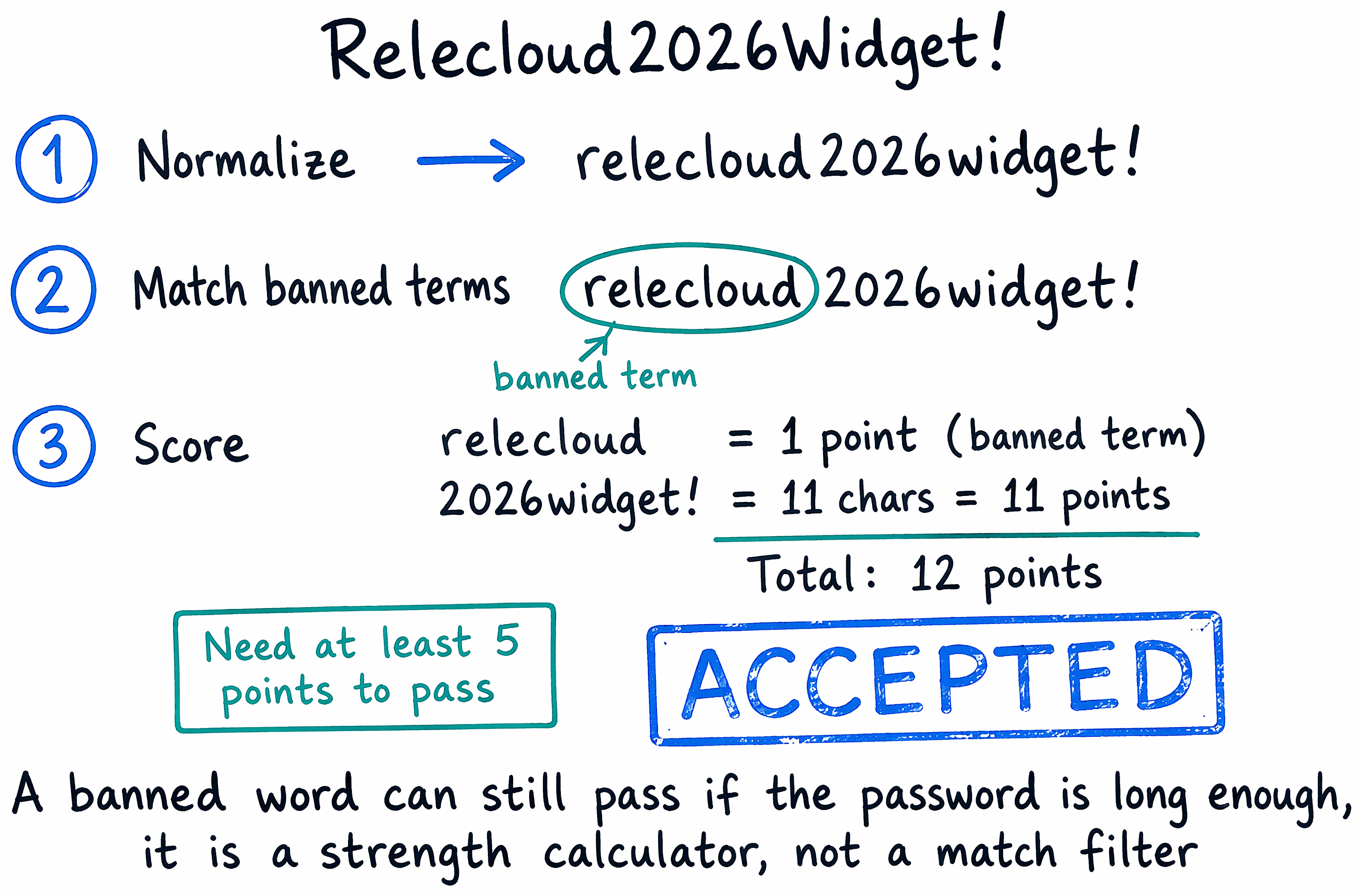
The custom list did exactly what it was designed to do. The board's expectation was wrong because the check isn't a match filter—it's a strength calculator, and length past a modest threshold outweighs the presence of a single banned term. Long enough passwords with banned words in them will pass; short passwords built mostly out of banned words won't. That's the guarantee the tenant actually gives you.
Recognize what you can and can't tune
You control two things: whether the custom list is enforced (Yes/No), and what's on it. You don't control the global list contents, the scoring threshold, the fuzzy-match edit distance, or whether banned-password checks run at all—in Microsoft Entra ID, those checks are always active for every cloud account. Unlike the on-premises deployment of Password Protection, Entra ID cloud accounts have no "audit-only" mode. Enforcement is the only mode.
One operational gotcha catches teams every rollout: updates to the custom list can take several hours to propagate. If the board wants a same-day demo after you added a term, they'll get a false negative that isn't actually a policy failure—it's timing. Add terms ahead of the deadline, verify the next day.
Layer smart lockout for the brute-force problem
Banned lists stop users from choosing weak passwords. Smart lockout stops attackers from guessing passwords at scale, and it's configured on the same Password protection blade. It's always on for every Entra tenant with sensible defaults: after 10 failed sign-in attempts, the account locks for 60 seconds, and each subsequent failed attempt extends the lockout. Customizing the threshold or duration requires Microsoft Entra ID P1 or higher.
Relecloud's calibration questions are the same ones every tenant faces. Tune the threshold down (fewer allowed failures) for high-value groups if you want to stop a slow spray earlier; recognize that lower thresholds also mean more legitimate lockouts from users who mistype. Tune it up only when you have compensating controls—Conditional Access risk policies, MFA everywhere, tight monitoring—because a higher threshold is a bigger window for an attacker's guessing.
Verify what you configured actually blocks what you think
A policy that says "Enforced" only proves itself under a real test. Two quick checks close the loop:
- Test a known weak password. From a controlled test account, try to change to something the global list will certainly catch (
Password1234or similar). If the change is rejected with the standard error message ("password contains a word, phrase, or pattern that makes it easily guessable"), the global list is doing its job. - Test a custom-list term deliberately. Try to change a test account's password to something short and mostly built from a custom-list term, such as
Relecloud12(2 remaining chars = 2 points, plus 1 point for the banned term = 3 points total, below the 5-point threshold). It should be rejected. If it's accepted, either propagation hasn't caught up yet, or your term isn't on the list you think it is.
For tenant-wide monitoring, the Microsoft Entra audit logs record password-change and password-reset events, including the outcome of banned-password validation. Filter by activity type at the Password protection level to see who tried what and whether it was blocked.
Learn more about Microsoft Entra Password Protection and how passwords are evaluated, configuring a custom banned password list, and smart lockout.
Note
If Relecloud has hybrid on-premises AD DS accounts, the identity team can extend the same global and custom banned lists to on-premises password changes via Password Protection's proxy service and DC agent. That deployment lives on the AD infrastructure side, is owned outside M365 admin scope, and doesn't change how the cloud-side policy in this unit is configured.
Banned lists and smart lockout stop users from choosing weak passwords and bots from guessing strong ones. Neither helps when a Relecloud user simply forgets a password they were allowed to set—and calling the help desk for every reset doesn't scale. That's the problem self-service password reset solves next.