Investigate and resolve authentication issues
Confirming that takes a way to inspect exactly what Conditional Access decided and why, one sign-in at a time. Relecloud's ticket gives you a specific engineering-group user, a specific mail client, and a specific day—that's precise enough to look up the actual sign-in event and read what happened, instead of guessing based on the policy's intent.
Find the sign-in event in the Sign-in logs
Every sign-in to your tenant appears in the Sign-in logs, found in the Microsoft Entra admin center under Entra ID > Monitoring & health > Sign-in logs. With Relecloud's ticket in hand, you don't scroll through every event in the tenant; you filter. A Correlation ID, if the help desk captured one, narrows the list to a single sign-in instantly. Without it, filtering by Username, Date, Resource, and Conditional Access result gets you to the same place.
Once you open the matching event, its tabs give you the details Conditional Access used to evaluate that sign-in: Basic Info shows the app and client used, Location and Device Info show where and from what the sign-in originated, and Authentication Details shows which authentication methods were involved. The Additional Details tab fills in context the other tabs don't cover. Together, these tabs tell you whether this sign-in came from the modern mail client you suspect, and confirm the user, device, and location match the group and scope you built your policy around.
The Conditional Access tab on that same event lists every policy evaluated for the sign-in and whether each one applied. Selecting the ellipsis next to a specific policy reveals the reasoning behind that result—Microsoft's documentation describes this option as giving admins "more information about why a policy was applied or not," because "Conditional Access policies only apply when all conditions are satisfied or not configured." If the engineering group's MFA policy shows as not applied for this sign-in, you've confirmed the scoping gap directly instead of inferring it from the client apps condition alone.
Learn more about filtering and reading sign-in events.
Get a plain-language reason with the Sign-in diagnostic
The Conditional Access tab tells you which policy did or didn't apply, but it doesn't always explain why in language you can hand to the help desk. From that same event's Basic Info tab, the Troubleshoot Event link launches the Sign-in diagnostic, which translates the raw policy evaluation into a plain-language explanation.
The diagnostic covers the scenarios you'd expect—sign-ins blocked by Conditional Access, sign-ins that failed because a policy was too strict, MFA prompted by Conditional Access, blocked legacy authentication, sign-ins blocked by a risk policy, and account lockouts. Relecloud's ticket needs the opposite case, and the diagnostic covers that too. Microsoft's documentation calls it the "Successful sign-in" scenario: "In some cases, you want to know if sign-in events aren't interrupted by Conditional Access or MFA, but they should be. The sign-in diagnostic tool provides details about sign-in events that should be interrupted, but aren't." That's precisely the un-prompted, un-challenged sign-in the help desk flagged—the tool confirms it isn't a fluke or a UI glitch, and states directly why the interruption you expected never happens.
Learn more about the scenarios covered by the Sign-in diagnostic.
Confirm the fix before it reaches a real sign-in
The logs and the diagnostic both explain a sign-in that already occurred. Before you change the policy's scope, or right after you change it, you want that same certainty for a sign-in before it occurs—and that's what the What If tool provides.
You open What If from Entra ID > Conditional Access > Policies > What If, and supply four inputs: the user or workload identity, the target resource, the device platform, and the client app. Running the evaluation returns two lists—the policies that apply to that combination, and the policies that don't—without waiting for that user to actually sign in. Enter the engineering-group user, the resource that policy protects, and switch only the client app between the legacy protocol and the modern client to see the policy move from "applies" to "doesn't apply" in the report. That single comparison proves the scoping gap exists, and running the same test after you widen the policy's client apps condition proves your fix closes it.
Try it yourself: Open the What If tool and enter a user in a group you manage, along with the resource, device platform, and client app from a real or hypothetical sign-in. Then change only the client app value—for example, from a legacy client to a modern one—and rerun the evaluation. Which policies move between "applies" and "doesn't apply," and does that match what you expect from the policy's client apps condition?
Learn more about required inputs and results for the What If tool and reading policy results on the Conditional Access tab.
Read the workflow as a whole
Locating the event in the Sign-in logs, reading its Conditional Access tab, running the Sign-in diagnostic for a plain-language reason, and validating a fix with What If aren't four separate skills—they're one repeatable workflow. You locate the sign-in, read what happened, get a reason you can act on, and confirm a fix before or after you deploy it. That sequence turns "investigate and resolve" from a guess into a routine.
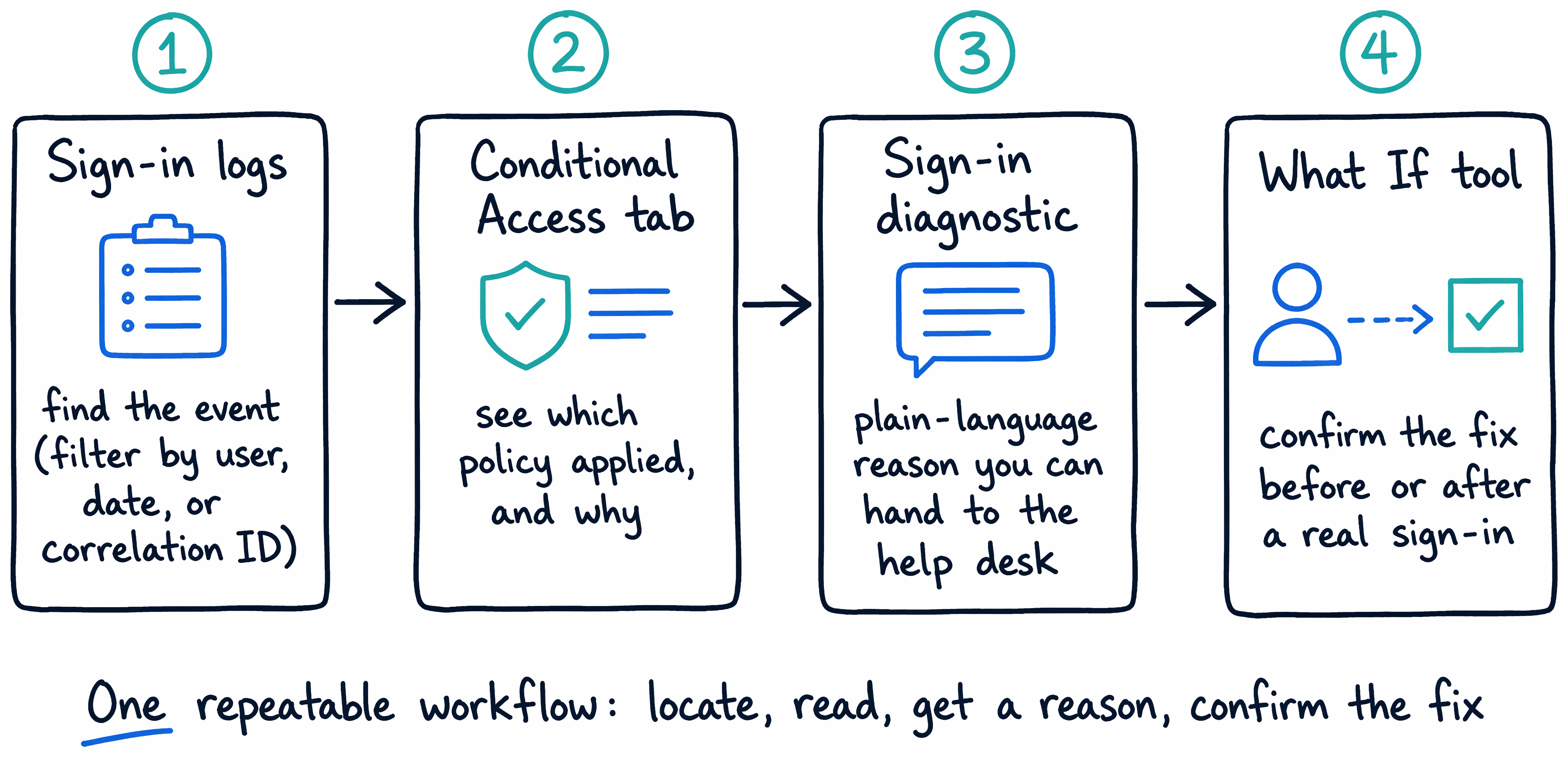
You can now read exactly which policy applied to any sign-in, and why. So when the same compliant laptop passes in Edge and fails in Chrome, you know where to look first—the Sign-in logs to find the event, its Conditional Access tab to see which policy fires, the diagnostic for the plain-language reason, and What If to confirm exactly what separates the two outcomes.