Implement auditing
Tip
See the Text and images tab for more details!
Auditing provides visibility into database activity, helping you detect security threats, track compliance, and investigate incidents. By recording who accessed what data and when, auditing creates an accountability trail that supports both security monitoring and regulatory requirements.
SQL Server, Azure SQL, and SQL databases in Microsoft Fabric offer built-in auditing capabilities that capture database events without requiring application changes. Understanding how to configure and manage auditing helps you maintain appropriate oversight of your database environments.
Understand auditing options
Auditing captures database events and writes them to an audit log. The events you audit, where you store the logs, and how you analyze them depend on your security requirements and infrastructure.
SQL Server Audit uses the Extended Events infrastructure to record activity. You can write audit records to files, the Windows Security log, or the Windows Application log. This flexibility lets you integrate with existing log management systems.
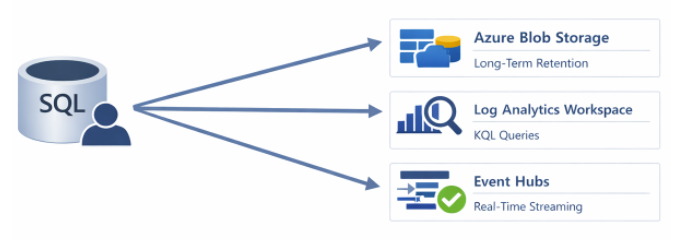
Azure SQL Database auditing writes to Azure Blob Storage, Log Analytics, or Event Hubs. The managed service handles the infrastructure, so you can focus on deciding what to audit rather than managing storage.
SQL databases in Microsoft Fabric use Fabric's activity logging and Microsoft Purview for audit data. This integration with Microsoft Purview gives you unified auditing across your entire data estate.
Configure SQL Server auditing
SQL Server Audit requires creating a server audit object that defines where to write audit records, then creating audit specifications that define what to capture.
Start by creating a server audit that writes to a file:
CREATE SERVER AUDIT SecurityAudit
TO FILE (FILEPATH = 'C:\AuditLogs\', MAXSIZE = 100 MB, MAX_ROLLOVER_FILES = 10)
WITH (QUEUE_DELAY = 1000, ON_FAILURE = CONTINUE);
The QUEUE_DELAY parameter specifies how many milliseconds to buffer events before writing. Lower values provide more real-time logging but can affect performance. The ON_FAILURE setting determines behavior when audit writing fails. Use SHUTDOWN for critical compliance scenarios where missing audit records is unacceptable.
Now enable the audit:
ALTER SERVER AUDIT SecurityAudit WITH (STATE = ON);
Next, create a server audit specification to capture server-level events:
CREATE SERVER AUDIT SPECIFICATION ServerAuditSpec
FOR SERVER AUDIT SecurityAudit
ADD (FAILED_LOGIN_GROUP),
ADD (SUCCESSFUL_LOGIN_GROUP),
ADD (SERVER_PERMISSION_CHANGE_GROUP),
ADD (DATABASE_PERMISSION_CHANGE_GROUP)
WITH (STATE = ON);
For database-level events, create a database audit specification:
USE MyDatabase;
GO

CREATE DATABASE AUDIT SPECIFICATION DatabaseAuditSpec
FOR SERVER AUDIT SecurityAudit
ADD (SELECT, INSERT, UPDATE, DELETE ON dbo.SensitiveData BY public),
ADD (EXECUTE ON SCHEMA::dbo BY public),
ADD (DATABASE_ROLE_MEMBER_CHANGE_GROUP)
WITH (STATE = ON);
This specification audits all data access on the SensitiveData table, stored procedure executions, and role membership changes.
Configure Azure SQL auditing
Azure SQL Database auditing is configured at the server or database level. Server-level policies apply to all databases on the logical server.
You can enable auditing in the Azure portal or using T-SQL:
-- Enable auditing to blob storage (configured in Azure portal)
ALTER DATABASE AUDIT SPECIFICATION AzureAuditSpec
ADD (SELECT, INSERT, UPDATE, DELETE ON DATABASE::MyDatabase BY public)
WITH (STATE = ON);
For more granular control, configure auditing through Azure Policy or ARM templates. Here's an example specifying the storage account, retention period, and audit action groups:
{
  "properties": {
    "state": "Enabled",
    "storageEndpoint": "https://myauditlogs.blob.core.windows.net",
    "retentionDays": 90,
    "auditActionsAndGroups": [
      "SUCCESSFUL_DATABASE_AUTHENTICATION_GROUP",
      "FAILED_DATABASE_AUTHENTICATION_GROUP",
      "BATCH_COMPLETED_GROUP"
    ]
  }
}
Note
Azure SQL auditing to Log Analytics enables powerful query and alerting capabilities using Kusto Query Language (KQL). This integration simplifies security monitoring and compliance reporting.
Select audit actions
Choose audit actions based on your security and compliance requirements. Common action groups include:
Authentication events:
SUCCESSFUL_DATABASE_AUTHENTICATION_GROUP- Successful loginsFAILED_DATABASE_AUTHENTICATION_GROUP- Failed sign-in attempts
Permission changes:
DATABASE_PERMISSION_CHANGE_GROUP- Grant, revoke, deny operationsDATABASE_ROLE_MEMBER_CHANGE_GROUP- Role membership changesDATABASE_PRINCIPAL_CHANGE_GROUP- User creation and modification
Data access:
BATCH_COMPLETED_GROUP- All completed batches (high volume)SELECTon specific objects - Targeted read access monitoringINSERT,UPDATE,DELETEon specific objects - Data modification tracking
Schema changes:
SCHEMA_OBJECT_CHANGE_GROUP- Table and object modificationsDATABASE_OBJECT_CHANGE_GROUP- DDL statements
Important
Start with a focused set of audit actions rather than capturing everything. High-volume auditing impacts performance and generates logs that are difficult to analyze.
Query and analyze audit logs
For SQL Server file-based audits, use the fn_get_audit_file function to query your logs:
SELECT
    event_time,
    action_id,
    succeeded,
    session_server_principal_name AS UserName,
    database_name,
    object_name,
    statement
FROM fn_get_audit_file('C:\AuditLogs\*.sqlaudit', DEFAULT, DEFAULT)
WHERE event_time > DATEADD(day, -7, GETUTCDATE())
ORDER BY event_time DESC;
If you're using Azure SQL auditing with Log Analytics, you can query using KQL:
AzureDiagnostics
| where Category == "SQLSecurityAuditEvents"
| where TimeGenerated > ago(7d)
| where action_name_s == "SELECT"
| summarize count() by client_ip_s, server_principal_name_s
| order by count_ desc
This query identifies which users and IP addresses generated the most SELECT queries over the past week, helping identify unusual access patterns.
Implement audit retention and protection
Your audit logs need protection from tampering, and you need to retain them according to compliance requirements.
For SQL Server, configure immutable storage for audit files and use Windows file system permissions to prevent deletion. For Azure SQL, configure storage with immutable blob storage and set retention policies in Azure Storage lifecycle management.
Important
Store audit logs separately from the databases they monitor. This ensures that even if attackers compromise a database, they can't tamper with the audit trail.
For compliance scenarios, consider these retention practices:
- Define retention periods based on regulatory requirements (often seven years for financial data)
- Use immutable storage to prevent log deletion
- Implement log archival to cold storage for cost management
- Establish processes for audit log review and alerting
Regular review of audit data helps you identify security issues before they become incidents. Create alerts for failed sign-in attempts, permission changes outside maintenance windows, and unusual data access patterns.