Register plug-in components by using the Plug-in Registration tool
Contoso's two plug-in classes from unit 4, ValidateRequestAllowance and DeductAllowanceOnApproval, compile cleanly but do nothing yet, because Dataverse has no record that either one exists. This unit uses the Plug-in Registration tool to register the compiled assembly and configure each class to run at the right moment.
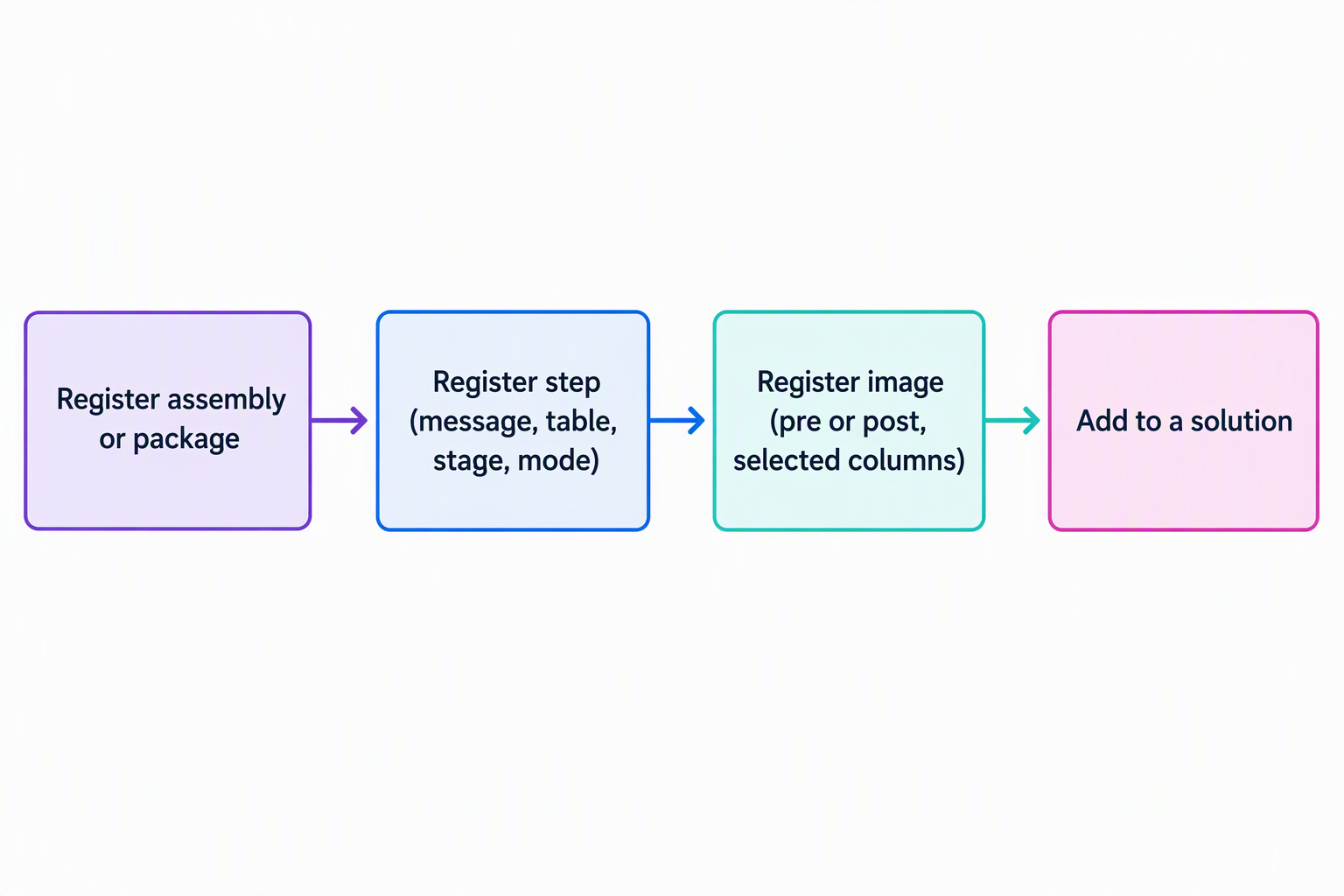
Register the assembly or plug-in package
The Plug-in Registration tool (PRT) expects one of two package types:
- Classic assembly: built from a signed Visual Studio class library project. Must be strong-named. Registered with Register New Assembly.
- Plug-in package: a NuGet package produced from a project created with
pac plugin initor the Power Platform Tools. Doesn't need signing. Registered with Register New Package.
Contoso's compiled assembly from unit 4 is a classic signed assembly, so the rest of this unit registers it with Register New Assembly.
You launch the PRT with the Power Platform CLI command pac tool prt, then connect it to Contoso's target environment by signing in and picking the environment from the list. Registering the assembly comes first, because Dataverse needs a copy of the compiled code before it can associate any class with a message or stage.
Registering the assembly also asks for two settings, and for Dataverse (online) each one has only a single sensible choice:
- Isolation mode: Sandbox, which runs your plug-in in a restricted, monitored process rather than giving it unrestricted server access.
- Location: Database, which stores the assembly inside Dataverse itself, rather than on a server's disk or in the Global Assembly Cache (GAC).
The alternatives to Sandbox and Database apply only to on-premises deployments, so they don't apply to Contoso's cloud environment.
Once the assembly uploads, the PRT automatically detects every class inside it that implements IPlugin, including both ValidateRequestAllowance and DeductAllowanceOnApproval. That detection is what makes registering a step against each class possible.
Register each plug-in step
A step registration turns the stage model from unit 2 into settings you choose. Each class needs its own step, with these settings:
- Message and primary table: what triggers the step.
- Stage: when it runs in the pipeline.
- Execution mode: synchronous or asynchronous.
- Execution order: its place among other steps at the same stage and message.
Contoso's two classes land in different spots because they solve different problems. ValidateRequestAllowance exists to say no early, so it registers on PreValidation. DeductAllowanceOnApproval reacts to the updated values the main operation produces, so it registers on PostOperation, where a synchronous step still runs inside the same transaction.
| Setting | ValidateRequestAllowance |
DeductAllowanceOnApproval |
|---|---|---|
| Message / table | Create on Request |
Update on Request |
| Stage | PreValidation | PostOperation |
| Execution mode | Synchronous (the only option before the main operation) | Synchronous, so the balance reflects the deduction the moment approval completes |
| Execution order | Low value if another PreValidation step on Create ever competes for the slot | Low value relative to any other PostOperation step Contoso adds later |
Execution mode isn't a free choice for ValidateRequestAllowance: PreValidation steps always run synchronously, since asynchronous execution is only available at PostOperation. DeductAllowanceOnApproval does have a real choice. Contoso picks synchronous anyway, because the Allowance balance needs to reflect the deduction as soon as the save completes—an asynchronous registration would queue that update for later instead.
Use filtering attributes for update steps
DeductAllowanceOnApproval only cares about one change on the Request row: the status column moving to "Approved." Without a filtering attribute, the step fires on every Update to Request, including edits unrelated to approval.
A filtering attribute controls whether the step fires at all, not whether a value actually changed. Setting the filtering attribute to the status column means the step fires whenever an update request includes that column, even if the submitted value matches what's already stored.
The filter alone can't tell a resubmitted "Approved" value apart from Pending actually turning into Approved; it only confirms the column appeared in the request. Confirming the real Pending-to-Approved transition is the plug-in code's job: unit 4's guard condition compares the pre-image value against the target value before acting.
One rule deserves a second look: never include the primary key among filtering attributes. The primary key is present on every update by definition, so including it defeats every other filter, and the step fires on every edit anyway. Contoso's filtering attribute lists only the status column, the one value the logic reads.
ValidateRequestAllowance registers on Create, not Update, so filtering attributes don't apply to it. They only narrow which column changes matter, and that's meaningful only for messages like Update, where a row's existing values can change.
Configure impersonation and deployment
Each step also needs these settings:
- Run in User's Context (impersonation): defaults to Calling User, so the step runs with whatever privileges triggered it. Unit 4's code reinforces this default:
DeductAllowanceOnApprovalcallsserviceFactory.CreateOrganizationService(context.UserId), so the step's impersonation setting and the Organization service call use the same identity. Contoso leaves Calling User in place for both steps, since the employee submitting a Request already has the privileges each step needs. Set a different, more privileged user only when a step needs a table the calling user can't reach. - Deployment: both steps set to Server, since both run as part of a normal Dataverse save, not an offline mobile client.
- Configuration data: if a class declares
unsecureorsecureconstructor parameters, this same screen is where you supply those values, continuing the configuration-data mechanism from unit 3.
Register the pre-image
Unit 4's DeductAllowanceOnApproval class already reads context.PreEntityImages["PreRequest"], so the image has to exist as a registration before that line of code can return anything. You define entity images from the same step registration screen in the PRT, or from the Power Platform Tools extension for Visual Studio. Give the image the alias "PreRequest" so the string in your code and the string in the registration match exactly.
The PRT defaults to selecting every column on the row when you define an image, and accepting that default costs performance for no benefit. Contoso's step only needs the status column, the Allowance lookup, and the Request amount, the exact values the code reads from the pre-image, so those are the only columns selected.
This step registers at PostOperation on Update, so a post-image is technically available too. The class only reads from the pre-image, so that's the only image Contoso defines.
Add plug-in components to a solution
Registering an assembly and its steps gets Contoso's code running in the connected environment, but moving that logic elsewhere is a separate concern. The plug-in assembly and each registered step are both solution components, and both need to travel together inside an unmanaged solution for Contoso to move this logic between environments.
Keep these points in mind when you add plug-in components to a solution:
- Include the assembly, not just the steps. Add a step without its assembly already included, and the solution tooling prompts you to bring the assembly along as a required component. Treat that prompt as confirmation, not an obstacle to dismiss.
- A step with no assembly behind it can't do anything in the target environment.
- Secure configuration values don't travel with an exported solution. A dependent step needs that value reset wherever it lands next.
Synthesis prompt: Describe the complete registration for
DeductAllowanceOnApproval. Include its message and table, stage and mode, filtering attribute, and pre-image alias. If you can state those settings without looking back, you've connected the pipeline, context, code, and registration model.
Learn more about registering a plug-in and the full tutorial for writing and registering a plug-in.