Enable Defender for Azure SQL Databases at subscription scope
Organizations with multiple Azure SQL resources need a consistent approach to security protection that scales across existing resources and automatically covers new deployments. Contoso Financial Services faces this challenge with multiple SQL servers across production and development subscriptions, where manual per-resource enablement creates gaps and operational overhead.
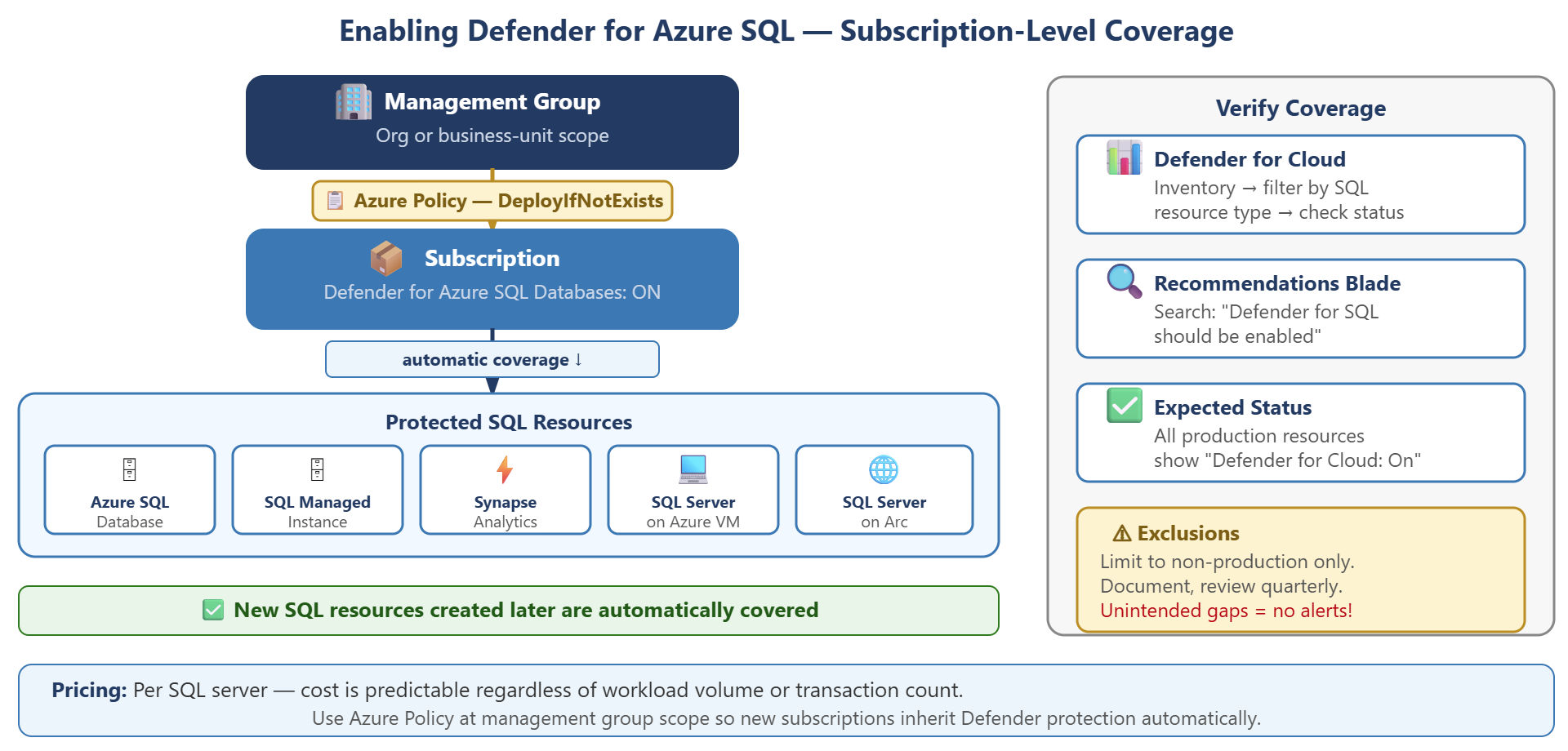
| Step | Action |
|---|---|
| Enable at subscription level | Turn on Defender for Azure SQL Databases for all resources in a subscription |
| Enforce with policy | Assign Azure Policy at management group scope to cover current and future subscriptions |
| Verify coverage | Check Defender for Cloud inventory to confirm all SQL resources show protection status |
| Manage exclusions | Document and review any resources intentionally excluded from protection |
Enable protection at the subscription level
The most efficient way to protect Azure SQL resources is to enable Defender at the subscription scope, which provides immediate protection for all supported resources and automatically covers new resources as teams create them.
When you enable Defender for Azure SQL Databases at the subscription level, protection applies instantly to all SQL Database instances, elastic pools, SQL Managed Instances, and Synapse Analytics dedicated SQL pools in that subscription. This single action eliminates the need for per-resource configuration and ensures consistent security posture across your environment.
To enable subscription-level protection, navigate to Microsoft Defender for Cloud, select Environment settings, choose the target subscription, and locate the Databases plan. Enable Defender for Azure SQL Databases with a single toggle. This activation protects all existing SQL resources immediately and extends coverage to any resources created later. Development teams can deploy new SQL databases without requiring other security configuration steps.
The pricing model for Defender for Azure SQL Databases uses per-server pricing rather than transaction-based charges. You pay based on the number of SQL servers protected, making cost predictable regardless of workload volume. For current pricing details, see the Defender for Cloud pricing page.
Enforce protection across multiple subscriptions
Azure Policy provides automatic enforcement of Defender enablement across multiple subscriptions, valuable when your organization uses management groups to organize resources.
The built-in policy definition "Configure Azure Defender for Azure SQL database to be enabled" uses a DeployIfNotExists effect to automatically enable Defender on noncompliant subscriptions. When you assign this policy at management group scope, it creates remediation tasks for existing subscriptions that lack protection and automatically enables Defender on new subscriptions added to the management group. Alternatively, the initiative "Configure Microsoft Defender for Databases to be enabled" enforces all four Databases subplans in a single assignment.
To assign the policy, navigate to Azure Policy, select Definitions, and search for "Defender SQL" to locate the appropriate policy. Assign it at the management group level that contains your production subscriptions. This approach ensures Contoso's production subscription maintains protection even if configuration changes occur, and automatically applies the same protection standard to new subscriptions created for other business units or regions.
Verify coverage and manage exclusions
After the admin enables Defender, verification confirms that all intended SQL resources receive protection and helps identify any coverage gaps.
The Defender for Cloud inventory provides the clearest view of protection status. Navigate to Microsoft Defender for Cloud > Inventory, then filter by resource type to show SQL servers and SQL Managed Instances. The Defender for Cloud column displays protection status for each resource. All production resources should show On. You can also check the Recommendations screen and search for "Azure Defender for SQL should be enabled on unprotected SQL servers". This recommendation surfaces any SQL resources that lack protection.
Some organizations need to exclude specific resources from Defender coverage to reduce operational noise. Contoso might exclude a development SQL server used exclusively for automated testing where vulnerability alerts would create false positives for the security team. To configure exclusions, navigate to Microsoft Defender for Cloud > Environment settings, select the subscription, choose Databases, and configure exclusions at the resource level.
Document all exclusions with clear justification and review them quarterly. An accidentally excluded production resource creates a significant security gap. The system won't generate alerts for actual threats against that resource. Exclusions should remain limited to nonproduction environments where security events don't represent real risk.
With Defender for Azure SQL Databases enabled and coverage verified, you're ready to extend protection to open-source database services in the next unit.