Enable and deploy Defender for Storage
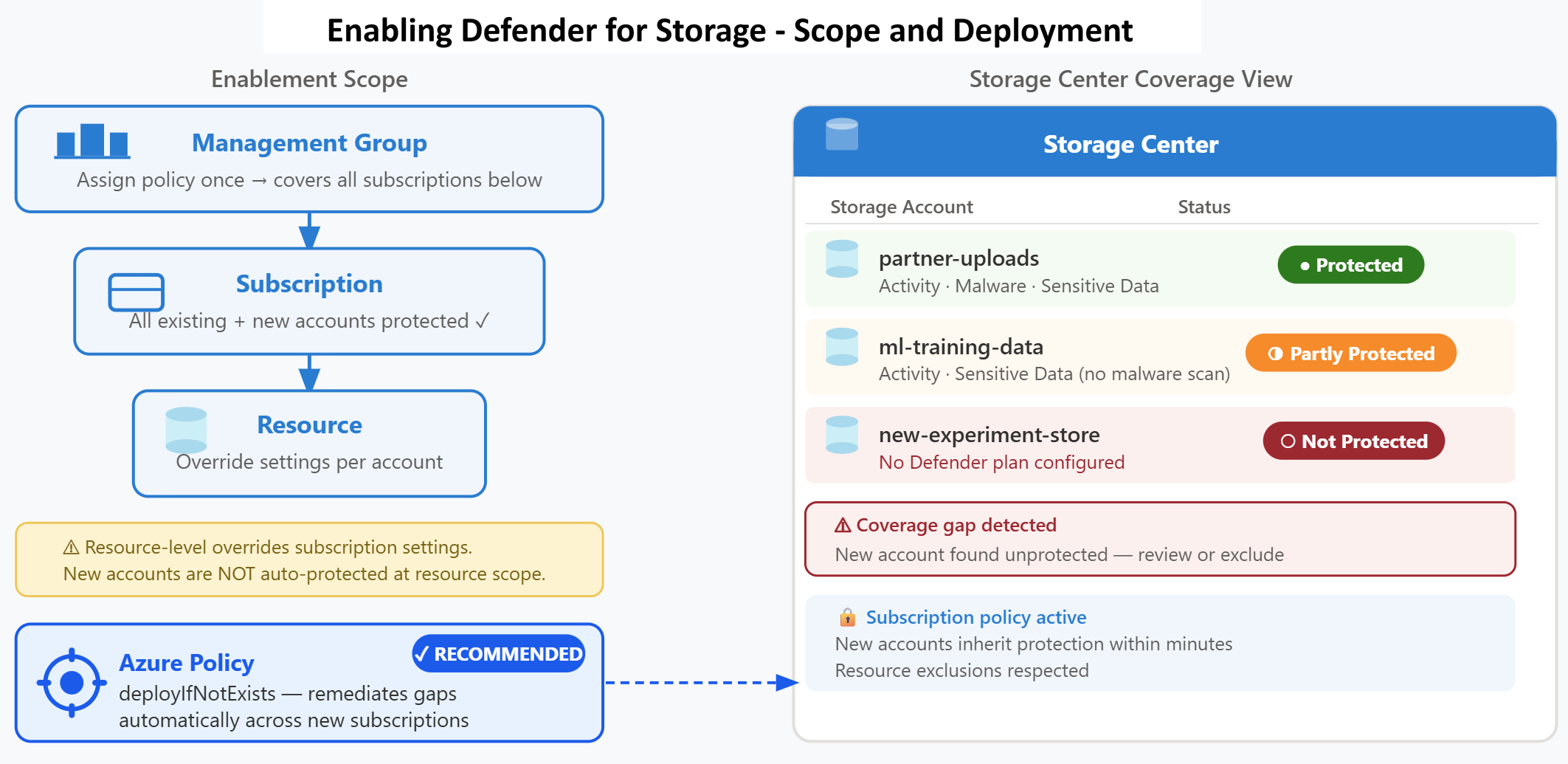
Microsoft Defender for Storage operates at two enablement scopes: subscription level and resource level. The scope you choose determines which storage accounts receive protection and how consistently the configuration applies when new accounts are created.
| Enablement Scope | Coverage | Best For | Automatic Protection of New Accounts |
|---|---|---|---|
| Subscription | All storage accounts in the subscription | Organization-wide consistent protection | Yes |
| Resource | Individual storage accounts | Selective protection with custom configurations | No |
Enable protection at subscription level
Subscription-level enablement provides the most consistent security posture. When you enable Defender for Storage at the subscription scope, all existing storage accounts in that subscription receive protection immediately, and all future storage accounts inherit the protection automatically. This approach prevents coverage gaps that occur when development teams create new storage accounts without coordinating with the security team.
Contoso's AI document pipeline spans multiple storage accounts—one for partner uploads, one for processed documents, and one for ML training data. With subscription-level enablement, the security team protects all three accounts with a single configuration action. When the AI development team creates a new storage account for experiment outputs next month, that account receives protection automatically without requiring extra security configuration.
Organizations use subscription-level enablement as the default security posture, then exclude specific accounts when needed. A storage account used exclusively for temporary build artifacts in a nonproduction subscription might not require malware scanning to control costs. The security team enables Defender at the subscription level, then configures an exclusion for the build artifacts account while maintaining protection for all other resources.
Deploy using Azure Policy for consistent enforcement
Azure Policy provides the recommended deployment mechanism for Defender for Storage. The built-in policy definition "Configure Microsoft Defender for Storage to be enabled" creates an assignment that automatically enables Defender on all subscriptions within scope. Policy-based deployment ensures consistent configuration across the organization and remediates coverage gaps when new subscriptions are created.
Policy deployment operates through the deployIfNotExists effect. When a subscription comes into scope—either because you created a new subscription or because a management group policy cascades down—Azure Policy checks whether Defender for Storage is enabled. If the plan is missing or configured incorrectly, the policy triggers a remediation task that applies the correct configuration. This automated approach eliminates the manual tracking typically required to maintain security coverage as the cloud environment grows.
Organizations assign the policy at management group scope to cover multiple subscriptions with a single assignment. The policy parameters allow you to specify which Defender features to enable: activity monitoring (always included), malware scanning (configurable), and sensitive data threat detection (configurable). You also set the malware scanning monthly cap in the policy parameters, ensuring cost controls apply consistently across all protected subscriptions.
Configure resource-level enablement for granular control
Resource-level enablement provides flexibility when different storage accounts require different protection configurations. Contoso's partner upload account needs aggressive malware scanning with a high monthly cap because it accepts untrusted external content. The ML training data account needs activity monitoring but can skip malware scanning because data scientists only upload internally validated datasets. Resource-level configuration allows the security team to optimize each account's protection based on its risk profile.
You enable Defender at the resource level through the Azure portal by navigating to the storage account's security settings. You can also enable it programmatically using PowerShell, Azure CLI, REST API, or infrastructure-as-code templates. Resource-level configuration overrides subscription-level settings for that specific account. When both subscription-level and resource-level configurations exist, the resource-level settings take precedence.
Resource-level enablement requires ongoing management attention. Unlike subscription-level protection with policy enforcement, resource-level configurations don't automatically apply to new storage accounts. The security team must implement monitoring processes to identify newly created accounts and apply appropriate configurations manually or through custom automation.
Monitor coverage using Storage Center
After enabling Defender for Storage, you verify coverage using Storage Center in the Azure portal. Storage Center became generally available in April 2026 as a native Azure portal experience, providing a centralized, storage-native view of Defender for Storage protection status alongside your storage resources. Storage Center displays all storage accounts in your environment organized by service type, including Azure Blob Storage and Azure Files. Each account appears in one of three protection states:
- Protected: Defender for Storage is enabled with all features configured
- Partly protected: Defender is enabled but some features such as malware scanning or sensitive data detection are disabled
- Not protected: Defender for Storage isn't enabled
Organizations use Storage Center as the definitive coverage report. The dashboard identifies coverage gaps immediately after initial deployment and provides ongoing visibility as new storage accounts are created. When Contoso's development team creates a storage account for a new AI project, Storage Center surfaces the unprotected account within minutes. The security team can then evaluate whether the account requires protection or should be explicitly excluded.
Storage Center also displays configuration details for each protected account, showing which features are enabled and what monthly scanning caps are configured. This centralized view allows the security team to identify configuration drift—accounts where malware scanning was accidentally disabled or caps were set too low for the account's usage patterns.
Choose the appropriate deployment method
Organizations typically combine multiple deployment methods to achieve comprehensive coverage. Azure Policy provides the foundation, enabling Defender at subscription or management group scope with default configurations. Resource-level configurations handle special cases where accounts need custom settings. PowerShell or Azure CLI scripts enable bulk configuration changes when migrating from the classic plan or adjusting malware scanning caps across multiple accounts.
For Contoso's implementation, the security team assigns the Azure Policy definition at the management group scope covering all production subscriptions. The policy enables activity monitoring, sensitive data threat detection, and malware scanning with a 10,000-GB monthly cap. For the partner upload storage account that processes external files, they apply a resource-level configuration override that increases the monthly scanning cap to 25,000 GB. This layered approach provides consistent baseline protection while allowing risk-based customization.