Configure malware scanning and sensitive data detection
Malware scanning operates as Defender for Storage's content inspection layer, analyzing uploaded files to detect malicious code before it can execute in downstream systems. The configuration you apply determines when scanning occurs, how thoroughly files are analyzed, and how much you spend on protection.
| Scanning configuration | Purpose | Cost impact | Best for |
|---|---|---|---|
| On-upload scanning | Real-time protection as files arrive | Charged per GB uploaded | Partner upload pipelines, external content ingestion |
| On-demand scanning | Retrospective analysis of existing content | Charged per GB scanned (no monthly cap) | Historical data validation, threat hunting |
| Monthly cap (default: 10,000 GB, on-upload only) | Cost control for on-upload scanning | Prevents unexpected on-upload charges | All accounts with on-upload scanning enabled |
| Custom cap per account | Risk-based cost allocation for on-upload | Optimizes spend by account priority | High-volume production accounts |
Configure on-upload scanning for real-time protection
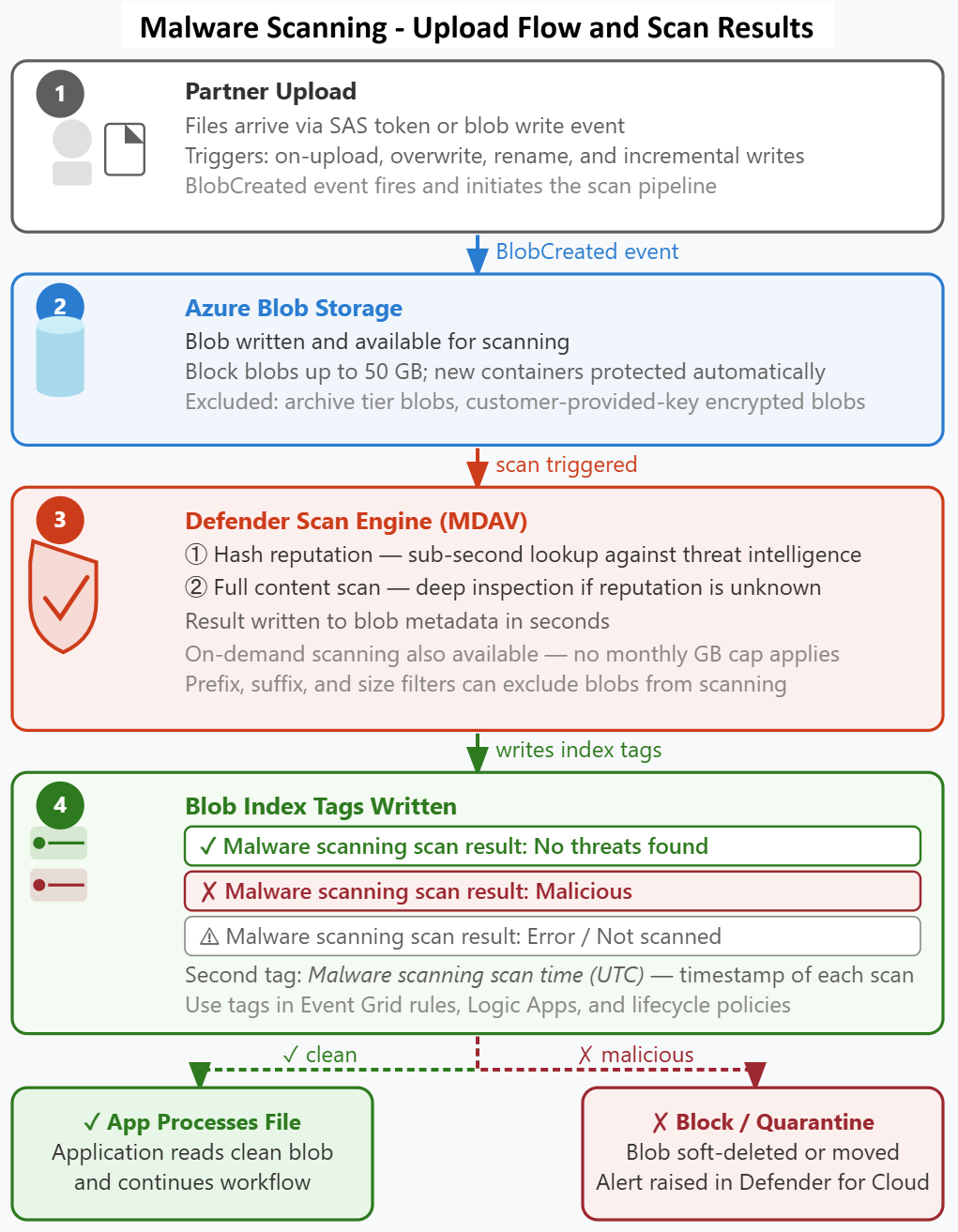
On-upload scanning analyzes files as they arrive in Blob Storage, blocking malicious content before downstream systems process it. Scanning triggers when a blob is created (new upload), overwritten with new content, or renamed — any of these operations initiates a scan. Incremental operations like PutBlock and AppendFile don't trigger scanning independently; scanning fires when the commit operation (PutBlockList or FlushWithClose) finalizes the blob. This distinction matters for AI pipelines that stage large files through block uploads. When scanning triggers, Defender analyzes the content using Microsoft Defender Antivirus and writes scan result tags to the blob metadata.
For Contoso's partner upload scenario, on-upload scanning provides the critical control missing from their previous configuration. Partners upload files through an Azure Function that writes directly to Blob Storage using a SAS token. Network controls can't inspect the file content, and access policies can't distinguish malicious files from legitimate documents. On-upload scanning examines each file's structure and behavior patterns, identifying threats regardless of how the upload was authenticated or authorized.
The scanning process completes within seconds for most files. Small documents and common file types scan nearly instantaneously, while large files or complex archives require more processing time. During scanning, the blob is available for read operations, but applications should check the scan result tag before processing the content. Defender writes two blob index tags to each scanned blob by default: Malware scanning scan result and Malware scanning scan time (UTC). The scan result tag uses one of four values: No threats found indicates no threats were detected; Malicious indicates the file contains malware or suspicious code patterns; Error indicates scanning couldn't complete; and Not scanned indicates the blob was excluded from scanning or couldn't be processed. Applications should check the Malware scanning scan result tag before processing uploaded content.
Malware scanning has limitations that affect which blobs receive scan results. Blobs larger than 50 GB receive a Not scanned result — the service cannot process files exceeding this size. Blobs stored in the archive access tier and blobs encrypted with customer-provided keys are also excluded from scanning. Understanding these limits prevents confusion when some blobs in your storage accounts don't receive scan result tags.
Use on-demand scanning for retrospective analysis
On-demand scanning operates outside the upload workflow, analyzing blobs that already exist in storage. Organizations use on-demand scanning when threat intelligence identifies a new malware variant that might exist in historical uploads, or when investigating security incidents that require validating content uploaded before Defender was enabled.
You initiate on-demand scans through the Azure portal, PowerShell, or REST API, specifying the storage account and container to scan. Defender queues the scan operation and processes blobs based on available capacity. Results appear in the same blob metadata tags used for on-upload scanning, allowing applications to query scan status programmatically.
On-demand scanning provides flexibility for organizations with large volumes of existing content. Unlike on-upload scanning, on-demand scanning has no monthly cap — charges are entirely usage-based per scan job. The Azure portal displays a cost estimate based on storage capacity before you initiate each scan, allowing the security team to review projected costs before committing to a scan run. Rather than scanning the entire historical archive immediately, you scan selectively based on risk assessment. Contoso scans containers holding documents uploaded in the past 90 days, prioritizing recent content while deferring older archives to future scanning cycles. This phased approach balances security coverage against scanning costs.
Compare hash reputation analysis with full content scanning
Defender for Storage performs two types of malware detection, each addressing different threat scenarios. Hash reputation analysis compares each file's hash value against databases of known malware signatures. This comparison happens quickly and efficiently, identifying recognized threats with minimal processing overhead. Hash reputation works well for established malware variants that security researchers have already cataloged.
Full content scanning examines the file structure, code patterns, and behavioral characteristics using Microsoft Defender Antivirus. The engine analyzes how the file operates, what system resources it attempts to access, and whether its behavior matches known attack patterns. This comprehensive analysis detects polymorphic malware that changes its signature with each infection, zero-day threats that haven't been cataloged yet, and sophisticated attacks that evade hash-based detection.
Organizations enabling the new Defender for Storage plan with malware scanning receive both detection types. Hash reputation analysis happens automatically for all files, providing fast baseline protection. Full content scanning operates based on your configuration, analyzing content more thoroughly when you enable malware scanning at the subscription or resource level. The classic plan includes hash reputation analysis only, which is why Microsoft recommends migrating to the new plan for comprehensive threat detection.
Hash reputation analysis has a critical limitation: it can't detect threats in blobs created using the Put Block and Put Block List API pattern. When applications upload large files by splitting them into blocks and committing the block list atomically, the full file hash doesn't exist until all blocks are committed. Defender can't perform hash reputation analysis during block uploads because the complete file isn't available. Full content scanning addresses this gap by analyzing the assembled content after the block list is committed.
Configure monthly scanning caps for cost control
Malware scanning operates as a paid feature charged per gigabyte scanned. Microsoft sets a default monthly cap of 10,000 GB per storage account to prevent unexpected costs. When a storage account reaches its configured cap, scanning pauses for the remainder of the month. New uploads during this period proceed without scanning, and Defender generates an alert notifying the security team that protection is temporarily reduced.
Defender generates two cap-related alerts. The first alert fires when scanning reaches 75% of the monthly cap, providing warning that the limit will soon be reached. This warning alert allows the security team to evaluate whether the cap should be raised or whether upload volumes are higher than expected. The second alert fires when scanning reaches 100% of the cap and scanning stops, indicating that new uploads are no longer being analyzed for malware.
You configure custom caps at the resource level to allocate scanning capacity based on each account's risk profile. Contoso's partner upload account processes high volumes of external content and justifies a 25,000 GB monthly cap. The ML training data account accepts only internal uploads from data scientists and operates with a 5,000 GB cap. The processed documents account stores output from internal workflows and requires minimal scanning, so a 2,000 GB cap suffices. This risk-based allocation optimizes security spending by directing scanning capacity toward the accounts most likely to encounter threats.
| Account Purpose | Risk Level | Recommended Monthly Cap | Reasoning |
|---|---|---|---|
| External partner uploads | High | 25,000 GB | Untrusted content, high threat likelihood |
| Internal application outputs | Medium | 10,000 GB (default) | Generated content, moderate validation needed |
| ML training data (internal only) | Low | 5,000 GB | Trusted sources, lower scanning priority |
| Temporary build artifacts | Minimal | Disable scanning | Non-production, temporary data |
Scanning filters provide a complementary cost control mechanism alongside monthly caps. You configure filters to exclude specific blobs from scanning based on container or blob path prefix, file name suffix (such as .log or .tmp), or file size — up to 24 filter criteria per storage account. For Contoso's implementation, filters excluding the /logs/ container prefix and .tmp suffix prevent unnecessary scanning of operational output, directing scanning capacity toward the partner upload containers that handle untrusted external content. Configure filters from the storage account's Microsoft Defender for Cloud settings in the Azure portal.
Enable sensitive data threat detection
Sensitive data threat detection operates independently from malware scanning, enriching Defender alerts with data classification context. When you enable the feature at the subscription or resource level, Defender integrates with Microsoft Purview's sensitive data discovery service to identify which storage resources contain classified information.
The feature doesn't generate new alert types. Instead, it enhances existing activity monitoring alerts with sensitivity labels. When Defender detects suspicious access patterns targeting a storage account, it checks whether the account contains data classified as confidential, highly confidential, or other sensitivity levels defined in your organization's Purview policies. Alerts targeting sensitive data include the classification label, allowing the security operations team to prioritize investigation based on data value.
Organizations enable sensitive data threat detection at no additional cost beyond the base Defender for Storage plan. The feature requires Microsoft Purview sensitive data discovery to be configured in your environment, but it doesn't require Purview licensing for every storage account. Defender leverages the classification metadata that Purview has already generated, reading the labels without triggering additional classification scans.
With malware scanning configured for cost-effective threat detection and sensitive data detection enabled to prioritize alerts, you're ready to configure alert routing to ensure detections reach your security operations team and validate that the entire detection pipeline is working correctly.