Configure alert routing and validate Defender coverage
Microsoft Defender for Storage generates alerts when it detects suspicious activity, malware uploads, or anomalous access patterns. Your configuration determines where these alerts go and who responds to them. As the cloud security engineer, you route alerts to the security operations (SOC) team, configure notifications for critical detections, and validate that the detection pipeline delivers alerts correctly.
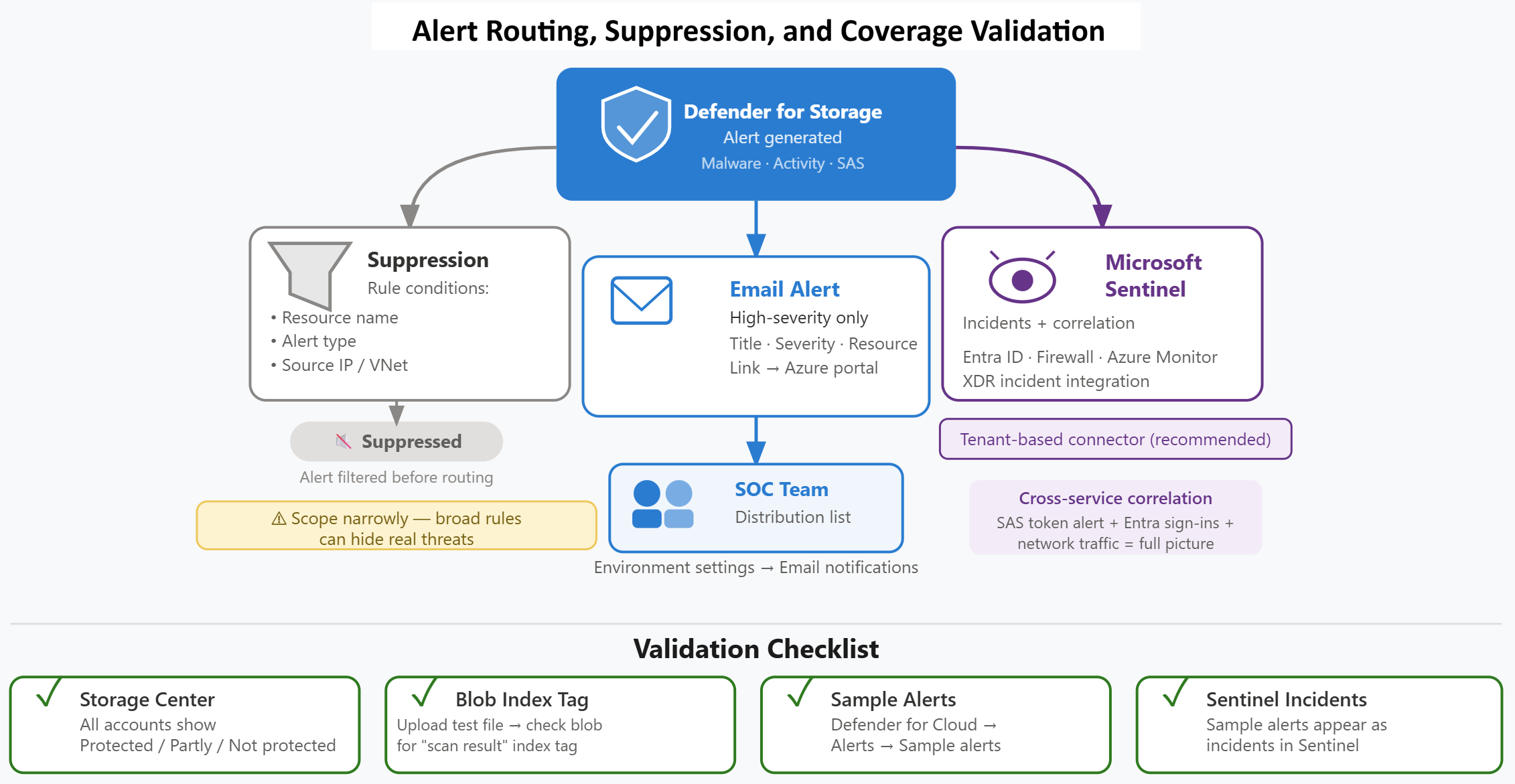
| Alert destination | Configuration method | Purpose | Typical recipients |
|---|---|---|---|
| Email notifications | Defender for Cloud email settings | High-priority alert awareness | SOC team distribution list, security leadership |
| Microsoft Sentinel | Defender for Cloud data connector | Centralized incident management | SOC analysts (via Microsoft Sentinel incidents) |
| Alert suppression rules | Defender for Cloud suppression configuration | Reduce noise from expected behaviors | N/A (filters alerts before routing) |
Configure email notifications for critical alerts
Email notifications provide immediate awareness of high-severity detections without requiring SOC analysts to actively monitor dashboards. You configure email recipients in Microsoft Defender for Cloud's environment settings, specifying distribution lists or individual addresses that should receive alerts.
Organizations typically route Defender for Storage alerts to the SOC team's primary distribution list rather than individual engineers' inboxes. When Defender detects a malicious file upload in Contoso's partner storage account, the alert reaches the entire SOC team, ensuring coverage during shift changes and allowing the on-call analyst to begin investigation immediately.
To configure email notifications, navigate to Microsoft Defender for Cloud, select Environment settings, choose the subscription containing your storage accounts, and select Email notifications. Specify the recipient addresses and configure notification preferences for high-severity alerts. Organizations often enable notifications only for high-severity alerts to prevent alert fatigue while ensuring critical threats receive immediate attention.
The email notification includes the alert title, severity, affected resource, and a link to the full alert details in the Azure portal. The notification provides enough context for the SOC team to assess urgency and begin triage, while the portal link allows analysts to access complete investigation data.
Route alerts to Microsoft Sentinel for centralized incident management
Microsoft Sentinel integrates with Defender for Cloud to convert security alerts into incidents that SOC analysts investigate using Microsoft Sentinel's case management workflow. The integration allows organizations to centralize alert handling from Defender for Storage, Defender for Cloud, and other security services in a single platform.
You establish the integration by connecting Defender for Cloud as a data source in Microsoft Sentinel. Navigate to Microsoft Sentinel, select Data connectors, and search for Microsoft Defender for Cloud. Two connectors appear in the results: the Tenant-based Microsoft Defender for Cloud (Preview) connector and the Subscription-based Microsoft Defender for Cloud (Legacy) connector. Select the tenant-based connector for new deployments—it collects alerts across your entire tenant without per-subscription configuration and integrates with Defender XDR to ensure all Defender for Cloud alerts surface in Microsoft Sentinel. Once connected, Defender for Storage alerts flow automatically to Microsoft Sentinel as security incidents, giving the SOC team a centralized view of storage threats alongside alerts from other security services.
For Contoso's implementation, routing alerts to Microsoft Sentinel enables cross-service correlation. When Defender for Storage generates an alert for a suspicious SAS token, Microsoft Sentinel can correlate it with sign-in logs from Microsoft Entra ID, network traffic data from Azure Firewall, and application logs from Azure Monitor. This correlated view gives the SOC team the context needed to distinguish a compromised token from a legitimate access pattern or a misconfigured AI agent.
Organizations configuring Microsoft Sentinel integration should validate that alert severity mappings align with their incident response procedures. Defender for Storage high-severity alerts should generate high-priority Microsoft Sentinel incidents, ensuring the SOC team treats storage threats with appropriate urgency.
Create alert suppression rules to reduce noise
Alert suppression rules filter out expected behaviors that would otherwise generate alerts, reducing the volume of notifications reaching the SOC team. Organizations use suppression rules when legitimate application patterns trigger Defender's anomaly detection algorithms, creating noise that obscures genuine threats.
Contoso's AI document processing pipeline generates alert noise because the AI agents make high-volume sequential read operations on blob containers—behavior that resembles automated data exfiltration. The security team knows this pattern is legitimate because it represents normal AI inference operations. Rather than training SOC analysts to ignore these alerts, they create a suppression rule scoped to the specific storage account and alert type.
To create a suppression rule, navigate to Microsoft Defender for Cloud, select Alerts, and choose Suppression rules. Define the rule conditions: resource name matching the AI processing storage account, alert type matching "Potential data exfiltration detected," and optionally, source IP address matching the AI application's virtual network range. When Defender generates alerts matching these conditions, the system suppresses them automatically rather than routing them to email or Microsoft Sentinel.
Organizations apply suppression rules carefully, validating that the suppressed behavior is truly expected. Overly broad suppression rules can hide genuine threats. Contoso's rule suppresses only the specific combination of resource, alert type, and source network that matches their AI pipeline's known behavior. If the AI application begins accessing different storage accounts or making requests from unexpected network locations, those conditions don't match the suppression rule. Defender generates alerts normally in those cases.
Validate coverage with Storage Center verification
Storage Center provides the central view for confirming that Defender for Storage is enabled correctly across your environment. After configuring deployment through Azure Policy or resource-level settings, you verify coverage by accessing Storage Center in the Azure portal. Storage Center became generally available in April 2026 as a native Azure portal experience—accessible alongside your storage resources—that provides a centralized, storage-native view of Defender for Storage protection status.
The dashboard displays protection status for all storage accounts organized by service type: Blob Storage and Azure Files. Each account appears as Protected, Partly protected, or Not protected. Organizations review this view immediately after initial deployment to identify coverage gaps—accounts where Defender wasn't enabled or where configuration didn't apply correctly.
For ongoing operations, Storage Center verification becomes part of regular security reviews. Contoso's security team reviews Storage Center monthly to identify new storage accounts created by development teams. When a new account appears in the unprotected state, they evaluate whether it requires Defender protection or should be explicitly excluded. This periodic review prevents coverage drift as the Azure environment evolves.
Confirm malware scanning is active
Verifying malware scanning requires confirming that uploaded files receive scan result tags. You validate scanning by uploading a test file to a protected storage account, then checking the blob metadata for the scan result tag.
After upload, query the blob metadata using Azure Storage Explorer, PowerShell, or the Azure CLI. Look for the blob index tag Malware scanning scan result with a value of No threats found or Malicious. Blobs that couldn't be scanned show Error or Not scanned instead. A second tag—Malware scanning scan time (UTC)** - is also written to each scanned blob by default. The presence of a Malware scanning scan result tag confirms that Defender analyzed the file content. If either tag is missing, malware scanning can’t be enabled for the account, or the monthly scanning cap can is reached.
Organizations should test malware scanning in production storage accounts used by AI pipelines and external upload scenarios. Testing in development accounts only doesn't confirm that production configurations are correct. Contoso uploads a test document to their partner upload account and verifies the scan result tag appears, confirming that external partner files receive malware analysis as intended.
Validate alert routing with sample alerts
Microsoft Defender for Cloud provides a sample alerts feature that generates test alerts for validation purposes. These synthetic alerts allow you to confirm that email notifications deliver correctly and that Microsoft Sentinel integration is working without waiting for genuine security incidents.
To generate sample alerts, navigate to Microsoft Defender for Cloud, select Alerts, and choose Sample alerts. Select the Defender for Storage alert types you want to test, such as "Unusual access pattern detected" or "Suspicious SAS token used." Defender creates sample alerts that appear in the alerts list, trigger email notifications if configured, and flow to Microsoft Sentinel if the data connector is established.
After generating sample alerts, verify that they arrive at the expected destinations. Check that the SOC team distribution list receives email notifications. Confirm that Microsoft Sentinel creates corresponding incidents. Review alert content to ensure the information provided supports effective triage. This validation process identifies configuration errors before genuine threats occur, ensuring the SOC team has functional alerting when detections matter.
For Contoso's deployment, validating the "Suspicious SAS token used" alert type is important. This alert detects the AI agent and application scenarios that their previous security controls couldn't address—entities without identities using access tokens in unexpected ways. Confirming that these alerts route correctly to Microsoft Sentinel ensures the SOC team can respond when compromised SAS tokens are detected in the AI document pipeline.
With alert routing configured and coverage validated, Defender for Storage operates as the threat detection layer in Contoso's defense-in-depth strategy. The SOC team receives actionable alerts about malware uploads, suspicious activity patterns, and compromised access tokens, enabling them to respond to storage threats before damage occurs.