Apply Git version control best practices
Data engineering projects require systematic tracking of code changes, collaboration across teams, and the ability to reproduce work reliably. When you apply version control best practices using Git within Azure Databricks, you establish a foundation for professional development workflows. Git folders integrate directly into your workspace, providing a visual interface for managing repositories without leaving your development environment.
Understand Git folders in Azure Databricks
Git folders bring version control capabilities into your Azure Databricks workspace through a visual Git client and API. This integration lets you perform standard Git operations such as cloning repositories, creating branches, committing changes, and pushing updates directly from the workspace interface. You don't need to switch between external tools and your development environment.
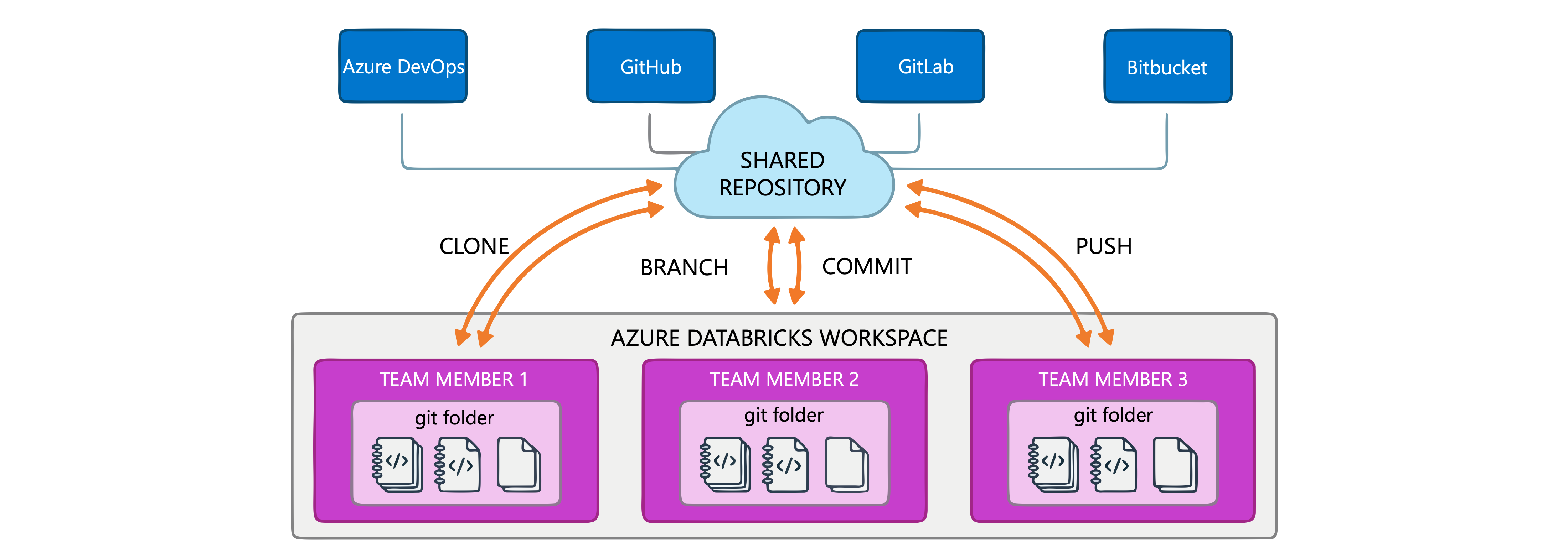
When you create a Git folder, you connect it to a remote repository hosted by providers like Azure DevOps, GitHub, GitLab, or Bitbucket. The folder mirrors your repository structure, allowing you to work with notebooks, Python files, SQL scripts, and other supported assets while maintaining version control. All team members can have their own Git folders mapped to the same remote repository, enabling collaboration through shared branches and coordinated commits.
Tip
Each team member should work in their own Git folder connected to the shared repository. This practice prevents accidental branch switches or conflicts that can occur when multiple users perform Git operations on the same workspace folder.
Clone a repository to start working
Before you can work with version-controlled code in Databricks, you need to clone your team's repository. Cloning creates a local copy of the remote repository in your workspace, giving you access to the latest codebase.
To clone a repository:
- In the sidebar, select Workspace and navigate to where you want to create the Git folder.
- Select Create > Git folder.
- Enter the Git repository URL in the format
https://example.com/organization/project.git. - Select your Git provider from the dropdown menu.
- Provide a name for the folder in your workspace.
- Select Create Git folder.
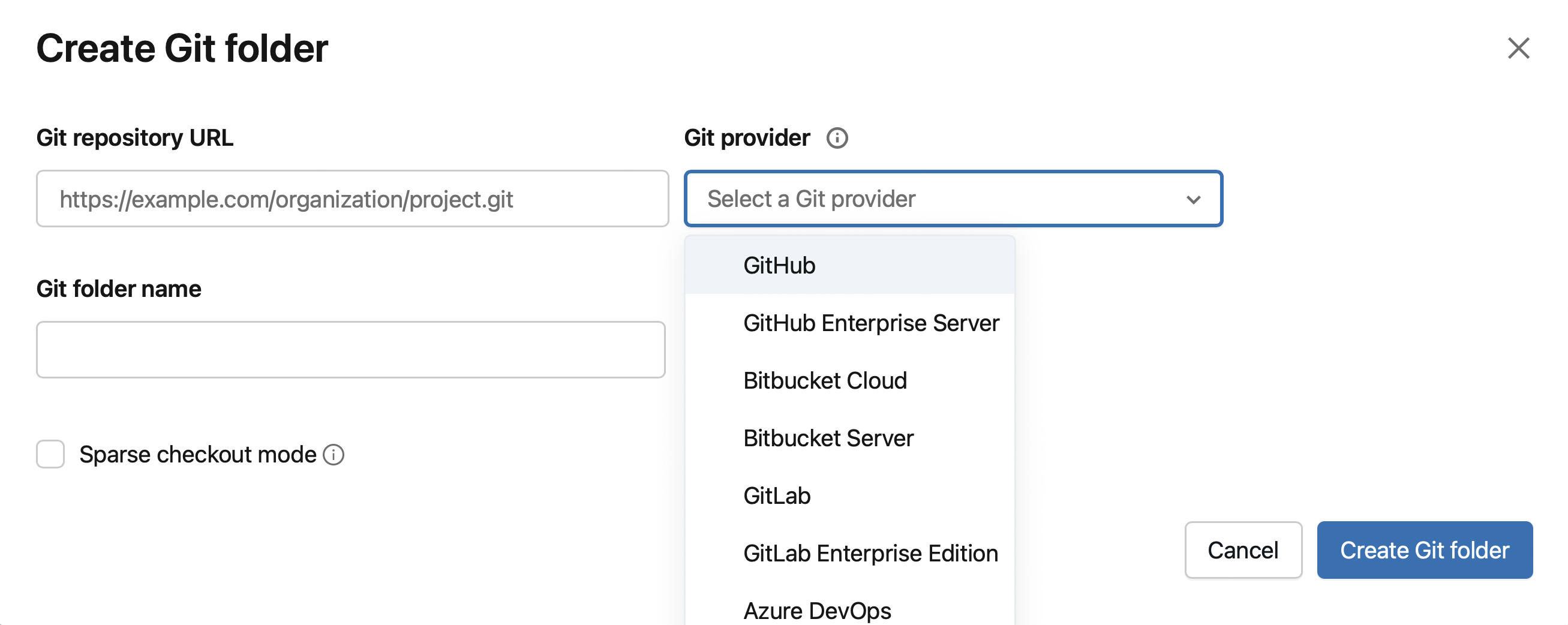
After cloning, the repository contents appear in your workspace. You can open notebooks, edit files, and begin development immediately.
Pull changes from the remote repository
When collaborating with a team, others push changes to the shared repository that you need to incorporate into your local work. Pulling updates ensures you're working with the latest version of the codebase.
To pull changes:
- Open the Git dialog.
- Select Pull to fetch and merge changes from the remote repository.
- If conflicts exist between remote changes and your local modifications, resolve them using the conflict resolution interface.
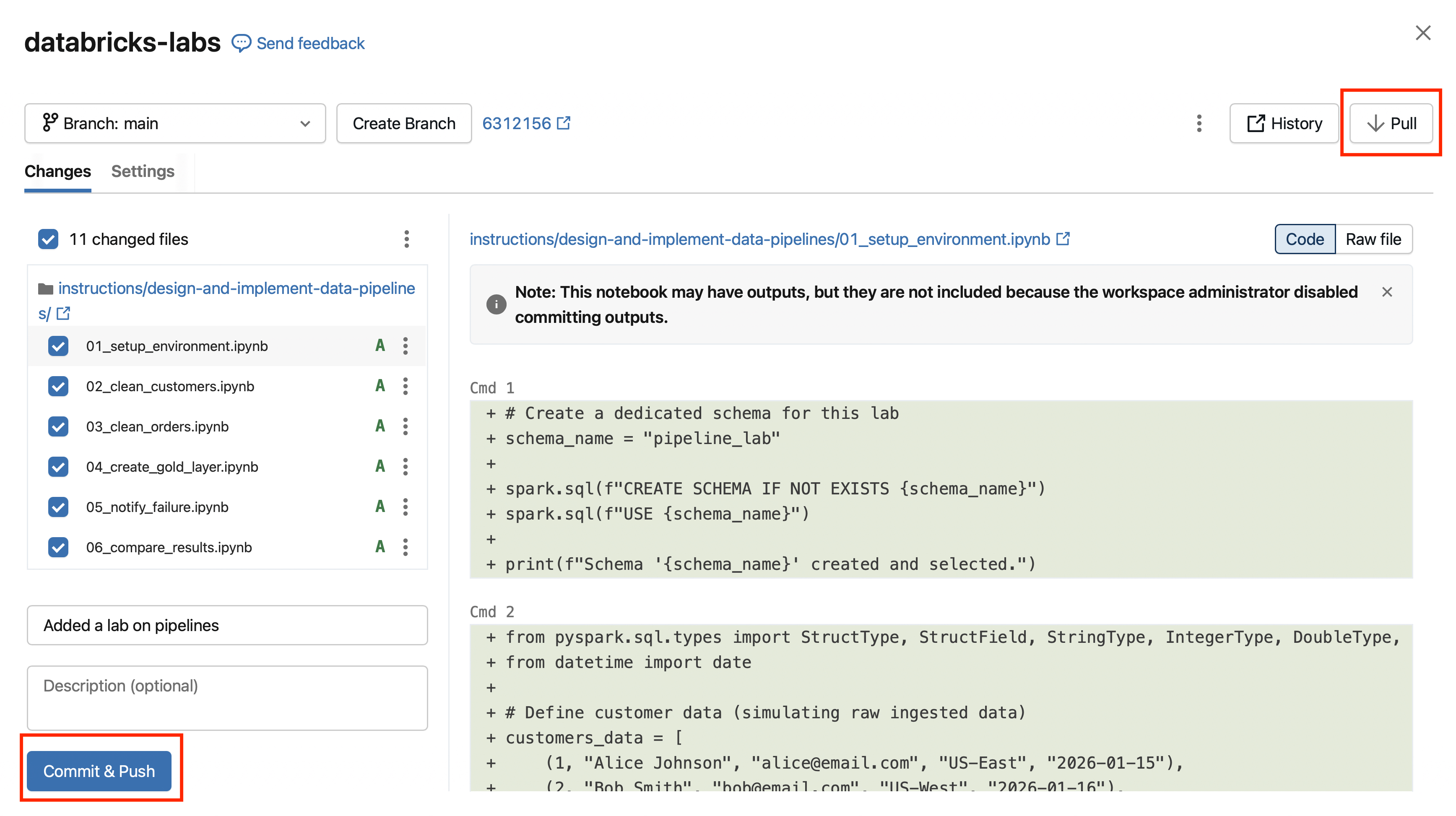
Pull regularly, especially before starting new work, to minimize integration issues. When you pull changes that modify notebook source code, the notebook state resets. This means cell outputs, comments, and version history for that notebook clear to reflect the updated content.
Keep your repository organized
A well-organized repository makes collaboration easier and reduces confusion. Apply these practices to maintain a clean, navigable codebase:
- Use
.gitignorefiles to exclude files that shouldn't be tracked, such as temporary outputs, credentials, or environment-specific configurations. Files already tracked by Git require explicit removal before.gitignoreapplies to them. - Structure folders logically by grouping related notebooks, libraries, and configuration files. Git folders support creating structures at any depth under your user directory.
- Remove stale branches from your Git provider after merging to keep the branch list manageable. Local branches persist for up to 30 days after the remote branch is deleted.
Note
Git folders have size constraints. Working branches are limited to 1 GB, and Databricks recommends keeping the total number of assets below 20,000. For large repositories, consider using sparse checkout to work with only the directories you need.
When everyone follows consistent organization practices, team members can find what they need quickly and understand how the codebase fits together.